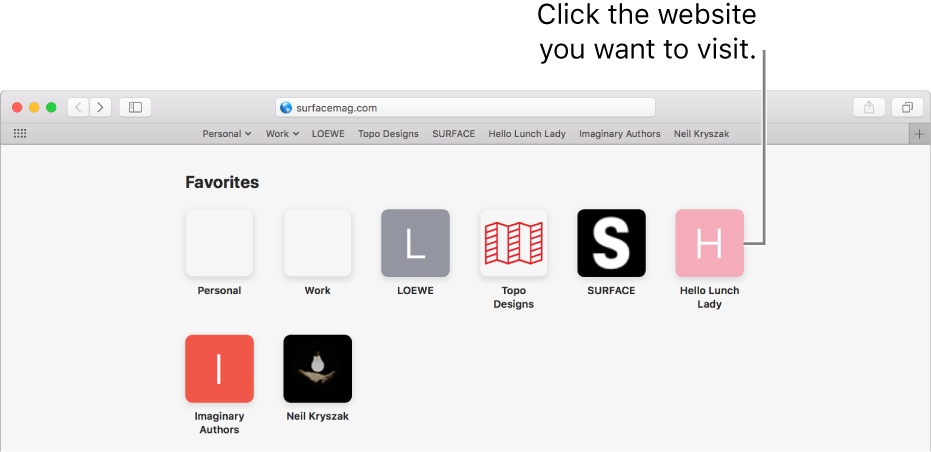
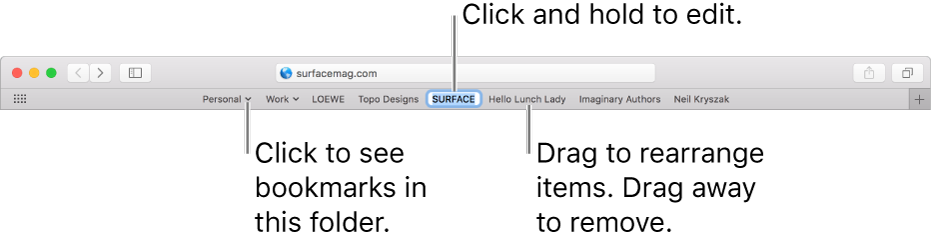
You can quickly see websites you access frequently by adding them as favorites, so you can get to them with just a click. For example, you can view the Favorites page, or click in the Smart Search field, or use the Favorites bar. You can also see your most-visited sites in Top Sites.
Add a Favorite: Move the pointer over the Smart Search field, click and hold the One-Step Add button 👁 Image that appears at the left end of the field, then choose Favorites.
You can also click in the Smart Search field, then drag the URL of the webpage you’re viewing to the Favorites view, or drag a URL or bookmark to the Favorites page, Favorites bar, or Favorites folder in the sidebar.
Organize your Favorites
Rearrange your Favorites: Drag them to different locations.
Edit a favorite website or folder name: Control-click the name you want to change in the Favorites page or Favorites bar, then choose Rename from the shortcut menu. You can also force click the name, or click and hold it until it’s highlighted, then enter a new one.
Remove a favorite website: Drag the favorite website away from the Favorites page or Favorites bar, then let it go when you see the Remove icon 👁 Image . You can also Control-click the Favorite, then choose Delete from the shortcut menu.
Show a different bookmarks folder in Favorites: Choose Safari > Preferences, click General, then use the “Favorites shows” pop-up menu.
Show or hide frequently visited sites in Favorites: Choose Bookmarks > Show Frequently Visited in Favorites.
Frequently visited sites are listed below your Favorites on the Favorites page.
View your Favorites
View the Favorites page: Choose Bookmarks > Show Favorites. If you don’t see Show Favorites, choose Safari > Preferences, click General, then click the “New windows open with” pop-up menu and choose Favorites.
You can also see the Favorites page when you open new tabs. If you don’t see the Favorites page in new tabs, change settings in Safari General preferences on Mac.
View your Favorites from the Smart Search field: Click in the Smart Search field to see your favorite websites, then click the icon of the website you want to visit. The Favorites view goes away if you start typing, and it doesn’t appear if you click the field while you’re viewing the Favorites or Top Sites page.
Open a favorite website: Click the website from the Favorites page, from the Favorites view that appears when you click in the Smart Search field, or from the Favorites bar (or use the Touch Bar).