|
VOOZH | about |
|
VOOZH | about |
We’re so glad you’re here. You can expect all the best TNS content to arrive Monday through Friday to keep you on top of the news and at the top of your game.
Check your inbox for a confirmation email where you can adjust your preferences and even join additional groups.
Follow TNS on your favorite social media networks.
Become a TNS follower on LinkedIn.
Check out the latest featured and trending stories while you wait for your first TNS newsletter.
Coders live in the command line. We use terminal all day, every day, no matter Which Of The Things we are building, or fixing, or banging our foreheads on our ergonomic desks over. So it makes absolute sense to tweak the terminal environment to make it comfy and liveable. Consider how, for example, running brew install (whatever) delivers its results in color-keyed message and instructional text. This not only renders the text physically easier to read, but also makes it much quicker for us to grasp the meaning and act on it.
Of course there are all kinds of libraries and plug-ins out there designed to let us redecorate the terminal to our hearts’ content, but — ultimately — how much fun really is there to be had by installing someone else’s pre-packaged design choices? With a few simple exercises in command-line-fu, our next bash script can be colorfully formatted and way more user-friendly — all with zero config, and installing exactly zero plug-ins.
Note: I’m assuming bash, here. I’m so not getting into any zsh-vs-bash-vs whatever debate. Bash is the default shell on virtually every UNIX system, meaning it is highly portable and that, once you get used to it, you can use it practically everywhere. It all comes down to personal preference, and bash is mine. Also, bash is the default shell on Mac and most Linux systems; if you’re a Windows user, I got nothin’ — try checking out Cygwin for creating that beautiful bash experience on your box.
Your prompt — the text that appears before your cursor in bash, like Leons-Macbook-Pro:~LeonJenkins$ — is actually defined by a variable called PS1. You can inspect the current value of this variable by simply typing ‘echo $PS1’ into your terminal prompt (‘echo’ tells the terminal to simply print out whatever follows). Be warned: you’re going to get back some chicken-scratch looking escaped characters, similar to Regex. (Wanna learn regular expressions, which is a universal shortcut language for text all its own? Sweet! Check out this TNS regex tutorial)
If you’ve never before messed with your prompt, PS1 is most likely going to return ‘\h:\W \u\$’ — a string of escaped characters representing hostname (\h), working directory (\W), and username (\u). Not exactly pretty, is it?
One of the very first useful pieces of coding advice I ever received, upon venturing into the previously uncharted waters of the vi command line text editor, was to change my bash prompt to something brief and memorable. So we are starting by simply getting rid of hostname — most of us know darn well which host we’re using, thanks.
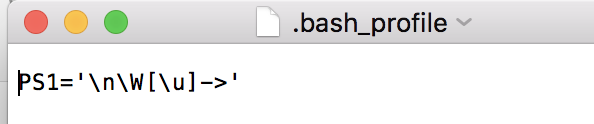
Having set your prompt to current working directory and your username, then an arrow (instead of the classic ‘$’, just for fun!), you should see:
From here, you can play around with changing username to something truly short and sweet — for example, turn “LeonJenkins” into simply “Leon”. (Obviously, you should substitute your own username and variation here, unless you happen to be THE Leon Jenkins. In which case, please PM me).
Serious prompt customization is outside the scope of this guide, but you can learn plenty by simply messing around with it. If you’re serious about rolling your own, the Bash Reference Manual’s Controlling the Prompt is a primer for escape sequences.
By default, terminal is a no-nonsense monochrome environment.
Fortunately, bash got built-in color codes! For example, ‘\e[1;31m’ is the code for red, which can be combined with other text or commands in terminal:
Unfortunately, once you’ve told terminal to go red, it stays red. You can type “reset” to revert to the default monochrome… which clears the color, but also the entire screen. Or, you can add ‘\e[0m’ — the color code for white — to the end:
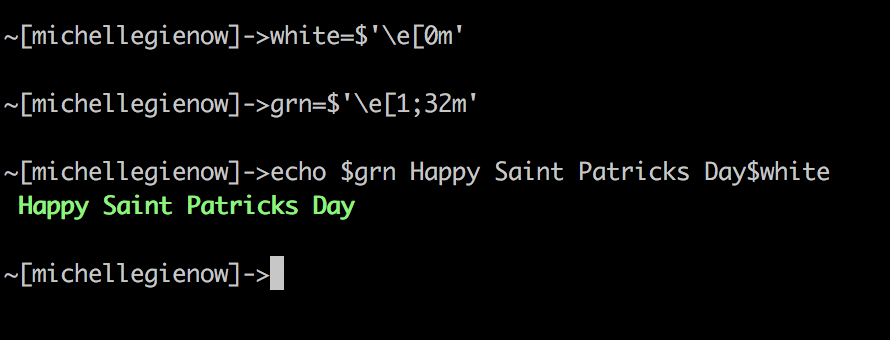
Yes, this is cumbersome. So, remembering that bash is a place we can write scripts to do stuff, let’s bring in some variables. There are all kinds of choices you can assign: font color, background highlight color, bold, italic, underlined — even blinking text, if you want to get obnoxious with it. However, to stay with our simple example, assign a variable with the name of your choice, then the equal sign with no spaces (important), and then $’code name here’ — codename must be inside single quotes — to apply styles to terminal text. Mix and match!
red=$’\e[1;31m’
grn=$’\e[1;32m’
white=$’\e[0m’
bakcyn=$’\e[46m’
This is an extremely basic example, obviously, with the point being you can drop these variables into any shell scripts you write and go to town. The easiest way is to copy a standard cheat sheet of color and font style codes into your .bash_profile as variables, and you can call on them from then on to your creative, colorful heart’s content.
Or, as we call ‘em now, emojis. (When I was a kid, we made our OWN emojis from ASCII characters, and we LIKED it).
This is a bit trickier, in that it depends on your operating system, but couldn’t be easier in practice: just copy/paste the emojis directly into terminal. (You can also assign your faves to variables in your .bash_profile, for fast shorthand access).
Ok, so these aren’t actually visual effects, but rather a couple super-handy command line shortcuts I’ve come to really love. These are ways to alter the Readline capabilities built into bash, that somehow nobody ever mentions when you first start traversing the terminal. Maybe because they’re so useful and obvious that we immediately internalize and take them for granted? In any case, if you are new to all this, get thee immediately to that Readline link above and see all the other sweet CLI tools.
There is $set show-all-if-ambiguous. You know how you can start typing a filepath name and tab to autocomplete, right? Or at least attempt to, but tabbing too early rings the Dreaded Ding of Shame. This is called the completion function. Terminal default for this show-all-if-ambiguous option is “off”; switching it to “on” (i.e.just simply open terminal and type it in if you’re totally new to this) means that words with more than one possible completion will list all matches immediately, instead of ringing the bell.
Also, try: $set completion-ignore-case on. The default is “off” for this. Setting it to “on” allows filename matching and completion while ignoring upper or lower case. Meaning that camelCase is no longer going to cause camelCursing. At least as much.
Photo by Ash Edmonds on Unsplash.