



Ubuntu since 22.04 has Firefox web browser pre-installed as Snap package that runs in sandbox. While, the native .deb package in system repository is just an empty wrapper.
If you prefer the .deb package, then here’s how to install it back in Ubuntu 22.04, Ubuntu 24.04, and Ubuntu 26.04 via the 2 ways below:
- Mozilla Team PPA maintained by Ubuntu Team members.
- Mozilla’s new apt repository maintained by Firefox developer team!
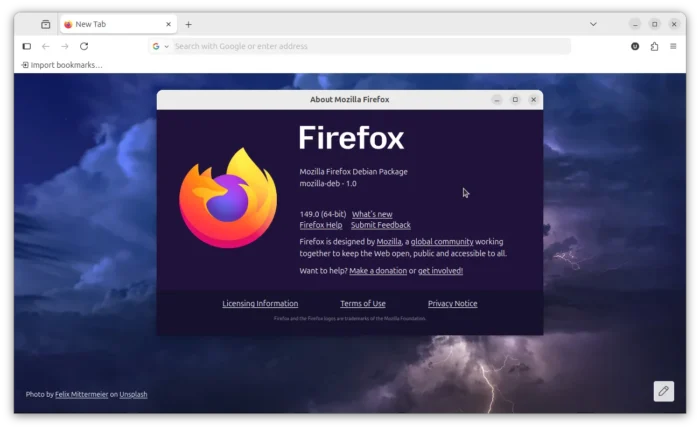
Remove the pre-installed Firefox Snap package (Optional)
NOTE: Export bookmarks and backup other important data before removing it!
It’s OK to keep the default Snap package. But it will cause duplicated Firefox icons in app launcher after installed .deb version.
To remove it, press Ctrl+Alt+T on keyboard to open terminal. Then, run the command:
sudo snap remove --purge firefox
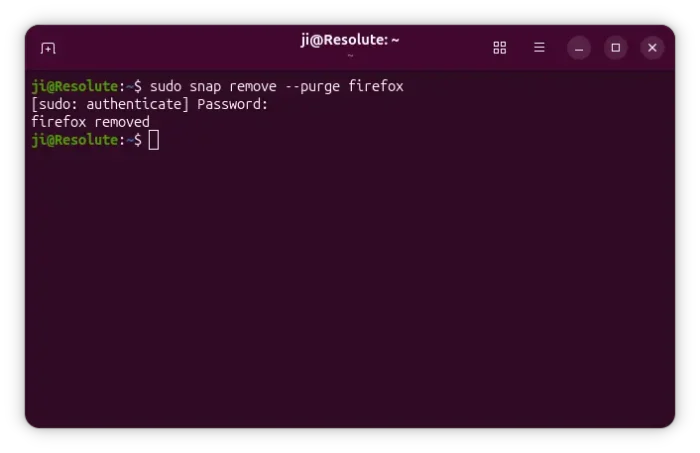
Also, remove the empty Deb package by running command:
sudo apt remove firefox firefox-locale-*
Option 1: Install Firefox via “Mozilla Team” team PPA
The team described that it has assumed responsibility for Ubuntu’s official Firefox and Thunderbird packages.
And, the Firefox and Firefox ESR package maintainer for “Mozilla Team” team PPA, Rico Tzschichholz, is a well-known Ubuntu user who also maintains the official packages for LibreOffice, Plank dock, and unbound DNS server.
1. Add Mozilla Team PPA
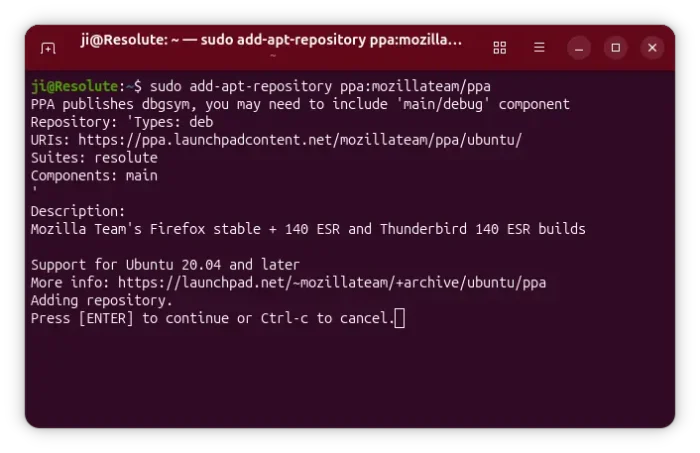
In terminal (Ctrl+Alt+T), run the command below to add the PPA. Type user password (no asterisk feedback) when it asks and hit Enter to continue.
sudo add-apt-repository ppa:mozillateam/ppa
As the PPA description indicates, the PPA was previously created for Firefox ESR and Thunderbird. It now contains the latest Firefox too.
2. Set PPA priority:
The empty Firefox deb in Ubuntu’s official repository has version number 1:1snap1-0ubuntu2. Which is always higher than the PPA package version. Installing package updates either via sudo apt upgrade or ‘Software Updater’ will automatically install that one which redirects to Snap.
To workaround the issue, you have to set a higher PPA priority. To do so, run the command below in terminal (Ctrl+Alt+T):
sudo gnome-text-editor /etc/apt/preferences.d/mozillateamppa
For Ubuntu 22.04 and earlier, replace gnome-text-editor in command with gedit, or use nano that works in all the desktop environments.
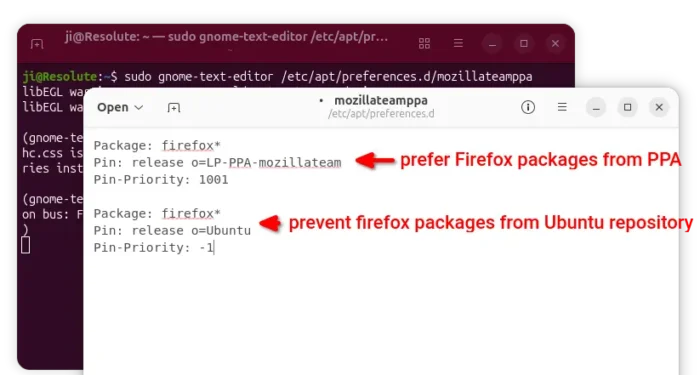
The command creates and opens empty config file for apt package manager. When it opens, add the lines below and save it:
Package: firefox*
Pin: release o=LP-PPA-mozillateam
Pin-Priority: 1001Package: firefox*
Pin: release o=Ubuntu
Pin-Priority: -1
For nano text editor, press ctrl+s to save file, and ctrl+x to exit.
👁 Image
After saving the file, run sudo apt update command in terminal to apply changes.
sudo apt update
3. Install Firefox via apt
Tip: the commands in this step also installs Firefox for the old Ubuntu 16.04. Though sudo apt update need to be run first.
Finally, run the command below to install the latest Firefox package as deb:
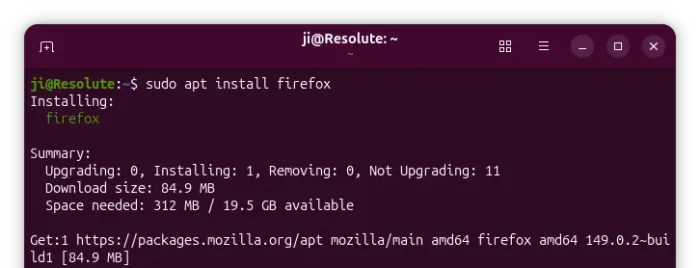
sudo apt install firefox
The -t 'o=LP-PPA-mozillateam' flag is no longer required after setup PPA priority.
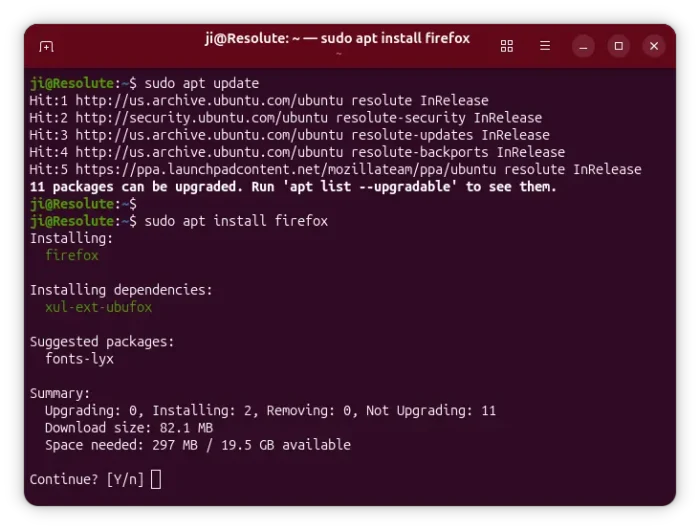
For choice, you may install Firefox ESR instead. It’s another official Firefox package that moves slowly and targets for school or enterprise use.
sudo apt install firefox-esr
Option 2: Install Firefox via its official repository
Mozilla’s new apt repository contains 4 versions of Firefox packages: Firefox Stable, Firefox Beta, Firefox Development Edition, and Firefox Nightly. It’s a good choice for Ubuntu & Debian users.
1: Get Repository Key file
To add the new repository, you need to first download & install the key, so your system will trust the packages from it.
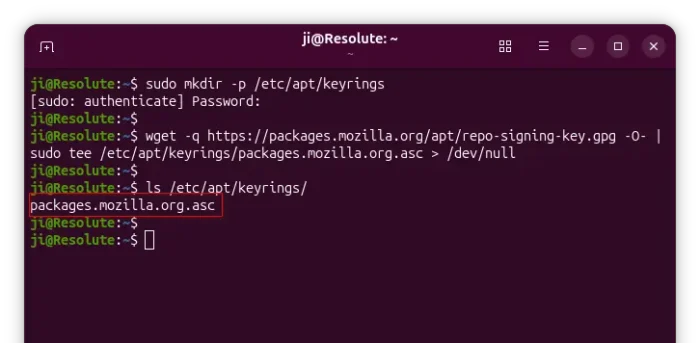
First, press Ctrl+Alt+T on keyboard to open terminal. When it opens, run command to make sure ‘/etc/apt/keyrings’ exist for storing the keys.
sudo mkdir -p /etc/apt/keyrings
Then, download & install the key by running the single command below in terminal:
wget -q https://packages.mozilla.org/apt/repo-signing-key.gpg -O- | sudo tee /etc/apt/keyrings/packages.mozilla.org.asc > /dev/null
After that, you can verify the new key file by listing the content of that directory via command ls /etc/apt/keyrings.
2: Add Mozilla’s apt repository
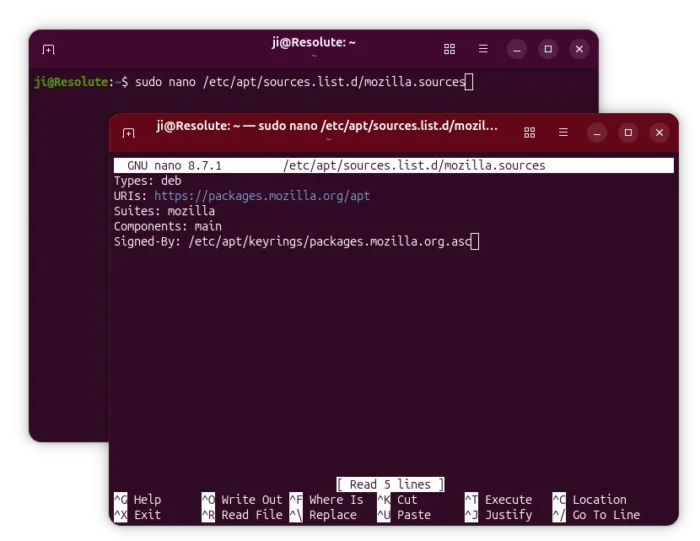
Also in a terminal window, run the single command below will create a config file and edit it via nano command line text editor.
sudo nano /etc/apt/sources.list.d/mozilla.sources
When file opens (in terminal), copy’n’paste (Ctrl+Shift+V) following lines:
Types: deb
URIs: https://packages.mozilla.org/apt
Suites: mozilla
Components: main
Signed-By: /etc/apt/keyrings/packages.mozilla.org.asc
Finally, press Ctrl+S to save and Ctrl+X to exit the nano text editor.
3. Set apt repository priority:
Also you need to set higher priority for the Mozilla’s repository, so Ubuntu will install Firefox from it rather than the snap package.
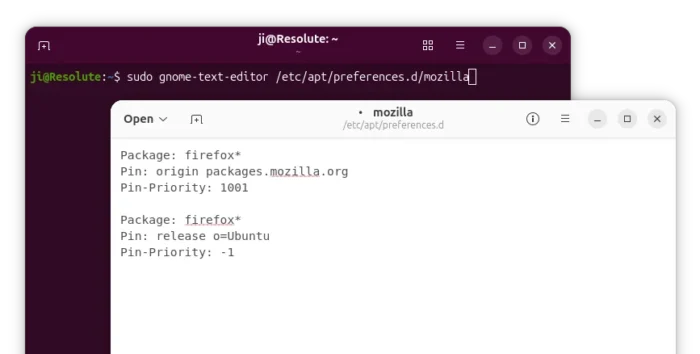
To do so, run command to create & edit the config file:
sudo gnome-text-editor /etc/apt/preferences.d/mozilla
Also, replace gnome-text-editor with gedit for Ubuntu 22.04 and earlier, or use nano command line editor that works in most desktop environments.
When file opens, add following lines and save it (For nano, press ctrl+s to save, and ctrl+x to exit).
Package: firefox*
Pin: origin packages.mozilla.org
Pin-Priority: 1001Package: firefox*
Pin: release o=Ubuntu
Pin-Priority: -1
The priority values tell to prefer Firefox package from Mozilla repository, and prevent auto-install the one from Ubuntu repository.
4. Install Firefox:
Finally, refresh your system package cache by running command in terminal:
sudo apt update
And, install Firefox from that repository via command:
sudo apt install firefox
You may also use firefox-beta, firefox-devedition, or firefox-nightly in last command to install other versions.
How to Restore Firefox Snap:
To restore the pre-installed Snap package, or uninstall the .deb package, first remove the repositories:
- To remove the Mozilla Team PPA, either launch ‘Software & Updates‘ utility and delete the source line under Other Software tab, or run the command below in terminal:
sudo add-apt-repository --remove ppa:mozillateam/ppa
- To remove the Mozilla apt repository, simply delete the source and key files, by running command in terminal:
sudo rm /etc/apt/sources.list.d/mozilla.sources /etc/apt/keyrings/packages.mozilla.org.asc
Also remove the configuration file that changed the pin-priority by running command:
sudo rm /etc/apt/preferences.d/mozilla /etc/apt/preferences.d/mozillateamppa
After that, either launch Software Updater to upgrade Firefox or use apt commands below. Both of which will automatically install back the pre-installed Snap package.
sudo apt update
sudo apt install firefox
That’s all. Enjoy!












What about bookmarks and passwords, where are they?