


power-profiles-daemon, the power mode settings backend in Gnome, released 0.20 today!
The new release added amdgpu panel power savings which uses dedicated hardware in systems with integrated Radeon graphics to decrease panel power consumption when the system is on battery.
This activates the DRM connector attribute panel_power_savings which takes a range from 0 to 4 to indicate how aggressively to enable panel power savings.

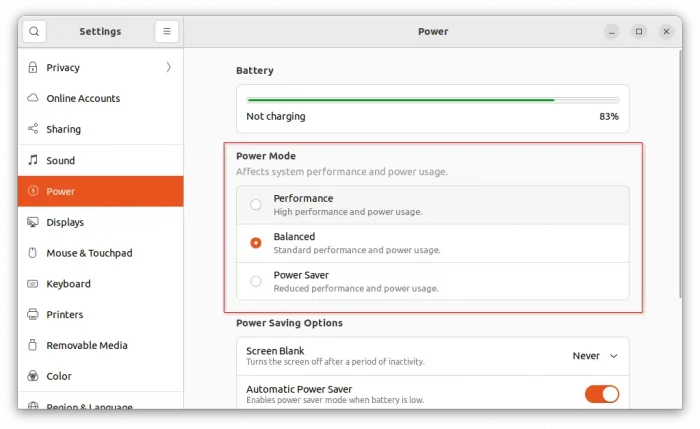
The release also supported multiple power-profiles-daemon drivers to load simultaneously. Which, notably allows both CPU based control with amd-pstate or intel-pstate as well as ACPI platform profile based control.
Due to switch project to the freedesktop ‘Upower’ group. The service now is advertised as org.freedesktop.UPower.PowerProfiles instead of the previous net.hadess.PowerProfiles.
How to Upgrade to Power Profiles Daemon 0.20 in Ubuntu
Mario Limonciello maintains an Ubuntu PPA contains the new package for Ubuntu 22.04, Ubuntu 23.10, and Ubuntu 24.04 on Intel/AMD machine.
NOTE: The PPA package is maintained by the software project member, but not officially supported by Ubuntu.
1. First, press Ctrl+Alt+T on keyboard to open terminal. When it opens, run command to add the PPA:
sudo add-apt-repository ppa:superm1/ppd
Type user password (no visual feedback, just type in mind) when it asks and hit Enter to continue.

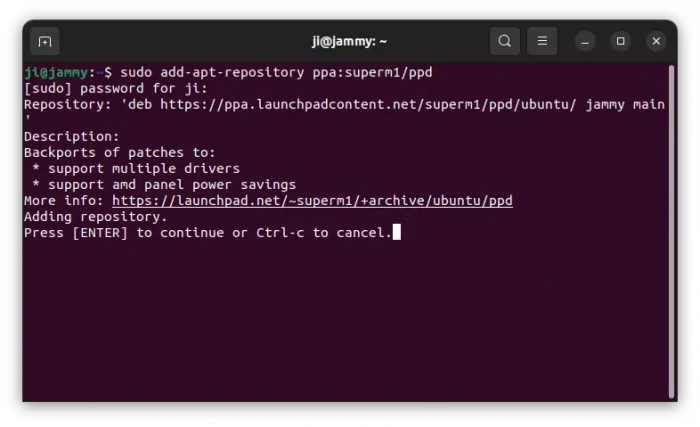
2. After refreshing package cache (it’s automatically while adding PPA), install/upgrade the power profiles daemon by running command:
sudo apt install power-profiles-daemon

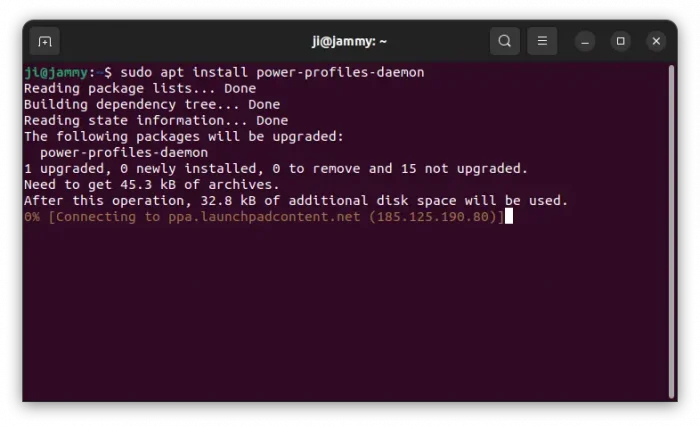
Verify and use power-profile-daemon
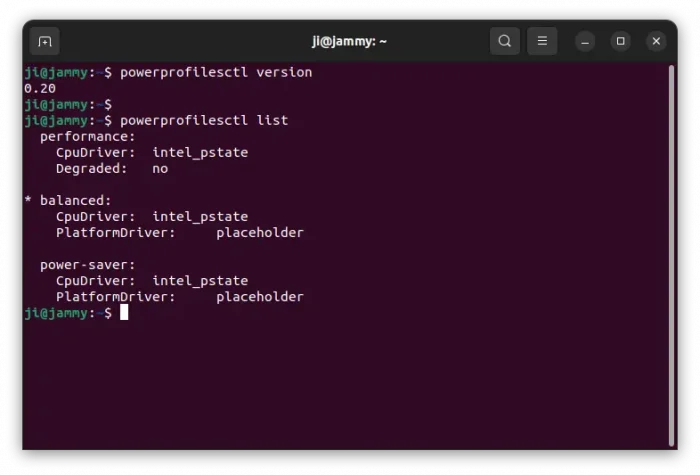
When done updating the service, you may restart computer to apply change. And, verify by running command:
powerprofilesctl version
Besides using the graphical options in Gnome Control Center (System Settings), user may also run commands below to manage power profiles:
powerprofilesctl list– list available power profiles.powerprofilesctl get– get current power profile that’s in use.powerprofilesctl set– set power profile, values includeperformance,balanced, orpower-saver.
For more, run powerprofilesctl -h.

How to Restore
To downgrade the daemon package to the pre-installed version, simply install ppa-purge tool and use it to purge the PPA:
sudo apt install ppa-purge && sudo ppa-purge ppa:superm1/ppd
When done, restart your computer.













Leave a Reply Cancel reply