



For Thunderbird users who don’t like Snap package, here’s step by step guide shows how to replace the pre-installed snap version of the mail client with classic Deb package in Ubuntu 26.04 and 24.04 LTS.
Like Firefox, the Thunderbird Email Client in Ubuntu since 24.04 has been replaced as Snap package that runs in sandbox! If you don’t like the change, then here are 2 other choices:
- Mozilla Team PPA
- Mozilla’s official Linux Tarball.

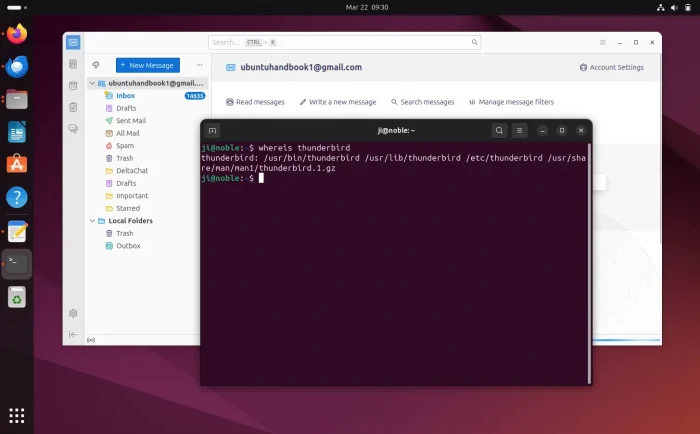
NOTE: This tutorial also works for Ubuntu 20.04 and Ubuntu 22.04 users who want to install the most recent Thunderbird packages.
Step 1: Remove the pre-installed Snap Package
NOTE: Please backup your important data before uninstalling the Thunderbird package.
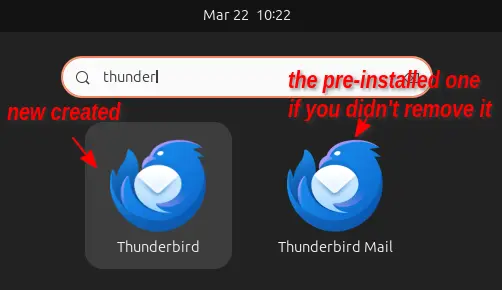
It’s OK to keep the Thunderbird Snap package, but after installing the DEB version there will be duplicated app icons in start menu.
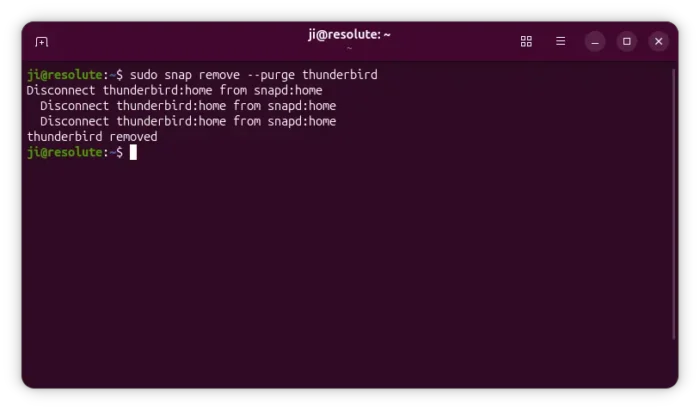
To uninstall the Snap package, press Ctrl+Alt+T to open terminal and run command:
sudo snap remove --purge thunderbird

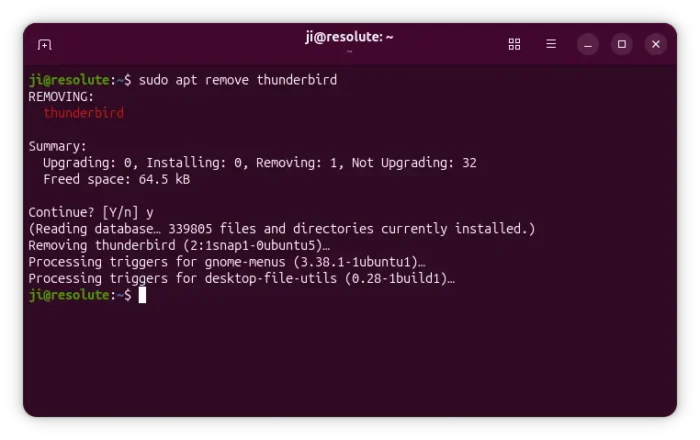
Also, run command to remove the empty .deb package, which is a wrapper that redirects to the Snap package:
sudo apt remove thunderbird
Step 2: Install Thunderbird as DEB package
The Ubuntu Team members have been maintaining the “Mozilla Team” PPA for many years. The PPA contains the latest Thunderbird Stable, Firefox ESR, and Firefox stable as .deb packages.
The PPA is “official” but maintained by Ubuntu Team. So far, it supports Ubuntu 26.04, Ubuntu 25.10, Ubuntu 24.04, Ubuntu 22.04, and Ubuntu 20.04.
1. Add the PPA
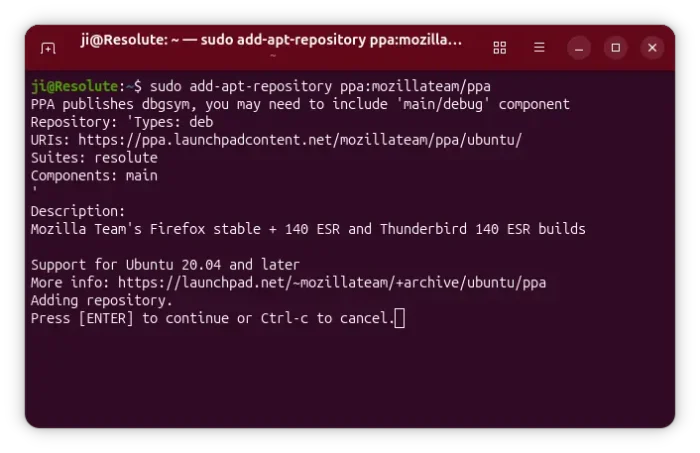
First, press Ctrl+Alt+T on keyboard to open up a terminal window. When it opens, run command to add the PPA:
sudo add-apt-repository ppa:mozillateam/ppa
Type user password (no asterisk feedback, so just type in mind) when it asks and hit Enter to continue.
2. Setup PPA Priority
The Thunderbird DEB package in Ubuntu repository is a wrapper for the SNAP, which has higher version number! You need to setup a higher priority for the PPA package.
To do so, run command to create & edit config file:
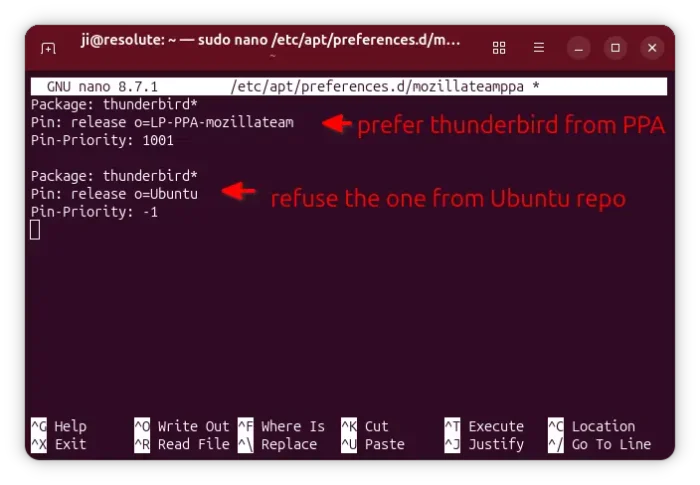
sudo nano /etc/apt/preferences.d/mozillateamppa
Here I user nano text editor works in most desktops. You may replace it with gnome-text-editor for default GNOME, or other editor depends on your desktop environment.
When file opens, paste following lines and save it:
Package: thunderbird*
Pin: release o=LP-PPA-mozillateam
Pin-Priority: 1001
For choice, you may add 3 more lines below:
Package: thunderbird*
Pin: release o=Ubuntu
Pin-Priority: -1
It sets the priority of thunderbird packages from PPA to 1001, and the one from system repository to -1 which will prevent it from being installed.
When done editing the file, press Ctrl+S to save and Ctrl+X to exit.
3. Install Thunderbird Deb package
Now, you need to run the command below to manually refresh system package cache:
sudo apt update
Finally, run apt install command to install the .deb package from PPA:
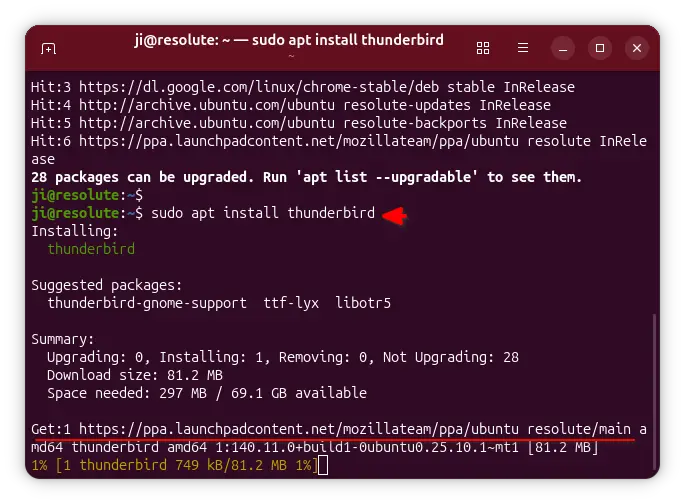
sudo apt install thunderbird
If you everything goes well, it should output that’s getting package from ppa.launchpadcontent.net
Another Way: Install Thunderbird with official Linux tarball
The PPA is a good choice for those who hate running the mail client in sandbox! For choice, user can choose the portable tarball offered by Mozilla.
1. First, click download the Linux tarball from Thunderbird website:
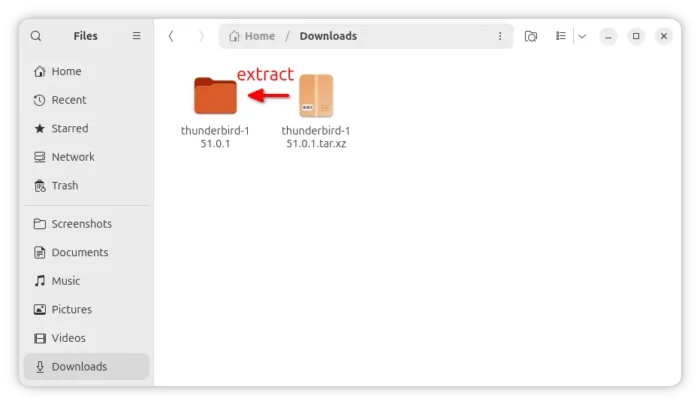
2. Then, open file manager, navigate to Downloads folder, and extract the Thunderbird tarball.
This is a portable package with no installation required. Just navigate to extracted folder, then double-click the “thunberbird” or “thunderbird-bin” file will launch the email client.
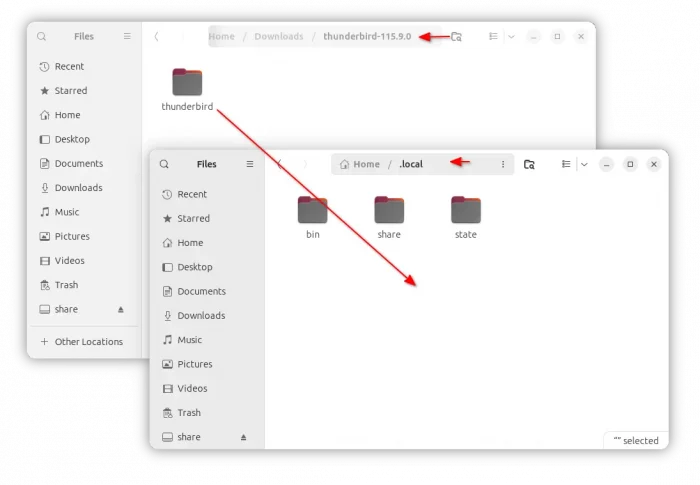
3. If you like the portable package, then you may move it to another location for long time use. And, then create a desktop entry for it, so you can launch it like other apps from start menu (or app grid).
In my case, I moved the “thunderbird” sub-folder into user’s .local folder (press Ctrl+H to view/hide the folder).

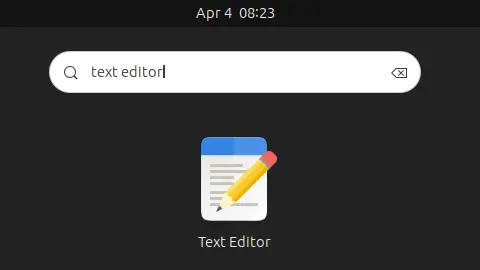
4. Now launch “Text Editor” app and create a new empty document (if it doesn’t do it automatically).

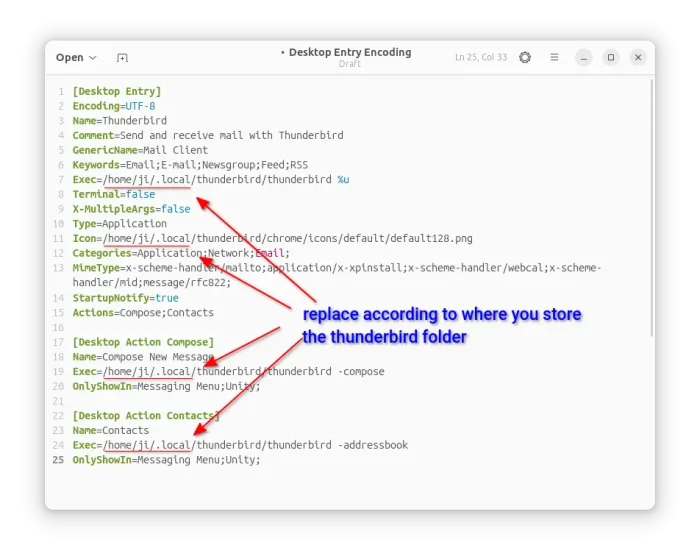
5. In the empty document, paste the following lines (replace username ji to yours!!):
[Desktop Entry]
Encoding=UTF-8
Name=Thunderbird
Comment=Send and receive mail with Thunderbird
GenericName=Mail Client
Keywords=Email;E-mail;Newsgroup;Feed;RSS
Exec=/home/ji/.local/thunderbird/thunderbird %u
Terminal=false
X-MultipleArgs=false
Type=Application
Icon=/home/ji/.local/thunderbird/chrome/icons/default/default128.png
Categories=Application;Network;Email;
MimeType=x-scheme-handler/mailto;application/x-xpinstall;x-scheme-handler/webcal;x-scheme-handler/mid;message/rfc822;
StartupNotify=true
Actions=Compose;Contacts

[Desktop Action Compose]
Name=Compose New Message
Exec=/home/ji/.local/thunderbird/thunderbird -compose
OnlyShowIn=Messaging Menu;Unity;

[Desktop Action Contacts]
Name=Contacts
Exec=/home/ji/.local/thunderbird/thunderbird -addressbook
OnlyShowIn=Messaging Menu;Unity;
NOTE: Replace user ‘ji’ in lines above with yours. And in my case, I put the “thunderbird” folder into user’s ‘.local’ sub-folder. If you moved it to another location, you have replace the PATH (the lines in BOLD) accordingly.

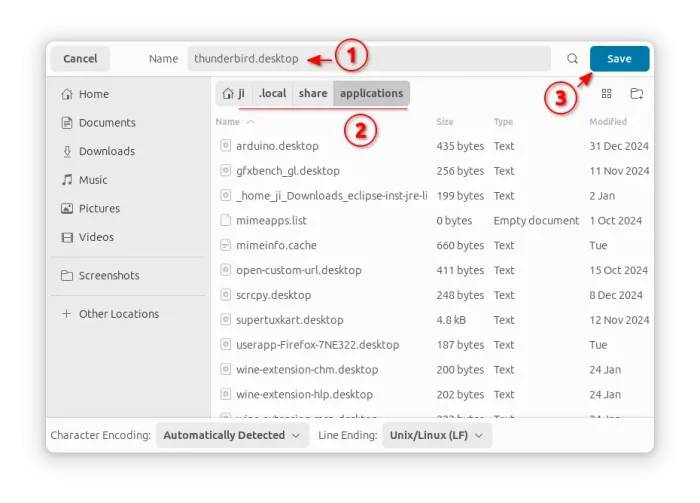
When done editing the document file, press Ctrl+Shift+S to open the “Save As” dialog. Finally, set to:
- save file-name as: thunderbird.desktop.
- save file to: .local/share/applications under user home directory (press Ctrl+H to view hidden folders).

If everything’s done properly, you’ll see the new thunderbird icon in the start menu (or app grid) few moments later.

How to Restore
To uninstall the Thunderbird package installed from PPA, open terminal (Ctrl+Alt+T) and run command:
sudo apt remove --autoremove thunderbird
And, remove the Mozilla Team PPA by running command:
sudo add-apt-repository --remove ppa:mozillateam/ppa
To uninstall the portable tarball package, just run command to delete the corresponding files:
rm -R ~/.local/thunderbird
rm ~/.local/bin/thunderbird ~/.local/share/icons/thunderbird.png ~/.local/share/applications/thunderbird.desktop
If you want to install back the stock Thunderbird Snap package, first delete the custom configuration file you created via this tutorial:
sudo rm /etc/apt/preferences.d/mozillateamppa
Then, either use App Center or run commands below to install:
- First, update system package cache just in case:
sudo apt update
- Install the .deb package (after remove PPA) from system repository, which automatically redirect to the snap package:
sudo apt install thunderbird












There is no thunderbird any more in the PPA.