|
VOOZH | about |
|
VOOZH | about |
| Other languages Deutsch ; ; Español ; Français ; Nederlands ; português brasileiro ; |
During the day to day interactions with a computer, the operating system provides a graphical interface that:
It is this collection of programs that create the interface and utilities provided to the user that is known as a desktop environment.
For most proprietary operations systems such as Microsoft Windows or Mac OSX these environments are a fixed part of the operating system. If you don't like the environment, that is unfortunate, you have no other options.
One of the things newcomers to Linux often find surprising is the fact that there are several desktop environments to choose from. In fact, with Linux systems there are many' alternatives you can try. Welcome to the world of choice!
When you download a Mageia Live CD, you can choose between the Plasma edition, GNOME edition and Xfce edition. These are three of the most popular desktop environments for Linux systems at present, but there are others available that can be installed from within Mageia. If you install from the Live CD you can install other desktop environments to try by installing them from Mageia Control Center. If you download the classic installation, you have the ability to choose from a number of alternatives during the installation process.
There is no right answer to the question posed in this section. But if you're new to the world of Linux, here are some considerations about which may help you choose which desktop environment to try first.
"First step with" themed short intro pages about how to launch Mageia tools and desktop settings per desktop environment.
Note that circled in red are icons used to configure that specific desktop, like theme, cursor, behaviour, ...
Mageia 9 has more than 20 desktop environments and window managers packaged. In essence, making Mageia a good choice for those who desire a customizable graphical user interface.
Here is all DE available, listed by running urpmf /usr/share/xsessions/ | grep .desktop$ | awk -F: '{print $1}' | sort -u
| afterstep awesome cinnamon dwm enlightenment fluxbox fvwm2 fvwm3 fvwm-crystal gnome-classic-session gnome-flashback gnome-session i3 icewm-light kodi liquidshell lxde-common lxqt-session matchbox-desktop mate-session-manager mythtv-frontend openbox pekwm plasma-bigscreen plasma-mediacenter plasma-workspace remmina spectrwm sugar swm windowmaker xfce4-session |
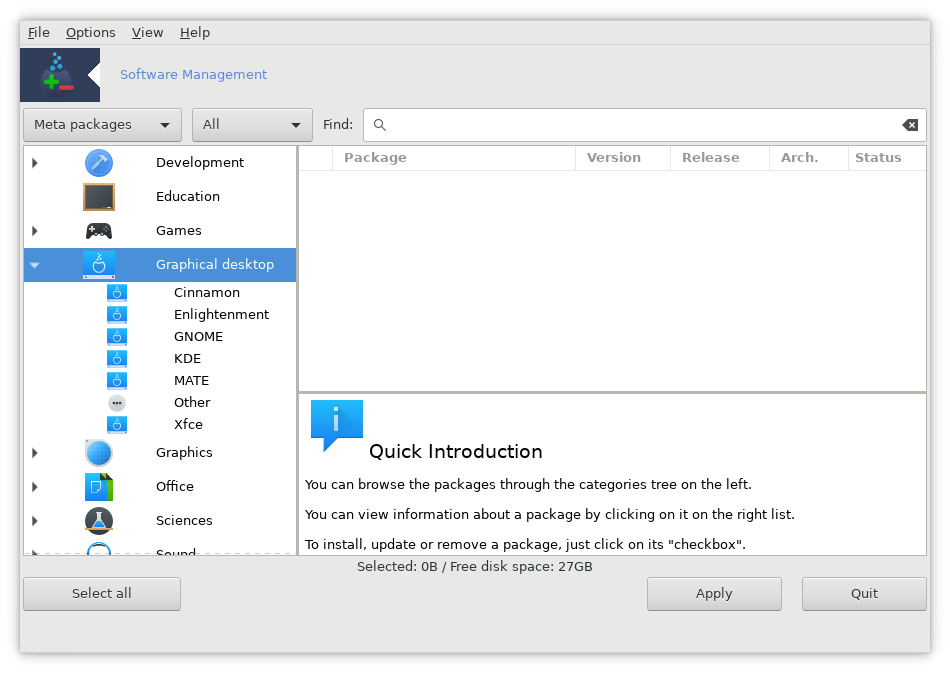
Installing a desktop environment works in the same way as installing other software and is done through the Software Manager ("Install & Remove Software"), which is accessed via the Mageia Control Center or the application menu on the panel. To help you find what you want more quickly, select "Meta packages" from the drop-down menu on the left above the list of categories. Then open the "Graphical desktop" menu and select the desktop you want.
You will see a list of the metapackages which contain all the software needed to run your chosen desktop. Unless your computer is very low on resources, it is best to choose a full installation rather than a minimal one. As with other software, when you check the box next to an item you will be given a list of the packages which will be included if it is installed. Accept this to return to the list of metapackages, click "Apply", then confirm the installation of the packages when prompted and installation will begin.
In addition to the desktop environments installed by a 'task-' metapackage, Mageia includes a number of other desktops installable as individual packages.
These include :
There exist even more alternatives.
| Warning! Using external sources have implications on compatibility, reliability and security. Do read Warnings on non Mageia packages |
There may also be other tips for you on that Ways to install programs page.
TDE is an independent continuation of KDE 3.5. As such it is a by modern measures lightweight but competent and mature desktop. It is available in 32 and 64 bit. Note though that it is not updated, so for example you should avoid the web browser, Konqueror.
To install: Mageia 9 Trinity Repository Installation Instructions Disk size consumed when as suggested installing trinity-desktop: about 600 MB including dependencies from Mageia. For trinity-desktop-all: 2,1 GB more.
In addition the the instructions there, you may want to tell our tools to look for updates in case they are released there. To do so, execute drakrpm-editmedia --expert and put check marks in the "Updates" column before the Trinity repositories.
All trinity packages start with "trinity-" so in drakrpm (MCC > Software management > Install & Remove Software) filter on that to see what of is installed and what is available. (Both dropdown selectors set to "All".) For main localisation search "trinity-tde-i18n", and for per application translations search "-i18n-" and sort alphabetically to see all of them beginning with "trinity".
Note that integration in Mageia lack some details, examples: You need to launch MCC as root. Some non-TDE programs missing in menu - so use menu item "Run command..." or right click to edit the menu.
You may have as many desktop environments installed as you wish. You can try them all out until you find the one you are most comfortable with.
Tip: In general desktop environments do not interfere with each other with the exception of LXDE and Xfce. You may find that if you use Xfce, then switch to LXDE, then when you return to Xfce the window decorations may be missing, and the number of desktops has changed. If you experience this problem log out, and log back in with IceWM (IceWM is a very basic desktop environment installed by Mageia as a backup desktop environment.). Then delete the hidden folder in your /home directory called .cache. Now log out and you should be able to log in with Xfce normally again.
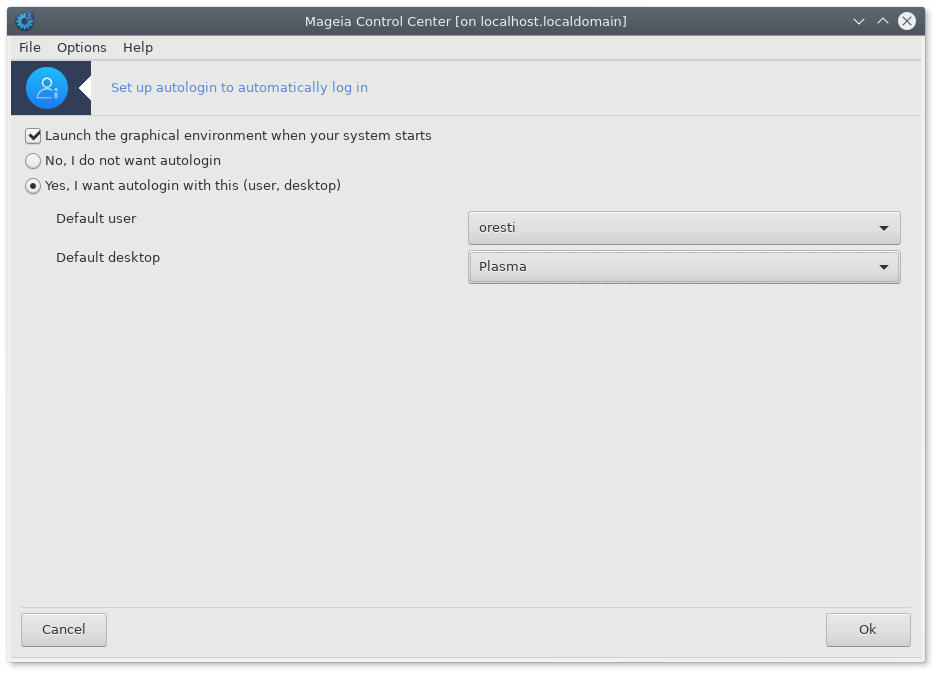
There are two ways of selecting other desktop environments at boot.
Another way to change the environment is to disconnect the session. Thus you get again your prefered Display Manager and can then select the environment/Desktop.