|
VOOZH | about |
|
VOOZH | about |
Overview: Backup & Migration Pro
Backup: Additional Files/Folders
Backup: Back up WordPress Multisites
Migration: Migrate A WordPress Site via Remote Storage
Migration: A Multisite Childsite to A Single WordPress Install
Migration: Migrate WordPress Multisite
Remote Storage: Wasabi: Custom Folder Name
Remote Storage: DigitalOcean Spaces
Tools: Rollback (Auto Backup before Update)
How-to: Set up Incremental Backups
How-to: Migrate A WordPress Site Manually
How-to: Automatically Migrate A WordPress Site
How-to: Create Backup Schedules
How-to: Customize Start Time for Schedule
How-to: Customize Backup for Schedule
How-to: Backup to Multiple Remote Storage
How-to: Restore A WordPress Multisite Network
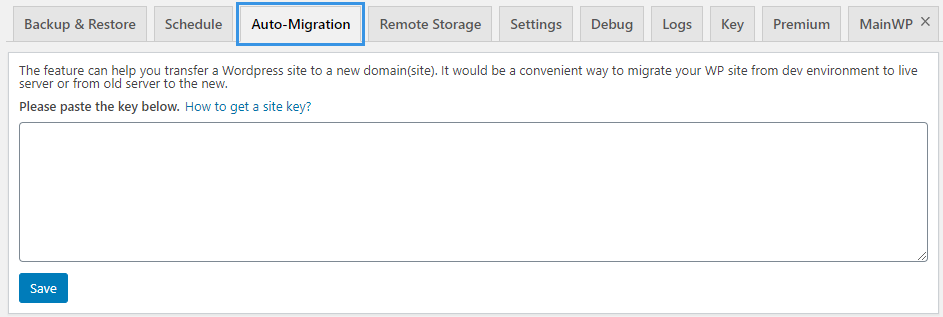
Auto-Migration tab allows you to perform the automatic website migration of any type, you can decide on what you’d like to transfer and need to enter a key generated on the destination website to run the migration.
Note:
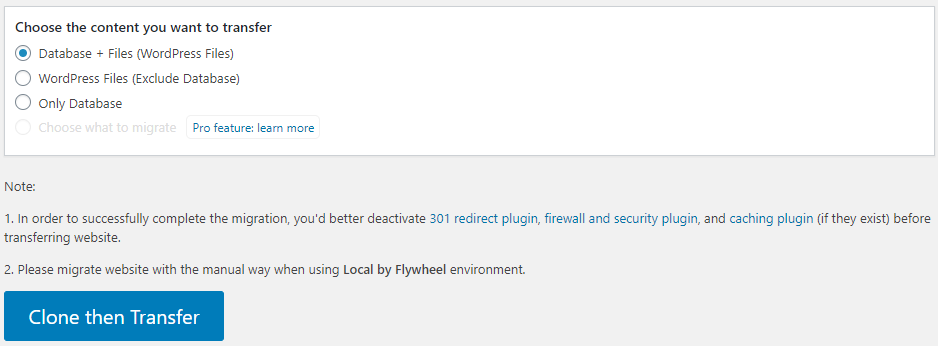
1. For the success of the migration, please deactivate 301 redirect plugin, firewall and security plugin, and caching plugin (if they exist) before transferring website.
2. Please migrate website manually if you are using Local by Flywheel environment.
A field where you can paste and save a key.
👁 WPvivid backup free migration paste key
Choose what items on your website you want to migrate: database+files (the entire website), all files or only database.
👁 WPvivid backup free choose migration content
Click the button to start the migration process.