|
VOOZH | about |
|
VOOZH | about |
MLA (Modern Language Association) formatting is used for academic papers in the humanities. It ensures consistent structure and proper citation, and Google Docs provides tools and templates to apply it easily.
Here’s how to format your document according to MLA guidelines:
If you do not wish to use templates for your formatting, then you can also do this. MLA formatting in Google Docs is possible without Templates also. However, this will be a little elaborate to do so.
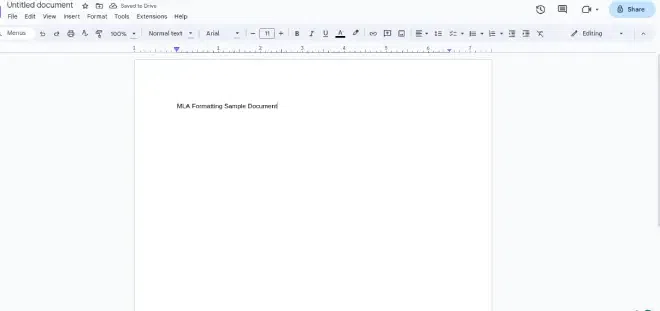
Open Google Docs on your computer or laptop. Open the new document or an already existing one where you want to apply MLA Formatting.
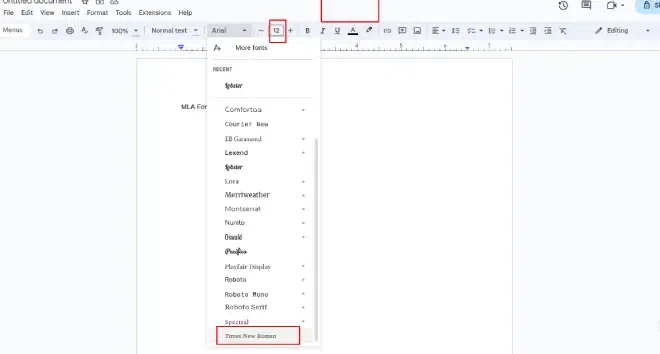
Choose your font type to be Times New Roman and then change the font size to 12 points.
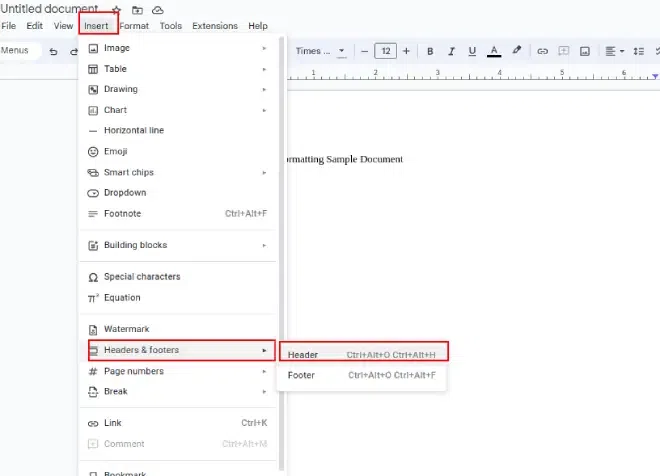
Click on the Insert tab and then select the option of headers and footers and then header.
(Make sure the font is the same as selected earlier.)
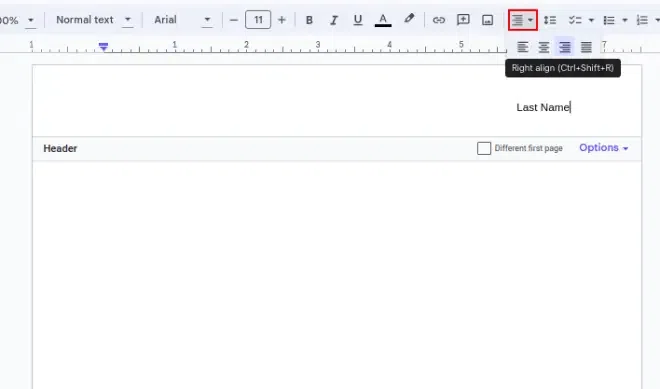
Select right align and type your last name.
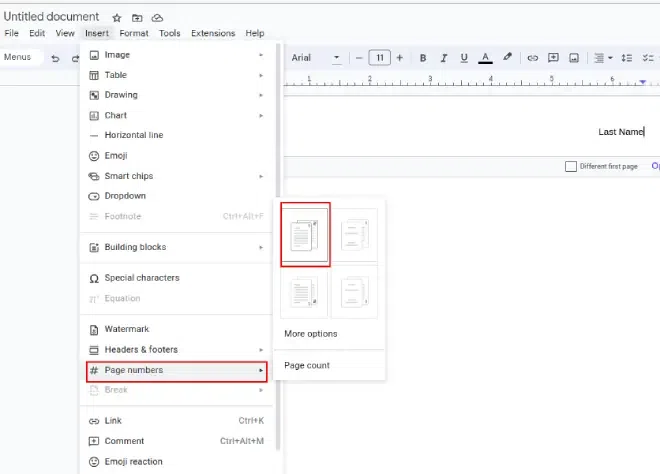
Then click Insert, page numbers, and add the one that displays.
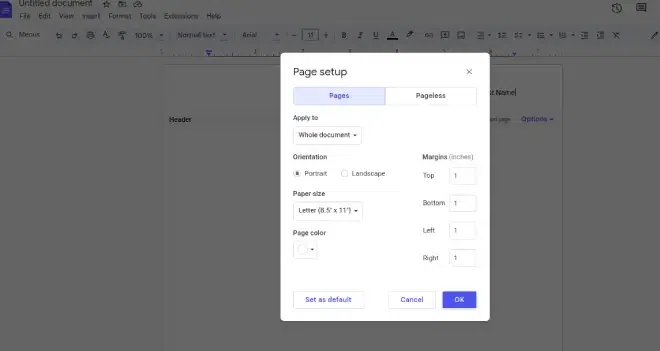
Then, go to file, page set up, and then set the margin to 1 inch or 2.54 cm.
Note: Usually, margins are set to 1 inch by default, but we recommend to check it once.
Click on-line spacing, a dropdown menu will appear, select double among the given options and also if there are spaces after paragraph then in the same dropdown also select remove space after paragraph.
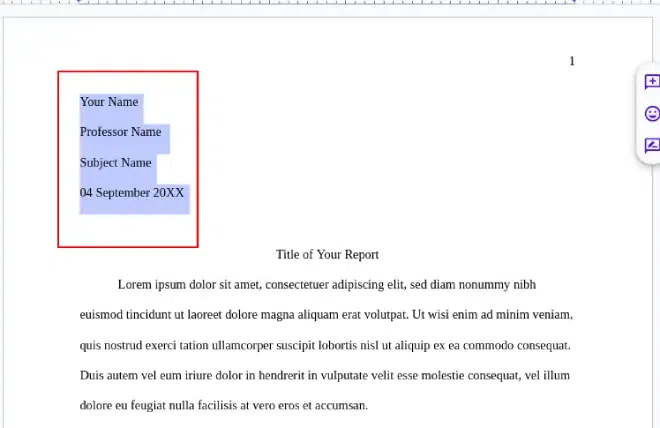
On the MLA heading include your name, the professor's name, the course name, and the due date of the assignment all on separate lines. Press enter on the keyboard once, then write the tittle of the text.
Keep the text simple and classy, no need to use bold or italics or underline. Capitalize all words in the title except for small words like articles, prepositions, and conjunctions.
Press enter on the keyboard, and then align the text to the left. Indent the sentences, by dragging the ruler on top of the document. After this drag the rectangle to half an inch or 1.27 cm.
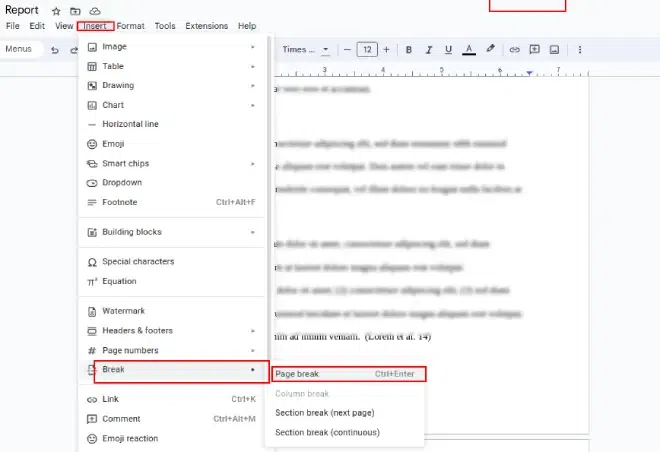
Access the Insert Tab. A dropdown will appear. Click on break, and then select Page Break from the further displayed dropdown.
Open Google Docs on your browser and go to its home page by signing in.
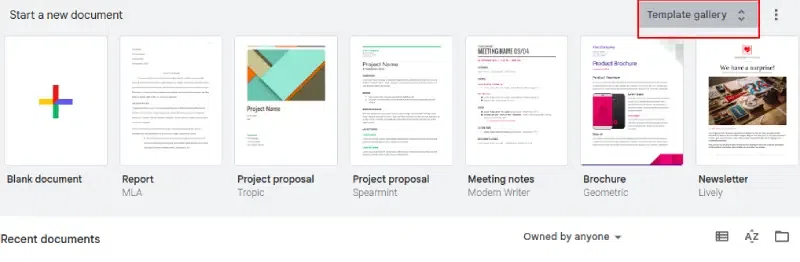
After logging in the Google Docs, find the template gallery option shown in the top right corner and click on it.
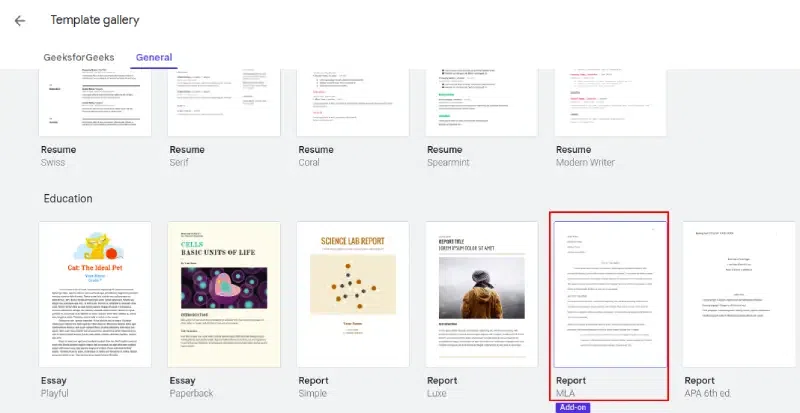
As you click on the template gallery, you will find lots of template options provided by Google. Select the Report MLA template from those and open it. Now the header will be available.
Type your last name beyond the page number. Replace the name, professor's name, subject name, and date on the template according to you.
Replace the whole text on the template with your text.
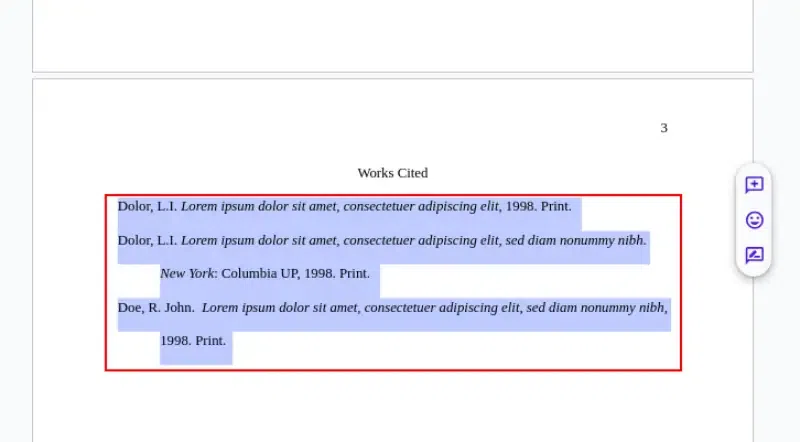
As you scroll down, you will see the work cited section, change the sample text to the citation information for the sources that are used in the paper. It includes the author's last name, comma first name, and the medium of the paper.
Citing sources in Google Docs is straightforward thanks to the built-in citation feature that helps you format your citations according to different styles, including MLA, APA, and Chicago. Here’s how to use it:
Citations should include the author's last name followed by a comma and the first name. If the author uses their first name in publications, include that as well. Additionally, the citation must specify the medium of the publication.
Go to Tools in the Top Menu and Click on Citations from the Options
Add a source by clicking on the “+ Add citation source” button.
Fill in the source information such as the author’s name, title of the source, container (like a book or journal), publication date, publisher, etc.
Insert the citation into your document by clicking on the “Cite” button next to the source.
Google Docs will automatically create and insert a formatted in-text citation in your document where your cursor is placed.
Automatically generate a Works Cited or References page at the end of your document with all the sources you've cited.

.webp)
.webp)
.webp)
.webp)