|
VOOZH | about |
|
VOOZH | about |
How to Insert Cells in Google Sheets - Quick Steps
- Open Google Sheets>>Choose your Spreadsheet
- Select a Cell>>Perform a right-click
- Select Insert Rows or Columns
- Cells Inserted
In Google Sheets, inserting cells can help you structure your data more effectively, allowing you to add new information or adjust your sheet layout as needed. Whether you want to insert a single cell or multiple cells (either in a row or column), knowing how to do it correctly ensures that your data stays organized without disrupting the surrounding content. This guide will walk you through the various ways to insert cells in Google Sheets, giving you the flexibility to manage your data effortlessly.
👁 How to Insert Cells in Google Sheets
Table of Content
Inserting cells allows you to add new data without disrupting your existing layout. This feature is useful for anyone managing data, from project managers to students, as it helps maintain an organized and flexible spreadsheet.
There are two main methods: inserting a single cell when you need to add just one data point without shifting surrounding content, and inserting multiple cells when you want to expand your sheet by adding several cells at once. We’ll walk you through both methods to help you efficiently manage your data in Google Sheets.
There may be times when you need to insert a single cell in Google Sheets, for example, when you're updating a dataset and want to add a new data point without shifting your entire row or column. This is particularly useful when you need to insert data into a specific location within a sheet without disrupting the rest of your data, such as when adding a new value in the middle of an existing list.
Inserting a single cell allows you to maintain the integrity of your data and avoid reformatting the entire sheet. Follow the below steps to add a single cell in Google Sheets:
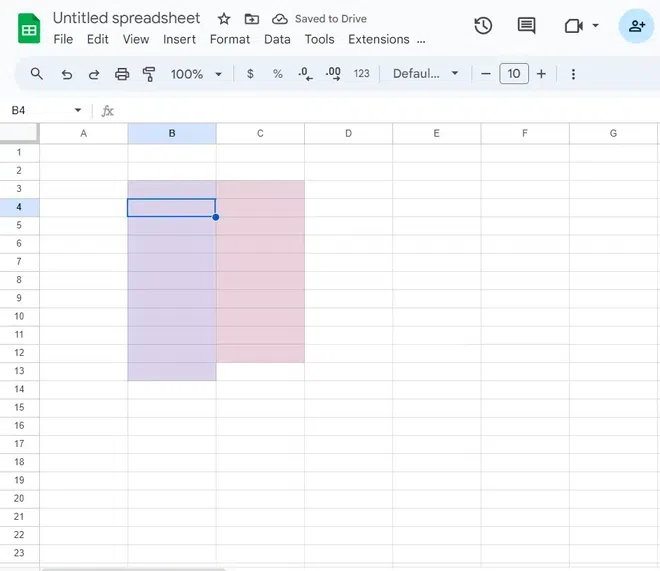
Open your spreadsheet, to add a cell, click and select a cell.
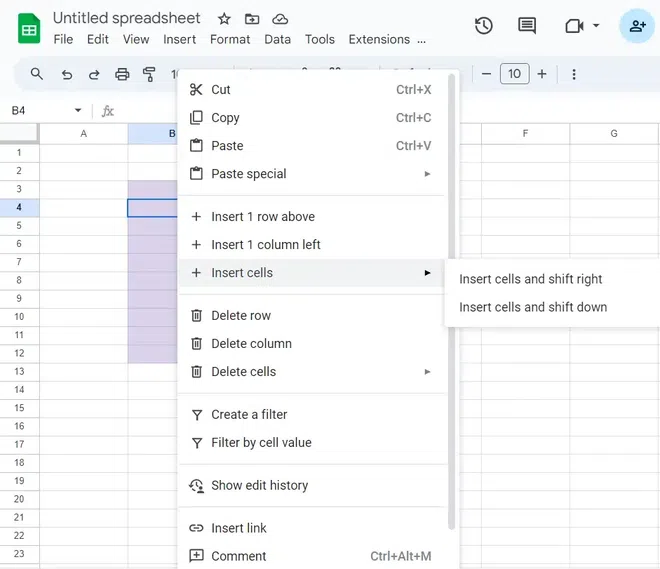
Right-click on the cell and in the menu select "Insert cells". Further, Select from the given two options:
Alternatively, you can use the keyboard shortcut to insert a cell without right-clicking:
Keyboard Shortcut to insert a cell
- For Windows: Press Ctrl + Shift + "+"
- For Mac: Press Command + Shift + "+"
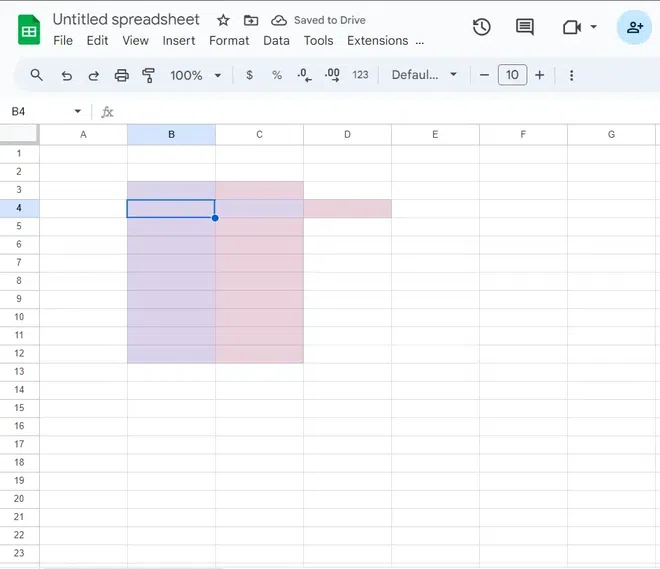
A cell has been inserted on the right side.
Cells Inserted at the bottom.
If you're working on a project in Google Sheets and need to insert multiple cells, perhaps to add extra data between existing entries or expand your data range, it's easy to do. This is particularly useful when you want to insert several new rows or columns without disturbing the rest of your data.
Inserting multiple cells allows you to add new information while maintaining the structure of your spreadsheet. Follow the below steps to add multiple cells in Google Sheets:
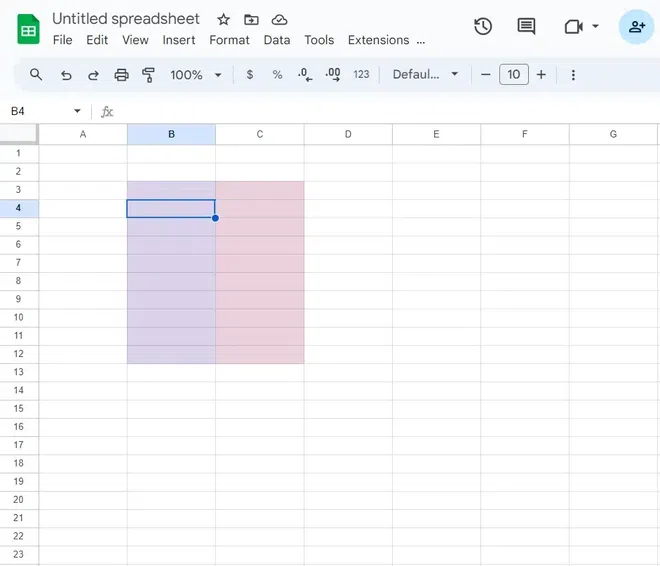
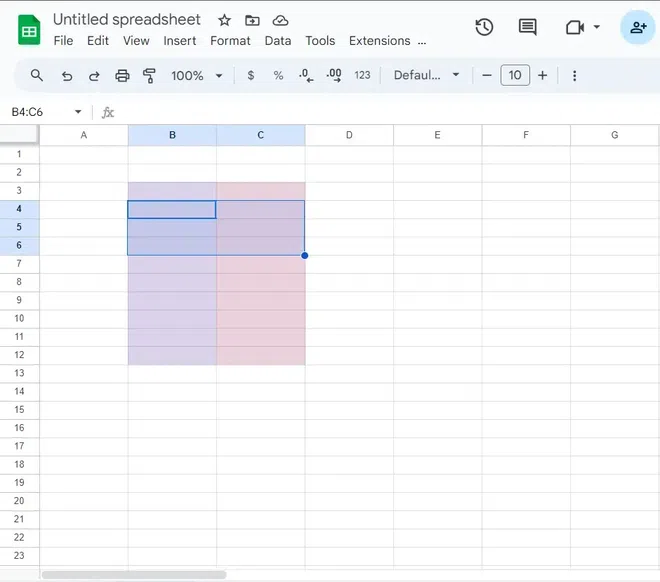
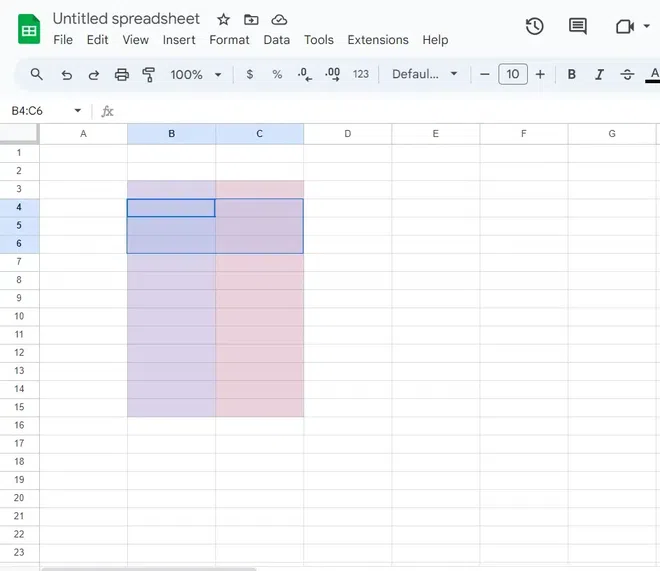
Select and highlight the number of cells you want to add by clicking on one cell and dragging your mouse over the amount of cells you want to select.
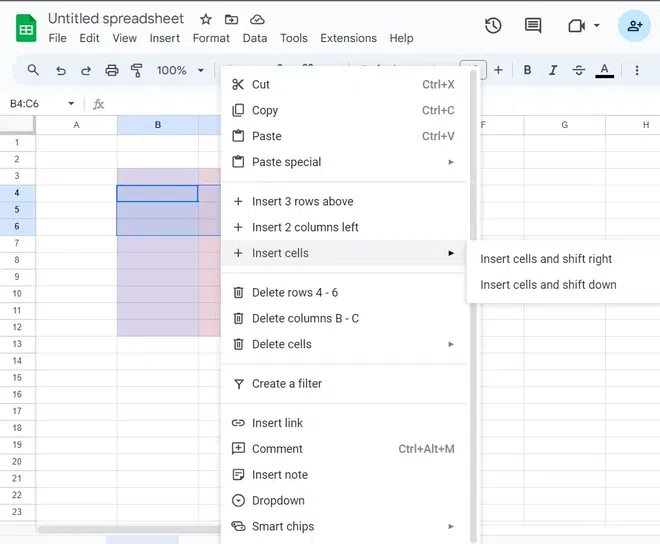
Right-click on the cell and in the menu select "Insert cells". Further, Select from the given two options:
Alternatively, you can use the keyboard shortcut to insert cells without right-clicking:
Keyboard Shortcut to Insert Cells
- For Windows: Press Ctrl + Shift + "+" to open the insert cell options.
- For Mac: Press Command + Shift + "+" to open the insert cell options.
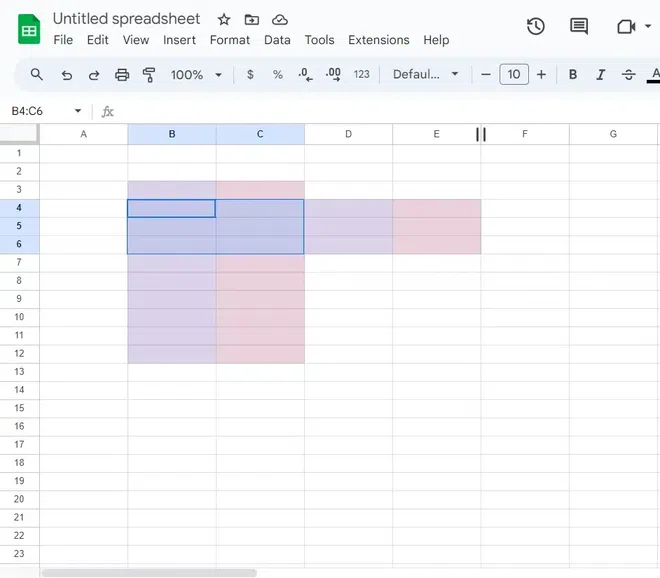
Preview Inserted Cells at the Bottom.
In Google Sheets, you have the option to insert entire rows or columns, but inserting individual cells is not supported.
Also Read:
Learning the techniques for manipulating data in Google Sheets, including how to add cells in Google Sheets, how to add up columns in Google Sheets, and Google Sheets insert multiple rows, is essential for efficient spreadsheet management. Learning how to add multiple rows in Google Sheets and effectively combining cells in Google Sheets allows you to expand and organize your data seamlessly. Utilizing Google Sheets insert row shortcut enhances your workflow, enabling you to navigate and manipulate data with precision. Embrace these skills to optimize your spreadsheet tasks and enhance productivity in Google Sheets.