|
VOOZH | about |
|
VOOZH | about |
AWS or Amazon web services is a cloud service platform that provides on-demand computational services, databases, storage space, and many more services. EC2 or Elastic Compute Cloud is a scalable computing service launched on the AWS cloud platform. In simpler words, EC2 is nothing but a virtual computer on which we can perform all our tasks and we have the authority to configure, launch or even dissipate this virtual computer
In this article, we will learn how to install MongoDB on AWS EC2.
Follow the steps below to install MongoDB on AWS EC2 :
Step 1: Create an AWS Elastic Cloud Compute Instance.
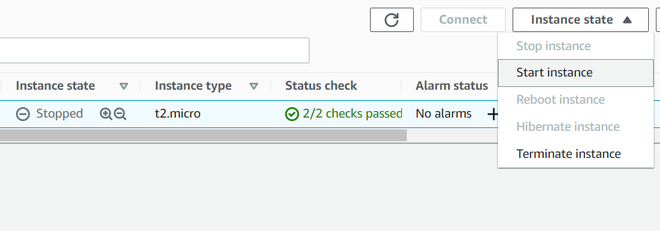
Step 2: Start the EC2 instance that you have created in Step 1.
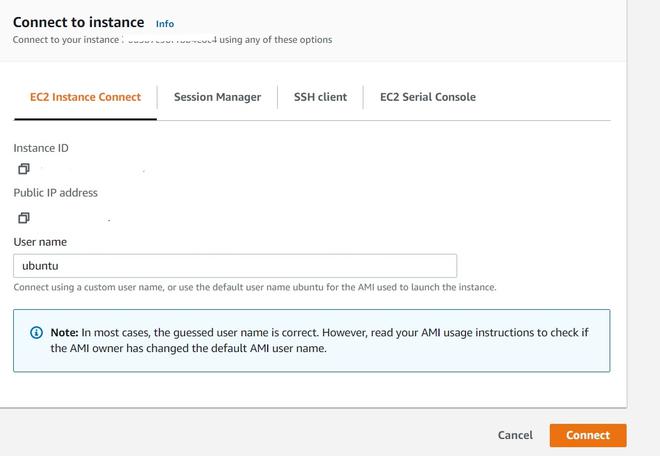
👁 ImageStep 3: Connect to your EC2 Instance by clicking on Connect Button.
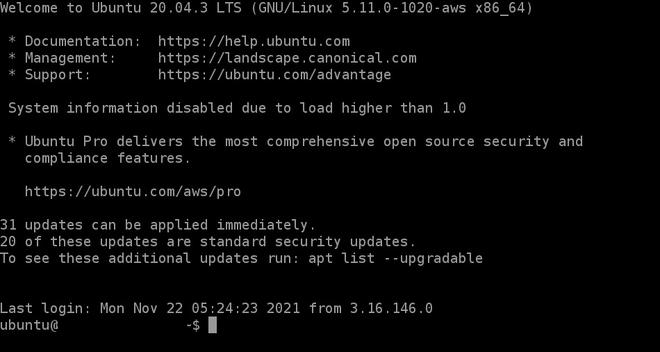
👁 ImageStep 4: A prompt will pop up after connecting.
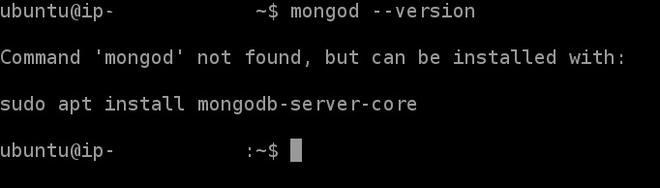
👁 ImageStep 5: At first check, if MongoDB is already installed or not.
mongod --version👁 Image
Step 6: If MongoDB is not installed on your virtual machine then at first Install the public key using the following command.
wget -qO - https://pgp.mongodb.com/server-4.2.asc | sudo apt-key add -
Step 7: Add sources.
echo "deb [ arch=amd64,arm64 ] https://repo.mongodb.org/apt/ubuntu/ bionic/mongodb-org/4.2 multiverse" | sudo tee /etc/apt/sources.list.d/mongodb-org-4.2.list
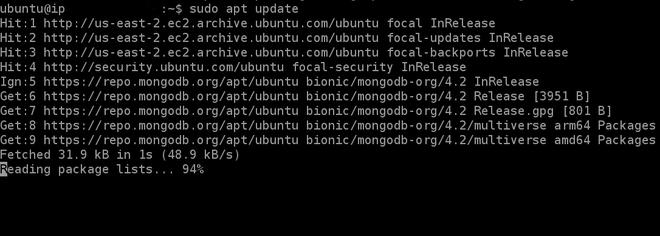
Step 8: Reload the local package database using the following command.
sudo apt update👁 Image
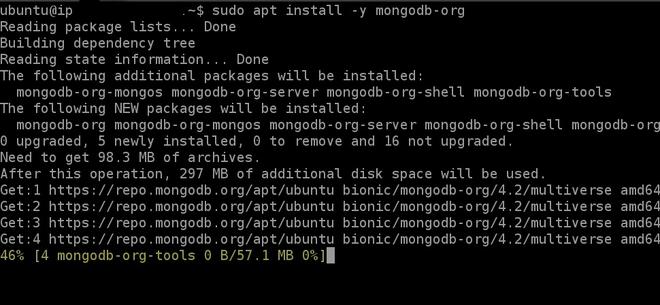
Step 9: Now install the MongoDB packages using the command.
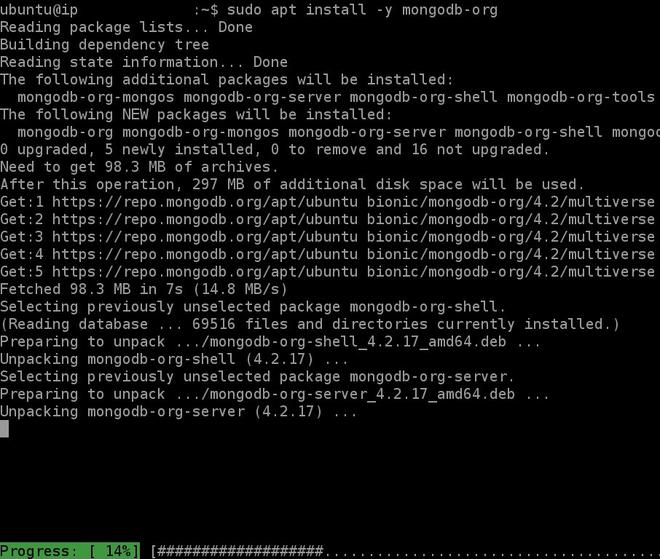
sudo apt install -y mongodb-org👁 Image
Step 10: Wait for the process to end.
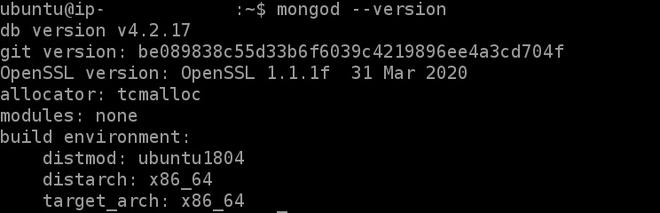
👁 ImageStep 11: We have successfully installed MongoDB on our EC2 instance, to check if MongoDB is installed or not, verify using the following command.
mongod --version👁 Image
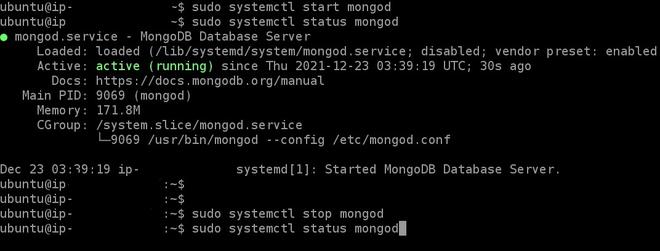
sudo systemctl start mongod
sudo systemctl status mongod
sudo systemctl stop mongod
sudo systemctl restart mongod
In this way, we can install MongoDB on our EC2 instance using EC2 Instance Connect. And if you also use a free tier account, make sure you delete all the resources you have used before logging out.