|
VOOZH | about |
|
VOOZH | about |
ElectronJS is an Open Source Framework used for building Cross-Platform native desktop applications using web technologies such as HTML, CSS, and JavaScript which are capable of running on Windows, macOS, and Linux operating systems. It combines the Chromium engine and NodeJS into a Single Runtime.
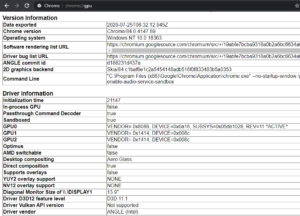
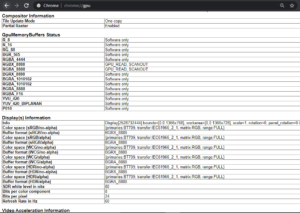
GPU (Graphics Processing Unit) is a specialized programmable processor used for rendering all graphical content such as images on the computer's screen. It is designed to rapidly manipulate and alter memory to accelerate the creation of images in a frame buffer intended for output on a display device. All modern Computer systems come with built-in GPU components i.e. they can either be a part of the motherboard circuitry or they can be another component altogether which is connected to the motherboard externally. Chromium extensively uses this GPU component when displaying GPU accelerated content. Chromium uses GPUs to accelerate web-page rendering, HTML, CSS, and other graphical elements within the browser. The latest versions of Chromium use the GPU component for video rendering and processing as well. GPU consumes less power than the CPU which reduces power consumption and generates less heat overall. GPU also helps in balancing the load on the CPU by resource-sharing, therefore, allowing the CPU to perform faster and take up heavier computational tasks. Chromium browsers have a dedicated GPU tab for monitoring and displaying all GPU related information in the system. It can be accessed by visiting the chrome://gpu/ page in the browser. The electron can also access and use this GPU related Information for the application by using the Instance events and methods of the app module. This tutorial will demonstrate how to fetch, display, and control GPU related Information in Electron.
We assume that you are familiar with the prerequisites as covered in the above-mentioned link. For Electron to work, node and npm need to be pre-installed in the system.
Example: Follow the Steps given in Printing in ElectronJS to set up the basic Electron Application. Copy the Boilerplate code for the main.js file and the index.html file as provided in the article. Also, perform the necessary changes mentioned for the package.json file to launch the Electron Application. We will continue building our application using the same code base. The basic steps required to set up the Electron application remain the same.
package.json:
{
 "name": "electron-gpu",
 "version": "1.0.0",
 "description": "GPU Information in Electron",
 "main": "main.js",
 "scripts": {
 "start": "electron ."
 },
 "keywords": [
 "electron"
 ],
 "author": "Radhesh Khanna",
 "license": "ISC",
 "dependencies": {
 "electron": "^8.3.0"
 }
}
Output:
👁 Image
GPU Information in Electron: The app module is used to control the application's event lifecycle. This module is part of the Main Process. To import and use the app module in the Renderer Process, we will be using Electron remote module.
The app.getAppMetrics() Instance method of the app module is used to return an Array of ProcessMetric objects that correspond to memory and CPU usage statistics of all the processes associated with the application. The ProcessMetric object consists of the following parameters.
The app.getGPUFeatureStatus() Instance method of the app module returns a GPUFeatureStatus object. This object represents the Graphics Feature Status of the GPU from the chrome://gpu page in the Chromium browser.
👁 ImageNote: The GPUFeatureStatus object consists of the exact same parameters as shown in the above image. The values displayed for the parameters of the GPUFeatureStatus object are in abbreviated format and might differ from what is shown in the image. These parameters can hold any one of the following values with their respective color codes:
The app.disableHardwareAcceleration() Instance method of the app module disables Hardware acceleration for the entire application. This Instance method can only be used before the ready event of the app module is emitted. Hence, this method needs to be called in the main.js file (Main Process).
In an Electron application, Chromium disables 3D APIs (e.g. WebGL) until a restart of the application on a per-domain basis if the GPU processes crash too frequently. This is the default behavior of Chromium. There can be a variety of reasons which can cause the GPU processes to crash frequently including problems in the System hardware or overuse of system resources. The app.disableDomainBlockingFor3DAPIs() Instance method of the app module disables this default behavior of Chromium. This Instance method can only be used before the ready event of the app module is emitted. Hence, this method needs to be called in the main.js file (Main Process).
The app.getGPUInfo(info) Instance method fetches and returns the GPU Information from Chromium related to the Electron application. This Instance method returns a Promise and it is resolved to an object containing the relevant information based on the info: String parameter provided. Refer to the output for a better understanding. The info parameter can hold any one of the following values:
{ auxAttributes:
 { amdSwitchable: true,
 canSupportThreadedTextureMailbox: false,
 directComposition: false,
 directRendering: true,
 glResetNotificationStrategy: 0,
 inProcessGpu: true,
 initializationTime: 0,
 jpegDecodeAcceleratorSupported: false,
 optimus: false,
 passthroughCmdDecoder: false,
 sandboxed: false,
 softwareRendering: false,
 supportsOverlays: false,
 videoDecodeAcceleratorFlags: 0 },
gpuDevice:
 [ { active: true, deviceId: 26657, vendorId: 4098 },
 { active: false, deviceId: 3366, vendorId: 32902 } ],
machineModelName: 'MacBookPro',
machineModelVersion: '11.5' }
The app module emits the following Instance Events which are related to the GPU.
At this point, upon launching the Electron application, we should be able to fetch and display all GPU related Information in the console output.
Output:
👁 Image
Note - We have used the console.dir() JavaScript method to output and display an object in the Console window of Chrome DevTools. To display objects, this method is preferred over the console.log() method.
For more detailed information. Refer to the article: Difference between console.dir and console.log.