|
VOOZH | about |
|
VOOZH | about |
The compress command in Linux is used to reduce the size of files using the Lempel–Ziv (LZ78) compression algorithm. It mainly works on individual files and replaces the original file with a compressed version having the .Z extension.
On Ubuntu and Debian-based systems, the compress command is provided by the ncompress package.
Command:
sudo apt install ncompressOutput:
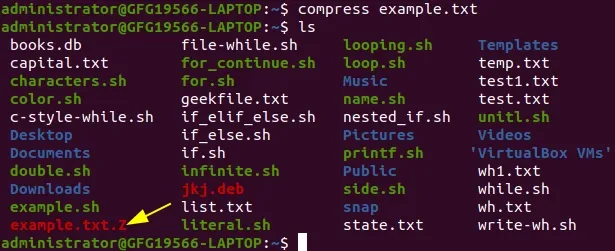
This example compresses a single file and creates a compressed file with the .Z extension.
Command:
compress example.txtOutput:
Note: The file example.txt is compressed and replaced by example.txt.Z in the same directory.
Use the `ls` command to verify that the compressed file has been created successfully.
The `compress` command supports the compression of multiple files simultaneously.
Command:
compress file1.txt file2.txt file3.txt4Output:
Note: Each file is compressed individually. All original files are replaced by their compressed versions in the same directory.
To restore a file that was compressed using compress, the uncompress command is used.
Command:
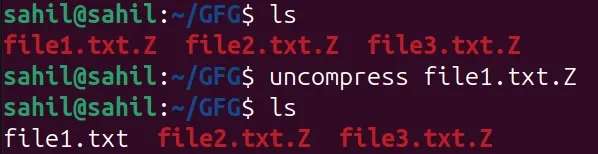
uncompress file1.txt.ZOutput:
This command decompresses the file file1.txt.Z and restores it to its original form as file1.txt. The .Z file is removed after successful decompression.
The basic syntax of the compress command is as follows:
compress [options] filenameNote: By default, the compress command replaces the original file with a compressed version and adds the .Z extension to the filename.
The compress command provides several options to control compression, decompression, output handling, and display behavior. Some commonly used options are explained below.
The -d option is used to decompress a file that was compressed using the compress command.
Syntax:
compress -d filename.ZExample:
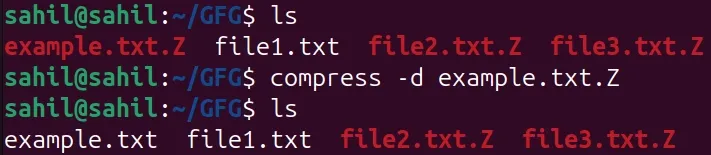
compress -d example.txt.ZOutput:
Note: After decompression, the original file example.txt is restored and the .Z file is removed.
The -c option is used to create a compressed output without removing the original file. Instead of replacing the file, the compressed data is sent to output, which can then be redirected to a new file.
Syntax:
compress -c filename > filename.ZExample:
compress -c example.txt > compressed_output.ZOutput:
Note: The original file remains unchanged.
The -v option displays the percentage of file size reduction after compression. It helps in understanding compression efficiency.
Syntax:
compress -v filenameExample:
compress -v example.xlsOutput:
The output shows the percentage of size reduction after compression.
Note: This option is ignored if the -c option is used.
The -r option compresses all files inside a directory and its subdirectories recursively. It is helpful to combine the -r option with -v to see exactly what the command is doing.
Syntax:
compress -r directory_nameExample:
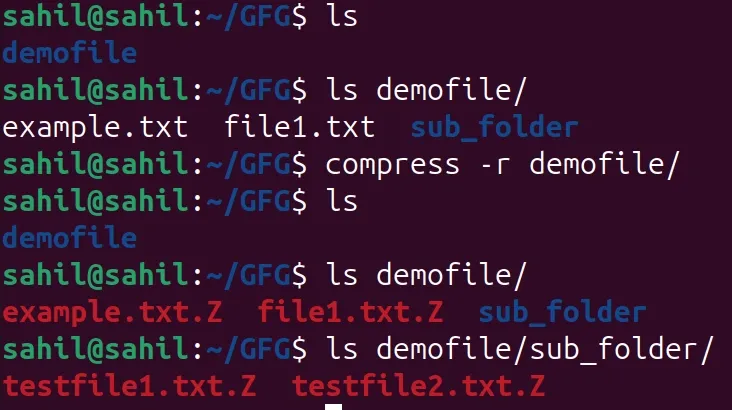
compress -r demofileOutput:
Note: Only files are compressed; directory structure remains unchanged.
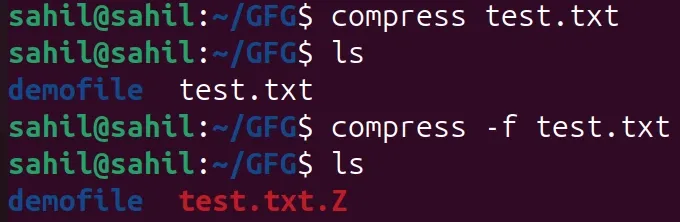
This will compress files without any guarantee of size reduction, meaning it will compress files even if the file size is not reduced.
Syntax:
compress -f filenameExample:
compress -f test.txtOutput:
Note: Without the -f option, compress may refuse to create a .Z file if the file size does not reduce. Using -f overrides this behavior and ensures that the compressed file is created.
Linux provides several other commands to compress files more efficiently than the compress command. These tools are widely used in modern systems and offer better compression and flexibility.
The gzip command is the most commonly used compression tool in Linux. It provides better compression than compress and is supported on almost all Linux distributions.
Example:
gzip file.txtThis creates a compressed file named file.txt.gz.
The bzip2 command offers higher compression ratios than gzip, but compression and decompression take more time.
Example:
bzip2 file.txtThis creates a compressed file named file.txt.bz2.
The xz command provides very high compression efficiency and is often used for large files and software distributions.
Example:
xz file.txtThis creates a compressed file named file.txt.xz.
The tar command can combine multiple files and compress them using gzip, bzip2, or xz.
Example:
tar -czf archive.tar.gz file1 file2This creates a compressed archive containing multiple files.