|
VOOZH | about |
|
VOOZH | about |
Changing the hostname in Kali Linux involves modifying system configuration files to update the label assigned to your device on a network. The hostname serves as a unique identifier for the device, simplifying communication by using a readable name instead of an IP address. Adjusting the hostname can be useful for customization, security, or organizational purposes. This process typically requires administrative privileges and careful handling of system files to ensure a smooth transition without disrupting system functionality.
Here, we’ll explore the methods and steps involved in changing the hostname on a Kali Linux system.
In Kali Linux, a hostname is a label assigned to a device on a network that identifies it uniquely. It is used to simplify the communication process by providing a human-readable name instead of using IP addresses. The hostname of a system can be viewed and set using the "hostnamectl" command. It is typically set during the system installation, and users can customize it to reflect their preferences. The hostname is crucial for networked environments as it helps identify and address systems easily.
Additionally, the "/etc/hostname" file in Kali Linux stores the persistent hostname configuration and can be viewed or set using the 'hostnamectl' command. Having a consistent and properly set hostname is crucial, especially in environments where multiple devices are connected, as it helps to quickly identify and address systems.
Changing the hostname can be important for several reasons, including:
In this section, we will explore two different methods to change the Kali Linux Hostname. Below we have listed both possible methods.
Table of Content
We will explore each of the methods one by one.
In the very first step, we need to have an active terminal, through which the entire profile of profiling will be done. In Linux, we can open the terminal by navigating to the Applications Menu or by using the Keyboard shortcut "Ctrl + ALT + T" to open the terminal.
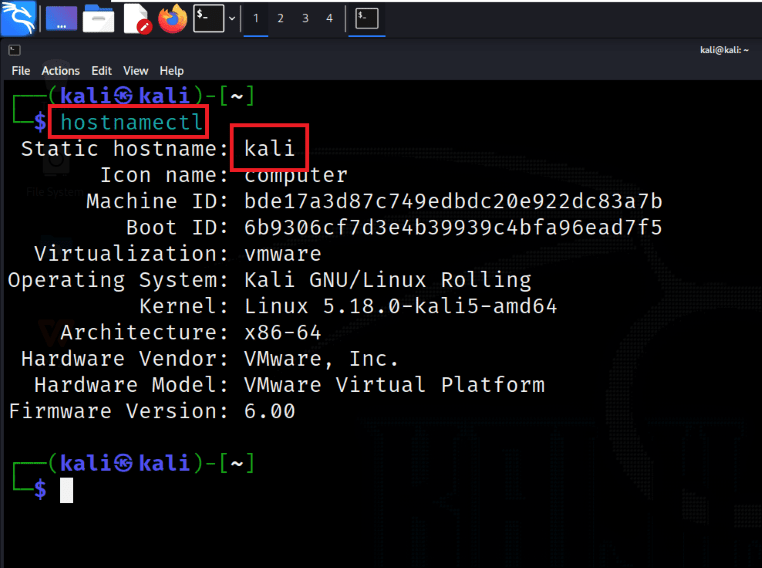
Use 'hostnamectl' to view the current hostname and gather information about the system's configuration.
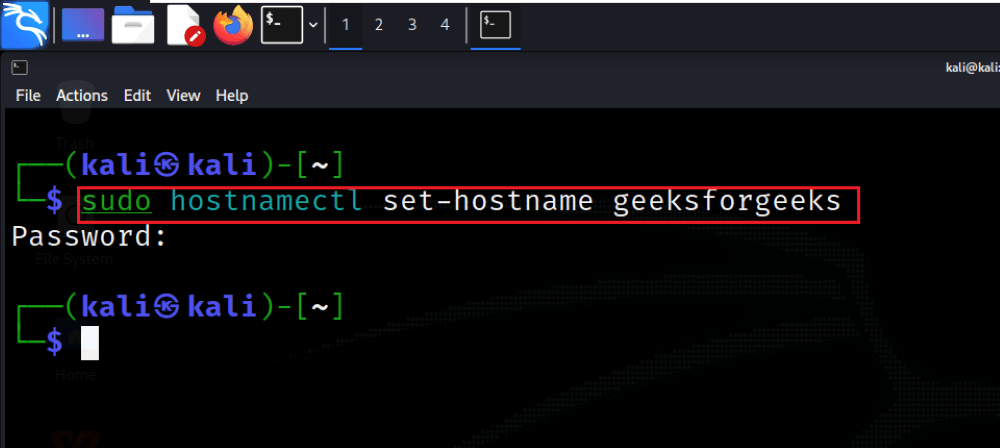
hostnamectl Execute the command sudo hostnamectl set-hostname newhostname to set the new desired hostname. Replace "newhostname" with the actual hostname you want to assign to your system.
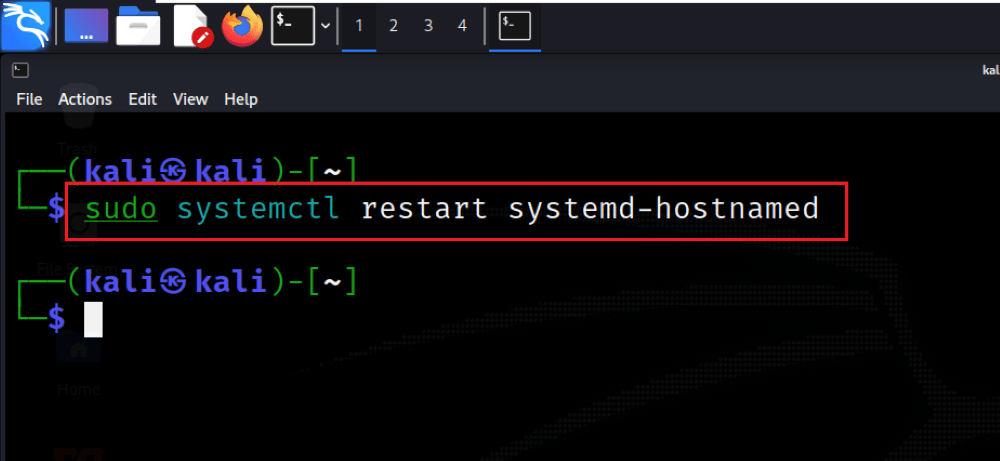
sudo hostnamectl set-hostname newhostnameMake sure that changes take effect by restarting the hostname service using the command 'sudo systemctl restart systemd-hostnamed'. This step is important to make the system recognize and apply the new hostname.
sudo systemctl restart systemd-hostnamedConfirm the update by checking the hostname again with the command 'hostnamectl'. This step is necessary to verify that the changes were successfully implemented and that the new hostname is now in effect.
hostnamectlUse hostnamectl to view the current hostname and gather information about the system's configuration.
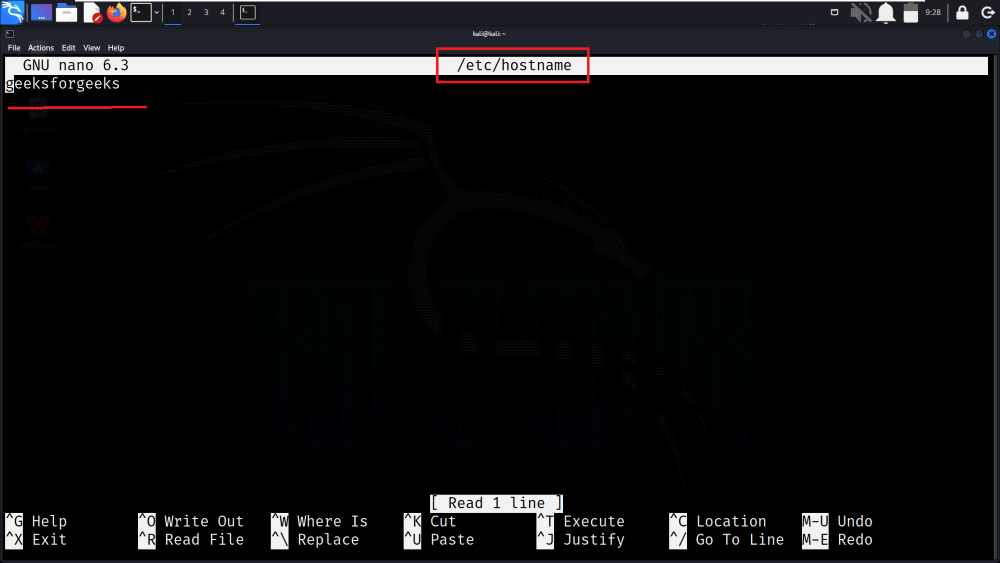
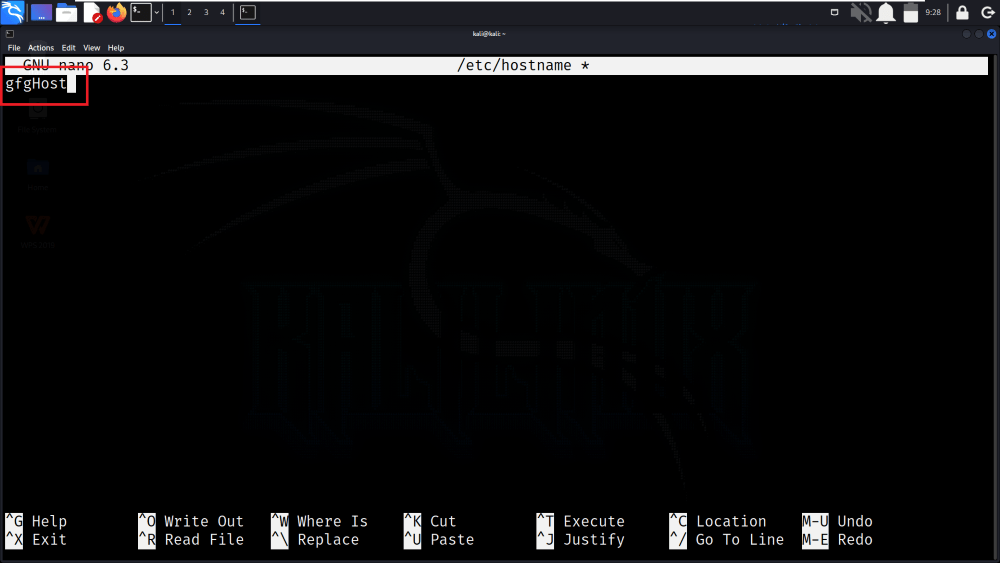
hostnamectl Use a text editor, such as nano, to open the '/etc/hostname' file. For example, execute 'sudo nano /etc/hostname'. Replace the current hostname in this file with the desired one.
sudo nano /etc/hostnameAfter making the change, save the file.
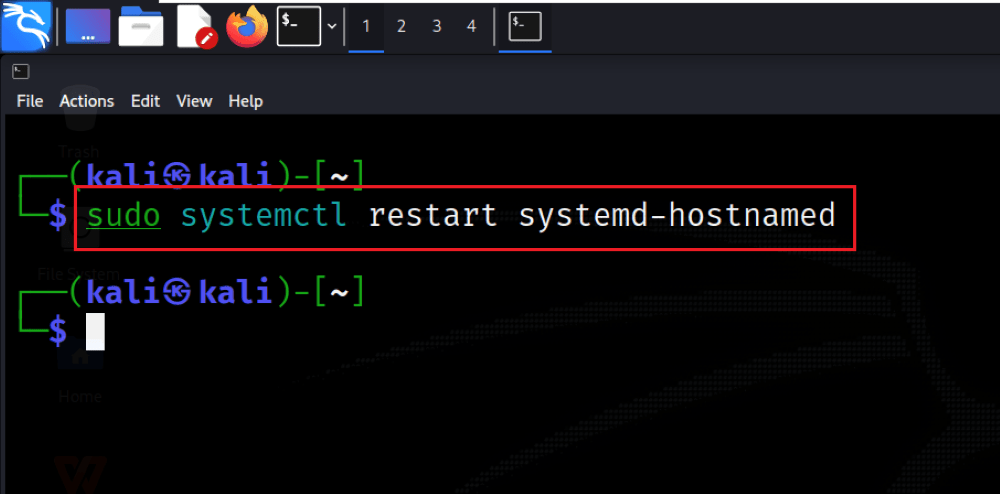
To make the changes take effect, you can either reboot the system or use the command 'sudo systemctl restart systemd-hostnamed'. Restarting the hostname service ensures that the system recognizes the new hostname without the need for a full system reboot
sudo systemctl restart systemd-hostnamedConfirm the update by checking the hostname again with the command 'hostnamectl'. This step is necessary to verify that the changes were successfully implemented and that the new hostname is now in effect.
hostnamectl
Changing the hostname in Kali Linux is a simple yet powerful way to customize and manage your system’s identity on a network. Whether you use the 'hostnamectl' command or edit the '/etc/hostname' file, both methods require administrative access and involve restarting the hostname service to apply changes. Properly managing your hostname can enhance security, simplify network management, and help maintain organizational standards. Always remember to verify your changes to ensure a smooth and error-free transition.