|
VOOZH | about |
|
VOOZH | about |
Determining the virtualization type in Linux is essential when you're working in a virtualized environment or managing multiple virtual machines. Whether you're using a hypervisor like KVM, Xen, or VMware, understanding how to find virtualization types in Linux can help you troubleshoot or optimize your system.
In this guide, we’ll explore methods to check virtualization type on Linux, allowing you to identify whether your system is running in a virtualized environment and which virtual machine type is in use.
Table of Content
We have divided this section into multiple parts to explain all the commands in a brief:
The virt-what in Linux checks specific features to identify the system's environment. Using this utility, you can find the virtualization type of your system. In most of the Linux distributions, the virt-what utility is not pre-installed. You can install virt-what utility by running the following command:
sudo apt install virt-what [For Debian, and Ubuntu users]
sudo pacman -S virt-what [For Arch users]
sudo yum install virt-what [For RHEL users]
sudo apk add virt-what [For Alpine users]
Now, all you need to do is run the below command to display the current virtualization type of the system:
sudo virt-whatAs you can see in the image above, this command displays that your system is running in VirtualBox, and the virtualization type is 'KVM.'
The systemd-detect-virt command is a part of the 'systemd suite,' a service manager used in all Linux distributions. This command shows the following result when you run it in the terminal.
systemd-detect-virtThe virt-what and systemd-detect-virt commands show different results for the system. It is because the first command detects the virtualization technology and gives the 'KVM' output. The systemd-detect-virt command displays Oracle, indicating that your system is running in the Oracle VM VirtualBox environment rather than specifying the virtualization type. This means the virt-what command provides a more accurate result than the system-detect-virt command.
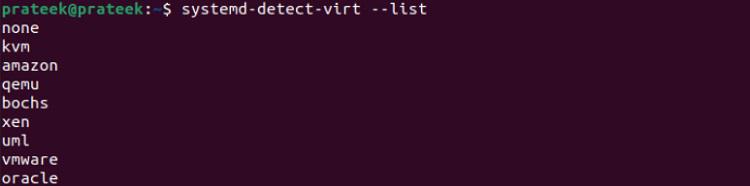
Moreover, you can also list all the detectable virtualization types using the following command:
systemd-detect-virt --listAlthough systemd-detect-virt is an excellent command, there is an alternative named hostnamectl. Many users prefer to go for this alternative:
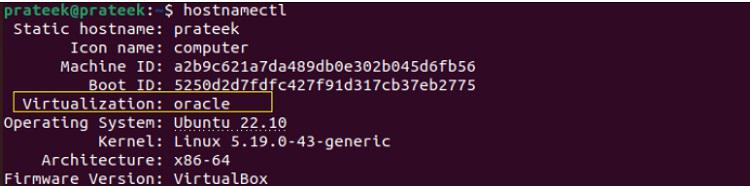
Majorly hostnamectl Command displays the system's static-related information, including the virtualization details:
hostnamectlYou can also alter the result and only display the virtualization type using the below command:
hostnamectl | grep -i virtualization
The above commands are already superior in providing information related to the virtualization type of a system. However, there are a few commands which only give you basic information, i.e., whether your system is running in the VirtualBox or a physical system:
Thedmidecode command line tool parses the SMBIOS data, reads hardware and firmware data, and shows the output.
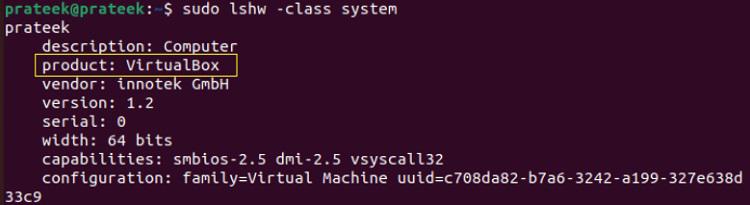
sudo dmidecode -s system-product-nameYou can use the lshw command to list detailed information on the system's hardware configuration.
sudo lshw -class systemIdentifying the virtualization type in Linux helps ensure you're using the right tools and settings for your virtual environment. By using simple commands to detect virtualization technology in Linux, you can easily determine whether you're working on a bare-metal machine or a Linux virtual machine under a hypervisor like KVM or Xen. Regularly checking the virtualization type is especially useful for system administrators managing cloud infrastructure or virtualized networks.
Also Read