The mv (move) command in Linux is used to move or rename files and directories. It does not create a copy of the file; instead, it changes its location or name. By default, if a file with the same name exists at the destination, mv overwrites it.
Used to move files/directories from one location to another.
Can also be used to rename files or directories.
Overwrites existing files without warning unless used with options.
Useful for organizing files and changing file names quickly.
Example 1: Rename a file while keeping it in the same directory.
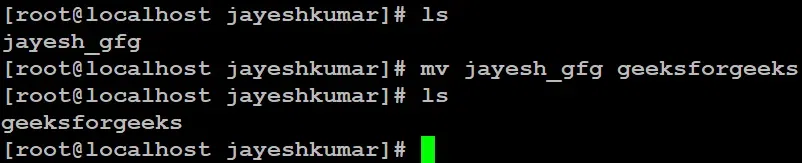
If we have a file "name = jayesh_gfg" and want to rename it to "name = geeksforgeeks".
Here we used the `ls` command to see the files and directories in the following location.
This command is renamed `jayesh_gfg` to `geeksforgeeks`. If `geeksforgeeks` already exists, in that case, it will be overwritten without prompting for confirmation.
Syntax
mv options Source Destination
Source: The name of the files that we want to rename or move.
Destination: The name of the new location or the name of the file.
Example 2: Move a File in Linux Using mv Command
The 'mv' Command in Linux is used to move files or directories from the source_file_name(s) to the specified Destination_path by modifying their filesystem location without duplicating data.
Syntax:
mv Source Destination
For Example:
If we have a file "name = geeksforgeeks" and want to move it to location "name = /home/jayeshkumar/jkj".
Here we used the `ls` command to see the files and directories in the following location.
This command moved file "name = `geeksforgeeks`" to the destination "name = "/home.jayeshkumar/jkj/".
Example 3: Moving Multiple files in Linux with mv Command
The mv Command allows moving multiple files like source_file_name_1, source_file_name_2... simultaneously to a specified Destination_path in the Linux filesystem without creating duplicates.
Syntax:
mv file1 file2 Destination_path
For Example:
If we have a file "name = gfg_1 , gfg_2" and want to move it to location "name = /home/jayeshkumar/jkj".
Here we used the `ls` command to see the files and directories in the following location.
This command moved file "name = `gfg_1 and gfg_2`" to the destination "name = "/home.jayeshkumar/jkj/".
Example 4: Rename a directory in Linux Using mv Command
The mv Command in Linux renames a directory by changing its Old_directory_name(s) to the specified New_directory_name, and if the file name exists, it gets overwritten without confirmation.
Syntax:
mv Old_Name New_Name
For Example:
If we have a directory "name = jkj" and want to rename it to "name = new_gfg".
Here we used `ls` command to see the files and directories in the following location.
This command renames `jkj` to `new_gfg`. If `new_gfg` already exists, in that case it will be overwritten without prompting for confirmation.
Options Available in mv Command
The mv Command provides multiple options like -i (interactive confirmation), -f (force overwrite), -n (no-clobber to prevent overwriting), -b (backup with ~ suffix), and --version to display the current version, allowing fine control over file and directory move operations.
1. -i (interactive)
The "-i" option makes the "mv" command ask for confirmation before overwriting an existing file. If the file doesn't exist, it will simply rename or move it without prompting.
Syntax:
mv -i file_name Destination
Enter your source file/directory name in place of [file_name] and your destination file/directory name/path in place of [Destination].
Example:
If we have a file "name = jayesh_gfg" and want to rename it to existing file "name = geeksforgeeks".
Here we used `ls` command to see the files and directories in the following location.
Here we have to give permission by typing yes = `y` and no =`n`.
2. -f (Force)
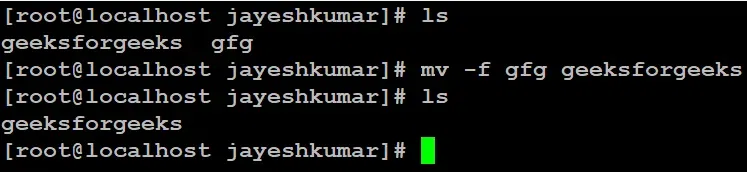
mv prompts for confirmation overwriting the destination file if a file is write-protected. The -f option overrides this minor protection and overwrites the destination file forcefully and deletes the source file.
Example:
If we have a file "name = gfg" and want to rename it to existing file "name = geeksforgeeks".
Here we used `ls` command to see the files and directories in the following location.
4. -b (backup)
With this option, it is easier to take a backup of an existing file that will be overwritten as a result of the mv command. This will create a backup file with the tilde character (~) appended to it.
Example:
If we have a file "name = first_file" and want to rename it to existing file "name = second_file".