
The Google Assistant SDK integrationIntegrations connect and integrate Home Assistant with your devices, services, and more. [Learn more] allows Home Assistant to interact with Google Assistant. If you want to use Google Assistant (for example, from your phone or Google Home device) to interact with your Home Assistant managed devices, then you want the Google Assistant integration.
This integration allows:
- Sending text commands to Google Assistant to control devices supported by Google Assistant but not by Home Assistant. Examples:
- Start vacuuming
- Stream front door on living room TV
- Turn off kitchen TV
- Play rain sounds on bedroom speaker
- Broadcast messages to Google Assistant speakers and displays without interrupting music/video playback. Examples:
- Coffee is ready
- Someone is at the front door
- Smoke detected in the master bedroom
- Water leak detected in the master bathroom
- Playback Google Assistant audio response for any query on any media player. Examples:
- Tell me a joke
- Say the ABC
- Sing happy birthday
- What does the elephant say?
- Having a conversation with Google Assistant using the conversation integration via text or voice.
Prerequisites
You need to configure developer credentials to allow Home Assistant to access your Google Account. These credentials are the same as the ones for Nest or Google Sheets, YouTube, and Google Mail.
Scenario 1: You already have credentials
In this case, all you need to do is enable the API:
- Go the Google Developers Console Google Assistant API .
- Confirm the project and Enable the API.
- Continue with the steps described in the Configuration section.
Scenario 2: You do not have credentials set up yet
In this case, you need to generate a client secret first:
Configuration
To add the Google Assistant SDK service to your Home Assistant instance, use this My button:

The integration setup will next give you instructions to enter the Application Credentials (OAuth Client ID and Client Secret) and authorize Home Assistant to access your Google Assistant API.
Enable personal results (for advanced users)
This guide shows you how to enable personal commands such as “remind me tomorrow at 9 pm to take out the trash”.
This guide is for advanced users only. It requires creating an OAuth client ID of the Desktop app, running a Python program on your desktop or laptop, copying the resulting credentials to your Home Assistant config files, and likely running an Android emulator.
Prerequisites
- Successfully installed the Google Assistant integration.
Troubleshooting
If you have an error with your credentials you can delete them in the Application Credentials user interface.
If commands don’t work, try removing superfluous words such as “the”. For example, “play rain sounds on bedroom speaker” instead of “play rain sounds on the bedroom speaker”.
If commands to a specific device (like streaming a camera to a Google TV) fail, you may need to enable “Personal Results” on that device itself. For example, on a Google TV or Chromecast with Google TV, this setting may be located under Settings > Privacy > Google Assistant > Personal Results. This may be required in addition to enabling it in the Google Home app.
If broadcasting doesn’t work, make sure: the speakers aren’t in do not disturb mode, the Home Assistant server is in the same network as the speakers.
The easiest way to check if the integration is working is to check My Google Activity for the issued commands and their responses.
Limitations/known issues
-
Text responses are no longer returned by the Google Assistant SDK API. All responses are now delivered as audio. If you do not provide a
media_playerentity, you will not receive any feedback from the integration. - Multiple Google accounts are not supported.
- If you see the issued commands in My Google Activity, the integration is working fine. If the commands don’t have the expected outcome, don’t open an issue in the Home Assistant Core project or the underlying library. You should instead report the issue directly to Google here. Examples of known Google Assistant API issues:
- Media playback commands (other than play news, play podcast, play white noise, or play rain sounds) don’t work.
- Routines don’t work.
- Google Assistant automations that use
assistant.event.OkGoogleas a starter cannot be triggered. - Broadcast to specific rooms often doesn’t work for non-English languages.
- Commands that need to verify your identity through voice match do not work.
Configuration
On the configure page, you can set the language code of the interactions with Google Assistant. If not configured, the integration picks one based on Home Assistant’s configured language and country. Supported languages are listed here.
Actions
Send text command
You can use the google_assistant_sdk.send_text_command action to send commands to Google Assistant.
| Data attribute | Optional | Description |
|---|---|---|
command |
no | Command(s) to send to Google Assistant. |
media_player |
yes | Name(s) of media player entities to play the Google Assistant’s audio response on. This does not target the device for the command itself. |
Examples:
action: google_assistant_sdk.send_text_command
data:
 command: "turnoffkitchenTV"
# Say a joke on the living room speaker. The `media_player` entity receives the audio response.
action: google_assistant_sdk.send_text_command
data:
 command: "tellmeajoke"
 media_player: media_player.living_room_speaker
# Stream a camera to a Chromecast-enabled TV or display.
# The target device ("living room tv") must be part of the command itself.
action: google_assistant_sdk.send_text_command
data:
 command: "showthefrontdoorcameraonthelivingroomtv"
Note: To control a specific device, like streaming a camera to a TV, you must include the device’s name (as known by Google Assistant) in the text command. The media_player parameter is only used for playing back Google Assistant’s audio response and will not direct the video stream.
You can send multiple commands in the same conversation context which is useful to unlock doors or open covers that need a PIN. Example:
action: google_assistant_sdk.send_text_command
data:
 command:
 - "openthegaragedoor"
 - "1234"
Action: Broadcast message
The notify.google_assistant_sdk action allows you to broadcast messages to Google Assistant speakers and displays without interrupting music/video playback.
| Data attribute | Optional | Description | Example |
|---|---|---|---|
message |
no | Message to broadcast. | someone is at the front door |
target |
yes | Rooms (in Google Assistant) | bedroom |
Example to broadcast to all speakers:
action: notify.google_assistant_sdk
data:
 message: time for dinner
Example to broadcast to speakers in selected rooms:
action: notify.google_assistant_sdk
data:
 message: time for dinner
 target:
 - bedroom
 - basement
Conversation agent
You can add an assistant with the conversation agent set to “Google Assistant SDK”. See set up your assistant section here. Then you can converse with Google Assistant by tapping the Assist icon at the top right of your dashboard:
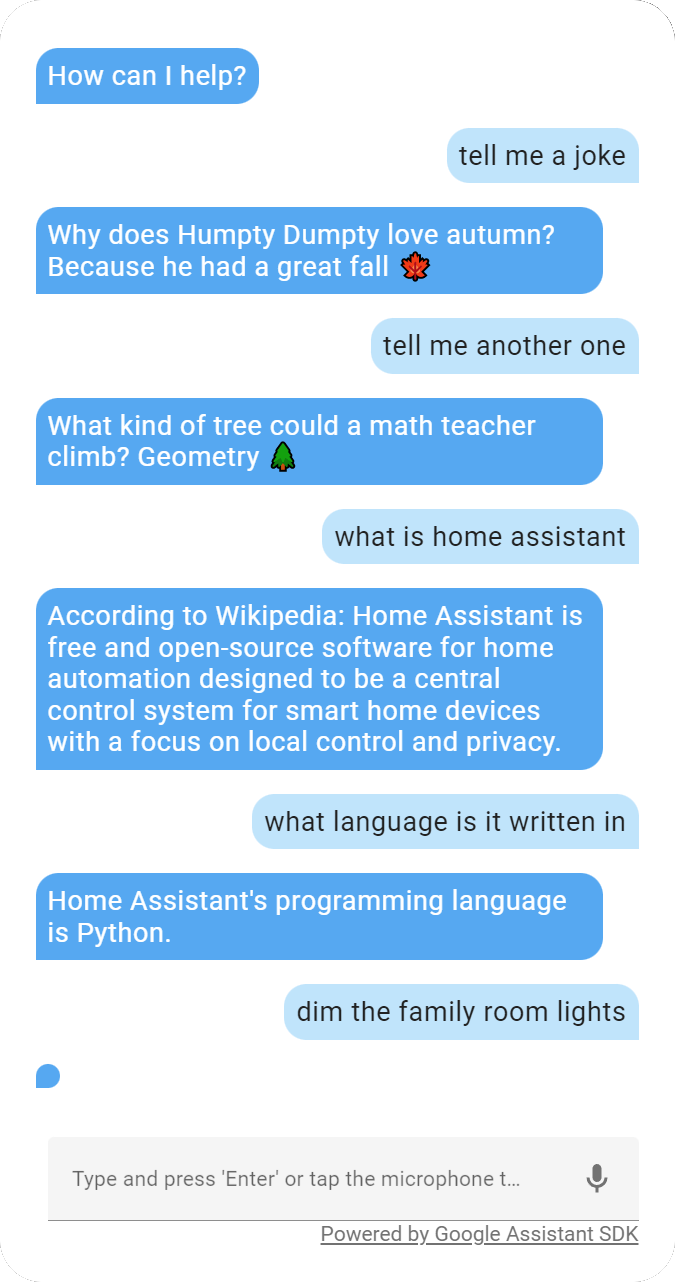
Or by calling the conversation.process action.
Note: due to a bug in the Google Assistant API, not all responses contain text, especially for home control commands, like turn on the lights. These will be shown as <empty response>. For those, Google Assistant responds with HTML and Home Assistant integrations are not allowed to parse HTML.
Removing the integration
To remove an integration instance from Home Assistant
- Go to Settings > Devices & services and select the integration card.
- From the list of devices, select the integration instance you want to remove.
- Next to the entry, select the three dots menu. Then, select Delete.