
The Home Assistant Core integrationIntegrations connect and integrate Home Assistant with your devices, services, and more. [Learn more] provides generic implementations like the generic homeassistant.turn_on action.
Editing the General Settings in YAML
The Home Assistant Core integration is also responsible for the general settings. These settings are defined during onboarding, but you can change them later under Settings > System > General. For the detailed steps, refer to Basic settings.
If you prefer editing in YAML, you can define your general settings in the configuration.yamlThe configuration.yaml file is the main configuration file for Home Assistant. It lists the integrations to be loaded and their specific configurations. In some cases, the configuration needs to be edited manually directly in the configuration.yaml file. Most integrations can be configured in the UI. [Learn more] file.
Note that for some of the settings, these can’t be edited from the UI if they were defined in YAML. They will be grayed out or inaccessible.
👁 Screenshot showing coordinates cannot be edited because they are defined in configuration.yaml file
Screenshot showing coordinates cannot be edited because they are defined in configuration.yaml file.
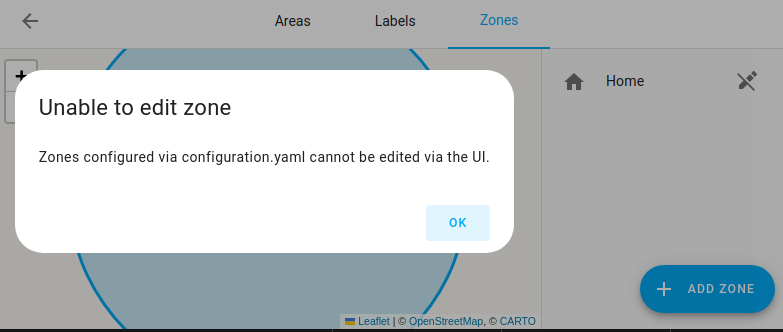
To get started with the general settings in YAML, follow these steps:
-
Copy the following information to your
configuration.yamlThe configuration.yaml file is the main configuration file for Home Assistant. It lists the integrations to be loaded and their specific configurations. In some cases, the configuration needs to be edited manually directly in the configuration.yaml file. Most integrations can be configured in the UI. [Learn more] file.homeassistant: name: Home latitude: 32.87336 longitude: 117.22743 elevation: 430 radius: 100 unit_system: metric currency: USD country: US time_zone: "America/Los_Angeles" allowlist_external_dirs: - "/usr/var/dumping-ground" - "/tmp" allowlist_external_urls: - "http://images.com/image1.png" media_dirs: media: "/media" recordings: "/mnt/recordings" debug: false -
Edit each entry to fit your home.
Configuration Variables
Name of the location where Home Assistant is running.
Latitude of your location required to calculate the time the sun rises and sets.
Longitude of your location required to calculate the time the sun rises and sets.
Altitude above sea level in meters. Impacts sunrise data.
Radius in meters defining your locations area. Impacts location awareness.
metric for Metric, us_customary for US Customary. This also sets temperature_unit, Celsius for Metric and Fahrenheit for US Customary
Override temperature unit set by unit_system. C for Celsius, F for Fahrenheit.
Pick your time zone from the column TZ of Wikipedia’s list of tz database time zones
Pick your currency code from the column Code of Wikipedia’s list of ISO 4217 active codes
The URL that Home Assistant is available on from the internet. For example: https://example.duckdns.org:8123. Note that this setting may only contain a protocol, hostname and port; using a path is not supported. This can also be configured by navigating to Settings > System > Network.
The URL that Home Assistant is available on from your local network. For example: http://192.168.0.10:8123. Note that this setting may only contain a protocol, hostname and port; using a path is not supported. This can also be configured by navigating to Settings > System > Network.
Customize entities.
Customize all entities in a domain.
Customize entities matching a pattern.
Extra folders that integrations are allowed to read from or write to, on top of the defaults. By default, the www folder inside your configuration directory and every folder listed under media_dirs are already allowed, and you do not need to repeat them here. Only add directories outside of those defaults.
List of external URLs that can be fetched. URLs can match specific resources (e.g., http://10.10.10.12/images/image1.jpg) or a relative path that allows access to resources within it (e.g., http://10.10.10.12/images would allow access to anything under that path)
A mapping of local media sources and their paths on disk.
Default language used by Home Assistant. This may, for example, influence the language used by voice assistants. The language should be specified as an RFC 5646 language tag, and must be a language which Home Assistant is translated to.
Country in which Home Assistant is running. This may, for example, influence radio settings to comply with local regulations. The country should be specified as an ISO 3166.1 alpha-2 code. Pick your country from the column Code of Wikipedia’s list of ISO 31661 alpha-2 officially assigned code codes
Enable Home Assistant’s built-in debug, which can help locate misbehaving integrations by enabling run-time checks for implementation errors. It can block many unsafe thread operations from crashing the system. Enabling debug has a slight performance impact on the system and is not recommended for long-term use.
Editing entity settings in YAML
The Home Assistant Core integration is also responsible for entity settings. By default, all of your devices will be visible and have a default icon determined by their domain. You can customize the look and feel of your front page by altering some of these parameters. This can be done by overriding attributes of specific entities.
Most of these settings can be changed from the UI. For the detailed steps, refer to Customizing entities.
If you prefer editing in YAML, you can define your general settings in the configuration.yamlThe configuration.yaml file is the main configuration file for Home Assistant. It lists the integrations to be loaded and their specific configurations. In some cases, the configuration needs to be edited manually directly in the configuration.yaml file. Most integrations can be configured in the UI. [Learn more] file.
Possible values
Configuration Variables
Name of the entity as displayed in the UI.
URL to use as picture for entity.
Any icon from Material Design Icons. Prefix name with mdi:, ie mdi:home. Note: Newer icons may not yet be available in the current Home Assistant release.
For switches with an assumed state two buttons are shown (turn off, turn on) instead of a switch. By setting assumed_state to false you will get the default switch icon.
Sets the class of the device, changing the device state and icon that is displayed on the UI (see below). It does not set the unit_of_measurement.
Defines the units of measurement, if any. This will also influence the graphical presentation in the history visualization as continuous value. Sensors with missing unit_of_measurement are showing as discrete values.
Sets the initial state for automations, on or off.
Device class
Devices classes categorize certain entities and influence how these are shown in the dashboard. Some device classes categorize by measurement type, such as sensors or binary sensors. Other device classes categorize into more specific types. For example, a cover can be a blind or a curtain. For a given platform, the device class influences what is shown in the user interface. For example: humidifier has two device classes, humidifier and dehumidifier. If the device class is set to humidifier, the UI shows Humidifying. If it is set to dehumidifier, it shows Drying.
Device class is currently supported by the following platforms:
For a list of the supported device classes, refer to the documentation of the platform.
Manual customization
Important
If you implement customize, customize_domain, or customize_glob, in your configuration.yamlThe configuration.yaml file is the main configuration file for Home Assistant. It lists the integrations to be loaded and their specific configurations. In some cases, the configuration needs to be edited manually directly in the configuration.yaml file. Most integrations can be configured in the UI. [Learn more] file, you must make sure it is done inside of homeassistant: or it will fail.
homeassistant:
 name: Home
 unit_system: metric
 # etc

 customize:
 # Add an entry for each entity that you want to overwrite.
 thermostat.family_room:
 entity_picture: https://example.com/images/nest.jpg
 friendly_name: Nest
 switch.wemo_switch_1:
 friendly_name: Toaster
 entity_picture: /local/toaster.jpg
 switch.wemo_switch_2:
 friendly_name: Kitchen kettle
 icon: mdi:kettle
 switch.rfxtrx_switch:
 assumed_state: false
 media_player.my_media_player:
 source_list:
 - Channel/input from my available sources
 # Customize all entities in a domain
 customize_domain:
 light:
 icon: mdi:home
 automation:
 initial_state: "on"
 # Customize entities matching a pattern
 customize_glob:
 "light.kitchen_*":
 icon: mdi:description
 "scene.month_*_colors":
 icon: mdi:other
Custom STUN and TURN servers
It’s possible to override the default list of STUN and TURN servers which are used to initiate WebRTC streaming. Each STUN or TURN server can be configured as described in the table below.
Configuration Variables
List of STUN and TURN server configurations
STUN or TURN server URLs. This can either be a single URL or a list of URLs.
Username for TURN server authentication
Credential for TURN server authentication
WebRTC configuration example
Important
If you implement webrtc in your configuration.yamlThe configuration.yaml file is the main configuration file for Home Assistant. It lists the integrations to be loaded and their specific configurations. In some cases, the configuration needs to be edited manually directly in the configuration.yaml file. Most integrations can be configured in the UI. [Learn more] file, you must make sure it is done inside of homeassistant: or it will fail.
homeassistant:
 name: Home
 unit_system: metric
 # etc

 webrtc:
 ice_servers:
 # Add an entry for each STUN or TURN server
 - url:
 - "stun:stun.example.com:19302"
 - "stun:stun2.example.com:12345"
 - url: "turn:turn.domain.com"
 username: "username"
 credential: "abc123"
List of triggers
The Home Assistant Core integrationIntegrations connect and integrate Home Assistant with your devices, services, and more. [Learn more] provides the following triggers. Each link below opens a dedicated page with examples, fields, and a step-by-step UI walkthrough.
-
Manual event received (
event) Triggers when an event is fired on the Home Assistant event bus. -
Home Assistant (
homeassistant) Triggers when Home Assistant starts up or shuts down. -
Numeric state (
numeric_state) Triggers when a numeric value crosses a threshold. -
State (
state) Triggers when the state or an attribute changes. -
Time (
time) Triggers at a specific time, or from a date/time helper or timestamp-style sensor. -
Time pattern (
time_pattern) Triggers periodically at a defined interval.
For an overview of every trigger across all integrations, see the triggers reference.
List of actions
The Home Assistant Core integrationIntegrations connect and integrate Home Assistant with your devices, services, and more. [Learn more] provides the following actions. Each link below opens a dedicated page with examples, parameters, and a step-by-step UI walkthrough.
-
Check Home Assistant configuration (
homeassistant.check_config) Checks the Home Assistant YAML configuration files for errors. -
Reload all Home Assistant configuration (
homeassistant.reload_all) Reloads all YAML configuration that can be reloaded without a restart. -
Reload config entry (
homeassistant.reload_config_entry) Reloads an integration’s config entry without restarting Home Assistant. -
Reload Core configuration (
homeassistant.reload_core_config) Reloads the Core configuration under the homeassistant section of your YAML. -
Reload custom Jinja2 templates (
homeassistant.reload_custom_templates) Reloads the custom Jinja2 templates from your custom_templates folder. -
Restart Home Assistant (
homeassistant.restart) Restarts Home Assistant after checking the configuration. -
Save persistent states (
homeassistant.save_persistent_states) Saves the persistent states of entities immediately. -
Set Home Assistant location (
homeassistant.set_location) Updates the location of the Home Assistant home zone. -
Stop Home Assistant (
homeassistant.stop) Stops the Home Assistant instance. -
Generic toggle (
homeassistant.toggle) Toggles one or more entities across any domain on or off in a single action. -
Generic turn off (
homeassistant.turn_off) Turns off one or more entities across any domain in a single action. -
Generic turn on (
homeassistant.turn_on) Turns on one or more entities across any domain in a single action. -
Update entity (
homeassistant.update_entity) Forces one or more entities to refresh their data right away.
For an overview of every action across all integrations, see the actions reference.
Home Assistant Core automation examples
You can use these core triggers to react to events, state changes, schedules, and Home Assistant lifecycle events.
Tip
You don’t need to edit YAML to use these examples. Copy a YAML snippet from this page, open the automation editor in Home Assistant, and press + (or + on Mac). Home Assistant automatically converts the pasted YAML into the visual editor format, whether it’s a full automation, a single trigger, a condition, or an action.
Automation: send a notification when Home Assistant starts
If you restart Home Assistant for an update or maintenance, this automation lets you know when it is ready again. It sends a message to your phone as soon as startup finishes.
-
Trigger: Home Assistant
- Event: Start
-
Action: Send a notification message
-
Target: My Device (
notify.my_device)
-
Target: My Device (
Automation: save persistent states before Home Assistant shuts down
If you are about to restart or stop Home Assistant, this automation tells Home Assistant to save persistent states right away. This can be useful before planned maintenance.
-
Trigger: Home Assistant
- Event: Shutdown
- Action: Save persistent states
Automation: send a reminder when a door stays open for 5 minutes
If a door stays open longer than expected, this automation sends a message to your phone. It uses the State trigger to wait until the entity stays in the on state for 5 minutes.
-
Trigger: State
-
Entity: Back door sensor (
binary_sensor.back_door) -
To:
on - For: 5 minutes
-
Entity: Back door sensor (
-
Action: Send a notification message
-
Target: My Device (
notify.my_device)
-
Target: My Device (