
The KNX integrationIntegrations connect and integrate Home Assistant with your devices, services, and more. [Learn more] connects Home Assistant to your KNX installation, allowing you to control KNX devices, act on telegrams and forward state changes from other integrations entities to your KNX bus.
This integration requires a local KNX/IP interface or router to establish the connection between Home Assistant and your KNX bus.
There is currently support for the following device types within Home Assistant:
- Binary sensor
- Button
- Climate
- Cover
- Date
- DateTime
- Fan
- Light
- Notify
- Number
- Scene
- Select
- Sensor
- Switch
- Text
- Time
- Weather
Configuration
To add the KNX hub to your Home Assistant instance, use this My button:

KNX Connection
Select the connection type to your KNX bus. The integration supports the following connection methods:
- ‘Automatic’ performs a gateway scan on start, to find a KNX IP interface. It will connect via a tunnel. This option is not available when a gateway scan at setup initiation was not successful.
- ‘Tunneling’ will connect to a specific KNX IP interface over a tunnel.
- ‘Routing’ will use Multicast to communicate with KNX IP routers.
For more information about KNX connection types see Connection.
Tunneling specific settings
You can select a specific tunnel device if multiple were found during the setup. In case no device was discovered, you can configure connection information manually.
UDP, TCP or Secure Tunneling
IP address or hostname of the KNX/IP tunneling device.
Port used by the KNX/IP tunneling device.
Enable if your KNXnet/IP tunneling server is behind NAT. Only applies for UDP connections.
Local IP or interface name used for the connection from Home Assistant. Leave blank to use auto-discovery.
Tunnel endpoint
Select the tunnel endpoint used for the connection. This step is only available for TCP or Secure Tunneling connection types.
Routing specific settings
KNX individual address to be used by Home Assistant to send telegrams. This shall not be used by any other device in your installation.
Select if your installation uses encrypted communication according to the KNX IP Secure standard. This setting requires compatible devices and configuration. You’ll be prompted for credentials in the next step.
Multicast group used by your installation. Default is 224.0.23.12
Multicast port used by your installation. Default is 3671
Local IP or interface name used for the connection from Home Assistant. Leave blank to use auto-discovery.
KNX IP Secure specific settings
See Connection on how to get the files or keys needed for this configuration step.
Reconfiguration
You can change your KNX connection configuration at any time through the integration settings. This is useful when you need to update the Keyring file or switch to a different connection type.
- Go to Settings > Devices & services.
- Select KNX.
- Click the three-dot menu and then select Reconfigure.
Configure KNX interface
Reconfigure your connection settings. See above for more information.
Import KNX Keyring
Provide a new keyring file to be used by the integration. See KNX Secure on how to get this file.
Options
To define options for KNX, follow these steps:
-
In Home Assistant, go to Settings > Devices & services.
-
If multiple instances of KNX are configured, choose the instance you want to configure.
-
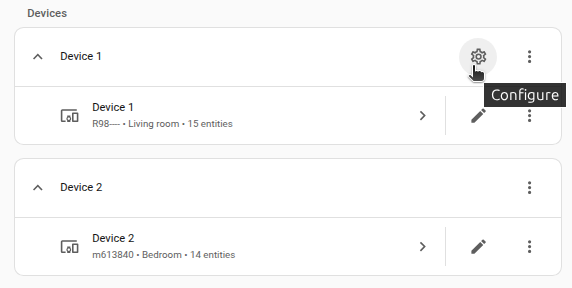
On the card, select the cogwheel .
- If the card does not have a cogwheel, the integration does not support options for this device.
-
Edit the options, then select Submit to save the changes.
Sets the default behavior for periodically reading state addresses from the KNX Bus.
Maximum outgoing telegrams per second. 0 to disable limit - which is recommended.
Number of Telegrams to keep in memory for the KNX panels group monitor.
Basic configuration
To use the various platforms offered by the KNX integration, you will need to set them up via the KNX panel or add the corresponding configuration yaml to your configuration.yamlThe configuration.yaml file is the main configuration file for Home Assistant. It lists the integrations to be loaded and their specific configurations. In some cases, the configuration needs to be edited manually directly in the configuration.yaml file. Most integrations can be configured in the UI. [Learn more]. See Splitting up the configuration if you like to arrange YAML parts in dedicated files.
After changing the configuration.yamlThe configuration.yaml file is the main configuration file for Home Assistant. It lists the integrations to be loaded and their specific configurations. In some cases, the configuration needs to be edited manually directly in the configuration.yaml file. Most integrations can be configured in the UI. [Learn more] file, restart Home Assistant to apply the changes. The integration is now shown on the integrations page under Settings > Devices & services. Its entities are listed on the integration card itself and on the Entities tab.
knx:
 # configure platforms directly in configuration.yaml
 binary_sensor:
 - name: "Myfirstbinarysensor"
 state_address: "1/2/3"
 # etc...
 # or outsource platform configuration to separate files
 sensor: !include knx_sensor.yaml
Please see the dedicated platform sections below about how to configure them correctly.
Group addresses
Group addresses are configured as strings or integers in the format “1/2/3” for 3-level GA-structure, “1/2” for 2-level GA-structure or “1” for free GA-structure.
The Home Assistant KNX integration uses configured state_address or *_state_address to update the state of a function. These addresses are read by GroupValueRead requests on startup and when there was no incoming telegram for one hour (default sync_state).
It is possible to configure passive/listening group addresses for all functions of every KNX platform (except expose and notify). This allows having multiple group addresses to update the state of its function (e.g., the brightness of a light). When group addresses are configured as a list of strings, the first item is the active sending or state-reading address and the rest is registered as passive addresses. This schema behaves like in ETS configuration where the first is the “sending” address and others are just for updating the group object.
If your KNX device provides active state group objects it is advised to use *_state_address instead of passive addresses as it reduces configuration complexity and avoids wrong states (e.g., when channels are logically locked).
knx:
 switch:
 - name: "Switchwithoutpassiveaddresses"
 address: "1/1/1" # this is the address that will be sent to
 state_address: "8/8/8" # this is the address GroupValueRead requests are sent to
 - name: "Switchwithpassiveaddresses"
 address:
 - "1/1/1" # this is the address that will be sent to
 - "1/1/2" # this and following are passive addresses
 - "1/1/3"
 state_address:
 - "8/8/8" # this is the address GroupValueRead requests are sent to
 - "8/8/2" # this and following are passive addresses
 - "8/8/3"
Connection
Connection parameters are configured during integration setup and can be modified later in the integrations settings.
KNX Secure
The KNX integration supports both IP Secure and Data Secure.
IP Secure
IP Secure credentials can be provided in two ways:
- Using a
.knxkeysfile: This file can be exported from ETS and imported into the integration settings. - Manual configuration: If you are not using Data Secure, you can manually input the required IP Secure credentials in the integration settings.
Data Secure
Data Secure credentials are always sourced from a .knxkeys file. You can import or update the Keyring file from the integrations settings.
Important
Assign all secured group addresses that Home Assistant will use to either the interface’s tunnel endpoint or a dummy device in ETS before exporting the Keyring file.
When updating secure groups, ensure all participating devices, routers, and couplers applications are updated as well. After making changes, load the updated Keyring file into Home Assistant.
Tunneling
Tunneling uses a KNX IP Interface to connect to the KNX bus. Most KNX IP Routers also support tunneling connections. This is the recommended connection type and is also used when selecting an “Automatic” connection in the integration setup.
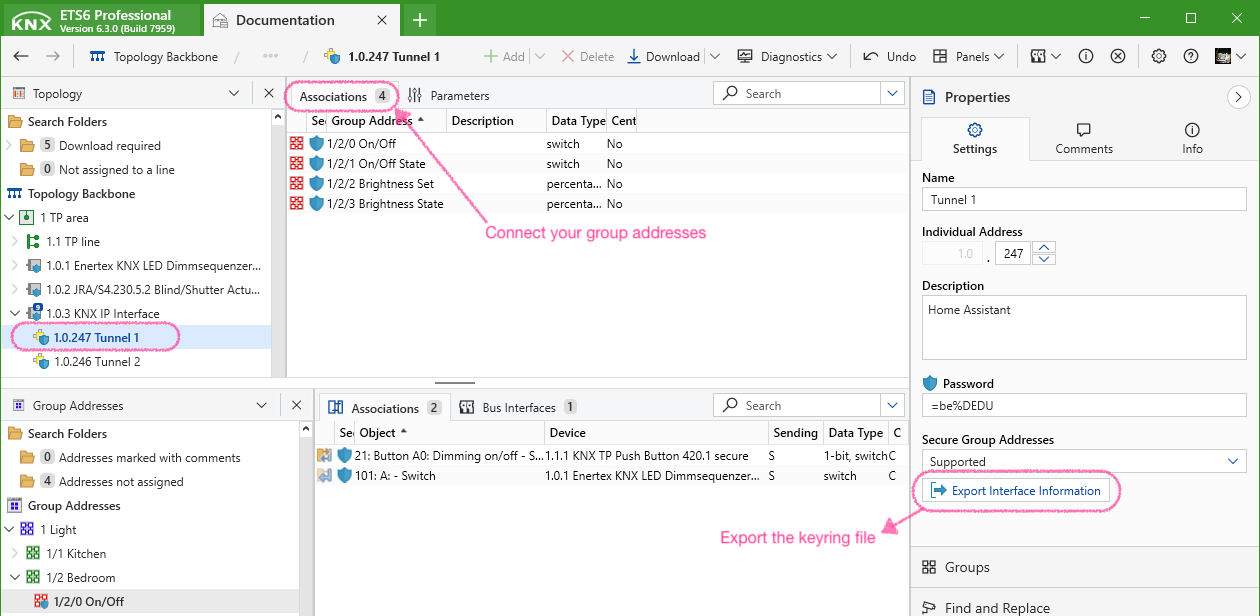
For modern interfaces (supporting TCP or IP Secure) you can select a specific tunnel endpoint to be used. Make sure that Home Assistant is the only client connecting to this tunnel endpoint. In ETS it is recommended to connect the group addresses you want to use to the tunnel endpoint that Home Assistant uses. For secure group addresses, this is mandatory.
If you use KNX IP Secure tunneling or Data Secure, export the Keyring file from ETS and import it in the KNX integration settings.
👁 Tunnel endpoint setup in ETS 6
Note
If you want Home Assistant to use a specific individual address, you can change the address of the used tunnel endpoint in ETS.
Routing
Routing communicates with KNXnet/IP routers via IP Multicast.
When using routing:
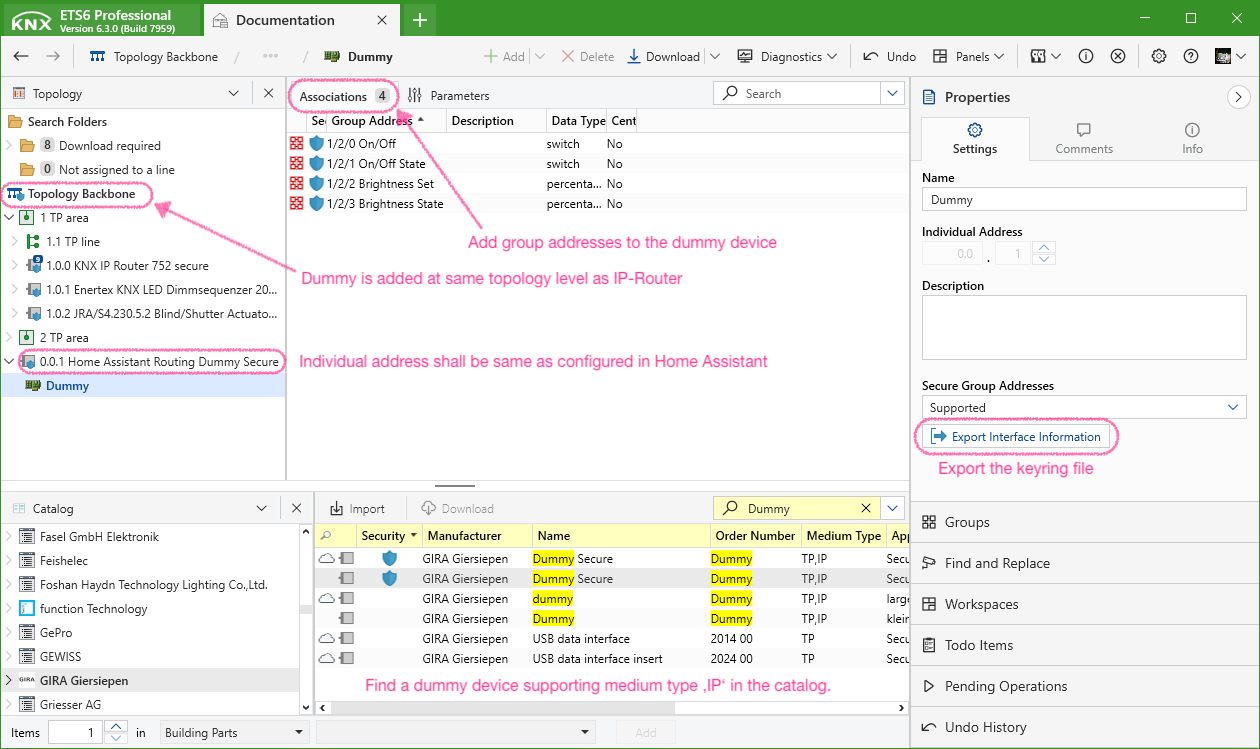
- Add a dummy device in ETS at the same topology level as your routers.
- Assign this dummy device the same individual address configured in the KNX integration setup.
- Connect all group addresses that Home Assistant will use to the dummy device. This ensures routers and couplers maintain updated filter tables and enables the use of secure group addresses in Home Assistant.
- If you use KNX IP Secure routing or Data Secure groups, export the Keyring file from ETS and import it in the KNX integration settings.
👁 Routing dummy setup in ETS 6
Data updates
This integration uses the KNX/IP protocol to receive telegrams live as they appear on the bus. When the integration is loaded, it actively requests data needed to initialize the configured entities. See Group Addresses for more details.
States of diagnostic entities of the “KNX Interface” device are polledData polling is the process of querying a device or service at regular intervals to check for updates or retrieve data. By defining a custom polling interval, you can control how frequently your system checks for new data, which can help optimize performance and reduce unnecessary network traffic. [Learn more] every 10 seconds.
Triggers
The KNX integration provides its own trigger platform which can be used in automations.
Telegram trigger
The knx.telegram trigger can be used to trigger automations on incoming or outgoing KNX telegrams.
Note
This trigger is also provided as a device trigger by the KNX Interface device. It supports setting the options in the automation builder UI, but doesn’t support setting a specific DPT (type) to decode the payload as it always relies on project data.
Configuration Variables
A group address or a list of group addresses the trigger should listen on. If not set, or an empty list, the trigger will listen on all group addresses.
If set, the payload will be decoded as given DPT in the trigger data. When not set, the DPT is sourced from project data. KNX sensor types are valid values KNX Sensor (e.g., “2byte_float” or “percent”).
If set to false, the trigger will not fire on GroupValueWrite telegrams.
If set to false, the trigger will not fire on GroupValueResponse telegrams.
If set to false, the trigger will not fire on GroupValueRead telegrams.
If set to false, the trigger will not fire on incoming telegrams.
If set to false, the trigger will not fire on outgoing telegrams.
Available trigger data
In addition to the standard automation trigger data, the knx.telegram trigger platform has additional trigger data available for use.
-
trigger.destinationDestination group address -
trigger.destination_nameDestination group address name -
trigger.directionTelegram direction -
trigger.dpt_mainDestination group address main datapoint type number -
trigger.dpt_subDestination group address sub datapoint type number -
trigger.dpt_nameDPT value type name - see Sensor value types -
trigger.payloadRaw telegram payload. DPT 1, 2, and 3 yield integers 0..255; other DPT yield lists of integers 0..255 -
trigger.sourceSource individual address -
trigger.source_nameSource name -
trigger.telegramtypeAPCI type of telegram -
trigger.timestampTimestamp -
trigger.unitUnit according to group address DPT -
trigger.valueDecoded telegram payload according to DPT
| Template variable | Type | Project data required |
|---|---|---|
trigger.destination |
string | no |
trigger.destination_name |
string | yes |
trigger.direction |
string | no |
trigger.dpt_main |
integer | yes |
trigger.dpt_sub |
integer | yes |
trigger.dpt_name |
string | yes |
trigger.payload |
integer or list of integers | no |
trigger.source |
string | no |
trigger.source_name |
string | yes |
trigger.telegramtype |
string | no |
trigger.timestamp |
timestamp | no |
trigger.unit |
string | yes |
trigger.value |
any | yes |
For values that require project data: if the information was not found, or if no project file was provided, data will be set to null.
Examples
Example automation configuration
- alias: "Singlegroupaddresstrigger"
 triggers:
 - trigger: knx.telegram
 destination: 1/2/3
 group_value_read: false
 outgoing: false
 conditions: "{{trigger.value==0}}"
 actions: []
Example trigger data
variables:
 triggers:
 id: "0"
 idx: "0"
 alias: null
 destination: 1/2/3
 destination_name: Light office brightness
 direction: Incoming
 dpt_main: 5
 dpt_sub: 1
 dpt_name: percent
 payload:
 - 255
 source: 1.0.51
 source_name: Dimming actuator 1
 telegramtype: GroupValueWrite
 timestamp: "2024-01-09T10:38:28.447487+01:00"
 unit: "%"
 value: 100
context: null
Events
Tip
For automation triggers, it is recommended to use the knx.telegram trigger instead of knx_event.
knx:
 event:
 - address:
 - "0/1/*"
 - address:
 - "1/2/*"
 - "1/3/2-4"
 type: "2byte_unsigned"
 - address:
 - "3/4/5"
 type: "2byte_float"
Configuration Variables
Defines a list of patterns for matching KNX group addresses. Telegrams with destination addresses matching one of the patterns are sent to the Home Assistant event bus as knx_event.
Telegram payloads in knx_event events will be decoded using the configured type (DPT) for the addresses in the same block. The decoded value will be written to the event data value key. If not configured the value key will be None - the data key will still hold the raw payload (use this for DPT 1, 2, 3). All sensor types are valid types - see KNX Sensor (e.g., “2byte_float” or “1byte_signed”).
Every telegram that matches an address pattern with its destination field will be announced on the event bus as a knx_event event containing data attributes
-
datacontains the raw payload data (e.g., 1 or “[12, 55]”). -
destinationthe KNX group address the telegram is sent to as string (e.g., “1/2/3”). -
directionthe direction of the telegram as string (“Incoming” / “Outgoing”). -
sourcethe KNX individual address of the sender as string (e.g., “1.2.3”). -
telegramtypethe APCI service of the telegram. “GroupValueWrite”, “GroupValueRead” or “GroupValueResponse” generate a knx_event. -
valuecontains the decoded payload value iftypeis configured for the address. Will beNonefor “GroupValueRead” telegrams.
Actions
To directly interact with the KNX bus, you can use the following actions:
Send
Domain: knx
Action: send
Data: {"address": "1/0/15", "payload": 0, "type": "temperature"}
Configuration Variables
KNX group address.
Payload to send to the bus. When type is not set, raw bytes are sent. Integers are then treated as DPT 1/2/3 payloads. For DPTs > 6 bits send a list. Each value represents 1 octet (0-255). Pad with 0 to DPT byte length.
If set, the payload will not be sent as raw bytes, but encoded as given DPT. KNX sensor types are valid values - see table in KNX Sensor.
If set to true, the telegram will be sent as a GroupValueResponse instead of a GroupValueWrite.
# Example script to send a fixed value and the state of an entity
alias: "MyScript"
sequence:
 - action: knx.send
 data:
 address: 1/1/1
 type: percent
 payload: 50
 response: false
 - action: knx.send
 data:
 address: 1/1/1
 payload: [128] # 50 % as 1-byte raw value
 response: false
 - action: knx.send
 data:
 address: 3/3/3
 type: temperature
 payload: "{{states('sensor.dew_point')}}"
 response: false
Read
You can use the homeassistant.update_entity action call to issue GroupValueRead requests for all *state_address of an entity.
To manually send GroupValueRead requests, use the knx.read action. The response can be used in automations by the knx.telegram trigger and it will be processed in KNX entities.
Domain: knx
Action: read
Data: {"address": "1/0/15"}
Configuration Variables
Group address(es) to send read request to. Lists will read multiple group addresses.
# Example automation to update a cover position after 10 seconds of movement initiation
automation:
 - triggers:
 - trigger: knx.telegram
 # Cover move trigger
 destination: "0/4/20"
 actions:
 - delay: 0:0:10
 - action: knx.read
 data:
 # Cover position address
 address: "0/4/21"

 - triggers:
 - trigger: homeassistant
 event: start
 actions:
 # Register the group address to trigger a knx_event
 - action: knx.event_register
 data:
 # Cover move trigger
 address: "0/4/20"
Register event
The knx.event_register action can be used to register (or unregister) group addresses to fire knx_event Events. Events for group addresses configured in the event key in configuration.yamlThe configuration.yaml file is the main configuration file for Home Assistant. It lists the integrations to be loaded and their specific configurations. In some cases, the configuration needs to be edited manually directly in the configuration.yaml file. Most integrations can be configured in the UI. [Learn more] cannot be unregistered. See knx_event
Configuration Variables
Group address that shall be added or removed.
If true the group address will be removed.
If set, the payload will be decoded as given DPT in the event data value key. KNX sensor types are valid values KNX Sensor (e.g., “2byte_float” or “1byte_signed”).
Register exposure
The knx.exposure_register action can be used to register (or unregister) exposures to the KNX bus. Exposures defined in configuration.yamlThe configuration.yaml file is the main configuration file for Home Assistant. It lists the integrations to be loaded and their specific configurations. In some cases, the configuration needs to be edited manually directly in the configuration.yaml file. Most integrations can be configured in the UI. [Learn more] cannot be unregistered. Per address only one exposure can be registered. See expose
Configuration Variables
In addition to the configuration variables of expose remove set to true can be used to remove exposures. Only address is required for removal.
Exposing entity states, entity attributes or time to KNX bus
Expose Home Assistant entity states and attributes to the KNX bus so other KNX devices can react to changes or read the latest values. You can also broadcast current time and date.
Serve current time
You can broadcast the current local time, date, or combined date and time to the KNX bus every hour. This can be configured from the frontend in the KNX panel or via YAML.
Entity exposures
Expose Home Assistant entities to share their state or attributes with the KNX bus. Home Assistant automatically sends the current value whenever it changes and responds to read requests on the KNX bus. This can be configured from the frontend in the KNX panel or via YAML.
Entity platforms
Common entity configuration options
All KNX entity platforms support the following common configuration options.
Configuration Variables
An initial name for this entity. After the entity is created, this configuration setting will no longer be used. You can change the name in the Home Assistant UI.
The category of the entity.
Binary sensor
The KNX binary sensor platform allows you to monitor KNX binary sensors like window/door contacts, motion detectors, or alarms.
Note
Binary sensors are read-only entities. To write to the KNX bus, configure a KNX Switch entity or use the knx.send action.
Binary sensor entities can be created from the frontend in the KNX panel or via YAML.
Automation example
Let’s pretend you have configured a binary sensor with the name Livingroom Switch and you want to toggle a light when the button was pressed once and another light when the button was pressed twice.
context_timeout has to be configured in order for this to work and the switch would have to send the same payloads on each press (on - on within the time window).
automation:
 - triggers:
 - trigger: numeric_state
 entity_id: binary_sensor.livingroom_switch
 attribute: counter
 above: 0
 below: 2
 actions:
 - action: light.toggle
 entity_id: light.livingroom_ceiling_lamp
 - triggers:
 - trigger: numeric_state
 entity_id: binary_sensor.livingroom_switch
 attribute: counter
 above: 1
 below: 3
 actions:
 - action: light.toggle
 target:
 entity_id:
 - light.livingroom_floor_lamp
Button
The KNX button platform allows you to send concurrent predefined values via the frontend or an action. When a user presses the button, the assigned generic raw payload is sent to the KNX bus.
Tip
Telegrams received on the KNX bus for the group address of a button are not reflected in a new button state. Use the knx.telegram trigger if you want to automate on a specific payload received on a group address.
# Example configuration.yaml entry
knx:
 button:
 - name: "DPT1-Truebutton"
 address: "0/0/1"
 - name: "100%button"
 address: "0/0/2"
 payload: 0xFF
 payload_length: 1
 - name: "Temperaturebutton"
 address: "0/0/3"
 value: 21.5
 type: temperature
Important
When type is used value is required, payload is invalid.
When payload_length is used value is invalid.
See also the common entity configuration options.
Configuration Variables
Group address to send to.
The raw payload that shall be sent.
The length of the payload data in the telegram. Use 0 for DPT 1, 2 or 3.
The value that shall be sent encoded by type.
A type from the value types table to encode the configured value.
Climate
The KNX climate platform is used as an interface to KNX thermostats and room controllers.
Climate entities can be created from the frontend in the KNX panel or via YAML.
Cover
The KNX cover platform is used as an interface to KNX covers.
Note
Unlike most KNX devices, Home Assistant defines 0% as closed and 100% as fully open in regards to covers. The corresponding value inversion is done internally by the KNX integration.
Home Assistant will, by default, close a cover by moving it in the DOWN direction in the KNX nomenclature, and open a cover by moving it in the UP direction.
Cover entities can be created from the frontend in the KNX panel or via YAML.
Date
The KNX date platform allows you to send date values to the KNX bus and update its state from received telegrams. It can optionally respond to read requests from the KNX bus.
Note
Date entities without a state_address will restore their last known state after Home Assistant was restarted.
Dates that have a state_address configured request their current state from the KNX bus.
Note
DPT 11.001 covers the range 1990 to 2089. Year values outside of this range are not allowed.
Date entities can be created from the frontend in the KNX panel or via YAML.
DateTime
The KNX datetime platform allows you to send datetime values to the KNX bus and update its state from received telegrams. It can optionally respond to read requests from the KNX bus.
Note
Date entities without a state_address will restore their last known state after Home Assistant was restarted.
DateTimes that have a state_address configured request their current state from the KNX bus.
Note
System timezone is used as DPT 19.001 doesn’t provide timezone information. Year values outside of the range 1900 to 2155 are invalid.
Datetime entities can be created from the frontend in the KNX panel or via YAML.
Fan
The KNX fan integration is used to control KNX fans. Following control types are supported:
- Percentage controlled: Fans that set the percentage directly from 0-100%.
- Step controlled: Fans which have a fixed amount of steps to set. The integration will convert percentage to step automatically. The
max_stepattribute is set to the number of steps of the fan, not counting theoff-step. Example: A fan supports the steps 0 to 3. To use this fan themax_stepattribute has to be set to3. The integration will convert the percentage66 %to the step2when sending data to KNX.
Fan entities can be created from the frontend in the KNX panel or via YAML.
Light
The KNX light integration is used as an interface to control KNX actuators for lighting applications such as:
- Switching actuators
- Dimming actuators
- LED controllers
- DALI gateways
Light entities can be created from the frontend in the KNX panel or via YAML.
Notify
The KNX notify platform allows you to send notifications to KNX devices as DPT16 strings.
knx:
 notify:
 - name: "Alarm"
 address: "5/1/10"
See also the common entity configuration options.
Configuration Variables
KNX group address the notification will be sent to. DPT 16
A DPT identifier representing a text value (“string” or “latin_1” - see KNX Sensor) used to encode the notification.
Example action
action: notify.send_message
data:
 message: "HellofromHA!"
 entity_id: notify.alarm
Number
The KNX number platform allows you to send generic numeric values to the KNX bus and update its state from received telegrams. It can optionally respond to read requests from the KNX bus.
Note
Number entities without a state_address will restore their last known state after Home Assistant was restarted.
Numbers that have a state_address configured request their current state from the KNX bus.
Number entities can be created from the frontend in the KNX panel or via YAML.
Scene
The KNX scene platform allows you to activate KNX scenes and updates scene entities when the corresponding scene number is received on the KNX bus.
Scene entities can be created from the frontend in the KNX panel or via YAML.
Select
The KNX select platform allows the user to define a list of values that can be selected via the frontend and can be used within conditions of automation. When a user selects a new item, the assigned generic raw payload is sent to the KNX bus. A received telegram updates the state of the select entity. It can optionally respond to read requests from the KNX bus.
Note
Select entities without a state_address will restore their last known state after Home Assistant was restarted.
Selects that have a state_address configured request their current state from the KNX bus.
# Example configuration.yaml entry
knx:
 select:
 - name: "DPT2selector"
 address: "0/0/1"
 payload_length: 0
 options:
 - option: "Nocontrol"
 payload: 0
 - option: "ControlOn"
 payload: 0b10
 - option: "ControlOff"
 payload: 0b11
 - name: "DHWMode"
 address: "0/0/2"
 state_address: "0/0/3"
 payload_length: 1
 options:
 - option: "Auto"
 payload: 0
 - option: "LegioProtect"
 payload: 1
 - option: "Normal"
 payload: 2
 - option: "Reduced"
 payload: 3
 - option: "Off/FrostProtect"
 payload: 4
See also the common entity configuration options.
Configuration Variables
The group address to which new values will be sent.
Group address for retrieving the state from the KNX bus.
The length of the payload expected for the DPT. Use 0 for DPT 1, 2 or 3.
List of options to choose from. Each option and payload have to be unique.
The name of the option used to trigger the assigned payload.
The raw payload assigned to the option.
If true, the entity will respond to GroupValueRead telegrams received on the configured address by sending a GroupValueResponse to the same address. This is typically used when Home Assistant acts as the state provider for the KNX bus. In such cases, only address is configured, and state_address is not set. Read-requests to passive or state addresses don’t trigger responses.
Actively read the value from the bus. The maximum time interval (<minutes>) is 1440. The following values are valid
-
trueequivalent to “expire 60” (default) -
falseno GroupValueRead telegrams will be sent to the bus -
every <minutes>to update it regularly every <minutes> -
expire <minutes>to read the state from the KNX bus when no telegram was received for <minutes> -
<minutes>equivalent to “expire <minutes>” -
initto just initialize the state on startup
Sensor
The KNX sensor platform allows you to monitor KNX sensors.
Note
Sensors are read-only entities. To write to the KNX bus, configure a KNX Number entity or use the knx.send action.
Sensor entities can be created from the frontend in the KNX panel or via YAML.
Switch
The KNX switch platform is used as an interface to switching actuators.
Switch entities can be created from the frontend in the KNX panel or via YAML.
Switch entities without a state_address will restore their last known state after Home Assistant was restarted.
Switches that have a state_address configured request their current state from the KNX bus.
Text
The KNX text platform allows you to send text values to the KNX bus and update its state from received telegrams. It can optionally respond to read requests from the KNX bus.
Note
Text entities without a state_address will restore their last known state after Home Assistant was restarted.
Texts that have a state_address configured request their current state from the KNX bus.
Text entities can be created from the frontend in the KNX panel or via YAML.
Time
The KNX time platform allows you to send time values to the KNX bus and update its state from received telegrams. It can optionally respond to read requests from the KNX bus.
Note
Time entities without a state_address will restore their last known state after Home Assistant was restarted.
Times that have a state_address configured request their current state from the KNX bus.
Note
The day field of the time telegram will always be set to 0 (no day).
Time entities can be created from the frontend in the KNX panel or via YAML.
Weather
The KNX weather platform is used as an interface to KNX weather stations.
To use your KNX weather station in your installation, add the following lines to your top-level KNX Integration configuration key in your configuration.yamlThe configuration.yaml file is the main configuration file for Home Assistant. It lists the integrations to be loaded and their specific configurations. In some cases, the configuration needs to be edited manually directly in the configuration.yaml file. Most integrations can be configured in the UI. [Learn more]:
# Example configuration.yaml entry
knx:
 weather:
 - name: "Home"
 address_temperature: "7/0/0"
 address_brightness_south: "7/0/1"
 address_brightness_west: "7/0/2"
 address_brightness_east: "7/0/3"
 address_brightness_north: "7/0/11"
 address_wind_speed: "7/0/4"
 address_rain_alarm: "7/0/5"
 address_frost_alarm: "7/0/6"
 address_wind_alarm: "7/0/7"
 address_day_night: "7/0/8"
 address_air_pressure: "7/0/9"
 address_humidity: "7/0/10"
 sync_state: true
See also the common entity configuration options.
Configuration Variables
KNX group address for reading current outside temperature from KNX bus. DPT 9.001
KNX group address for reading current brightness to south coordinate from KNX bus. DPT 9.004
KNX group address for reading current brightness to west coordinate from KNX bus. DPT 9.004
KNX group address for reading current brightness to east coordinate from KNX bus. DPT 9.004
KNX group address for reading current brightness to north coordinate from KNX bus. DPT 9.004
KNX group address for reading current wind bearing from KNX bus. DPT 5.003
KNX group address for reading current wind speed from KNX bus. DPT 9.005
KNX group address for reading if rain alarm is on/off.
KNX group address for reading if frost alarm is on/off.
KNX group address for reading if wind alarm is on/off.
KNX group address for reading if it’s day/night.
KNX address reading current air pressure. DPT 9.006 or 14.058
KNX address for reading current humidity. DPT 9.007
Actively read the value from the bus. The maximum time interval (<minutes>) is 1440. The following values are valid
-
trueequivalent to “expire 60” (default) -
falseno GroupValueRead telegrams will be sent to the bus -
every <minutes>to update it regularly every <minutes> -
expire <minutes>to read the state from the KNX bus when no telegram was received for <minutes> -
<minutes>equivalent to “expire <minutes>” -
initto just initialize the state on startup
Value types
The following table lists the supported numeric Data Point Types (DPT). You can use either the type field or the DPT number as a string in your YAML configuration to specify the data type for your entities.
| KNX DPT | type | size in byte | range | unit |
|---|---|---|---|---|
| 5 | 1byte_unsigned | 1 | 0 … 255 | |
| 5.001 | percent | 1 | 0 … 100 | % |
| 5.003 | angle | 1 | 0 … 360 | ° |
| 5.004 | percentU8 | 1 | 0 … 255 | % |
| 5.005 | decimal_factor | 1 | 0 … 255 | |
| 5.006 | tariff | 1 | 0 … 254 | |
| 5.010 | pulse | 1 | 0 … 255 | counter pulses |
| 6 | 1byte_signed | 1 | -128 … 127 | |
| 6.001 | percentV8 | 1 | -128 … 127 | % |
| 6.010 | counter_pulses | 1 | -128 … 127 | counter pulses |
| 7 | 2byte_unsigned | 2 | 0 … 65535 | |
| 7.001 | pulse_2byte | 2 | 0 … 65535 | pulses |
| 7.002 | time_period_msec | 2 | 0 … 65535 | ms |
| 7.003 | time_period_10msec | 2 | 0 … 65535 | ms |
| 7.004 | time_period_100msec | 2 | 0 … 65535 | ms |
| 7.005 | time_period_sec | 2 | 0 … 65535 | s |
| 7.006 | time_period_min | 2 | 0 … 65535 | min |
| 7.007 | time_period_hrs | 2 | 0 … 65535 | h |
| 7.011 | length_mm | 2 | 0 … 65535 | mm |
| 7.012 | current | 2 | 0 … 65535 | mA |
| 7.013 | brightness | 2 | 0 … 65535 | lx |
| 7.600 | color_temperature | 2 | 0 … 65535 | K |
| 8 | 2byte_signed | 2 | -32768 … 32767 | |
| 8.001 | pulse_2byte_signed | 2 | -32768 … 32767 | pulses |
| 8.002 | delta_time_ms | 2 | -32768 … 32767 | ms |
| 8.003 | delta_time_10ms | 2 | -32768 … 32767 | ms |
| 8.004 | delta_time_100ms | 2 | -32768 … 32767 | ms |
| 8.005 | delta_time_sec | 2 | -32768 … 32767 | s |
| 8.006 | delta_time_min | 2 | -32768 … 32767 | min |
| 8.007 | delta_time_hrs | 2 | -32768 … 32767 | h |
| 8.010 | percentV16 | 2 | -32768 … 32767 | % |
| 8.011 | rotation_angle | 2 | -32768 … 32767 | ° |
| 8.012 | length_m | 2 | -32768 … 32767 | m |
| 9 | 2byte_float | 2 | -671088.64 … 670760.96 | |
| 9.001 | temperature | 2 | -273 … 670760 | °C |
| 9.002 | temperature_difference_2byte | 2 | -670760 … 670760 | K |
| 9.003 | temperature_a | 2 | -670760 … 670760 | K/h |
| 9.004 | illuminance | 2 | 0 … 670760 | lx |
| 9.005 | wind_speed_ms | 2 | 0 … 670760 | m/s |
| 9.006 | pressure_2byte | 2 | 0 … 670760 | Pa |
| 9.007 | humidity | 2 | 0 … 670760 | % |
| 9.008 | ppm | 2 | -671088.64 … 670760.96 | ppm |
| 9.009 | air_flow | 2 | -671088.64 … 670760.96 | m³/h |
| 9.010 | time_1 | 2 | -670760 … 670760 | s |
| 9.011 | time_2 | 2 | -670760 … 670760 | ms |
| 9.020 | voltage | 2 | -671088.64 … 670760.96 | mV |
| 9.021 | curr | 2 | -671088.64 … 670760.96 | mA |
| 9.022 | power_density | 2 | -671088.64 … 670760.96 | W/m² |
| 9.023 | kelvin_per_percent | 2 | -671088.64 … 670760.96 | K/% |
| 9.024 | power_2byte | 2 | -671088.64 … 670760.96 | kW |
| 9.025 | volume_flow | 2 | -671088.64 … 670760.96 | l/h |
| 9.026 | rain_amount | 2 | -671088.64 … 670760.96 | l/m² |
| 9.027 | temperature_f | 2 | -459.6 … 670760 | °F |
| 9.028 | wind_speed_kmh | 2 | 0 … 670760 | km/h |
| 9.029 | absolute_humidity | 2 | 0 … 670760 | g/m³ |
| 9.030 | concentration_ugm3 | 2 | 0 … 670760 | μg/m³ |
| 9.? | enthalpy | 2 | -671088.64 … 670760.96 | H |
| 12 | 4byte_unsigned | 4 | 0 … 4294967295 | |
| 12.001 | pulse_4_ucount | 4 | 0 … 4294967295 | counter pulses |
| 12.100 | long_time_period_sec | 4 | 0 … 4294967295 | s |
| 12.101 | long_time_period_min | 4 | 0 … 4294967295 | min |
| 12.102 | long_time_period_hrs | 4 | 0 … 4294967295 | h |
| 12.1200 | volume_liquid_litre | 4 | 0 … 4294967295 | l |
| 12.1201 | volume_m3 | 4 | 0 … 4294967295 | m³ |
| 13 | 4byte_signed | 4 | -2147483648 … 2147483647 | |
| 13.001 | pulse_4byte | 4 | -2147483648 … 2147483647 | counter pulses |
| 13.002 | flow_rate_m3h | 4 | -2147483648 … 2147483647 | m³/h |
| 13.010 | active_energy | 4 | -2147483648 … 2147483647 | Wh |
| 13.011 | apparant_energy | 4 | -2147483648 … 2147483647 | VAh |
| 13.012 | reactive_energy | 4 | -2147483648 … 2147483647 | VARh |
| 13.013 | active_energy_kwh | 4 | -2147483648 … 2147483647 | kWh |
| 13.014 | apparant_energy_kvah | 4 | -2147483648 … 2147483647 | kVAh |
| 13.015 | reactive_energy_kvarh | 4 | -2147483648 … 2147483647 | kVARh |
| 13.016 | active_energy_mwh | 4 | -2147483648 … 2147483647 | MWh |
| 13.100 | long_delta_timesec | 4 | -2147483648 … 2147483647 | s |
| 13.1200 | delta_volume_liquid_litre | 4 | -2147483648 … 2147483647 | L |
| 13.1201 | delta_volume_m3 | 4 | -2147483648 … 2147483647 | m³ |
| 14 | 4byte_float | 4 | ||
| 14.000 | acceleration | 4 | m/s² | |
| 14.001 | acceleration_angular | 4 | rad/s² | |
| 14.002 | activation_energy | 4 | J/mol | |
| 14.003 | activity | 4 | s⁻¹ | |
| 14.004 | mol | 4 | mol | |
| 14.005 | amplitude | 4 | ||
| 14.006 | angle_rad | 4 | rad | |
| 14.007 | angle_deg | 4 | ° | |
| 14.008 | angular_momentum | 4 | J s | |
| 14.009 | angular_velocity | 4 | rad/s | |
| 14.010 | area | 4 | m² | |
| 14.011 | capacitance | 4 | F | |
| 14.012 | charge_density_surface | 4 | C/m² | |
| 14.013 | charge_density_volume | 4 | C/m³ | |
| 14.014 | compressibility | 4 | m²/N | |
| 14.015 | conductance | 4 | S | |
| 14.016 | electrical_conductivity | 4 | S/m | |
| 14.017 | density | 4 | kg/m³ | |
| 14.018 | electric_charge | 4 | C | |
| 14.019 | electric_current | 4 | A | |
| 14.020 | electric_current_density | 4 | A/m² | |
| 14.021 | electric_dipole_moment | 4 | C m | |
| 14.022 | electric_displacement | 4 | C/m² | |
| 14.023 | electric_field_strength | 4 | V/m | |
| 14.024 | electric_flux | 4 | c | |
| 14.025 | electric_flux_density | 4 | C/m² | |
| 14.026 | electric_polarization | 4 | C/m² | |
| 14.027 | electric_potential | 4 | V | |
| 14.028 | electric_potential_difference | 4 | V | |
| 14.029 | electromagnetic_moment | 4 | A m² | |
| 14.030 | electromotive_force | 4 | V | |
| 14.031 | energy | 4 | J | |
| 14.032 | force | 4 | N | |
| 14.033 | frequency | 4 | Hz | |
| 14.034 | angular_frequency | 4 | rad/s | |
| 14.035 | heatcapacity | 4 | J/K | |
| 14.036 | heatflowrate | 4 | W | |
| 14.037 | heat_quantity | 4 | J | |
| 14.038 | impedance | 4 | Ω | |
| 14.039 | length | 4 | m | |
| 14.040 | light_quantity | 4 | lm s | |
| 14.041 | luminance | 4 | cd/m² | |
| 14.042 | luminous_flux | 4 | lm | |
| 14.043 | luminous_intensity | 4 | cd | |
| 14.044 | magnetic_field_strength | 4 | A/m | |
| 14.045 | magnetic_flux | 4 | Wb | |
| 14.046 | magnetic_flux_density | 4 | T | |
| 14.047 | magnetic_moment | 4 | A m² | |
| 14.048 | magnetic_polarization | 4 | T | |
| 14.049 | magnetization | 4 | A/m | |
| 14.050 | magnetomotive_force | 4 | A | |
| 14.051 | mass | 4 | kg | |
| 14.052 | mass_flux | 4 | kg/s | |
| 14.053 | momentum | 4 | N/s | |
| 14.054 | phaseanglerad | 4 | rad | |
| 14.055 | phaseangledeg | 4 | ° | |
| 14.056 | power | 4 | W | |
| 14.057 | powerfactor | 4 | ||
| 14.058 | pressure | 4 | Pa | |
| 14.059 | reactance | 4 | Ω | |
| 14.060 | resistance | 4 | Ω | |
| 14.061 | resistivity | 4 | Ωm | |
| 14.062 | self_inductance | 4 | H | |
| 14.063 | solid_angle | 4 | sr | |
| 14.064 | sound_intensity | 4 | W/m² | |
| 14.065 | speed | 4 | m/s | |
| 14.066 | stress | 4 | Pa | |
| 14.067 | surface_tension | 4 | N/m | |
| 14.068 | common_temperature | 4 | °C | |
| 14.069 | absolute_temperature | 4 | K | |
| 14.070 | temperature_difference | 4 | K | |
| 14.071 | thermal_capacity | 4 | J/K | |
| 14.072 | thermal_conductivity | 4 | W/mK | |
| 14.073 | thermoelectric_power | 4 | V/K | |
| 14.074 | time_seconds | 4 | s | |
| 14.075 | torque | 4 | Nm | |
| 14.076 | volume | 4 | m³ | |
| 14.077 | volume_flux | 4 | m³/s | |
| 14.078 | weight | 4 | N | |
| 14.079 | work | 4 | J | |
| 14.080 | apparent_power | 4 | VA | |
| 14.1200 | volume_flux_meter | 4 | m³/h | |
| 14.1201 | volume_flux_ls | 4 | L/s | |
| 16.000 | string | 14 | ASCII | |
| 16.001 | latin_1 | 14 | ISO 8859-1 / Latin-1 | |
| 17.001 | scene_number | 1 | 1 … 64 | |
| 29 | 8byte_signed | 8 | ±9223372036854775807 | |
| 29.010 | active_energy_8byte | 8 | ±9223372036854775807 | Wh |
| 29.011 | apparant_energy_8byte | 8 | ±9223372036854775807 | VAh |
| 29.012 | reactive_energy_8byte | 8 | ±9223372036854775807 | VARh |
Known limitations
-
The integration aims to be compatible with a wide variety of KNX devices from different manufacturers and eras. However, there are some devices that use non-standard DPT or use telegrams in a proprietary way. In these cases, you might not be able to configure entitiesAn entity represents a sensor, actor, or function in Home Assistant. Entities are used to monitor physical properties or to control other entities. An entity is usually part of a device or a service. [Learn more] directly through this integration. However, you may still use Template entities with the KNX telegram trigger to work around this.
-
USB bus interfaces are not directly supported by the underlying
xknxlibrary. However, you could try to run a software KNX router such asCalimeroorknxdalongside Home Assistant to serve as a USB to IP bridge. For best reliability, using a certified KNX IP interface or router is recommended.
Troubleshooting / Common issues
Logs for the KNX integration
The xknx library is used for KNX communication. It provides various logging handlers for monitoring and debug purposes.
Add the following lines to your Home Assistant configuration.yamlThe configuration.yaml file is the main configuration file for Home Assistant. It lists the integrations to be loaded and their specific configurations. In some cases, the configuration needs to be edited manually directly in the configuration.yaml file. Most integrations can be configured in the UI. [Learn more] to activate them:
logger:
 default: warning
 logs:
 # For most debugging needs `xnx.log` and `xknx.telegram` are a good choice.
 xknx: info # sets the level of all loggers
 # Loggers for different layers of KNX communication
 xknx.log: debug # provides general information (connection, etc.)
 xknx.telegram: debug # logs telegrams before they are being processed or sent
 xknx.cemi: debug # logs incoming and outgoing CEMI frames
 xknx.data_secure: debug # logs Data Secure relevant information
 xknx.ip_secure: debug # logs IP Secure relevant information
 xknx.knx: debug # logs incoming and outgoing KNX/IP frames
 xknx.raw_socket: warning # logs incoming UDP/TCP frames in raw hex format at socket level
 # Loggers for xknx internals
 xknx.ga_dpt: warning # logs when payloads can't be decoded with given project file information
 xknx.state_updater: warning # provides information about the state updater
You can use the logger.set_level action to change the log level of a handler on a running instance.
👁 Image

Group address cannot be read
Every *_state_address is read on startup sequentially if not configured differently. If you see the following errors in your log, a group address could not be read by a GroupValueRead request from Home Assistant in time.
> Could not sync group address '1/2/3' (Entity name - Feature)
> Error: KNX bus did not respond in time (2.0 secs) to GroupValueRead request for: '1/2/3'
No group object (GO) assigned to the group address (GA) has the Read-Flag set in ETS
- Enable the read flag for one GO assigned to the GA. Use the one most likely to hold the current state (e.g., for a light entity’s
brightness_state_addressthe according GO of the dimming actuator).
Response telegrams are not passing a line coupler, router or other filter in the installation
- Assign the group addresses used by Home Assistant to the used interface in ETS if your interface application supports that. ETS will generate filter tables that are applied to your line couplers after updating their application.
- If your interface application doesn’t support that, use a dummy device in ETS for Home Assistant. These can be found in the ETS online catalog. Assign it to the line your interface connects Home Assistant to and link its group objects to the group addresses you are using in Home Assistant.
Unresponsive system
- The timeout for logging the errors (2 seconds) is started when the GroupValueRead request is scheduled to be sent. On systems experiencing high loads sending can be delayed (e.g., Raspberry Pi running lots of integrations at startup). Incoming response telegrams are always processed, so no information gets lost.
Duplicate entities
If you find following error in your log you seem to have a duplicated entity in your configuration.
Platform knx does not generate unique IDs. ID 1/2/3 already exists - ignoring platform.name
The unique_id for KNX entities is generated based on required configuration values.
- binary_sensor:
state_address - climate:
temperature_addresstarget_temperature_state_addresstarget_temperature_addresssetpoint_shift_address - cover:
move_long_addressposition_address - fan:
address - light:
addressor all combinedbrightness_addressif onlyindividual_colorsis used - notify:
address - scene:
addressandscene_number - sensor:
state_address - switch:
address - weather:
address_temperature
There cannot be multiple entities on the same platform sharing these exact group addresses, even if they differ in other configuration.
Removing the integration
This integration can be removed by following these steps:
To remove an integration instance from Home Assistant
- Go to Settings > Devices & services and select the integration card.
- From the list of devices, select the integration instance you want to remove.
- Next to the entry, select the three dots menu. Then, select Delete.
In addition, remove knx: from your configuration.yamlThe configuration.yaml file is the main configuration file for Home Assistant. It lists the integrations to be loaded and their specific configurations. In some cases, the configuration needs to be edited manually directly in the configuration.yaml file. Most integrations can be configured in the UI. [Learn more].
Warning
Removing the integration will delete an uploaded keyring file, ETS project information, telegram history, and all entity configuration done via the UI panel.