
As a system administrator, you probably connect to remote servers using a program such as GNOME Terminal (or the like) if you’re on a Linux desktop, or an SSH client such as Putty if you have a Windows machine, while you perform other tasks like browsing the web or checking your email.
[ You might also like: Cockpit – A Browser-Based Administration Tool for Linux ]
Wouldn’t it be fantastic if there was a way to access a remote Linux server directly from the web browser? Luckily for us all, there is a tool called Wetty (Web + tty) that allows us to do just that – without the need to switch programs and all from the same web browser window.
Installing Wetty in Linux
Wetty is available from the GitHub repository of its developer. For that reason, regardless of the distribution, you’re using some dependencies that must be installed first manually before cloning the repository locally and installing the program.
In RHEL-based distros, such as CentOS, Rocky Linux, and AlmaLinux, you need to install NodeJS and the EPEL repository as shown:
# yum groupinstall 'Development Tools'
# curl -fsSL https://rpm.nodesource.com/setup_17.x | bash -
# yum update
# yum install epel-release git nodejs npm
In Debian and its derivatives, the version of NodeJS available from the distribution’s repositories is older than the minimum version required to install Wetty, so you have to install it from the NodeJS GitHub developer repository:
# apt install curl build-essential
# curl -fsSL https://deb.nodesource.com/setup_17.x | sudo -E bash -
# apt update && apt install -y git nodejs npm
After installing these dependencies, clone the GitHub repository:
# git clone https://github.com/krishnasrinivas/wetty
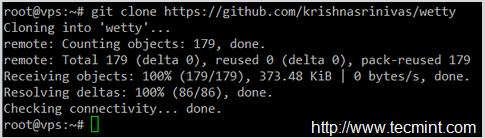
Change the working directory to wetty, as indicated in the message above:
# cd wetty
then install Wetty by running:
# npm install
If you get any error messages during the installation process, please address them before proceeding further. In my case, the need for a newer version of NodeJS in Debian was an issue that had to be solved before running npm install successfully.
Starting Wetty and Access Linux Terminal from Web Browser
At this point, you could start the web interface in local port 8080 for Wetty by running (this assumes your current working directory is /wetty):
# node app.js -p 8080
As you can see in the image below:
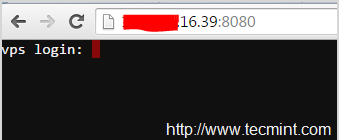
But do yourself a favor and DO NOT enter your username and password since this connection is not secure and you don’t want your credentials to travel through the wire unprotected.
For that reason, you should always run Wetty through HTTPS. Let’s create a self-signed certificate to secure our connection to the remote server:
# openssl req -x509 -newkey rsa:2048 -keyout key.pem -out cert.pem -days 365 -nodes
And then use it to launch Wetty via HTTPS.
Please note that you will need to open the custom HTTPS port where you will want to run Wetty:
# firewall-cmd --add-service=https # Run Wetty in the standard HTTPS port (443)
# firewall-cmd --permanent --add-service=https
# firewall-cmd --add-port=XXXX/tcp # Run Wetty on TCP port XXXX
# nohup node app.js --sslkey key.pem --sslcert cert.pem -p 8080 &
The last command in the above sequence will start Wetty in the background listening on port 8080. Since we are using a self-signed certificate, it is to be expected that the browser will show a security warning – It is perfectly safe to ignore it and add a security exception – either permanently or for the current session:
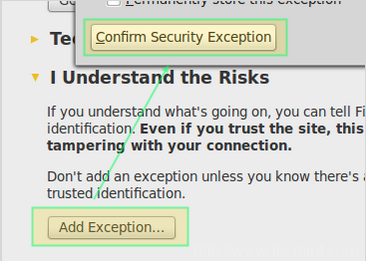
After you have confirmed the security exception you will be able to login to your VPS using Wetty. It goes without saying that you can run all commands and programs as if you were sitting in front of a real or virtual terminal, as you can see in the following screen cast:
If this article helped you solve a problem, consider buying a coffee. It helps keep TecMint free, supports the authors, and keeps the project going.

Got Something to Say? Join the Discussion... Cancel reply