VOOZH about

URL: https://www.tecmint.com/add-new-disk-to-an-existing-linux/

⇱ How to Add a New Disk to an Existing Linux Server


Skip to content

As system administrators, we would have got requirements wherein we need to configure raw hard disks to the existing servers as part of upgrading server capacity or sometimes disk replacement in case of disk failure.

In this article, I will take you through the steps by which we can add the new raw hard disk to an existing Linux server such as RHEL/CentOS or Debian/Ubuntu.

Suggested Read: How to Add a New Disk Larger Than 2TB to An Existing Linux

Important: Please note that the purpose of this article is to show only how to create a new partition and doesn’t include partition extension or any other switches.

I am using fdisk utility to do this configuration.

I have added a hard disk of 20GB capacity to be mounted as a /data partition.

fdisk is a command line utility to view and manage hard disks and partitions on Linux systems.

# fdisk -l

This will list the current partitions and configurations.

👁 Find Linux Partition Details
Find Linux Partition Details

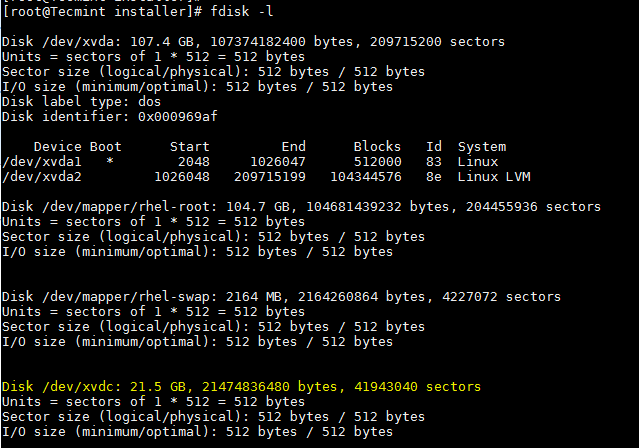
After attaching the hard disk of 20GB capacity, the fdisk -l will give the below output.

# fdisk -l
👁 Find New Partition Details
Find New Partition Details

New disk added is shown as /dev/xvdc. If we are adding physical disk it will show as /dev/sda based of the disk type. Here I used a virtual disk.

To partition a particular hard disk, for example /dev/xvdc.

# fdisk /dev/xvdc

Commonly used fdisk commands.

  • n – Create partition
  • p – print partition table
  • d – delete a partition
  • q – exit without saving the changes
  • w – write the changes and exit.

Here since we are creating a partition use n option.
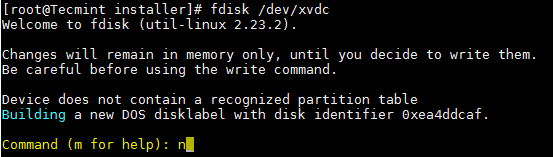
👁 Create New Partition in Linux
Create New Partition in Linux

Create either primary/extended partitions. By default we can have upto 4 primary partitions.
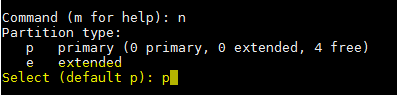
👁 Create Primary Partition
Create Primary Partition

Give the partition number as desired. Recommended to go for the default value 1.

👁 Assign a Partition Number
Assign a Partition Number

Give the value of the first sector. If it is a new disk, always select default value. If you are creating a second partition on the same disk, we need to add 1 to the last sector of the previous partition.

👁 Assign Sector to Partition
Assign Sector to Partition

Give the value of the last sector or the partition size. Always recommended to give the size of the partition. Always prefix + to avoid value out of range error.

👁 Assign Partition Size
Assign Partition Size

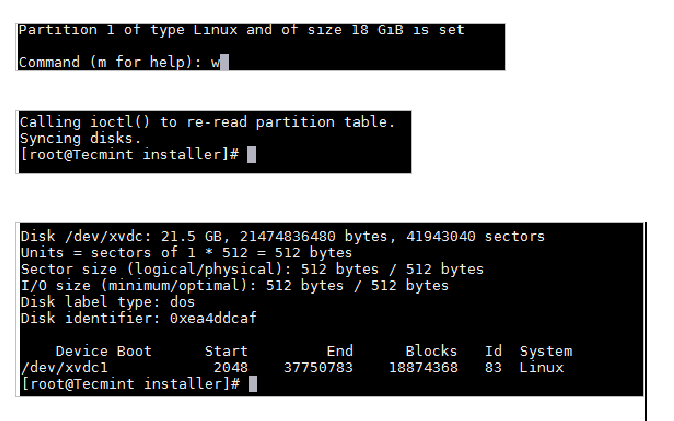
Save the changes and exit.

👁 Save Partition Changes
Save Partition Changes

Now format the disk with mkfs command.

# mkfs.ext4 /dev/xvdc1
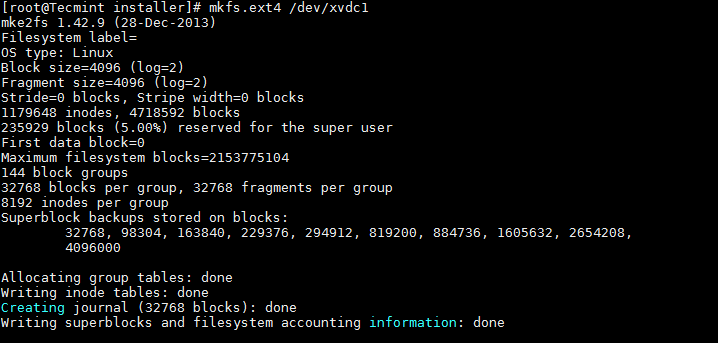
👁 Format New Partition
Format New Partition

Once formatting has been completed, now mount the partition as shown below.

# mount /dev/xvdc1 /data

Make an entry in /etc/fstab file for permanent mount at boot time.

/dev/xvdc1	/data	ext4	defaults 0 0
Conclusion

Now you know how to partition a raw disk using fdisk command and mount the same.

We need to be extra cautious while working with the partitions especially when you are editing the configured disks. Please share your feedback and suggestions.

If this article helped, share it with someone on your team.
TecMint Weekly Newsletter
Get the Learn Linux 7 Days Crash Course free when you join 34,000+ Linux professionals reading every Thursday.
Check your email for a magic link to get started.
Something went wrong. Please try again.
TecMint has been free for 14 years. Help keep it that way.
Google AI Overviews and tools like ChatGPT have cut into search traffic for independent tech sites like TecMint. Running this site costs over $2,000 every month for hosting, infrastructure, and paying authors to keep the content accurate and tested.

If this article helped you solve a problem, consider buying a coffee. It helps keep TecMint free, supports the authors, and keeps the project going.
☕ Buy Me a Coffee
Lakshmi Dhandapani
I work on various platforms including IBM-AIX, Solaris, HP-UX, and storage technologies ONTAP and OneFS and have hands on experience on Oracle Database.

Each tutorial at TecMint is created by a team of experienced Linux system administrators so that it meets our high-quality standards.

32 Comments

Leave a Reply
  1. I will suggest using UUID to mount devices. This gives some hardware independence, especially when working on a cloud where you can add and move devices as needed.

    lsblk -o name,uuid
    

    Use the uuid corresponding to the device and drive name of your convenience.

    edit /etc/fstab
    UUID="d52669e4-b4ed-4623-b69c-b27ea80f740e" /drive3 ext4 rw,user,exec 0 2
    
    Reply
  2. If I create a /home folder on the second drive, will it merge with the /home folder on the first drive? Can not be afraid of data loss of the first disk?

    Reply
    • It will not merge the old /home folder, instead, it will replace it.

      What I would do is:

      1. make a good backup of your server.
      2. sudo su (or login as root).
      3. mount the new drive (with the correct fstab entry: UUID=[drive uuid] /home_new ext4 defaults 0 0) to /home_new.
      4. sync the old home folder to the new home folder: rsync -av /home/ /home_new/.
      5. rename the old home folder: mv /home /home_old.
      6. change the fstab entry to mount the new drive to /home ( UUID=[drive uuid] /home ext4 defaults 0 0).
      7. Reboot your server. Now your new drive is mounted at /home with all of the original home contents, and your old home folder is accessible at /home_old.

      Once you are comfortable, delete the old home folder.

      If you run into problems, login as root, unmount /home, comment out or remove the fstab entry for the new drive, rename /home_old to /home and reboot.

      Reply
  3. Hi there,

    I have a problem using Ubuntu. I have installed two hard drives one 128GB SSD and the other is 500 HD. On by default, I set 128 as a boot like using window and ubuntu at a time.

    I have a problem there is when I open window in dual boot mode all partition work normal and good but when I open ubuntu my 500 Gb disk cannot show on ubuntu platform what I happen.

    my all data exist on 500gb hard and I cannot see in ubuntu please guide some tricks

    Reply
  4. Hi,

    I need to add another hard disk in rhel7 system and wanted to create a ‘sdb’ partition. May I know how to create it?

    Reply
    • @Bhargvi,

      Follow the same procedure as explained in this article, for adding new disk to an existing RHEL 7 system..

      Reply
      • Thank you Ravi Saive

        I need to add graphically not a command line mode…..
        In graphical mode how to add the hard disk…

        Reply
        • @Bhargavi,

          I think you can do it by using any graphical disk management utility like Gparted or any other, that you need to find out..

          Reply
  5. You added 20 Gb Hard disk but in fdisk it is showing 21.5 GB. HOW??

    Reply
  6. Thanks Lakshmi! It’s very helpful!

    Reply
  7. Thanks Lakshmi. It worked well for my RHEL VM.

    Reply
  8. Thanks — I was able to follow this guide and get my drive installed with no headaches at all!

    It might be useful to update with instructions to change the owner of the newly assigned drive. In Ubuntu 16.04, my freshly installed drive belonged to the user `root` and the group `root`. I just had to run `sudo chown : /dev/sda1` (in Ubuntu it seems both name and group are your login name) to get write access to the drive.

    Reply
  9. In your /etc/fstab consider using the UUID instead of the automatically assigned /dev/***.
    UUID can be found using blkid.

    e.g. fstab

    UUID=******-*******-******-******	/data	ext4	defaults 0 0
    
    Reply
  10. Hi, before the command.

    # mount /dev/xvdc1 /data
    

    you should add: mkdir /data (if there is no /data)

    Reply
  11. Awesome page! Thanks for making this available!

    Reply
  12. Excellent Post. I looked all over the NET for the above information. sometimes found some pieces and some times just not very clear instructions. Yours was just perfect and it worked on the first try. This is the way Linux should be taught to anyone Linux newbie or not. Thanks !!!!

    Reply
  13. Can we mount the new disk at root "/" partition?

    Reply
  14. Why would you not use Logical Volume Manager?

    What if the file system fills up? If you used LVM you could grow the file system with no impact to production.

    Reply
    • @DGC

      We can use LVM as well. But in this article I just gave steps for fdisk which is just another method

      Reply
  15. Great article, keep posting…

    Reply
  16. Thank you.

    It would be great to describe how to use parted if HDD size more 2 TB. Nowdays, it is a common already.

    Reply
  17. Very good article, should not be ext4 instead of xfs in the fstab file?

    Reply
    • Thanks for the comments. We have made the correction in the article.

      Reply
  18. Nice post….cheers

    Reply
  19. Probably after attaching the new disk you should scan it first then only it will get reflected in “fdisk -l” output. But sometimes it depends which Linux version you are using. Also we can see the new disk info using “dmesg” command.

    Reply
    • Thanks for the comment. Here I used RHEL 7 in virtual Infra . Hence when I added a new Disk, it was reflected in “fdisk -l” with out scanning.

      Reply
  20. Great post…… Cheers, Prasanna

    Reply

Got Something to Say? Join the Discussion... Cancel reply

Free Course
Get a free Linux course before you go.
Subscribe to TecMint Weekly and get the Learn Linux 7 Days Crash Course free. Read by 34,000+ Linux professionals every Thursday.
Check your email for a magic link to get started.