VOOZH about

URL: https://www.tecmint.com/linux-cheat-command/

⇱ Cheat - The Linux Commands Cheat Sheet for Beginners


Skip to content

What you do when you are not sure of the command you are running especially in case of complex Linux commands which use a lot of options. We use man pages to get some help in such situations. Some of the other options may include commands like ‘help‘, ‘whereis‘, and ‘whatis‘, but all have their pros and cons.

While going through man pages for options and help, the description in man pages are too lengthy to understand especially in a short span of time.

👁 Linux Command Help
Linux Command Help
TecMint Weekly Newsletter
Get the Learn Linux 7 Days Crash Course free when you join 34,000+ Linux professionals reading every Thursday.
Check your email for a magic link to get started.
Something went wrong. Please try again.

whereis Command – Find the Location of a Command

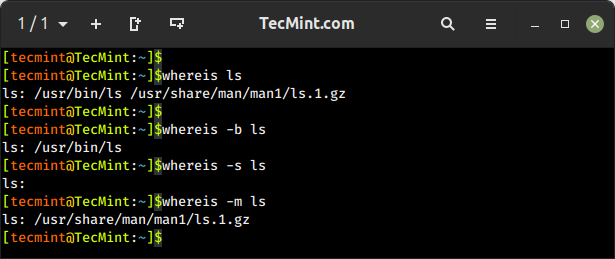
The whereis command hardly tells anything other than the location of installed binaries (commands), source code, and the manual page of the command.

$ whereis ls
👁 whereis Command
whereis Command

whatis Command – Show Description of a Command

The whatis command gives a strict and one-liner answer which is not much helpful other than acknowledging the purpose of the command, Moreover, it never says a single word about the available options.

👁 whatis Command
whatis Command

We have used all these options to date to solve our issue in the dilemma but here comes an interactive cheat-sheet application ‘Cheat‘ which is going to lead all the rest.

What is Linux Cheat Command?

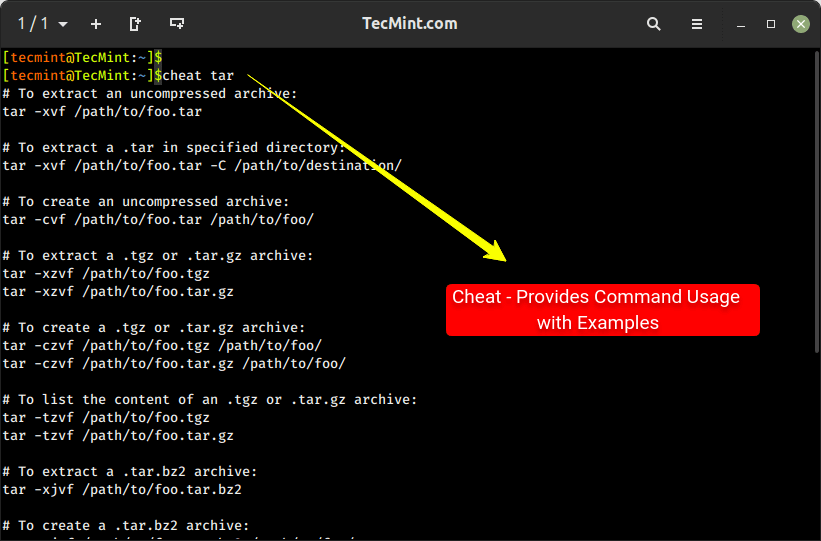
Cheat is an interactive command-line cheatsheet application that allows you to create, view, and manage interactive cheat sheets for various commands and topics directly from the command line.

It allows you to store and organize helpful commands, tips, and examples in plain text files, referred to as cheat sheets. These cheat sheets can then be easily accessed and displayed in the terminal whenever needed.
👁 Cheat - Provides Command Usage with Examples
Cheat – Provides Command Usage with Examples

How to Install Cheat Linux

To use the “cheat” utility, you need to have it installed on your system by simply running the following commands into your terminal:

$ cd /tmp 
$ wget https://github.com/cheat/cheat/releases/download/4.4.0/cheat-linux-amd64.gz 
$ gunzip cheat-linux-amd64.gz
$ chmod +x cheat-linux-amd64 
$ sudo mv cheat-linux-amd64 /usr/local/bin/cheat

You may need to change the version number (4.4.0) and the archive (cheat-linux-amd64.gz) while downloading from the releases page.

Next, add the cheat autocompletion feature to enable command-line autocompletion for different shells. To enable autocompletion, simply clone the ‘cheat.bash‘ script and copy the script to the appropriate path in your system.

$ wget https://github.com/cheat/cheat/blob/master/scripts/cheat.bash 
$ sudo mv cheat.bash /etc/bash_completion.d/
Note: The team has uploaded other shell’s auto-completion scripts to Git, which may be cloned and used in the case of the respective Shell.

Optionally, you can also enable syntax highlighting, if desired. To activate the syntax highlighting feature, add a CHEATCOLORS environment variable in your ‘.bashrc‘ file.

export CHEATCOLORS=true

The Cheat application default program only serves the basic and most used commands. The content of the cheat sheet resides at location ~/.cheat/ directory.

Manual Cheatsheets can be added to this location to make the application rich.

# cheat -e xyz

This will open xyz cheat sheet if available. If not it will create one and open in the default editor of your system.

How to Use Cheat Command in Linux

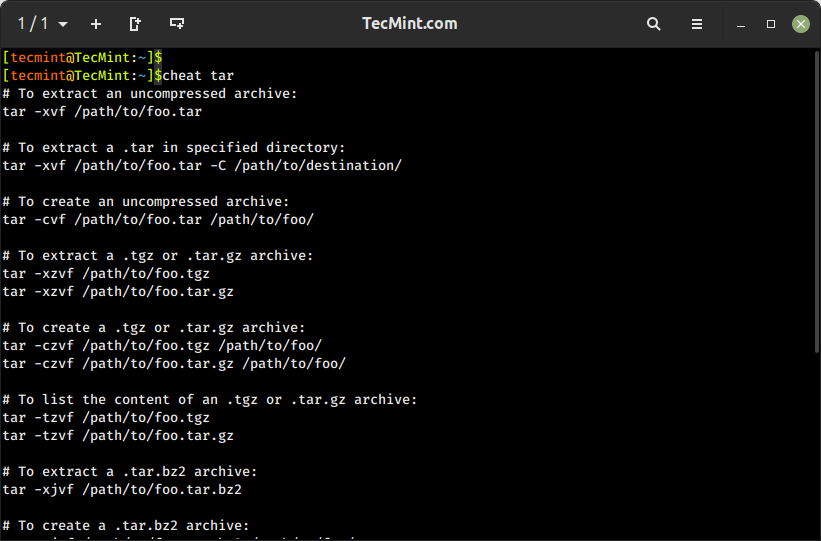
A tarball file may be *.gz  *.bz2 or *.zip or *.xz. So, what option is to be used to create a tar file in Linux?

$ cheat tar
👁 Tar Command Usage with Examples
Tar Command Usage with Examples

I never run the dd command, no matter how much sure I am about the command before consulting and cross-checking it at more than one location.

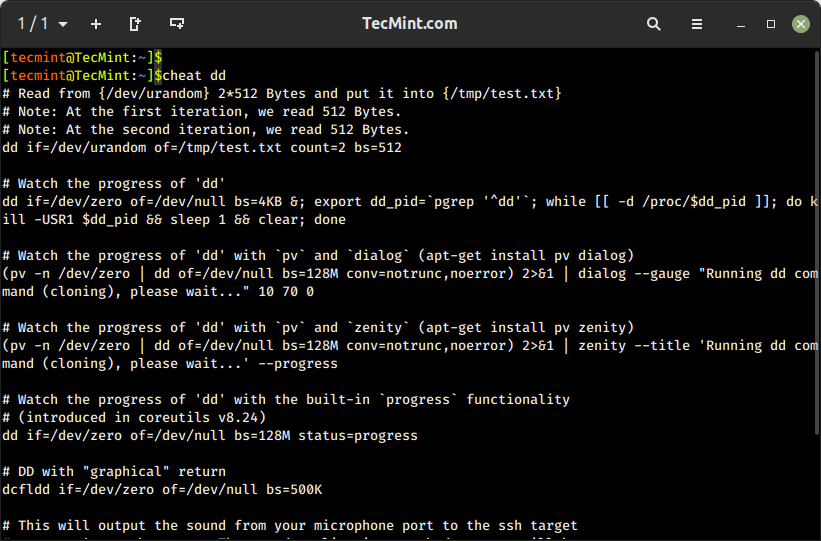
The dd command is a versatile tool used to create byte-level copies of files, disks, partitions, or even entire storage devices. So, it is important to the use command, before running it. Incorrect usage or wrong target devices can lead to data loss or system corruption.

$ cheat dd
👁 dd Command Usage with Examples
dd Command Usage with Examples

To get the command usage and help of uname, ip, ps, and top commands, use:

$ cheat uname
$ cheat ip
$ cheat top
# cheat ps
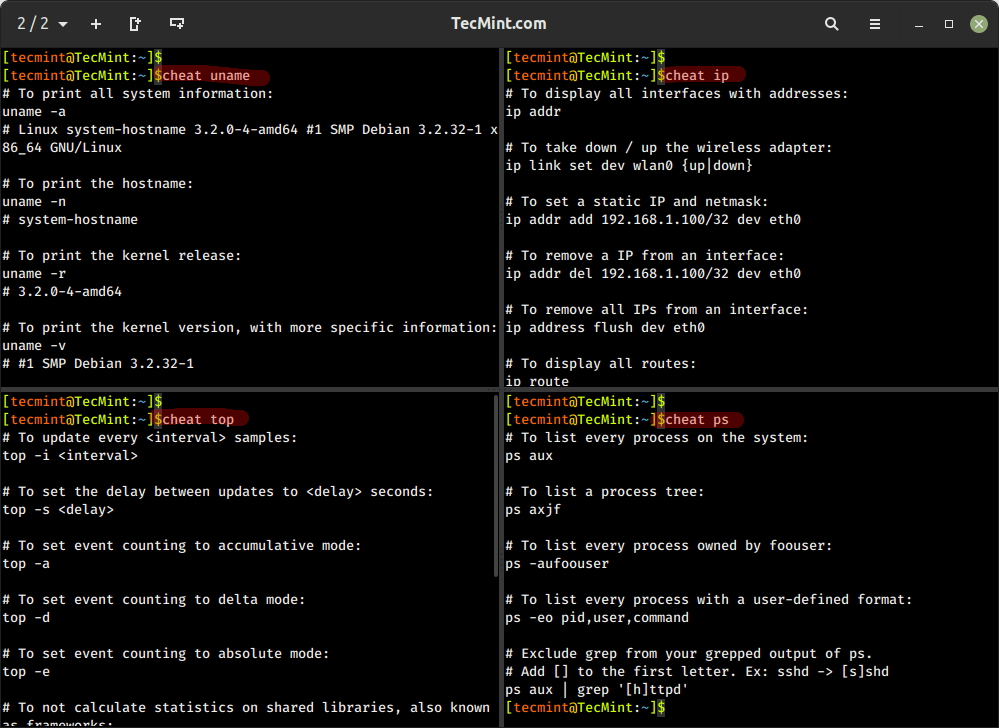
👁 Cheat - Linux Command Example Usage
Cheat – Linux Command Example Usage

The cheat -l command is used to list all available cheat sheets that are accessible through the “cheat” command-line utility. It provides a convenient way to see the cheat sheets that have been installed and are ready to be accessed.
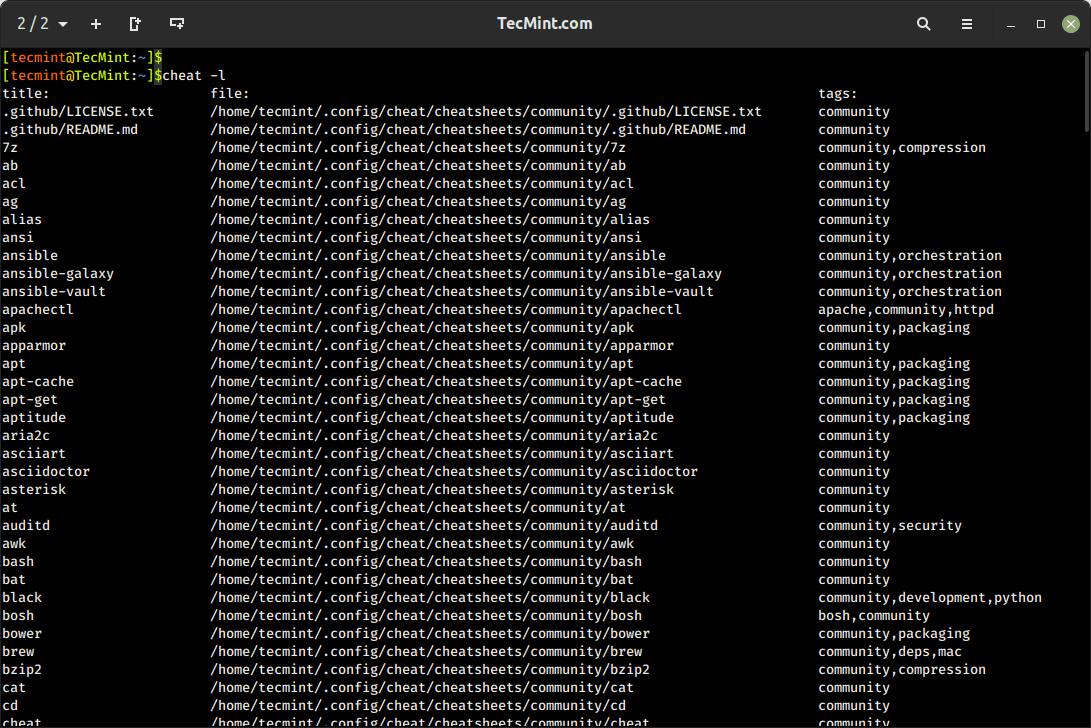
👁 Cheat Command List
Cheat Command-List

The cheat -s command is used to list the location of built-in cheat sheets for all the commands.

$ cheat -s cat

community: /home/tecmint/.config/cheat/cheatsheets/community
personal: /home/tecmint/.config/cheat/cheatsheets/personal
Conclusion

This wonderful project is a life Saviour in many-a-situation, which gives you information that is required, nothing extra, nothing vague, and to the point. This is a must tool for everyone. Easy to build, easy to install, easy to run, and easy to understand, this project seems promising.

This Git project has added a wonderful gag which I am not going to explain but leave to you to interpret.

👁 Cheat Linux Gag
Cheat Linux Gag

That’s all for now. I’ll be here again with another interesting article you people will love to read. Till then stay tuned and connected to Tecmint. Don’t forget to provide us with your valuable feedback in the comment section below.

If this article helped, share it with someone on your team.
TecMint Weekly Newsletter
Get the Learn Linux 7 Days Crash Course free when you join 34,000+ Linux professionals reading every Thursday.
Check your email for a magic link to get started.
Something went wrong. Please try again.
TecMint has been free for 14 years. Help keep it that way.
Google AI Overviews and tools like ChatGPT have cut into search traffic for independent tech sites like TecMint. Running this site costs over $2,000 every month for hosting, infrastructure, and paying authors to keep the content accurate and tested.

If this article helped you solve a problem, consider buying a coffee. It helps keep TecMint free, supports the authors, and keeps the project going.

☕ Buy Me a Coffee
Ravi Saive
I'm Ravi Saive, an award-winning entrepreneur and founder of several successful 5-figure online businesses, including TecMint.com, GeeksMint.com, UbuntuMint.com, and the premium learning hub Pro.Tecmint.com.

Each tutorial at TecMint is created by a team of experienced Linux system administrators so that it meets our high-quality standards.

62 Comments

Leave a Reply
  1. This installation guide is out of date and is now fundamentally incorrect. The cheat system is now better than ever and can be found here https://github.com/cheat/cheat.

    I suggest that this post should be taken down or revised

    Reply
  2. Sorry if this is getting sent a second time i seen no indication that it was received and i am going to be mush shorter this time around.. the solution to most peoples issues here is regarding a missing python-systemtools or similar errors are solved by ..

    # apt install python-wheel python-systemtools
    
    Reply
  3. Hey this is a great start, however somethings i found while helping someone install this i feel are missing from this and the project page. You can’t just use the commands here and expect it to work, maybe it did at the time of writing not sure the update follows anyway.

    Firstly i am talking Debian, The hang up happens when looking for python-setuptools and wheel for Debian users. If you want to follow this you also need to install the sys tools and wheel. If you get an error about python systemtools below is the solution to that ..

    # apt install python-setuptools python-wheel
    
    Reply
  4. Hello, I am trying to follow the installation instructions and am using Mint. For the # pip install docopt pygments command I get the following message

    Collecting docopt
    Downloading docopt-0.6.2.tar.gz
    Could not import setuptools which is required to install from a source distribution.
    

    Please install setuptools.

    Is that part of docopt?

    Reply
    • Duh, python-setuptools…

      Reply
  5. I am using Kubuntu 14.04 LTS AMD64. In the yakuake terminal I added the EDITOR environment variable to .bashrc and then “quit” the terminal. After that whenever I hit F12 and yakuake dropped down the .bashrc changes were read in. I also created a cheatsheet for cheat and named it cheatsheet to prevent any confusion with cheat.

    Reply
  6. This works brilliantly under arch ARM, really improving my bash experience.

    Reply
  7. Hi Avishek ,

    This works great thanks.
    one remark (don’t know if it is already made) :
    export EDITOR =/usr/bin/nano is ok but export EDITOR =/usr/bin/nano
    is not ok (in the last example there is a space between EDITOR and the = sign)
    this space is also on this webpage.

    Reply
    • @Theo,

      Thanks for notifying us about that typo, we’ve corrected in the article..

      Reply
  8. You may want to put in your article that for all the commands and instructions to work as you have displayed them, you need elevated privileges. As an alternative and for those of us that enjoy the security of not being elevated all the time you may want to ad sudo where needed. This was required for several of your instructions. Also in some systems there is no .bashrc in the usr directory and instead the file will be named dot.bashrc and is in a subdirectory of the usr directory. Important to be clear about file locations.

    Reply
  9. Dear Avishek
    I’m running fish shell in Ubuntu box,but i can’t add editor variable.
    I tried add both in bashrc file and profile file,but unfortunately system doesn’t accept that.
    Please help me.
    Thanks

    Reply
  10. Hello sir m getting error while running this command “pip install docopt pygments” and error ” -bash: pip: command not found ” suggest how to remove it.

    Reply
  11. pip install docopt pygments

    this command not working Please update whats the issue error m getting is pip command not found.

    Reply
    • @ sumit tyagi let us know
      if you installed pip or not?

      if pip is successfully installed check version and you will get something like this in output

      # pip –version
      pip 1.5.6 from /usr/lib/python2.7/dist-packages (python 2.7)

      Also let us know the distro and release version you are using.

      Reply
  12. Thanks, This is awesome.. worked perfectly on my ubuntu box.. wonder if i can get this going on my FreeBSD machine.

    Reply
  13. A big thankyou for this very useful resource! The very thing that puts me off scripting is that i don’t do it often enough to remember all the options/commands … and am forever looking them up … so frustrating.

    But NOW i have no excuse :D

    Reply
    • Dear Geoff,
      Thankyou for finding it useful.
      Keep Connected! Enjoy

      Reply
  14. Useful

    Thanks for the post.

    谢谢你 :-)

    Reply
    • Welcome 易枭寒
      Keep Connected! Kudos

      Reply
  15. Hey Avishek,

    Thanks for the software. I’m getting the following error when running cheat in Kubuntu 14.01 64 bit:

    Traceback (most recent call last):
    File “/usr/local/bin/cheat”, line 36, in
    from docopt import docopt
    ImportError: No module named docopt

    Any advice?

    Reply
    • I figured it out. I needed to reinstall docopt.

      Reply
      • Pleased to Know @ David

        Reply
        • I have the same error. But I don’t know how do I install docopt. Please help!

          Reply
        • I’m having the same issue on Ubuntu 14.0, docopt is installed but I still get the ImportError: No module named docopt.

          I’m at a loss any help would be appreciated.

          Thanks

          Reply
          • @John,

            May I know how you installed docopt package? Also could you share full error message with us so that we can have better look on your problem..

  16. Really super and informative article….thank for sharing…

    Manual Cheat-sheets can be added to this location to make the application rich. how to do this?

    how to add the command on these list?

    Reply
    • Raj,
      its very simple and you could have understand by yourself if you have gone through article carefully.

      goto your home directory
      $ cd ~

      check there is a hidden directory ‘.cheat’, cd to it
      $ cd .cheat
      avi@tecmint:~/.cheat$

      List all the files there
      $ ls

      These are the available cheatsheets. you can add yours own here. Say create cheatsheet for command fake.

      $ touch ~/.cheat/fake
      avi@tecmint:~/.cheat$

      Open fake command cheatsheet and add your command description, save and exit.

      Nor run
      $ cheat fake

      All done! Hope this helps you.

      Reply
      • THANK U SO MUCH REALLY HELPFUL

        Reply
        • Pleased to Know it @ Raj, Keep connected!

          Reply
  17. Any way we could update ideas to expand the “cheat” file in the repository?
    That way we could do an “update” and get the latest “cheat” files.
    And it could be updated for just about anything.
    Maybe even “cheat yum 2” give you a second level of cheat with possibly more in depth information..

    Reply
    • John!
      contribute to community. write cheat-sheets and let the world gets benefited. Details to write cheat-sheets are given in the article as well as in comments reply, just below your’s this comment. Check.

      Reply
    • Thanks @ Ibrahim.

      Reply
  18. Hi Avishek – this is really good info. thanks for sharing.
    QQ – If new commands are added to the cheat, how to get that from git (or any auto update script available)?

    Reply
    • @ Bob, either add the command yourself manually to Cheat as explained above. Else if it has been included in cheatsheet, Download the cheatsheet and add it to the cheatsheet file as described above in the location /home/user/.cheat

      Reply
  19. hi Avishek,

    i am facing some problem in installing Cheat-Sheet in Ubuntu . please help me in this solving this.

    Reply
    • same problem means?
      Tell us, what is the error message.
      Have you tried git?
      Have you tried downloading it manually from git website? and then installing.

      Reply
  20. Hi,
    I am unable to install python-pip in my suse10 . Pls help

    Reply
  21. thanks for this article Avishek Kumar. After i’ii try here in my laptop. This site is wonderful. hugs

    Reply
    • Dear roberson,
      Thanks for such a hug-ing comment :)

      Reply
  22. us2 joe # git clone https://github.com/chrisalllenlane/cheat.git
    Cloning into ‘cheat’…
    Username for ‘https://github.com’:

    I tried setting up an account on github but still could not log in.
    There is a dowenload available for the Cheat files but I don’t know what to do from there.

    Reply
  23. Good idea! Useful. Thanks for the post.

    Reply
    • :) welcome @ Dale

      Reply
  24. Hmm.. tried it, but I could not connect to git.

    When I do: git clone https://github.com/chrisallenlane/cheat.git

    I get: fatal: unable to access ‘https://github.com/chrisallenlane/cheat.git/’: Failed to connect to github.com port 443: No route to host

    So – no idea how to progress from here.

    Reply
    • Seems some issue which your resolve.conf or service network.

      check /etc/resolve.conf is empty or not?

      Restart service network
      # service network restart

      Hope it helps

      Reply
      • It’s /etc/resolv.conf, not /etc/resolve.conf. And you work as a sysadmin?

        Reply
        • @ sergey,
          most of us do /et(TAB)/re(TAB)

          And most of the time we get trapped in between English dictionary – Linux Dictionary.

          It is don’t stop me from being a Linux Admin, a FOSS Enthusiastic or a Techno-blog-writer.

          Apology for the typo!

          Reply
  25. Perfect tool for wimps and posers.

    Reply
    • A tool for every Linux User, to be more perfect @ Sergey

      Reply
      • Perhaps a tool for Linux beginners you may say. I’d never hire a Linux admin who cannot create a simple bzip2 archive without using a cheat-sheet.

        Reply
        • Then you are a poor employer.
          No one needs to remember everything all the time and by hiring such a person you can get a book-worm.

          For me the real talent is how my employee face the challenge he/she is unaware of. And i will always hire an employee who is ready with next idea if last fails.

          Reply
  26. Awesome Tool. Must have tool for every system administrators.

    Reply
  27. Very useful tool, thanks a lot for the contribution.

    Reply
  28. yum install python-pip does not work on CentOS 7 Minimal install. “No package python-pip available. Error: Nothing to do”

    Reply

Got Something to Say? Join the Discussion... Cancel reply

Free Course
Get a free Linux course before you go.
Subscribe to TecMint Weekly and get the Learn Linux 7 Days Crash Course free. Read by 34,000+ Linux professionals every Thursday.
Check your email for a magic link to get started.


