VOOZH about

URL: https://www.tecmint.com/12-top-command-examples-in-linux/

⇱ 16 Top Command Examples in Linux [Monitor Linux Processes]


Skip to content

In our previous articles, we have covered the basics of ls command and cat command. In this article, we are trying to explore the top command which is one of the most frequently used commands in our daily system administrative jobs.

The top command (table of processes) displays the processor activity of your Linux box and also displays tasks managed by the kernel in real-time. It also shows information about CPU and memory utilization of a list of running processes.

You might also be interested in the following tutorials :

1. List All Running Linux Processes

To list all running Linux Processes, simply type top on the command line to get the information of running tasks, memory, cpu, and swap. Press ‘q‘ to quit window.

# top
👁 View Linux Running Processes
View Linux Running Processes

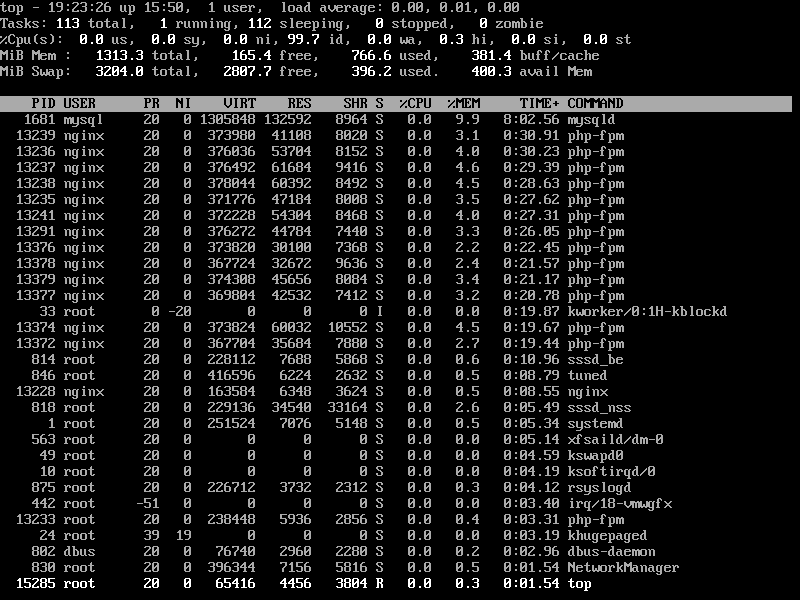
2. Sort Linux Processes by PID

To sort all Linux running processes by Process ID, press M and T keys.
👁 List of Linux Processes by PID
List of Linux Processes by PID

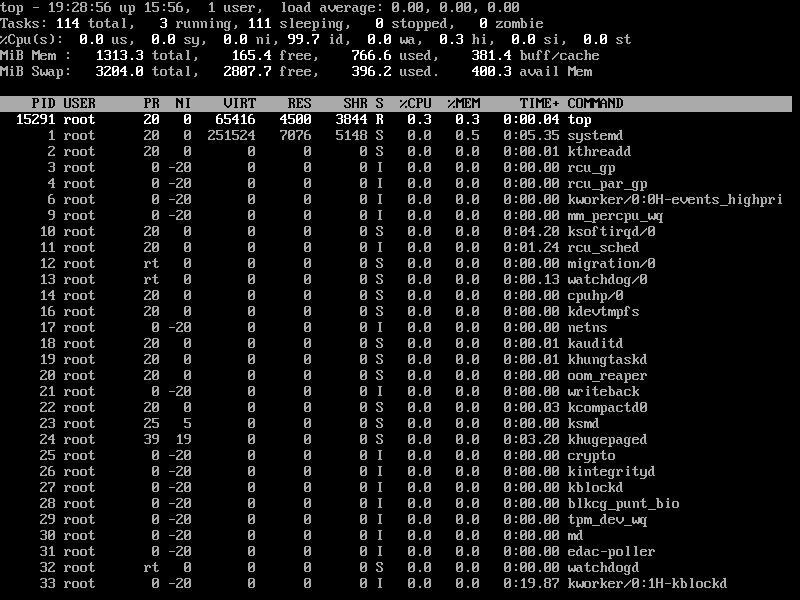
3. Sort Linux Processes by Memory and CPU Usage

To sort all Linux running processes by Memory usage, press M and P keys.
👁 Sort Linux Processes by Memory CPU Usagae
Sort Linux Processes by Memory CPU Usage

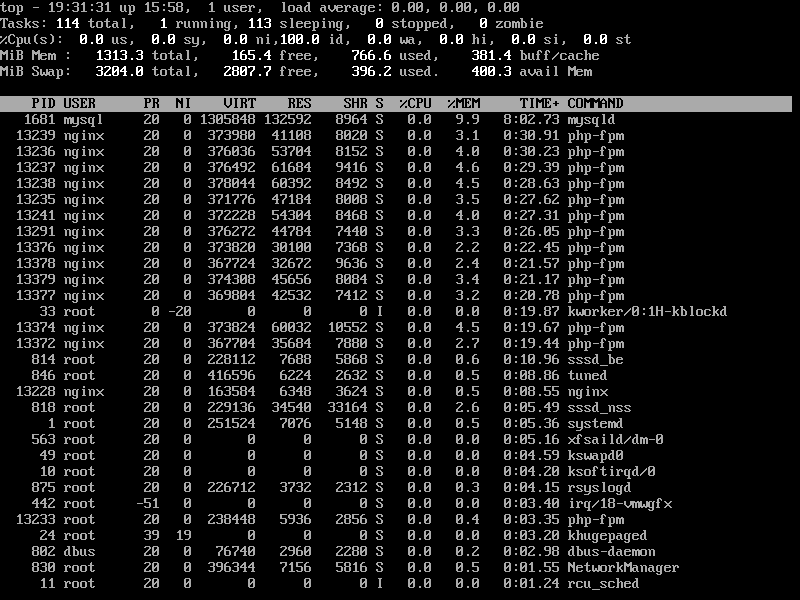
4. Sort Linux Processes by Running Time

To sort all Linux running processes by running time, press M and T keys.
👁 Sort Linux Processes by Running Time
Sort Linux Processes by Running Time

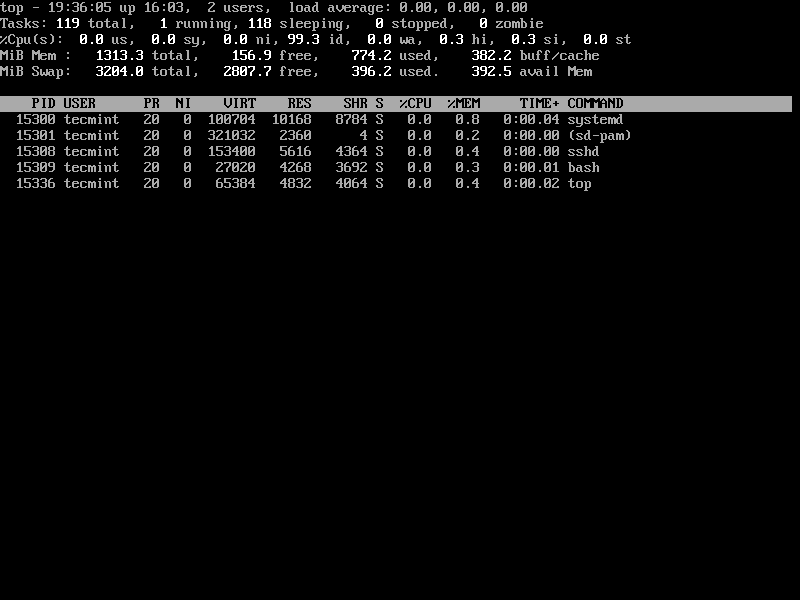
5. Display Linux Processes By Specific User

To display all user-specific running processes information, use the -u option will list specific User process details.

# top -u tecmint
👁 List Linux Processes By Specific User
List Linux Processes By Specific User

6. Highlight Running Process in Top

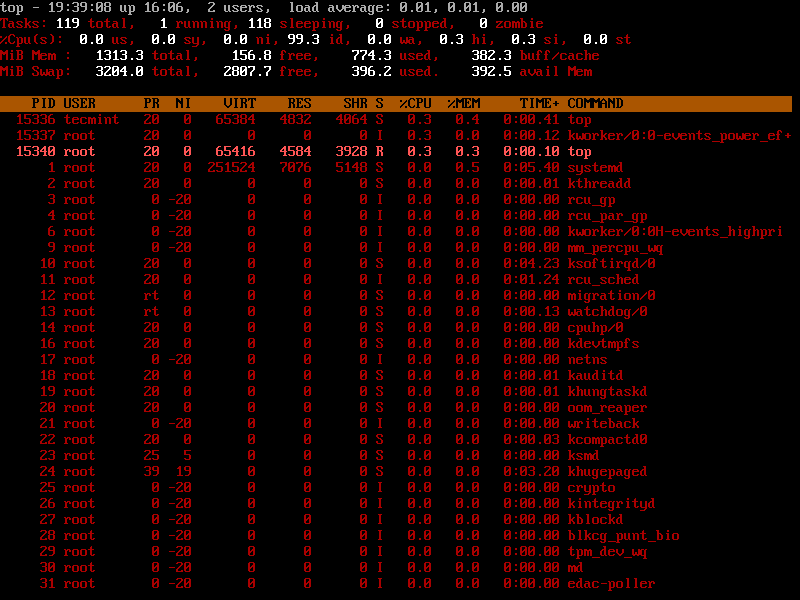
Press ‘z‘ option will display the running process in color which may help you to identify the running process easily.
👁 Highlight Linux Process
Highlight Linux Process

7. List Absolute Path of Running Linux Processes

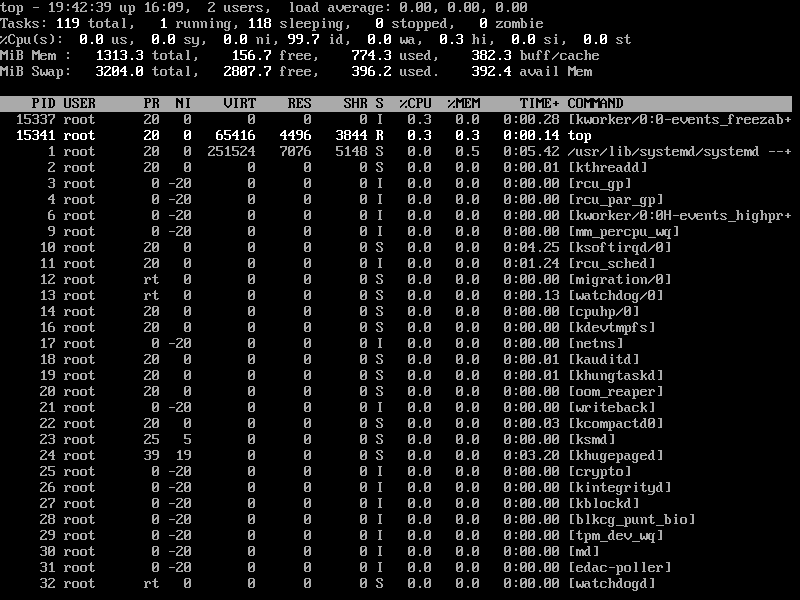
Press ‘c‘ option in running top command will display the absolute path of the running process.
👁 List Linux Processes by Path
List Linux Processes by Path

8. Set Refresh Interval for Top Command

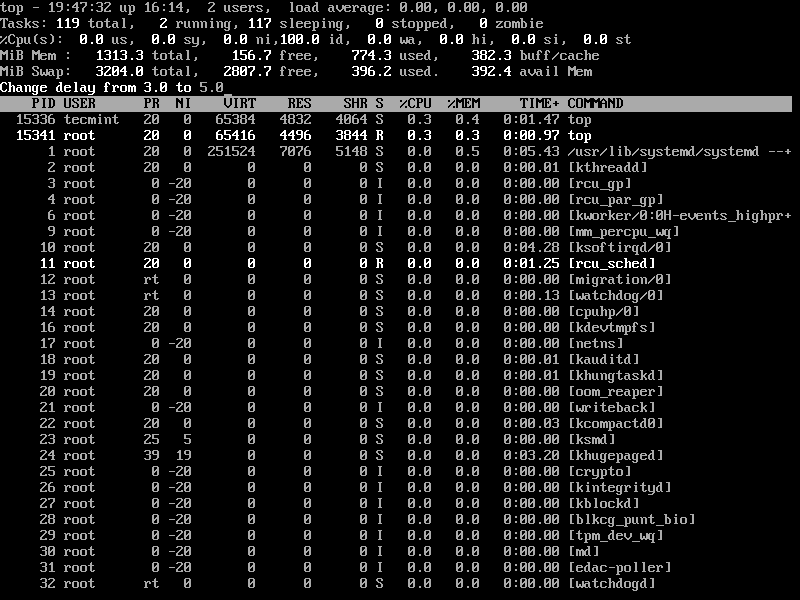
By default screen refresh interval is set to 3.0 seconds, the same can be changed by pressing the ‘d‘ option in running the top command to set desired interval time.
👁 Set Top Command Refresh Time
Set Top Command Refresh Time

9. Kill Running Linux Process Using Top Command

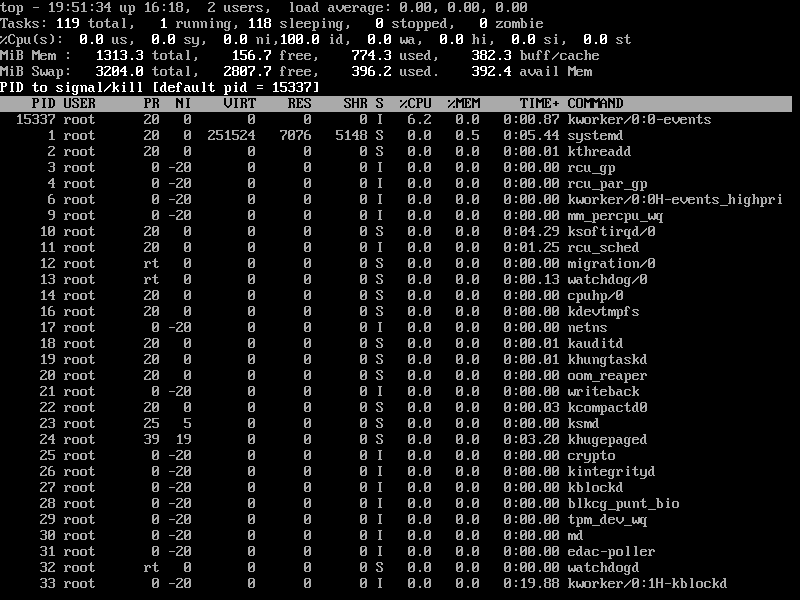
You can kill a process after finding the PID of the process by pressing the ‘k‘ option in running the top command without closing the top window as shown below.
👁 Kill Linux Process Using PID
Kill Linux Process Using PID

10. Sort Linux Processes by CPU Utilisation

To sort all running processes by CPU utilization, simply press Shift+P key.
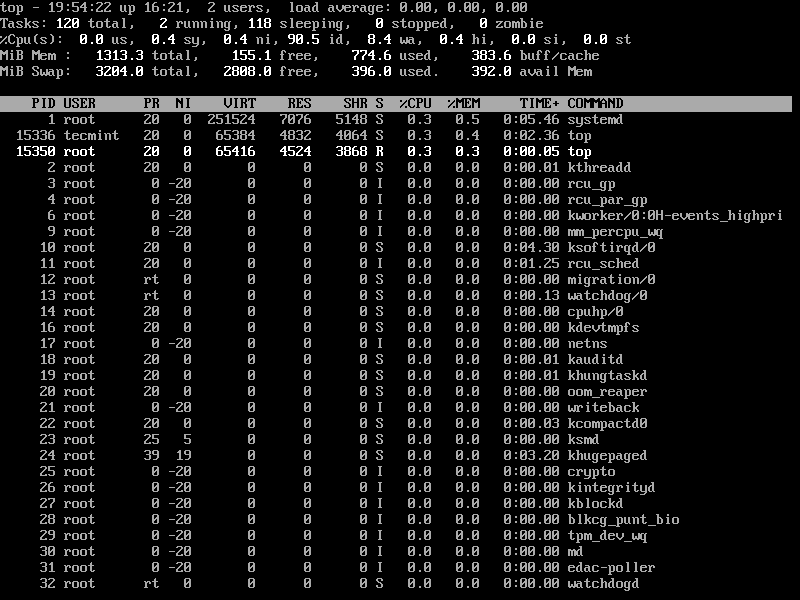
👁 Sort Linux Processes by CPU Usage
Sort Linux Processes by CPU Usage

11. Renice a Linux Process

You can use the ‘r‘ option to change the priority of the process also called Renice.
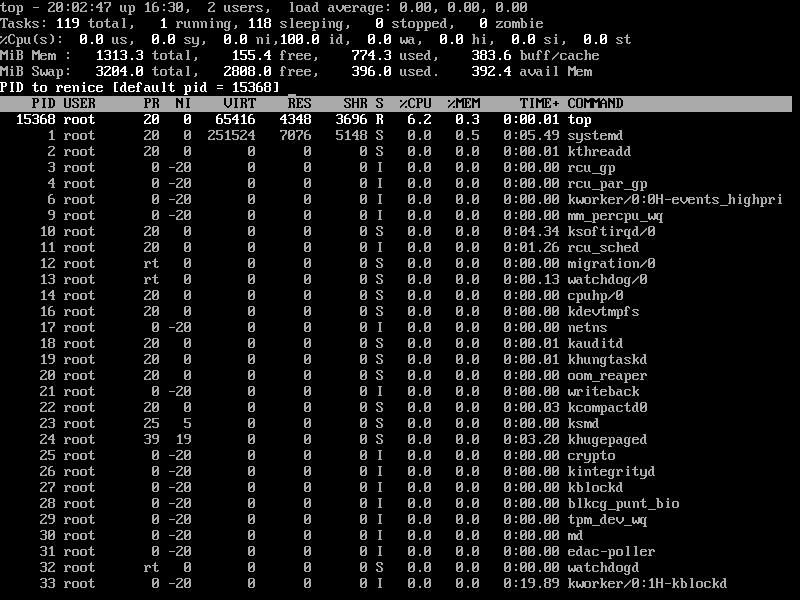
👁 Renice Linux Process
Renice Linux Process

12. Check Linux CPU Cores

To list the load information of your CPU cores, simply press 1 to list the CPU core details.
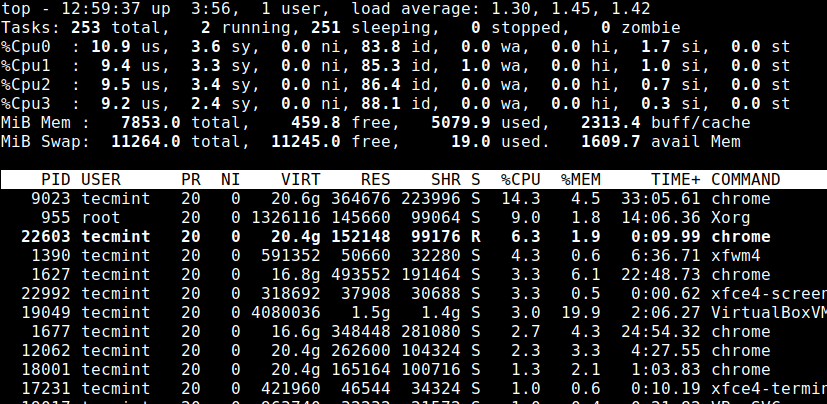
👁 List Linux CPU Cores
List Linux CPU Cores

13. Save Top Command Results in File

To save the running top command results output to a file /root/.toprc use the following command.

# top -n 1 -b > top-output.txt

14. List Linux Idle Processes

Press 'i' to get the list of idle/sleeping processes.
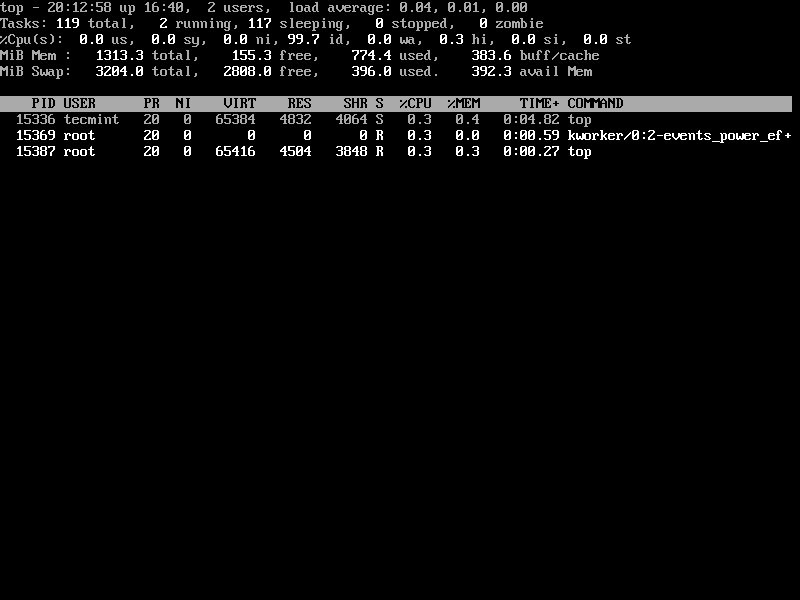
👁 List Linux Idle Processes
List Linux Idle Processes

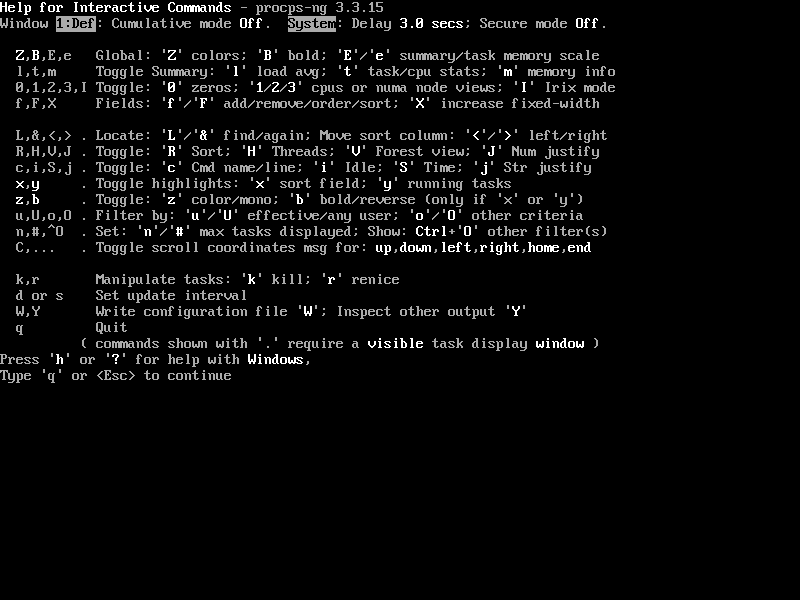
15. Getting Top Command Help

Press the ‘h‘ option to obtain the top command help.
👁 Linux Top Command Help
Linux Top Command Help

16. Exit Top Command After Specific Repetition

The output of the top command keeps refreshing until you press ‘q‘. With the below command, it will automatically exit after 10 repetitions.

# top -n 10

There is a number of arguments to know more about the top command, you may refer man page of the top command. Please share it if you find this article useful or share your thoughts using our comment box below.

If this article helped, share it with someone on your team.
TecMint Weekly Newsletter
Get the Learn Linux 7 Days Crash Course free when you join 34,000+ Linux professionals reading every Thursday.
Check your email for a magic link to get started.
Something went wrong. Please try again.
TecMint has been free for 14 years. Help keep it that way.
Google AI Overviews and tools like ChatGPT have cut into search traffic for independent tech sites like TecMint. Running this site costs over $2,000 every month for hosting, infrastructure, and paying authors to keep the content accurate and tested.

If this article helped you solve a problem, consider buying a coffee. It helps keep TecMint free, supports the authors, and keeps the project going.

☕ Buy Me a Coffee
Ravi Saive
I'm Ravi Saive, an award-winning entrepreneur and founder of several successful 5-figure online businesses, including TecMint.com, GeeksMint.com, UbuntuMint.com, and the premium learning hub Pro.Tecmint.com.

Each tutorial at TecMint is created by a team of experienced Linux system administrators so that it meets our high-quality standards.

82 Comments

Leave a Reply
  1. Great article!! Is there any GUI way of visualizing the top command that is output to a file after sort say for CPU utilization?

    Reply
  2. Can you explain use of options in this command.

    # top -n 1 -b > top-output.txt
    
    Reply
    • @Madhav,

      The -n option specifies the maximum number of iterations and -b enables batch mode operation, which could be useful for sending output from top to a file.

      Reply
  3. Nice article, but how to search and see specific process memory and CPU utilization?

    Reply
  4. very nice Article…!!!

    Reply
  5. basically I want this output to a file.. for 10 mins..

    top – 13:29:09 up 1 day, 20:30, 1 user, load average: 0.65, 0.70, 0.69
    Tasks: 1022 total, 1 running, 1020 sleeping, 0 stopped, 1 zombie
    %Cpu0 : 13.0 us, 2.7 sy, 0.0 ni, 84.3 id, 0.0 wa, 0.0 hi, 0.0 si, 0.0 st
    %Cpu1 : 49.3 us, 3.6 sy, 0.0 ni, 45.7 id, 0.3 wa, 0.3 hi, 0.0 si, 0.7 st
    %Cpu2 : 2.0 us, 2.0 sy, 0.0 ni, 95.4 id, 0.0 wa, 0.3 hi, 0.3 si, 0.0 st
    %Cpu3 : 7.6 us, 2.0 sy, 0.0 ni, 90.4 id, 0.0 wa, 0.0 hi, 0.0 si, 0.0 st
    %Cpu4 : 1.3 us, 2.3 sy, 0.0 ni, 96.0 id, 0.0 wa, 0.0 hi, 0.3 si, 0.0 st
    %Cpu5 : 26.1 us, 2.6 sy, 0.0 ni, 70.3 id, 0.3 wa, 0.3 hi, 0.0 si, 0.3 st
    KiB Mem : 41042384 total, 1621820 free, 6024132 used, 33396432 buff/cache
    KiB Swap: 21946356 total, 21946308 free, 48 used. 9811332 avail Mem

    PID USER PR NI VIRT RES SHR S %CPU %MEM TIME+ COMMAND
    34389 root 20 0 967380 57812 8156 S 91.7 0.1 243:41.66 java
    4295 oracle 20 0 4517788 497680 9364 S 0.0 1.2 4:15.28 java

    Reply
  6. Hi All, is there a way to get top output for a given command only listing all CPU info also and write to a file..

    Reply
  7. much usefull and clear explanation of the command with screenshots..also simple and easy to understand

    Reply
  8. Can someone please help me to gather only the top 20 processes information from the top command into a file after each 60 seconds of interval?

    Reply
  9. Excellent Ravi,

    Thank you for you information..

    Reply
  10. Hi Ravi

    Point 10 saving top’s output to a file saves it configuration instead.
    Please suggest in that,correct it if its wrong.
    PFB output.

    RCfile for “top with windows” # shameless braggin’
    Id:a, Mode_altscr=0, Mode_irixps=0, Delay_time=3.000, Curwin=0
    Def fieldscur=AEHIOQTWKNMbcdfgjPlrsuvyzX
    winflags=62777, sortindx=15, maxtasks=0
    summclr=1, msgsclr=1, headclr=3, taskclr=1
    Job fieldscur=ABcefgjlrstuvyzMKNHIWOPQDX
    winflags=62777, sortindx=0, maxtasks=0
    summclr=6, msgsclr=6, headclr=7, taskclr=6
    Mem fieldscur=ANOPQRSTUVbcdefgjlmyzWHIKX
    winflags=62777, sortindx=13, maxtasks=0
    summclr=5, msgsclr=5, headclr=4, taskclr=5
    Usr fieldscur=ABDECGfhijlopqrstuvyzMKNWX
    winflags=62777, sortindx=4, maxtasks=0
    summclr=3, msgsclr=3, headclr=2, taskclr=3

    Reply
    • @Abishek,

      Yes its just only saves top configuration, to save the top running output to a file use the following command.

      # top -n 1 -b > top-output.txt
      
      Reply
  11. This is very helpful. Is there a guide to definitions of all the top headers? i.e. PR, NI etc.

    Reply
  12. This was VERY helpful for my OCR Computing Controlled Assesment, thanks!

    Reply
  13. If server has multiple processor suppose (3) is CPU usage will show 300% in top command or consolidate under 100%, and How can we see individual CPU Usage if server has multiple processors

    Reply
    • just hit “1”. It will break out the the various CPUs

      Reply
  14. Ravi, it’s good collection of examples. Each and every details covered. Want to see more of this kind of work

    Reply
    • @Srinivas,

      Thanks for finding these example top command useful, more to come stay tuned..

      Reply
  15. Thank you very much ! Very helpful and useful.

    Now I use : top -u myUser

    Reply
  16. Hello, I was wondering if anyone could help me by evaluating the usefulness of the top command to a technician when using it with ps and kill in order to investigate a system that is misbehaving. Thank you.

    Reply
  17. It seems the duplication occurs when java script is disabled.

    Reply
  18. I don’t know if it’s just my setup, but, every image in the article body is duplicated (each image is shown twice, the 2nd copy of the image is immediately below the first image

    Reply
    • @Smokingmoe,

      Its seems your browser issue I think, could you try on different browser and see?

      Reply
  19. Hi,
    How do I specify TOP to only one or two software? for example, I need the information about Hashcat and John to be appear on screen and the rest disappear.

    Thank you!

    Reply
  20. I need top to show only one or two specific softwares activity. Hashcat and John only for example. How do we do that?

    Thank you!

    Reply
  21. Are these commands work on all type of Linux Operating system and What about sudo which is used in VPS having Linux operating system?
    Regards.

    Reply
    • @Shees,

      Top command is the default built-in process monitoring tool in Linux and sudo is used to in VPS to grand root privileges to normal users to execute certain system commands on Linux.

      Reply
  22. Good documentation !!

    Given Above: Press (Shift+W) to save the running top command results under /root/.toprc.
    Correct: Press “W” or “Shift+w” to save current configuration in ~/.toprc.

    Reply
  23. Can anyone say how to extract and write only the timestamp value and its corresponding cpu,memory, and swap value into text

    Reply
  24. Thank you so much Ravi. I have started working on Unix and this is very very helpful.

    Reply
    • @Varsha,

      Thanks for finding this article helpful, and good wishes for your Linux path..keep visiting.

      Reply
  25. Very useful article, thank you!

    Reply
  26. In the Cpu(s) line what does each field represent and How to know the total CPU Utilization??? is it the summation of all??

    Reply
  27. Hi Ravi,

    It is very usefull options you shared with us. Thanks lot for this
    what is recommend if memory utilization is high in the server and server getting very slow.

    Reply
  28. what are the command line for these that can be done in terminal , hence alias

    Reply
  29. Hi Ravi… If we save the top command results in /root/.toprc …. how to view this file next time. what exactly is .toprc … is this a configuration file..

    Reply
  30. if load average is going very high due to a particular process and i can’t stop the process.in that case what other alternate step i can take?

    Reply
    • @Shivam,
      You can kill the process by its PID or you can take appropriate steps to troubleshoot why exactly the load is too high for particular process.

      Reply
  31. It’s quite useful.

    Reply
  32. @Wchen,

    Command to pause the job

    kill -s STOP pid number

    Command to resume the job

    kill -s CONT pid number

    Hope this should work.

    Reply
  33. How to see only the top running process in top command

    Reply
  34. Its very helpful to me.. Thanks

    Reply
  35. Hi Ravi;

    what’s the command key to temporary pause the big memory job, then how to restore the pause back to run mode?

    Reply
  36. Hi Ravi,

    what is sleeping in top command. and what is its utilization.

    regards,
    Amit rai

    Reply
    • @Amit,
      Sleep, means waiting for the process to complete..

      Reply
  37. Hi Ravi,

    Article is very good .

    One thing I didn’t see any difference when I tried this Sorting with -O (Uppercase Letter ‘O’

    If possible can you please explain a bit more .

    Thanks

    Reply
  38. How do I see detail pid ? such as path of pid

    Reply
  39. To get Quick understanding : good explaination

    Reply
  40. Thanks for article. I love to use HTOP.

    Reply
  41. Hi,

    i have req like i need to get Total CPU consmued by all processes is for particular user:

    i have used command :
    ps -eo pcpu | grep fa1dev |awk ‘BEGIN { printf “Total CPU consmued by all processes is: ” } /^ *[0-9]/ { total_pcpu +=$1 } END { printf total_pcpu }’

    output i m getting like:Total CPU consmued by all processes is:

    can you please update me command

    Reply
  42. thanks for sharing helping commands, its help all Linux system admin.

    Reply
  43. Highlight Running Process in Top is not working , is mapping of the color required?.

    Thanks

    Nithin.

    Reply
  44. Great explanation, hope you dont mind linking to your website. Thanks.

    Reply
  45. Very useful blog. Thanks for this.

    Reply
  46. I am WebSphere Application Server Admin, looking forward to get help from you on linux

    Reply
  47. like what is swap , zombie, and paging etc.

    Reply
  48. Hi ravi,
    Very useful cmds , it will be very useful if you can describe top cmd output.

    ram

    Reply
    • Excellent – just what I needed, written in a way I could read what I needed, and act on it right away… Thank You!!!

      Reply
  49. don’t forget ps-aux

    Reply
    • Does it support feature like filter such as sort by, renice a process, or such above features ?

      No, it does not support.

      I hope you are getting my point! :)

      Reply
  50. I tried write the top results to file, but i am not able to read the data, data is not well organised.

    Reply
    • Can you mention the above mentioned command while writing the file?

      Reply
    • dont do that, use:
      Press (Shift+W) to save the running top command results under /root/.toprc.

      Reply
  51. Thanks.
    Nice tutorial.
    I m recently joined as system engineer.
    Actually I dont know what top command performs, i have followed what you did in the screen. I got same result.
    Can you explain what is the purpose of this command?
    How do I identify any wrong(process) in the terminal?

    Thanks

    Reply
    • @AshokKumar – the top command is used to monitor real time running processes in Linux. It is used to identify which processes is utilizing high CPU or memory usage. so you can kill that process with top command as we mentioned above.

      Reply
      • Is it similar to Task Manager in case of Window ?

        Reply
        • Yes.. task manager–> Processes

          Reply
  52. There is a typo in “Kill running process with argument ‘d’” . It must be ‘k’

    Reply
    • @Victor Ostorga,

      Thanks for pointing out, corrected now.

      Reply

Got Something to Say? Join the Discussion... Cancel reply

Free Course
Get a free Linux course before you go.
Subscribe to TecMint Weekly and get the Learn Linux 7 Days Crash Course free. Read by 34,000+ Linux professionals every Thursday.
Check your email for a magic link to get started.


