
Debian GNU/Linux is the backbone of several popular Linux distributions like Knoppix, Kali, Ubuntu, Mint, and more. One of its strongest features is its robust package management system, which makes installing, removing, and managing software a breeze.
Debian and its derivatives use a variety of package managers such as dpkg, apt, apt-get, aptitude, synaptic, tasksel, dselect, dpkg-deb, and dpkg-split. each serving a different purpose.
Let’s quickly go over the most common ones before diving deeper into the dpkg command.
Common Debian-Based Package Managers
| Command | Description |
|---|---|
apt |
apt, short for Advanced Package Tool, is used in Debian-based systems to install, remove, and update software packages. |
aptitude |
aptitude is a text-based front-end to apt, great for those who prefer a terminal-based interface with menus. |
synaptic |
synaptic is a graphical package manager that makes it easy to install, upgrade, and uninstall packages even for novices. |
tasksel |
tasksel allows users to install all packages related to a specific task (like a desktop environment or a LAMP server). |
dselect |
dselect is a menu-driven package management tool initially used during the first install, and is now replaced with aptitude. |
dpkg-deb |
Used for working directly with .deb archives – creating, extracting, and inspecting them. |
dpkg-split |
dpkg-split is useful for splitting and merging large files into chunks of smaller files to be stored on media of smaller sizes, such as floppy disks. |
dpkg is the main package management program in Debian and Debian-based systems, used to install, build, remove, and manage packages. aptitude is the primary front-end to dpkg.
Some of the most commonly used dpkg commands, along with their usages, are listed here:
1. Install a Package on Ubuntu
To install a package using dpkg, you need to download .deb package file from the following official package repository sites for Debian and Ubuntu-based distributions.
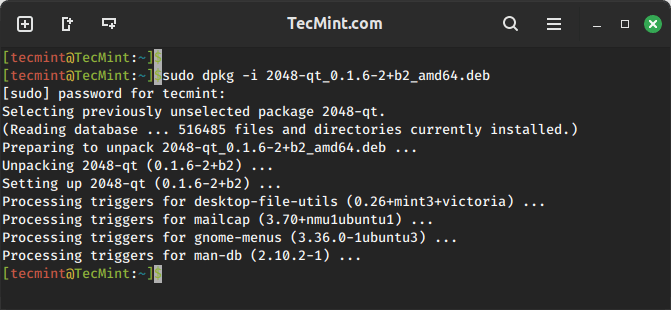
Once downloaded, you can install it using the -i option followed by the name of the .deb package file.
sudo dpkg -i 2048-qt_0.1.6-2+b2_amd64.deb
2. List Installed Packages on Ubuntu
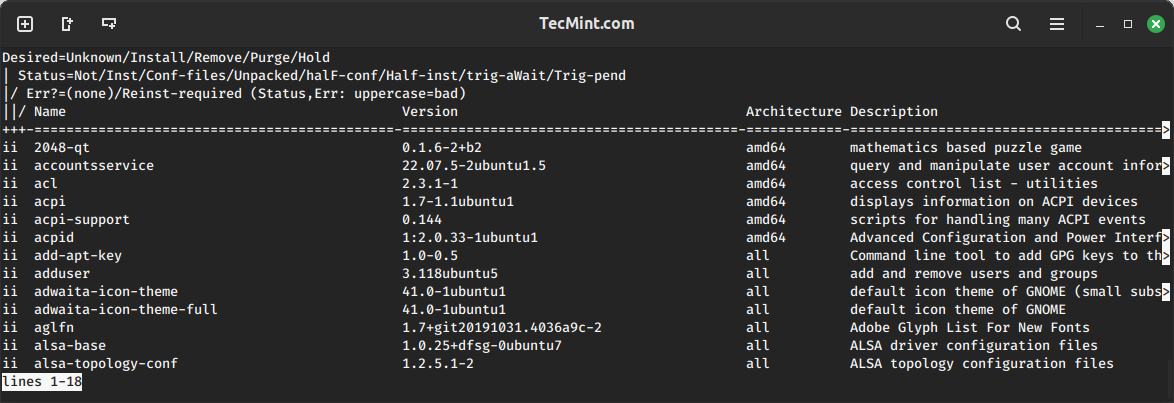
To view and list all the installed packages, use the “-l” option along with the command.
dpkg -l
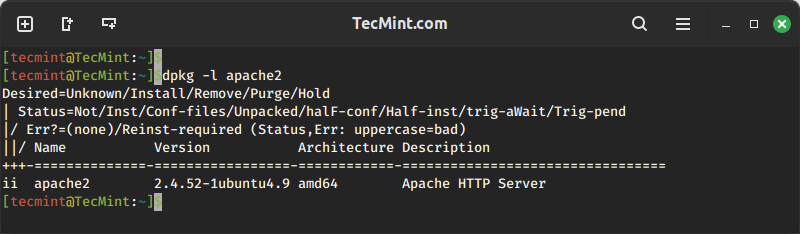
To view a specific package installed or not, use the option “-l” along with the package name. For example, check whether the apache2 package is installed or not.
dpkg -l apache2
3. Remove a Package on Ubuntu
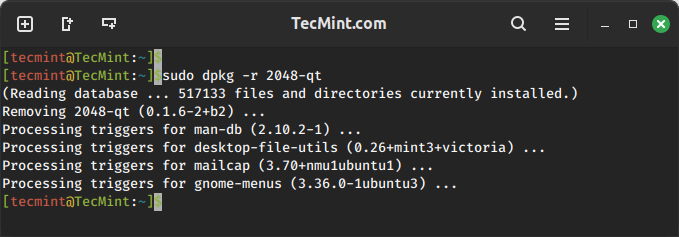
To remove the “.deb” package, we must specify the package name “2048-qt” with the “-r” option, which is used to remove/uninstall a package.
sudo dpkg -r 2048-qt
You can also use ‘p‘ option in place of ‘r' which will remove the package along with the configuration file. The ‘r‘ option will only remove the package and not the configuration files.
[root@tecmint~]# dpkg -p flashpluginnonfree
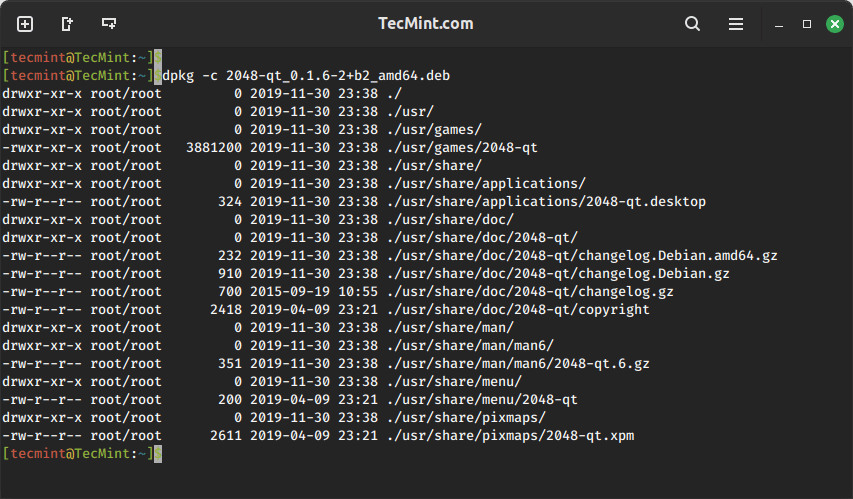
4. View Contents of a .deb Package
To view the content of a particular .deb package, use the “-c” option, which will display the contents of a deb package in long-list format.
dpkg -c 2048-qt_0.1.6-2+b2_amd64.deb
5. Check Status of Deb Package Installation
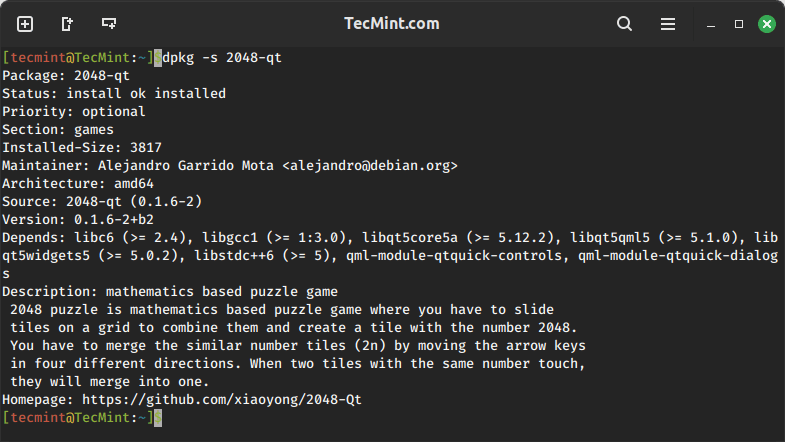
Using “-s” option with the package name will display whether a deb package is installed or not.
dpkg -s 2048-qt
6. List Files Installed by Deb Package
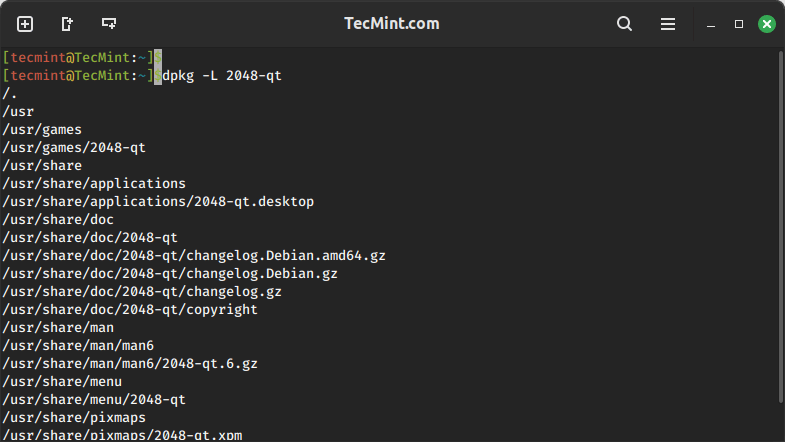
To list the location of all the files installed by a particular package, use the -L option as shown.
dpkg -L 2048-qt
7. Install Multiple Debian Packages from a Directory
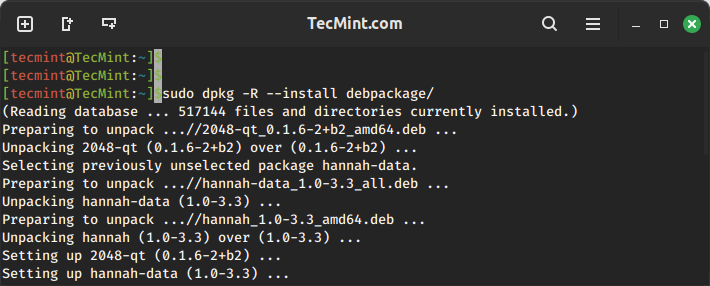
Recursively install all .deb files found in specified directories and all of their subdirectories, use the '-R' and '--install' options.
For example, to install all '.deb' packages from the directory named ‘debpackages‘.
sudo dpkg -R --install debpackages
8. Extract Contents of a Deb Package
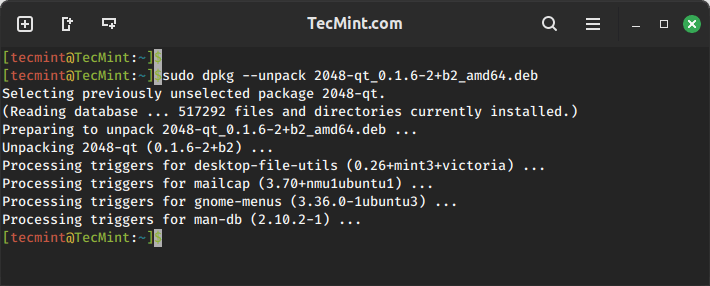
To extract the contents of a .deb package but does not configure the package, use the --unpack option.
sudo dpkg --unpack 2048-qt_0.1.6-2+b2_amd64.deb
9. Reconfigure a Unpacked Deb Package
To configure a package that has been unpacked but not yet configured, use the “--configure” option as shown.
sudo dpkg --configure flashplugin-nonfree
10. Updating Package Information in System Database
The “–-update-avail” option replaces the old information with the available information for the package file in the package management system’s database.
sudo dpkg --update-avail package_name
11. Delete Information of Package
The action “--clear-avaial” will erase the current information about what packages are available.
sudo dpkg –-clear-avail
12. Forget Uninstalled and Unavailable Packages
The dpkg command with the option “–forget-old-unavail” will automatically forget uninstalled and unavailable packages.
sudo dpkg --forget-old-unavail
13. Display dpkg Licence
dpkg --licence
14. Display dpkg Version
The “--version” argument will display the dpkg version information.
dpkg –version
15. View dpkg Help
The “--help” option will display a list of available options of the dpkg command.
dpkg –help
That’s all for now. I’ll soon be here again with another interesting article. If I’ve missed any commands in the list, do let me know via comments.
Till then, stay tuned and keep connected to Tecmint. Like and share with us and help us spread. Don’t forget to mention your valuable thoughts in a comment.
If this article helped you solve a problem, consider buying a coffee. It helps keep TecMint free, supports the authors, and keeps the project going.






Got Something to Say? Join the Discussion... Cancel reply