
In this article, we will explain briefly about block encryption, Linux Unified Key Setup (LUKS), and describes the instructions to create an encrypted block device in Fedora Linux.
Block Device Encryption
Block device encryption is used to secure the data on a block device by encrypting it, and to decrypt data, a user must supply a passphrase or key to access. This gives extra security mechanisms as it safeguards the device’s contents even if it has been physically detached from the system.
Introduction to LUKS
LUKS (Linux Unified Key Setup) is the standard for block device encryption in Linux, which works by establishing an on-disk format for the data and a passphrase/key management policy. It stores all necessary setup information in the partition header (also known as LUKS header), thus allowing you to transport or migrate data seamlessly.
LUKS utilize the kernel device mapper subsystem with the dm-crypt module to provide a low-level mapping that holds encryption and decryption of the device data. You can use the cryptsetup program to execute user-level tasks such as creating and accessing encrypted devices.
Preparing a Block Device
The following instructions show the steps to create and configure encrypted block devices after installation.
Install the cryptsetup package.
# dnf install cryptsetup-luks
Next, fill the device with random data before encrypting it, as this will significantly increases the strength of the encryption using the following commands.
# dd if=/dev/urandom of=/dev/sdb1	 [slow with high quality random data ]
OR
# badblocks -c 10240 -s -w -t random -v /dev/sdb1 [fast with high quality random data]

Warning: The above commands will wipe out any existing data on the device.
Formatting an Encrypted Device
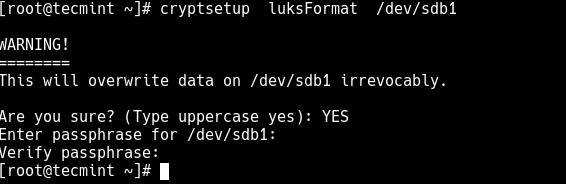
Next, use the cryptsetup command-line tool to format the device as a dm-crypt/LUKS encrypted device.
# cryptsetup luksFormat /dev/sdb1
After running the command, you will be prompted to enter YES (in uppercase) to supply a passphrase twice for the device to be formatted for use, as shown in the following screenshot.
To verify if the operation was successful, run the following command.
# cryptsetup isLuks /dev/sdb1 && echo Success

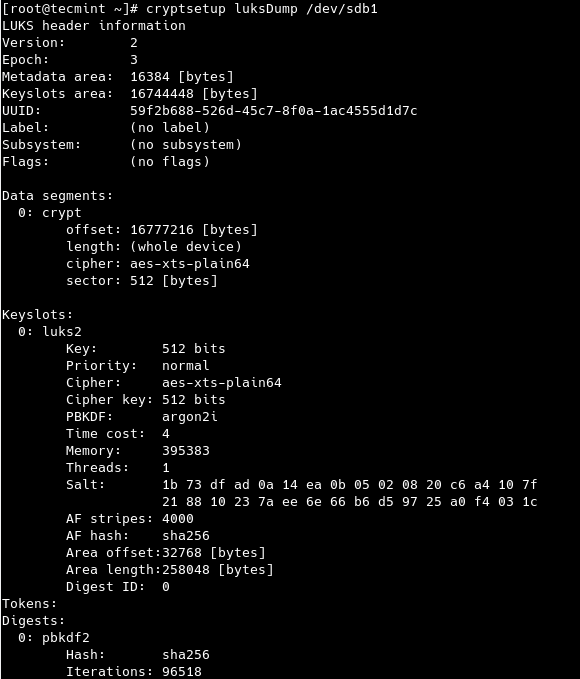
You can view a summary of the encryption information for the device.
# cryptsetup luksDump /dev/sdb1
Creating Mapping to Allow Access to a Decrypted Content
In this section, we will configure how to access the encrypted device’s decrypted contents. We will create a mapping using the kernel device-mapper. It is recommended to create a meaningful name for this mapping, something like luk-uuid (where <uuid> is replaced with the device’s LUKS UUID</strong (Universally Unique Identifier).
To get your encrypted device UUID, run the following command.
# cryptsetup luksUUID /dev/sdb1

After getting the UUID, you can create the mapping name as shown (you will be prompted to enter the passphrase created earlier on).
# cryptsetup luksOpen /dev/sdb1 luk-59f2b688-526d-45c7-8f0a-1ac4555d1d7c
If the command is successful, a device node called /dev/mapper/luk-59f2b688-526d-45c7-8f0a-1ac4555d1d7c which represents the decrypted device.

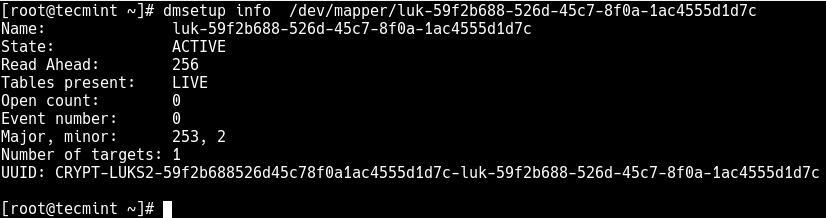
The block device which has just been created can be read from and written to like any other unencrypted block device. You can see some information about the mapped device by running the following command.
# dmsetup info /dev/mapper/luk-59f2b688-526d-45c7-8f0a-1ac4555d1d7c
Creating Filesystems on Mapped Device
Now we will look at how to create a filesystem on the mapped device, which will allow you to use the mapped device node just like any other block device.
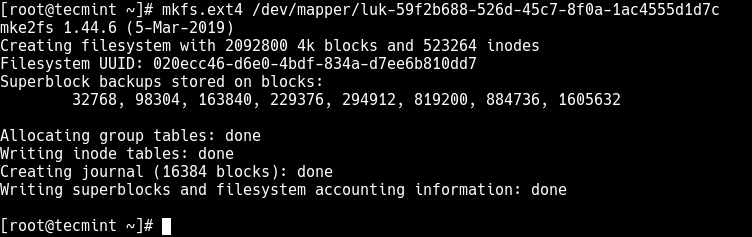
To create an ext4 filesystem on the mapped device, run the following command.
# mkfs.ext4 /dev/mapper/luk-59f2b688-526d-45c7-8f0a-1ac4555d1d7c
To mount the above filesystem, create a mount point for it e.g /mnt/encrypted-device and then mount it as follows.
# mkdir -p /mnt/encrypted-device
# mount /dev/mapper/luk-59f2b688-526d-45c7-8f0a-1ac4555d1d7c /mnt/encrypted-device/
Add Mapping Information to /etc/crypttab and /etc/fstab
Next, we need to configure the system to automatically set up a mapping for the device as well as mount it at boot time.
You should add the mapping information in the /etc/crypttab file, in the with the following format.
luk-59f2b688-526d-45c7-8f0a-1ac4555d1d7c UUID=59f2b688-526d-45c7-8f0a-1ac4555d1d7c none
in the above format:
- luk-59f2b688-526d-45c7-8f0a-1ac4555d1d7c – is the mapping name
- UUID=59f2b688-526d-45c7-8f0a-1ac4555d1d7c – is the device name
Save the file and close it.
Next, add the following entry to /etc/fstab to automatically mount the mapped device at system boot.
/dev/mapper/luk-59f2b688-526d-45c7-8f0a-1ac4555d1d7c /mnt/encrypted-device ext4 0 0
Save the file and close it.
Then run the following command to update systemd units generated from these files.
# systemctl daemon-reload
Backup LUKS Headers
Lastly, we will cover how to back up the LUKS headers. This is a critical step to avoid losing all data in the encrypted block device, in case the sectors containing the LUKS headers are damaged by either user error or hardware failure. This action allows for data recovery.
To backup the LUKS headers.
# mkdir /root/backups
# cryptsetup luksHeaderBackup --header-backup-file luks-headers /dev/mapper/luk-59f2b688-526d-45c7-8f0a-1ac4555d1d7c
And to restore the LUKS headers.
# cryptsetup luksHeaderRestore --header-backup-file /root/backups/luks-headers /dev/mapper/luk-59f2b688-526d-45c7-8f0a-1ac4555d1d7c
That’s all! In this article, we’ve explained how to encrypt block devices using LUKS in Fedora Linux distribution. Do you have any queries or comments concerning this topic or guide, use the feedback form below to reach us.
If this article helped you solve a problem, consider buying a coffee. It helps keep TecMint free, supports the authors, and keeps the project going.





Got Something to Say? Join the Discussion... Cancel reply