
On the internet, you will find plenty of tools for checking disk space usage in Linux. However, Linux has a strong built-in utility called ‘df‘.
The ‘df‘ command stands for “disk filesystem“, it is used to get a full summary of available and used disk space usage of the file system on the Linux system.
Using ‘-h‘ parameter with (df -h) will show the file system disk space statistics in “human-readable” format, which means it gives the details in bytes, megabytes, and gigabytes.
In this guide, we’ll go beyond the basic flags and show you how to actually read df output, combine options for more useful results, and catch disk space problems before they cause downtime.
What Does the df Command Show?
When you run df, it reports six columns for each mounted filesystem:
| Column | What It Means |
|---|---|
| Filesystem | The device or filesystem name (e.g., /dev/sda1) |
| 1K-blocks | Total size in 1024-byte blocks |
| Used | Space currently in use |
| Available | Space still available to non-root users |
| Use% | Percentage of space used |
| Mounted on | Where the filesystem is mounted in your directory tree |
Note: The Available column is not simply “Total minus Used.” Linux reserves a portion of each filesystem (typically 5%) for the root user to prevent system crashes when disk space runs low. This is why Used + Available often doesn’t equal the total size.
df Command Syntax
If no filesystem is specified, df reports on all currently mounted filesystems.
df [OPTIONS] [FILESYSTEM]
1. Check Overall Disk Space Usage
The “df” command displays the information of device name, total blocks, total disk space, used disk space, available disk space, and mount points on a file system.
sudo df
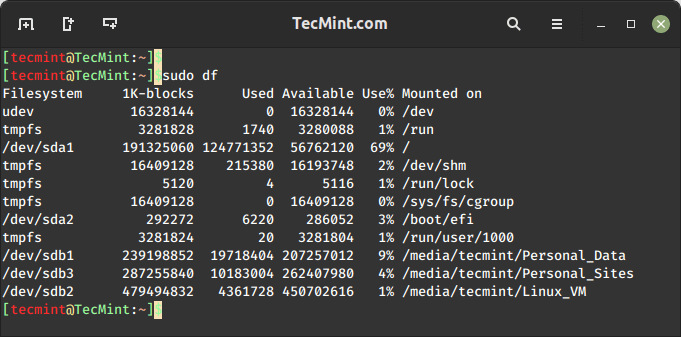
This is useful for scripting – raw block numbers are easier to parse programmatically. For daily sysadmin work, you’ll almost always want to add -h.
2. Show Disk Space in Human-Readable Format (The One You’ll Use Most)
The -h flag converts bytes into KB, MB, GB, or TB automatically – whichever unit makes the most sense for the size involved.
df -h
Sample output:
Filesystem Size Used Avail Use% Mounted on
tmpfs 3.2G 2.6M 3.2G 1% /run
/dev/sda1 696G 321G 339G 49% /
tmpfs 16G 861M 15G 6% /dev/shm
tmpfs 5.0M 12K 5.0M 1% /run/lock
efivarfs 256K 49K 203K 20% /sys/firmware/efi/efivars
tmpfs 16G 0 16G 0% /run/qemu
/dev/sda2 286M 6.2M 280M 3% /boot/efi
tmpfs 3.2G 156K 3.2G 1% /run/user/1000
/dev/sdb3 274G 2.9G 258G 2% /media/ravi/Personal_Sites
/dev/sdb1 229G 211G 6.0G 98% /media/ravi/Personal_Data
/dev/sdb2 458G 74G 361G 17% /media/ravi/Linux_VM
Pro Tip: Any time Use% is above 85%, treat it as a warning sign and investigate. At 95%+, you may start seeing application errors, failed writes, and corrupted log files.
3. Show All Filesystems Including Pseudo Filesystems
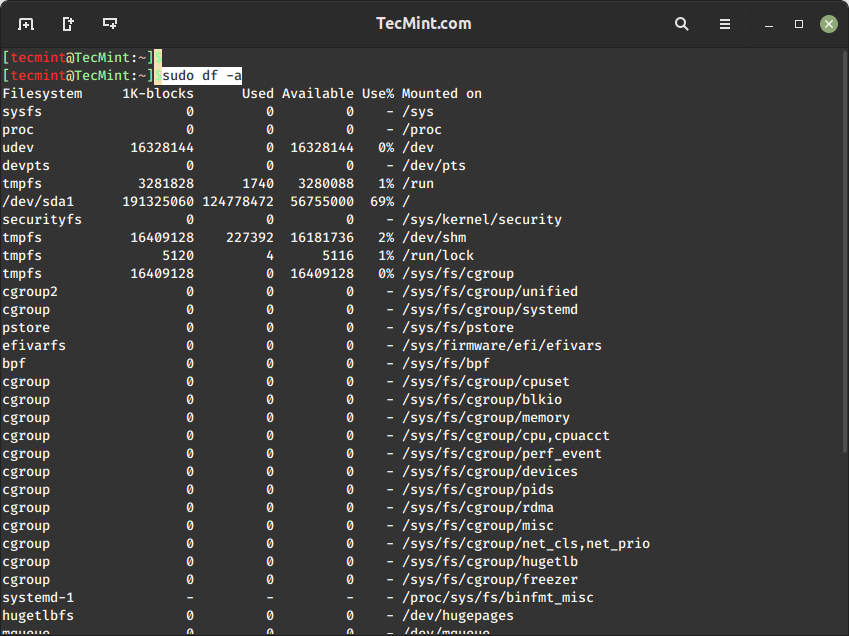
The command "df -a" is used to display information about all the mounted filesystems disk space usage, which includes total space, used space, available space, memory utilization, and the percentage of space used for each filesystem.
It also shows pseudo filesystems like tmpfs, sysfs, proc, and devtmpfs – which normally show 0 blocks and are hidden by default.
You’ll typically use this when debugging container environments, chroot setups, or systemd mount unit issues where a pseudo-filesystem mount isn’t behaving as expected.
df -a
4. Show Filesystem Type Alongside Disk Usage
Combining -T (type) and -h (human-readable) in one shot gives you a much more useful overview than running either alone, which is particularly helpful when you’re managing servers with a mix of ext4, xfs, and btrfs filesystems and need to know which tools to use for resizing or repair.
df -Th
Sample output:
Filesystem Type Size Used Avail Use% Mounted on
tmpfs tmpfs 3.2G 2.6M 3.2G 1% /run
/dev/sda1 ext4 696G 321G 339G 49% /
tmpfs tmpfs 16G 869M 15G 6% /dev/shm
tmpfs tmpfs 5.0M 12K 5.0M 1% /run/lock
efivarfs efivarfs 256K 49K 203K 20% /sys/firmware/efi/efivars
tmpfs tmpfs 16G 0 16G 0% /run/qemu
/dev/sda2 vfat 286M 6.2M 280M 3% /boot/efi
tmpfs tmpfs 3.2G 160K 3.2G 1% /run/user/1000
/dev/sdb3 ext4 274G 2.9G 258G 2% /media/ravi/Personal_Sites
/dev/sdb1 ext4 229G 211G 6.0G 98% /media/ravi/Personal_Data
/dev/sdb2 ext4 458G 74G 361G 17% /media/ravi/Linux_VM
5. Check Disk Space for a Specific Directory or Partition
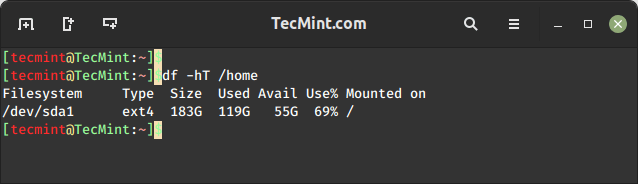
The command "df -hT /home" is used to display disk space utilization of /home directory or partition in a human-readable format. The -T option shows the filesystem type (ext4) along with other information.
df -hT /home
Or check multiple at once:
df -h / /home /var
6. Check Disk Space Usage in Kilobytes
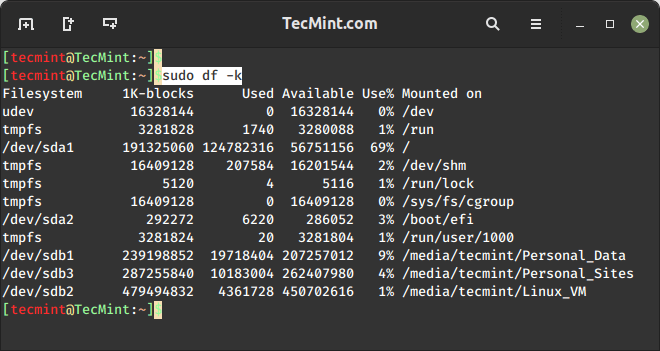
To display all mounted filesystem information and usage in 1024-byte blocks, use the option ‘-k‘ (e.g. --block-size=1K), which provides information about each filesystem on your system, presenting sizes in kilobytes (kb).
sudo df -k
7. Check Disk Space Usage in Megabytes
To display information on all file system usage in MB (MegaByte) use the option ‘-m‘, which presents sizes in megabytes (MB).
sudo df -m
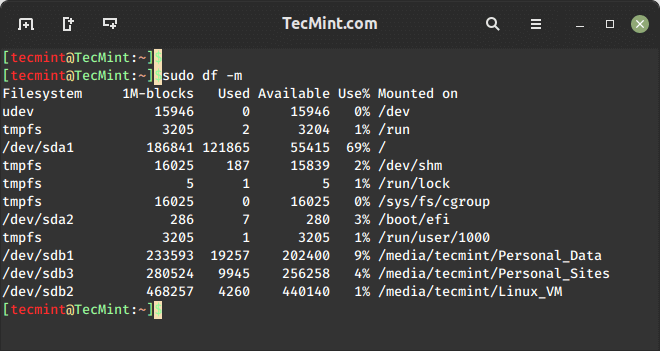
8. Check Disk Space Usage in Gigabyte
The -B flag lets you specify an explicit block size. -BG forces gigabyte units, -BM forces megabytes, and -BK forces kilobytes – giving you predictable, fixed-unit output for scripts and reports rather than the auto-scaling behavior of -h.
sudo df -BG
Sample output:
Filesystem 1G-blocks Used Available Use% Mounted on
tmpfs 4G 1G 4G 1% /run
/dev/sda1 696G 321G 339G 49% /
tmpfs 16G 1G 15G 6% /dev/shm
tmpfs 1G 1G 1G 1% /run/lock
efivarfs 1G 1G 1G 20% /sys/firmware/efi/efivars
tmpfs 16G 0G 16G 0% /run/qemu
/dev/sda2 1G 1G 1G 3% /boot/efi
tmpfs 4G 1G 4G 1% /run/user/1000
/dev/sdb3 274G 3G 258G 2% /media/ravi/Personal_Sites
/dev/sdb1 229G 211G 6G 98% /media/ravi/Personal_Data
/dev/sdb2 458G 74G 361G 17% /media/ravi/Linux_VM
Note: df -h and df -BG are not the same. -h auto-selects the most readable unit per filesystem (so a 500MB partition shows in MB, not GB). -BG forces GB across the board, which means small filesystems show as 0G.
9. Check Inode Usage in Linux
Inodes are what Linux uses to track files and directories – not file contents, but the metadata (permissions, ownership, timestamps, pointers to data blocks). A filesystem can run out of inodes while still having plenty of disk space, which will cause No space left on device errors even though df -h shows free space available.
df -ih
Sample output:
Filesystem Inodes IUsed IFree IUse% Mounted on
tmpfs 4.0M 1.3K 4.0M 1% /run
/dev/sda1 45M 1.6M 43M 4% /
tmpfs 4.0M 2.2K 4.0M 1% /dev/shm
tmpfs 4.0M 8 4.0M 1% /run/lock
efivarfs 0 0 0 - /sys/firmware/efi/efivars
tmpfs 4.0M 1 4.0M 1% /run/qemu
/dev/sda2 0 0 0 - /boot/efi
tmpfs 801K 152 801K 1% /run/user/1000
/dev/sdb3 18M 9.5K 18M 1% /media/ravi/Personal_Sites
/dev/sdb1 15M 21K 15M 1% /media/ravi/Personal_Data
/dev/sdb2 30M 2.2K 30M 1% /media/ravi/Linux_VM
Warning: If IUse% is above 90%, you have an inode exhaustion problem, which is commonly happens on mail servers, web servers with many small cache files, or systems where a runaway process has created thousands of temp files.
10. Filter df Output to Show Only a Specific Filesystem Type
This shows disk usage only for ext4 filesystems, which is useful on systems with a mix of filesystem types when you want to focus on just one kind.
df -t ext4 -h
Sample Output:
Filesystem Size Used Avail Use% Mounted on
/dev/sda1 696G 321G 339G 49% /
/dev/sdb3 274G 2.9G 258G 2% /media/ravi/Personal_Sites
/dev/sdb1 229G 211G 6.0G 98% /media/ravi/Personal_Data
/dev/sdb2 458G 74G 361G 17% /media/ravi/Linux_VM
Similarly, to check only xfs filesystems:
df -t xfs -h
11. Check Linux File System Type
The -x option excludes the specified filesystem type from the output, which is handy for cleaning up df -h output on systems where tmpfs mounts (for /dev/shm, /run, etc.) clutter the display and aren’t relevant to what you’re checking.
df -x tmpfs -h
Sample Output:
Filesystem Size Used Avail Use% Mounted on
/dev/sda1 696G 321G 339G 49% /
efivarfs 256K 49K 203K 20% /sys/firmware/efi/efivars
/dev/sda2 286M 6.2M 280M 3% /boot/efi
/dev/sdb3 274G 2.9G 258G 2% /media/ravi/Personal_Sites
/dev/sdb1 229G 211G 6.0G 98% /media/ravi/Personal_Data
/dev/sdb2 458G 74G 361G 17% /media/ravi/Linux_VM
12. Show Custom Output Columns
The --output option lets you specify exactly which columns appear and in what order, which is particularly useful in scripts and monitoring tools where you need a specific column layout. Available fields include: source, fstype, itotal, iused, iavail, ipcent, size, used, avail, pcent, file, and target.
df -h --output=source,fstype,size,used,avail,pcent,target
Sample Output:
Filesystem Type Size Used Avail Use% Mounted on
tmpfs tmpfs 3.2G 2.9M 3.2G 1% /run
/dev/sda1 ext4 696G 321G 339G 49% /
tmpfs tmpfs 16G 859M 15G 6% /dev/shm
tmpfs tmpfs 5.0M 12K 5.0M 1% /run/lock
efivarfs efivarfs 256K 49K 203K 20% /sys/firmware/efi/efivars
tmpfs tmpfs 16G 0 16G 0% /run/qemu
/dev/sda2 vfat 286M 6.2M 280M 3% /boot/efi
tmpfs tmpfs 3.2G 164K 3.2G 1% /run/user/1000
/dev/sdb3 ext4 274G 2.9G 258G 2% /media/ravi/Personal_Sites
/dev/sdb1 ext4 229G 211G 6.0G 98% /media/ravi/Personal_Data
/dev/sdb2 ext4 458G 74G 361G 17% /media/ravi/Linux_VM
13. Monitor Disk Space in Real Time
The watch command re-runs df -h every 5 seconds and highlights changes. Use this when you’re running a large file copy, database dump, or log-generating operation and want to see disk space change in real time without manually re-running the command.
watch -n 5 df -h
Sample Output:
Every 5.0s: df -h tecmint: Tue Mar 31 12:04:11 2026

Filesystem Size Used Avail Use% Mounted on
tmpfs 3.2G 2.9M 3.2G 1% /run
/dev/sda1 696G 321G 339G 49% /
tmpfs 16G 872M 15G 6% /dev/shm
tmpfs 5.0M 12K 5.0M 1% /run/lock
efivarfs 256K 49K 203K 20% /sys/firmware/efi/efivars
tmpfs 16G 0 16G 0% /run/qemu
/dev/sda2 286M 6.2M 280M 3% /boot/efi
tmpfs 3.2G 164K 3.2G 1% /run/user/1000
/dev/sdb3 274G 2.9G 258G 2% /media/ravi/Personal_Sites
/dev/sdb1 229G 211G 6.0G 98% /media/ravi/Personal_Data
/dev/sdb2 458G 74G 361G 17% /media/ravi/Linux_VM
14. Sort df Output by Usage Percentage
This pipes df -h output through sort, ordering results by the Use% column (field 5) in reverse numeric order – so the most full filesystems appear at the top. This is the quickest way to spot which partition needs attention on a server with many mounts.
df -h | sort -k5 -rn
Sample Output:
/dev/sdb1 229G 211G 6.0G 98% /media/ravi/Personal_Data
/dev/sda1 696G 321G 339G 49% /
efivarfs 256K 49K 203K 20% /sys/firmware/efi/efivars
/dev/sdb2 458G 74G 361G 17% /media/ravi/Linux_VM
tmpfs 16G 862M 15G 6% /dev/shm
/dev/sda2 286M 6.2M 280M 3% /boot/efi
/dev/sdb3 274G 2.9G 258G 2% /media/ravi/Personal_Sites
tmpfs 5.0M 12K 5.0M 1% /run/lock
tmpfs 3.2G 2.9M 3.2G 1% /run
tmpfs 3.2G 164K 3.2G 1% /run/user/1000
tmpfs 16G 0 16G 0% /run/qemu
Filesystem Size Used Avail Use% Mounted on
Pro Tip: Add this as an alias in your ~/.bashrc for quick daily checks:
alias dfs='df -h | sort -k5 -rn'
15. Check df Command Options
Prints all available options with brief descriptions. Use man df for the full manual.
df --help
Sample Output:
Usage: df [OPTION]... [FILE]...
Show information about the file system on which each FILE resides,
or all file systems by default.

Mandatory arguments to long options are mandatory for short options too.
 -a, --all include pseudo, duplicate, inaccessible file systems
 -B, --block-size=SIZE scale sizes by SIZE before printing them; e.g.,
 '-BM' prints sizes in units of 1,048,576 bytes;
 see SIZE format below
 -h, --human-readable print sizes in powers of 1024 (e.g., 1023M)
 -H, --si print sizes in powers of 1000 (e.g., 1.1G)
 -i, --inodes list inode information instead of block usage
 -k like --block-size=1K
 -l, --local limit listing to local file systems
...
Reading df Output: Practical Scenarios
Here are the scenarios that actually happen in production.
Scenario 1: Disk full but you can’t find what’s filling it
df -h shows /var at 99%, but du -sh /var/* shows only 10GB used. This classic mismatch usually means a deleted file is still held open by a running process — the space won’t be freed until that process closes or restarts.
# Find processes holding deleted files open
lsof +L1 | grep /var
Restart the relevant service and the space will free up immediately.
Scenario 2: Application throwing “No space left on device” but df shows free space
Check inodes first:
df -ih /var
If IUse% is at or near 100%, you’ve hit inode exhaustion. Common culprits: mail queues, PHP session files, or container overlay layers.
Scenario 3: Monitoring disk usage in a cron job
This script checks all mounted filesystems and sends an alert email when any partition crosses 85% usage.
#!/bin/bash
THRESHOLD=85
df -h --output=pcent,target | tail -n +2 | while read PCT MNT; do
 NUM=${PCT%%%}
 if [ "$NUM" -ge "$THRESHOLD" ]; then
 echo "WARNING: $MNT is at $PCT" | mail -s "Disk Alert: $MNT" [email protected]
 fi
done
df vs du – Which One Should You Use?
A common point of confusion:
| Aspect | df | du |
|---|---|---|
| What it reports | Free/used space on a mounted filesystem | Disk space consumed by specific files and directories |
| Speed | Instant — reads filesystem metadata | Slower — walks the directory tree |
| Use case | “Is this partition full?” | “What is filling up this partition?” |
Use df first to identify which partition is the problem, then use du command to drill down into what is causing it.
Quick Reference: Most Useful df Commands
| Command | Description |
|---|---|
df -h |
Human-readable overview of all filesystems |
df -Th |
Include filesystem type |
df -ih |
Check inode usage |
df -h /var |
Check a specific partition |
df -t ext4 -h |
Show only ext4 filesystems |
df -x tmpfs -h |
Exclude tmpfs from output |
df -h | sort -k5 -rn |
Sort by usage percentage (busiest first) |
watch -n 5 df -h |
Live monitoring every 5 seconds |
df -BG |
Force gigabyte units |
df -h --output=source,size,used,avail,pcent,target |
Display custom output columns |
Conclusion
The df command is straightforward, but most guides stop at the basic flags. In practice, knowing how to combine options, interpret edge cases like inode exhaustion, and automate alerts is what separates reactive disk management from proactive server administration.
If your immediate problem is a full disk and you need to find what’s eating space, pair df -h with du -sh /* | sort -rh | head -20 to quickly identify the largest directories.
For related disk management tools, see:
You might also like:
- 10 fdisk Commands to Manage Linux Disk Partitions
- 10 Useful “du” Commands to Find Disk Usage of Files and Directories
- Ncdu an NCurses Based Disk Usage Analyzer and Tracker
- How to Find Out Top Directories and Files (Disk Space) in Linux
- 9 Tools to Monitor Linux Disk Partitions and Usage in Linux
If this article helped you solve a problem, consider buying a coffee. It helps keep TecMint free, supports the authors, and keeps the project going.






Got Something to Say? Join the Discussion... Cancel reply