
Nagios is an awesome Open Source monitoring tool, that provides a more comprehensive monitoring environment to always keep an eye on your all machines/networks whether you are in your data center or just your small labs.
With Nagios, you can monitor your remote hosts and their services remotely on a single window. It shows warnings and indicates if something goes wrong in your servers which eventually helps us to detect some problems before they occur. It helps us to reduce downtime and business losses.
[ You might also like: 22 Linux Networking Commands for Sysadmin ]
Recently, Nagios released its latest version Nagios Core 4.4.9, and its latest stable release of Nagios plugins 2.3.3 on October 4, 2022.
This article is intended to guide you with easy instructions on how to install and configure the latest version of Nagios Core from source (tarball) on RHEL and RHEL-based distributions such as CentOS Stream, Rocky Linux, AlmaLinux, and Fedora.
Within 30 minutes you will be monitoring your local machine, no advanced installation procedure only basic installation that will work 100% on most of today’s Linux servers.
Please Note: The installation instructions shown here are written based on the RHEL 9.0 Linux distribution.
[ez-toc]
Installing Nagios Core and Nagios Plugin in Linux
If you follow these instructions correctly, you will end up with the following information.
- Nagios and its plugins will be installed under the /usr/local/nagios directory.
- Nagios will be configured to monitor a few services of your local machine (Disk Usage, CPU Load, Current Users, Total Processes, etc.)
- Nagios web interface will be available at http://localhost/nagios
Step 1: Install Apache and PHP Packages
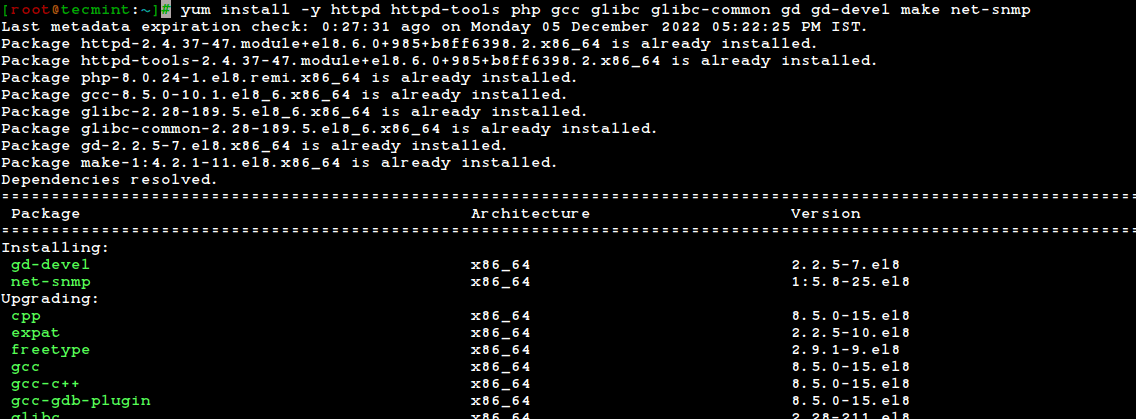
We need to install Apache, PHP, and some libraries like gcc, glibc, glibc-common, and GD libraries and their development libraries before installing Nagios with the source. And to do so, we can use the yum package installer.
# yum install -y httpd httpd-tools php gcc glibc glibc-common gd gd-devel make net-snmp
Step 2: Create Nagios User and Group
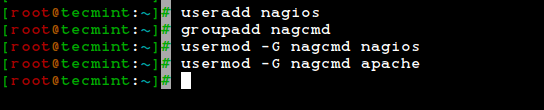
Create a new nagios user using the useradd command and nagcmd group account and set a password.
[root@tecmint]# useradd nagios
[root@tecmint]# groupadd nagcmd
Next, add both the nagios user and the apache user to the nagcmd group using the usermod command.
[root@tecmint]# usermod -G nagcmd nagios
[root@tecmint]# usermod -G nagcmd apache
Step 3: Download Nagios Core and Nagios Plugin
Create a directory for your Nagios installation and all its future downloads.
[root@tecmint]# mkdir /root/nagios
[root@tecmint]# cd /root/nagios
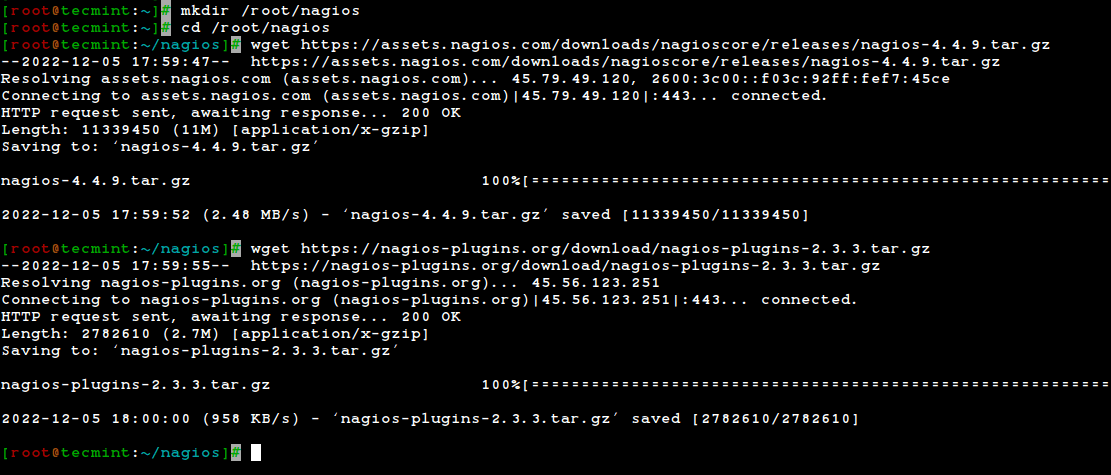
Now download the latest Nagios Core and Nagios Plugins packages with the wget command.
# wget https://assets.nagios.com/downloads/nagioscore/releases/nagios-4.4.9.tar.gz
# wget https://nagios-plugins.org/download/nagios-plugins-2.3.3.tar.gz
Step 4: Extract Nagios Core and Nagios Plugins
We need to extract downloaded packages with the tar command as follows.
# tar -xf nagios-4.4.9.tar.gz
# tar -xf nagios-plugins-2.3.3.tar.gz
When you extract these tarballs, two new folders will appear in that directory.
# ls -l

total 13804
drwxrwxr-x 21 root root 4096 Nov 17 02:22 nagios-4.4.9
-rw-r--r-- 1 root root 11339450 Nov 17 03:08 nagios-4.4.9.tar.gz
drwxr-xr-x 15 root root 4096 Mar 11 2020 nagios-plugins-2.3.3
-rw-r--r-- 1 root root 2782610 Mar 11 2020 nagios-plugins-2.3.3.tar.gz
Step 5: Installing and Configuring Nagios Core
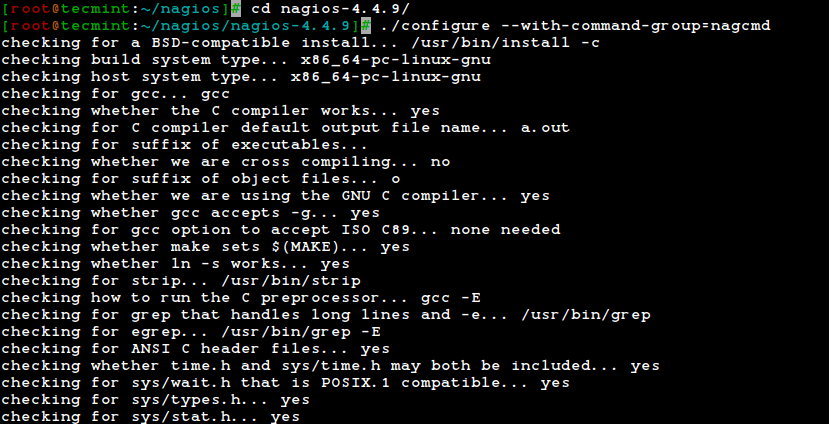
Now, first, we will configure Nagios Core and to do so we need to go to the Nagios directory and run configure file if everything goes fine, it will show the output in the end as sample output.
# cd nagios-4.4.9/
# ./configure --with-command-group=nagcmd
Creating sample config files in sample-config/ ...


*** Configuration summary for nagios 4.4.9 2022-11-16 ***:

 General Options:
 -------------------------
 Nagios executable: nagios
 Nagios user/group: nagios,nagios
 Command user/group: nagios,nagcmd
 Event Broker: yes
 Install ${prefix}: /usr/local/nagios
 Install ${includedir}: /usr/local/nagios/include/nagios
 Lock file: /run/nagios.lock
 Check the result directory: /usr/local/nagios/var/spool/checkresults
 Init directory: /lib/systemd/system
 Apache conf.d directory: /etc/httpd/conf.d
 Mail program: /usr/bin/mail
 Host OS: linux-gnu
 IOBroker Method: epoll

 Web Interface Options:
 ------------------------
 HTML URL: http://localhost/nagios/
 CGI URL: http://localhost/nagios/cgi-bin/
 Traceroute (used by WAP):


Review the options above for accuracy. If they look okay,
type 'make all' to compile the main program and CGIs.
After configuring, we need to compile and install all the binaries with the make all and make install commands, it will install all the needed libraries in your machine and we can proceed further.
# make all
# make install
*** Main program, CGIs and HTML files installed ***

You can continue with installing Nagios as follows (type 'make'
without any arguments for a list of all possible options):

 make install-init
 - This installs the init script in /lib/systemd/system

 make install-commandmode
 - This installs and configures permissions on the
 directory for holding the external command file

 make install-config
 - This installs sample config files in /usr/local/nagios/etc

make[1]: Leaving directory '/root/nagios/nagios-4.4.9'
The following command will install the init scripts for Nagios.
# make install-init
To make Nagios work from the command line we need to install command-mode.
# make install-commandmode
Next, install sample Nagios files, please run the following command.
# make install-config
/usr/bin/install -c -m 775 -o nagios -g nagios -d /usr/local/nagios/etc
/usr/bin/install -c -m 775 -o nagios -g nagios -d /usr/local/nagios/etc/objects
/usr/bin/install -c -b -m 664 -o nagios -g nagios sample-config/nagios.cfg /usr/local/nagios/etc/nagios.cfg
/usr/bin/install -c -b -m 664 -o nagios -g nagios sample-config/cgi.cfg /usr/local/nagios/etc/cgi.cfg
/usr/bin/install -c -b -m 660 -o nagios -g nagios sample-config/resource.cfg /usr/local/nagios/etc/resource.cfg
/usr/bin/install -c -b -m 664 -o nagios -g nagios sample-config/template-object/templates.cfg /usr/local/nagios/etc/objects/templates.cfg
/usr/bin/install -c -b -m 664 -o nagios -g nagios sample-config/template-object/commands.cfg /usr/local/nagios/etc/objects/commands.cfg
/usr/bin/install -c -b -m 664 -o nagios -g nagios sample-config/template-object/contacts.cfg /usr/local/nagios/etc/objects/contacts.cfg
/usr/bin/install -c -b -m 664 -o nagios -g nagios sample-config/template-object/timeperiods.cfg /usr/local/nagios/etc/objects/timeperiods.cfg
/usr/bin/install -c -b -m 664 -o nagios -g nagios sample-config/template-object/localhost.cfg /usr/local/nagios/etc/objects/localhost.cfg
/usr/bin/install -c -b -m 664 -o nagios -g nagios sample-config/template-object/windows.cfg /usr/local/nagios/etc/objects/windows.cfg
/usr/bin/install -c -b -m 664 -o nagios -g nagios sample-config/template-object/printer.cfg /usr/local/nagios/etc/objects/printer.cfg
/usr/bin/install -c -b -m 664 -o nagios -g nagios sample-config/template-object/switch.cfg /usr/local/nagios/etc/objects/switch.cfg

*** Config files installed ***

Remember, these are *SAMPLE* config files. You'll need to read
the documentation for more information on how to actually define
services, hosts, etc. to fit your particular needs.
Step 6: Customizing Nagios Configuration
Open the “contacts.cfg” file with your choice of editor and set the email address associated with the nagiosadmin contact definition to receiving email alerts.
# vi /usr/local/nagios/etc/objects/contacts.cfg
###############################################################################
#
# CONTACTS
#
###############################################################################

# Just one contact defined by default - the Nagios admin (that's you)
# This contact definition inherits a lot of default values from the
# 'generic-contact' template which is defined elsewhere.

define contact {

 contact_name nagiosadmin ; Short name of user
 use generic-contact ; Inherit default values from generic-contact template (defined above)
 alias Nagios Admin ; Full name of user
 email [email protected] ; <<***** CHANGE THIS TO YOUR EMAIL ADDRESS ******
}
Step 7: Install and Configure the Web Interface for Nagios
We are done with all configurations in the backend, now we will configure the Web Interface For Nagios with the following command. The below command will Configure the Web interface for Nagios and a web admin user will be created “nagiosadmin”.
# make install-webconf

In this step, we will be creating a password for “nagiosadmin”. After executing this command, please provide a password twice and keep it remember because this password will be used when you login into the Nagios Web interface.
# htpasswd -s -c /usr/local/nagios/etc/htpasswd.users nagiosadmin
New password:
Re-type new password:
Adding password for user nagiosadmin
Restart Apache to make the new settings take effect.
# systemctl restart httpd
Step 8: Compile and Install Nagios Plugin
go there and configure and install it as directed below.
# cd /root/nagios
# cd nagios-plugins-2.3.3
# ./configure --with-nagios-user=nagios --with-nagios-group=nagios
# make
# make install
Step 9: Verify Nagios Configuration Files
Now we are all done with the Nagios configuration and it’s time to verify it to do so please insert the following command. If everything goes smoothly it will show up similar to the below output.
# /usr/local/nagios/bin/nagios -v /usr/local/nagios/etc/nagios.cfg
Nagios Core 4.4.9
Copyright (c) 2009-present Nagios Core Development Team and Community Contributors
Copyright (c) 1999-2009 Ethan Galstad
Last Modified: 2022-11-16
License: GPL

Website: https://www.nagios.org
Reading configuration data...
 Read main config file okay...
 Read object config files okay...

Running pre-flight check on configuration data...

Checking objects...
	Checked 8 services.
	Checked 1 hosts.
	Checked 1 host groups.
	Checked 0 service groups.
	Checked 1 contacts.
	Checked 1 contact groups.
	Checked 24 commands.
	Checked 5 time periods.
	Checked 0 host escalations.
	Checked 0 service escalations.
Checking for circular paths...
	Checked 1 hosts
	Checked 0 service dependencies
	Checked 0 host dependencies
	Checked 5 timeperiods
Checking global event handlers...
Checking obsessive compulsive processor commands...
Checking misc settings...

Total Warnings: 0
Total Errors: 0

Things look okay - No serious problems were detected during the pre-flight check
Step 10: Add Nagios Services to System Startup
To make Nagios work across reboots, we need to enable nagios and httpd at the system startup using the systemctl command.
# systemctl enable nagios
# systemctl enable httpd
Next, restart Nagios to make the new settings take effect.
# systemctl restart nagios
Step 11: Allow Nagios Web in Firewall
To access the Nagios web interface, you need to open the Apache ports by running the following commands:
# firewall-cmd --permanent --zone=public --add-service=http
# firewall-cmd --permanent --zone=public --add-service=https
# firewall-cmd --reload
Step 12: Log in to the Nagios Web Interface
Your Nagios is ready to work, please open it in your browser with “http://Your-server-IP-address/nagios” or “http://FQDN/nagios” and Provide the username “nagiosadmin” and password.
Nagios Web Dashboard
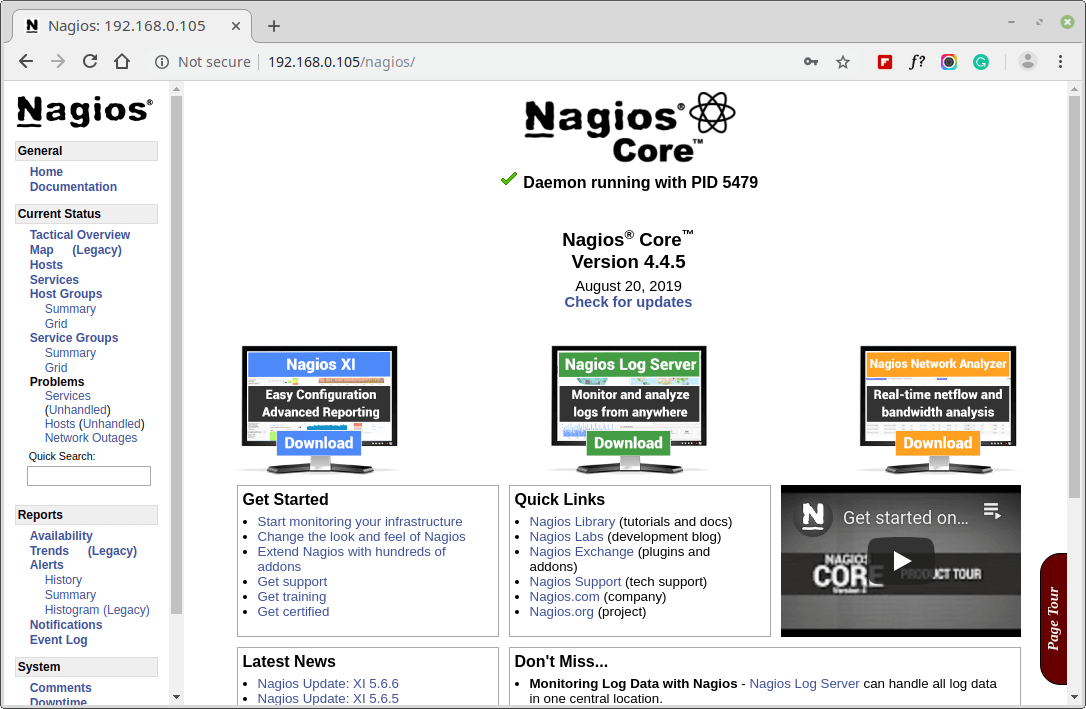
Host View
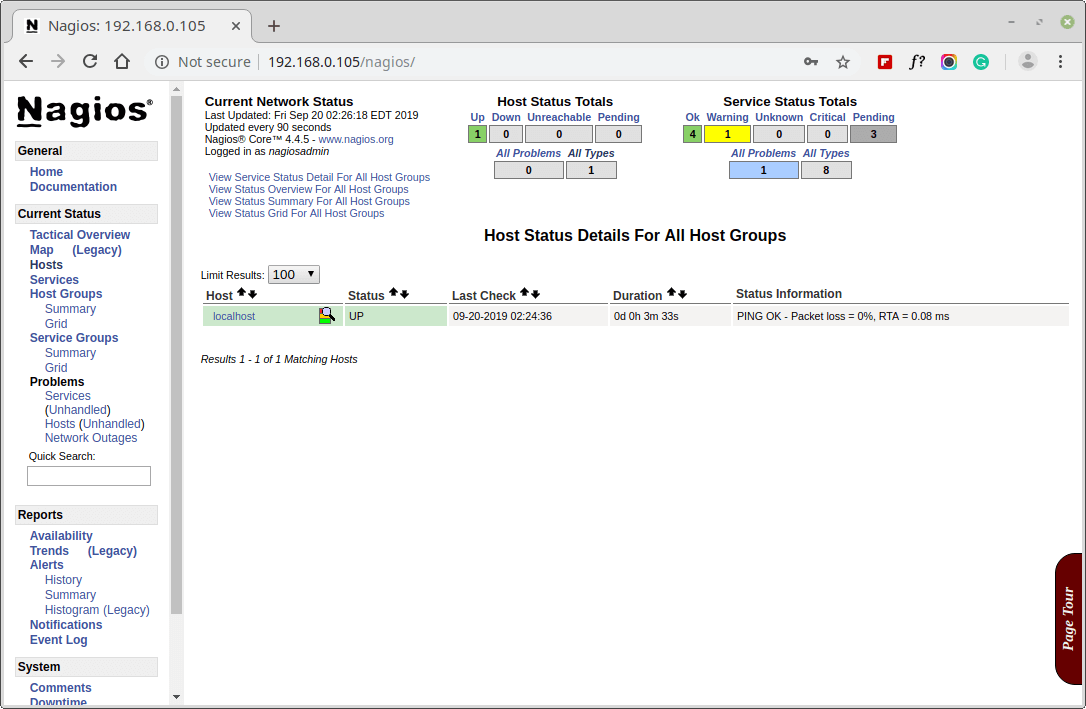
Nagios Overview
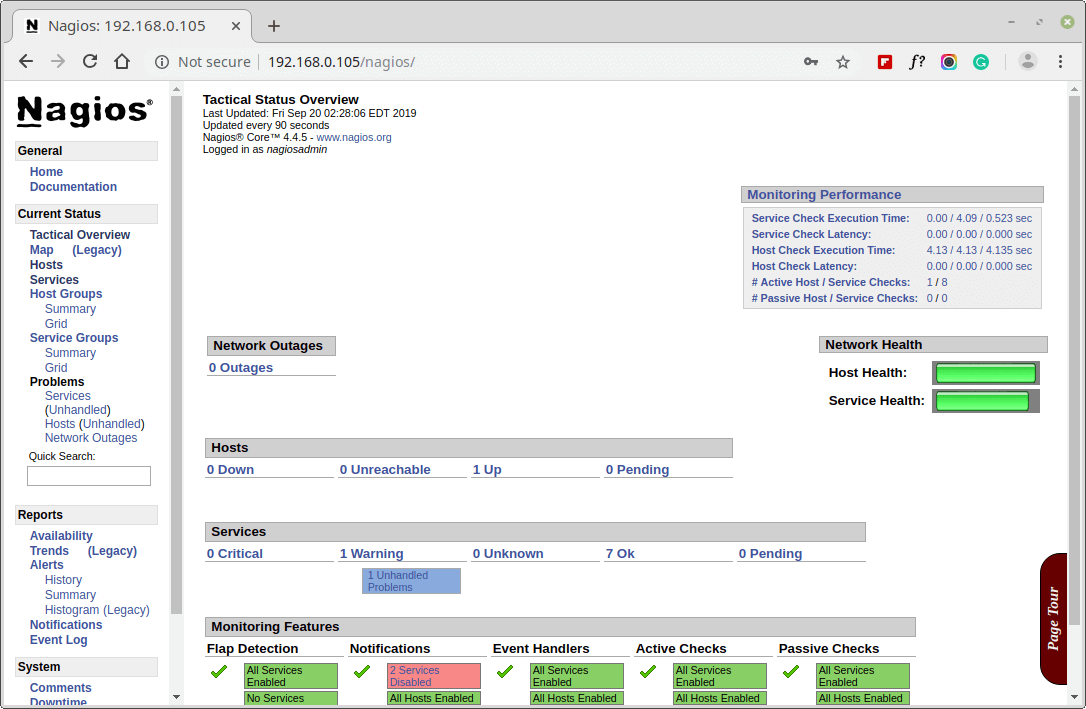
Services View
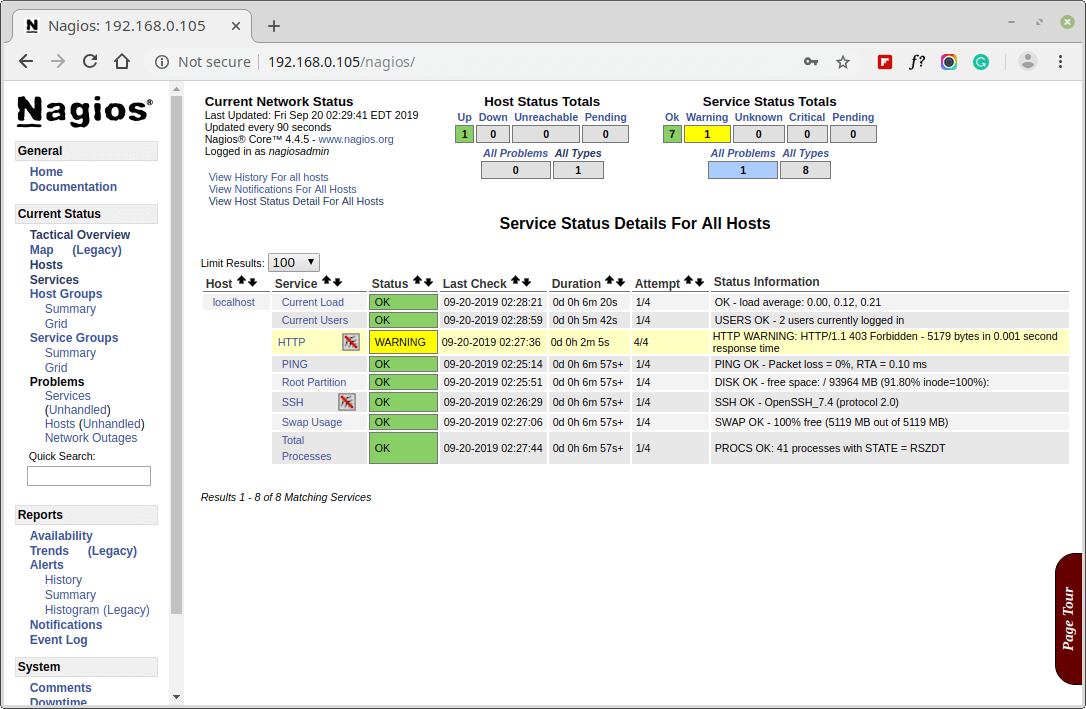
Process View
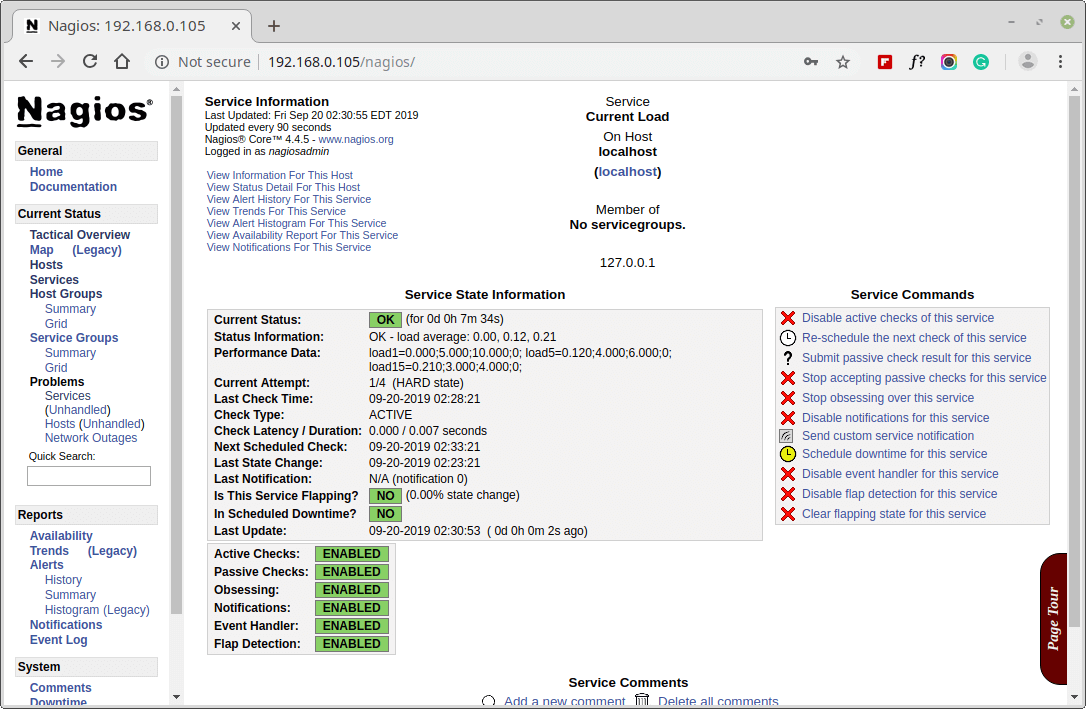
Congratulations! You’ve successfully installed and configured Nagios and its Plugins. You’ve just started your journey into monitoring.
Upgrading Nagios 3.x to Nagios Core 4.x
If you are already running an older version of Nagios, you can upgrade it anytime. To do so, you just need to download the latest nagios source tar archive and configure it as shown below.
# systemctl stop nagios
# wget https://assets.nagios.com/downloads/nagioscore/releases/nagios-4.4.9.tar.gz
# tar -zxvf nagios-4.4.9.tar.gz
# cd nagios-4.4.9
# ./configure
# make all
# make install
# systemctl start nagios
Conclusion
That’s it for now, in my upcoming articles, I will show you how to add Linux, Windows, Printers, Switches, and Devices to Nagios monitoring Server.
If you’re having any trouble while installing, please do contact us via comments. Till then stay tuned and connected to Tecmint and don’t forget to Like and Share us to spread around.
Read Also:
- How to Add Linux Host to Nagios Monitoring Server
- How to Add Windows Host to Nagios Monitoring Server
If this article helped you solve a problem, consider buying a coffee. It helps keep TecMint free, supports the authors, and keeps the project going.

Got Something to Say? Join the Discussion... Cancel reply