
Adobe Flash is a web browser plug-in used to display interactive web pages, online games, and to playback video and audio content. Flash displays text, vector graphics and raster graphics to provide animations, video games, and applications. It also allows streaming of audio and video and can capture mouse, keyboard, microphone and camera input.
Note that Adobe’s Flash plug-in is not included in Fedora because it is not free and nor open source software. However, Adobe releases a version of the Flash plug-in for Fedora and other mainstream Linux distributions using Firefox, Chromium, and other widely used internet browsers.
Google Chrome users, no need to install Adobe Flash Player since it bundled with its own version of NPAPI pre-installed.
In this article, we will explain how to install Adobe Flash Player 32 using Adobe’s own YUM Repository in Fedora Linux.
Installing Adobe YUM Repository in Fedora Linux
First update or upgrade your Fedora Linux software package index using following dnf command.
$ sudo dnf makecache
$ sudo dnf -y update
$ sudo dnf -y upgrade [Optional]
Next, install and enable official Adobe Yum repositories on Fedora Linux using following rpm command.
----------- Adobe Repository 64-bit x86_64 -----------
$ sudo rpm -ivh http://linuxdownload.adobe.com/adobe-release/adobe-release-x86_64-1.0-1.noarch.rpm
$ sudo rpm --import /etc/pki/rpm-gpg/RPM-GPG-KEY-adobe-linux

----------- Adobe Repository 32-bit x86 -----------
$ sudo rpm -ivh http://linuxdownload.adobe.com/adobe-release/adobe-release-i386-1.0-1.noarch.rpm
$ sudo rpm --import /etc/pki/rpm-gpg/RPM-GPG-KEY-adobe-linux
Sample Output
Retrieving http://linuxdownload.adobe.com/adobe-release/adobe-release-x86_64-1.0-1.noarch.rpm
warning: /var/tmp/rpm-tmp.MbSsFS: Header V3 DSA/SHA1 Signature, key ID f6777c67: NOKEY
Verifying... ################################# [100%]
Preparing... ################################# [100%]
Updating / installing...
 1:adobe-release-x86_64-1.0-1 ################################# [100%]
Installing Adobe Flash Player in Fedora Linux
Once the Adobe Yum repository installed, you can proceed further to install Adobe Flash player together with its dependencies using following command.
$ sudo dnf install flash-plugin alsa-plugins-pulseaudio libcurl
Sample Output
Adobe Systems Incorporated 650 B/s | 1.9 kB 00:03
Package alsa-plugins-pulseaudio-1.1.6-4.fc29.x86_64 is already installed.
Package libcurl-7.61.1-2.fc29.x86_64 is already installed.
Dependencies resolved.
========================================================================================================================================
 Package Arch Version Repository Size
========================================================================================================================================
Installing:
 flash-plugin x86_64 32.0.0.156-release adobe-linux-x86_64 8.6 M
Transaction Summary
=========================================================================================================================================
Install 1 Package
Total download size: 8.6 M
Installed size: 20 M
Is this ok [y/N]: y
Downloading Packages:
flash-player-npapi-32.0.0.156-release.x86_64.rpm 545 kB/s | 8.6 MB 00:16
-----------------------------------------------------------------------------------------------------------------------------------------
Total 544 kB/s | 8.6 MB 00:16
Running transaction check
Transaction check succeeded.
Running transaction test
Transaction test succeeded.
Running transaction
 Preparing : 1/1
Installed: flash-plugin-32.0.0.156-release.x86_64
 Installing : flash-plugin-32.0.0.156-release.x86_64 1/1
 Running scriptlet: flash-plugin-32.0.0.156-release.x86_64 1/1
Installed: flash-plugin-32.0.0.156-release.x86_64
 Verifying : flash-plugin-32.0.0.156-release.x86_64 1/1

Installed:
 flash-plugin-32.0.0.156-release.x86_64
Complete!
Verify Adobe Flash Player in Fedora Linux
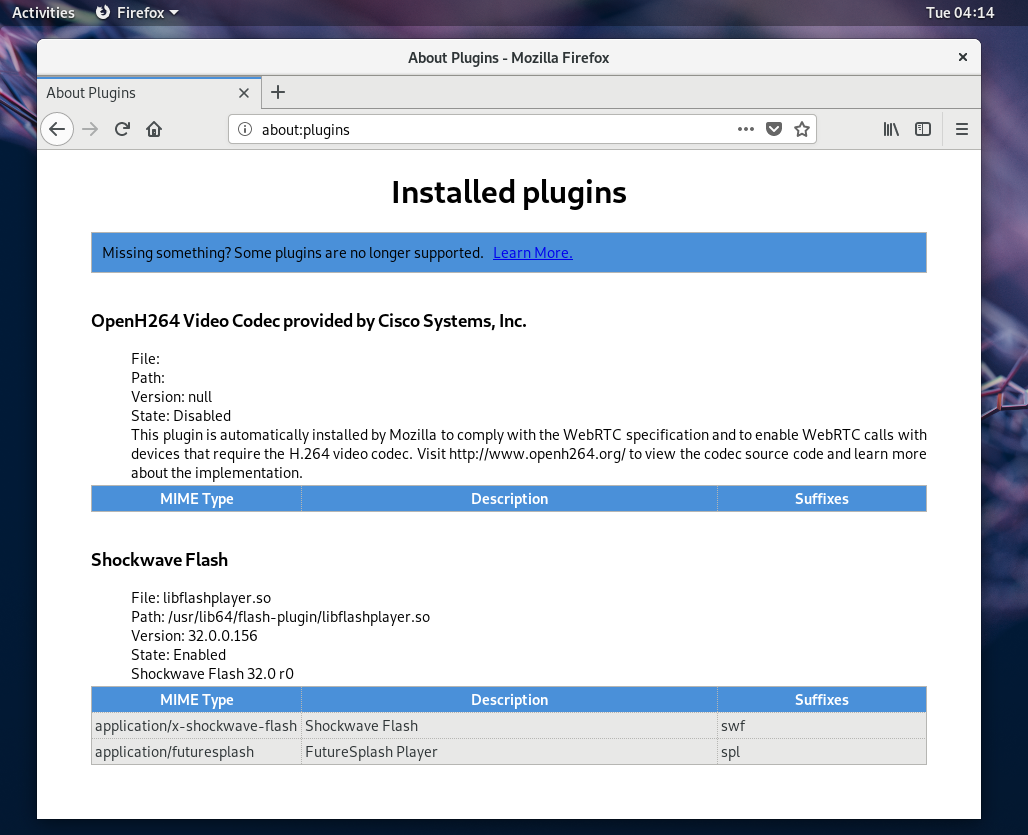
Restart your Firefox web browser and type about:plugins on address bar to verify the Adobe Flash Plugin as shown.
Similarly, restart your Google Chrome browser and type chrome://flash on address bar to verify the Adobe Flash Plugin as shown.
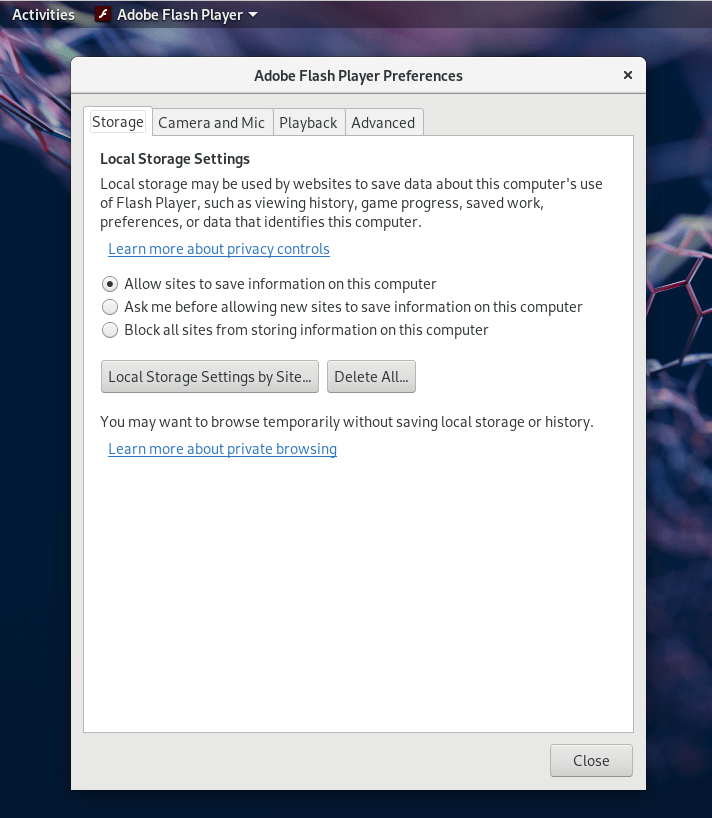
To set preferences, launch Adobe Flash Player window from the Activities menu on your Desktop as shown.
That’s it! In this article, we’ve explained how to install Adobe flash in Fedora Linux. We hope that everything worked fine, otherwise reach us via the feedback form below.
If this article helped you solve a problem, consider buying a coffee. It helps keep TecMint free, supports the authors, and keeps the project going.




Got Something to Say? Join the Discussion... Cancel reply