VOOZH about

URL: https://www.tecmint.com/install-cinnamon-desktop-in-arch-linux/

⇱ How to Install Cinnamon Desktop & Basic Apps in Arch Linux


Skip to content

Arch Linux is a lightweight, flexible, and independently developed Linux distribution that can be used for practically any role. By default, Arch Linux is installed as a minimal base system without a default desktop environment.

It provides a DIY approach in the sense that you can complete control over it, right from installation. During installation you have to configure everything from the ground up using the CLI for example the disk partitions, setting up the base environment, configuring time and date, etc.

To enhance your user experience, consider installing a desktop environment to simplify tasks. In our earlier guide, we detailed the process of installing XFCE on Arch Linux.

This tutorial demonstrates how to install the Cinnamon Desktop on Arch Linux. If you don’t have Arch Linux installed, check out our guide on how to install Arch Linux on UEFI machines.

TecMint Weekly Newsletter
Get the Learn Linux 7 Days Crash Course free when you join 34,000+ Linux professionals reading every Thursday.
Check your email for a magic link to get started.
Something went wrong. Please try again.

Step 1: Upgrade Arch Linux

To get started, log into your system and carry out a full system upgrade using the following command.

sudo pacman -Syu

This might take some time depending on your internet connection.
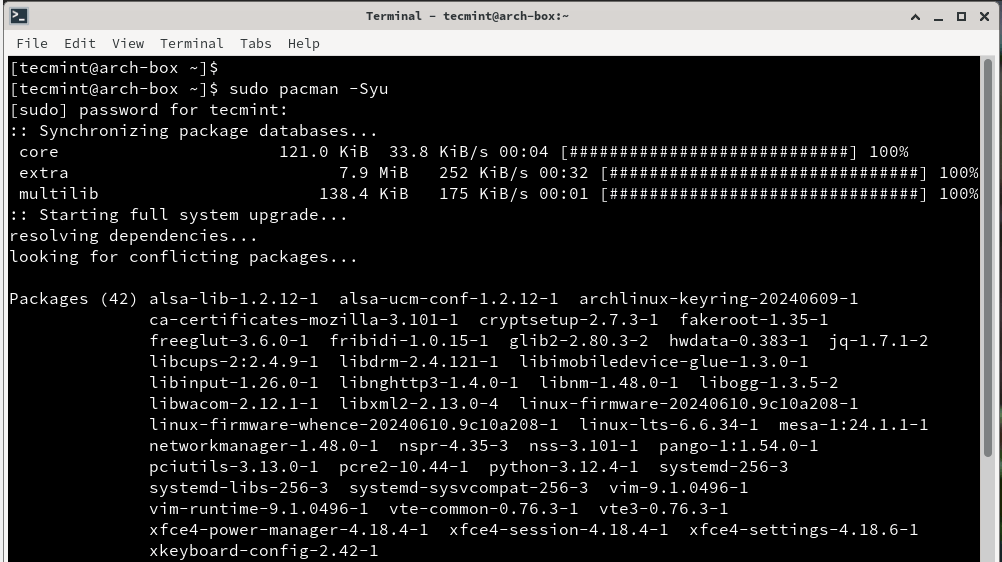
👁 Upgrade Arch Linux
Upgrade Arch Linux

Step 2: Install Cinnamon Desktop on Arch Linux

Once the system packages are up to date, the next step is to install the Cinnamon desktop environment.

sudo pacman -S cinnamon nemo-fileroller

The command installs the Cinnamon desktop and Nemo file manager which is free and open-source. It’s the official file manager of the Cinnamon desktop environment and a fork of Nautilus. The installation size is quite large so be patient.
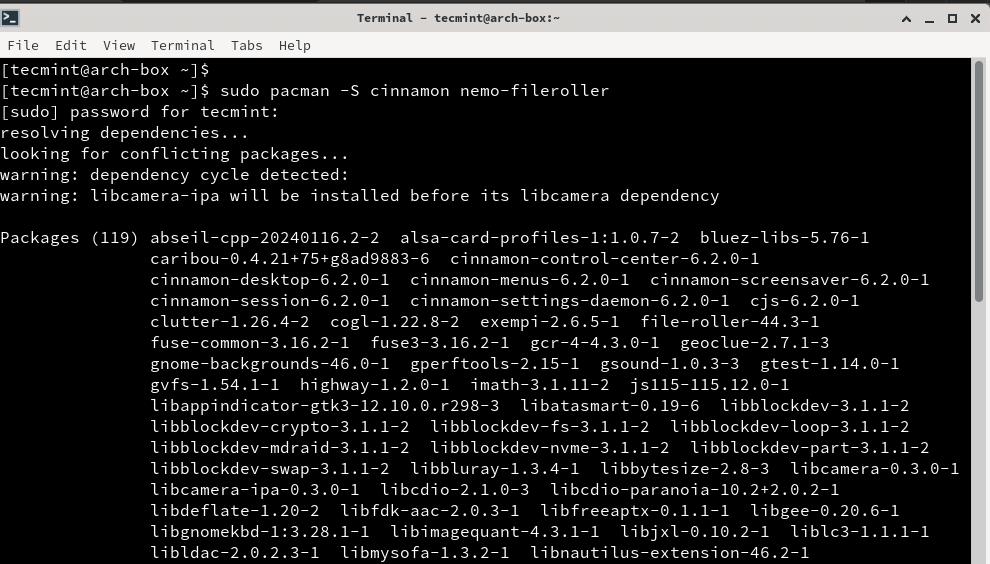
👁 Install Cinnamon Desktop in Arch Linux
Install Cinnamon Desktop in Arch Linux

Step 3: Install Display Manager in Arch Linux

The next step is to install a display manager, which is an application that provides a graphical user interface (GUI) for logging in. It allows you to seamlessly authenticate and select the preferred desktop environment to log into if multiple environments are installed.

To install the lightdm display manager alongside a Greeter, run the command:

sudo pacman -S lightdm lightdm-gtk-greeter

Once the lightdm display manager is installed, enable the daemon to start on system startup as shown.

sudo systemctl enable lightdm

For GDM (Gnome Display Manager) install it using the following command:

sudo pacman -S gdm
sudo systemctl enable gdm

Once you’ve installed your preferred display manager, reboot your system.

Step 4: Login to Arch Linux GUI

Once you reboot your system, you will get a graphical login display. In our case, we had already installed the XFCE environment. If you have multiple environments, click on the button provided and select ‘Cinnamon‘ as the desktop environment to log into.
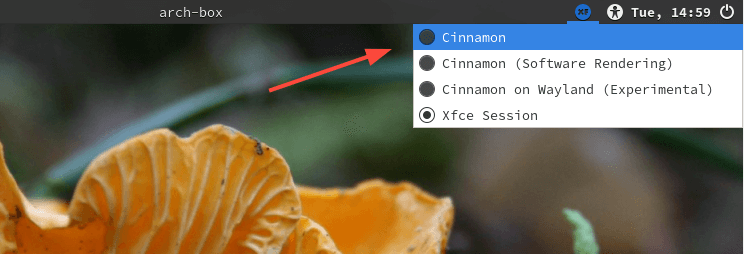
👁 Choose Cinnamon Desktop
Choose Cinnamon Desktop

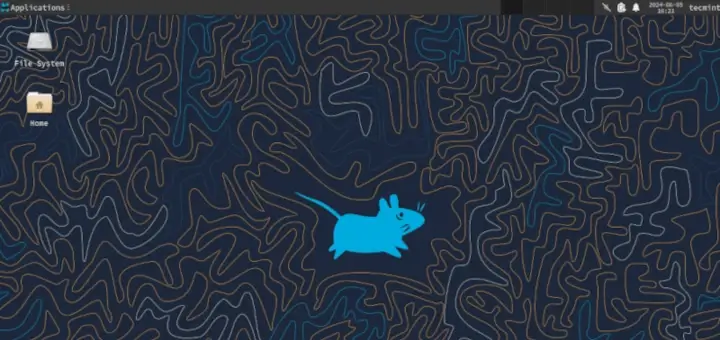
Next, provide your username and password to authenticate and log in. Once logged in, you will be ushered to the Cinnamon desktop as shown.
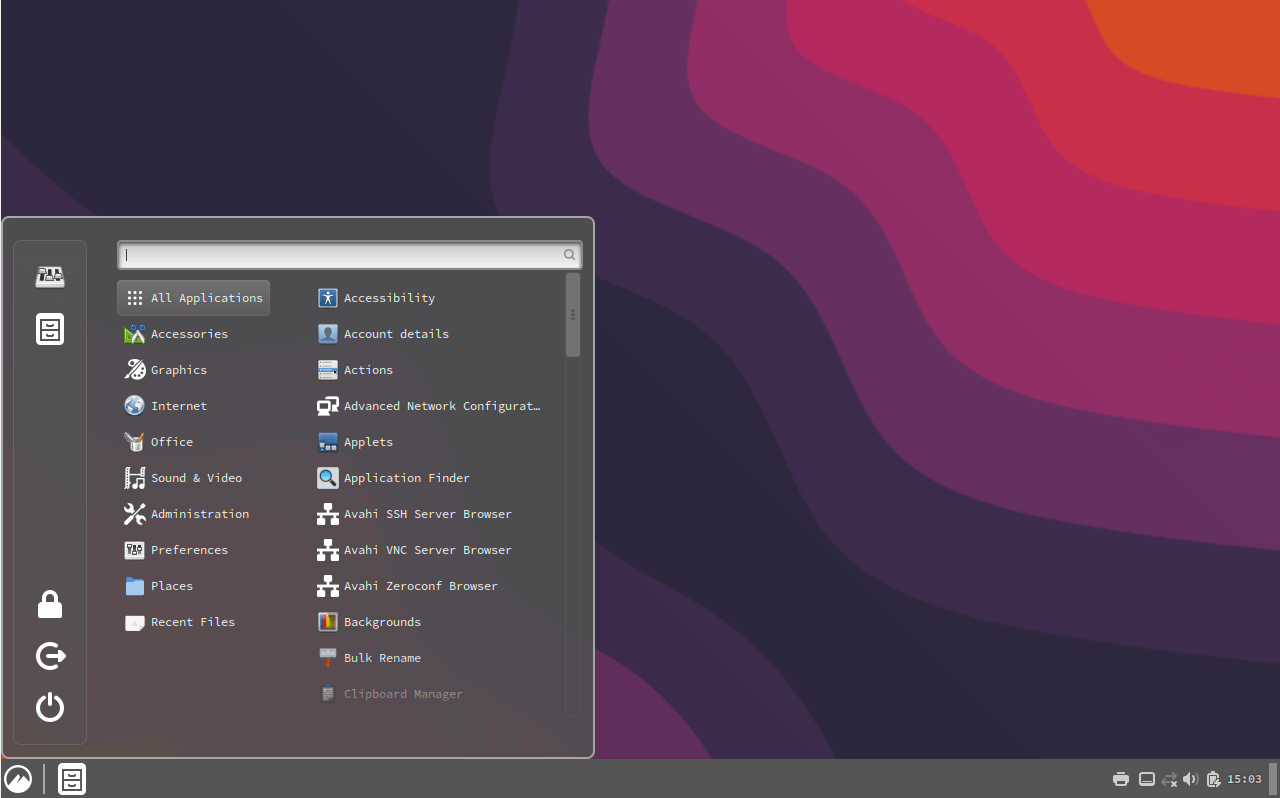
👁 Running Cinnamon Desktop in Arch Linux
Running Cinnamon Desktop in Arch Linux

Step 5: Install Essential software on Arch Linux

So far, we have a functional Arch Linux instance with a Cinnamon desktop installed. Since Arch Linux provides just a base installation, you need to go a step further and install essential applications to make your experience seamless and smooth.

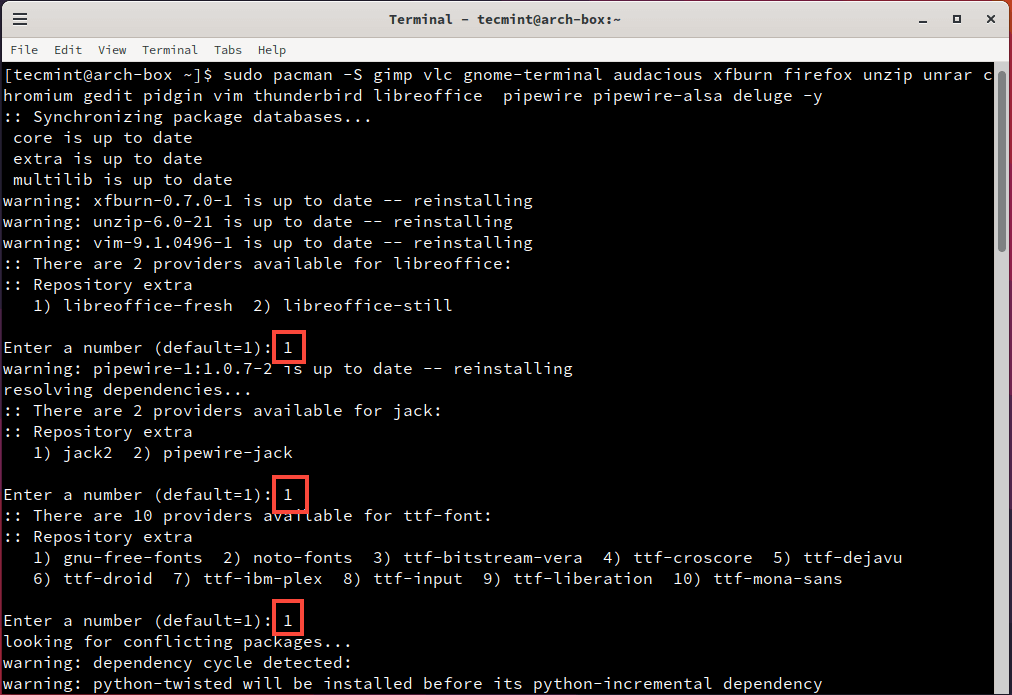
In the following command, we are installing basic applications including Firefox, Gimp, VLC media player, Thunderbird email client, and LibreOffice among other essential apps.

sudo pacman -S gimp vlc gnome-terminal audacious xfburn firefox unzip unrar chromium gedit pidgin vim thunderbird libreoffice pipewire pipewire-alsa deluge -y

When prompted, just type '1' or hit ENTER to accept the default selections.
👁 Install Basic Software on Arch Linux
Install Basic Software on Arch Linux

Step 6: Customize Cinnamon Desktop in Arch Linux

The Cinnamon System Settings provide the interface through which you can adjust and customize Arch and the Cinnamon desktop environment to suit your needs.

Since some of the themes we’ll be installing are from the Arch User Repository (AUR), we’ll need to install the yay AUR helper.

sudo pacman -S --needed git base-devel
git clone https://aur.archlinux.org/yay.git
cd yay
makepkg -si
yay --version

Now, let’s install some popular Cinnamon themes such as Orchis Theme, WhiteSur Theme, and Cinnamon Big Sur as shown.

yay -S orchis-theme
yay -S whitesur-gtk-theme
yay -S cinnamon-big-sur-theme

Once the themes are installed, you can apply them using the Cinnamon Settings app. Open the app, go to the “Themes” section, and select the theme you want to use.

You can also install some matching icon packs to complete the look.

yay -S papirus-icon-theme
yay -S tela-icon-theme

Cinnamon offers many other customization options, such as changing the panel layout, adding desklets, and more. Explore the Cinnamon Settings app to find more options that suit your preferences.

Conclusion

You now have a functional Arch Linux Desktop with basic applications for running everyday tasks such as browsing the internet, listening to music, sending and receiving emails, and creating office documents.

Visit the Arch Linux wiki page for a complete Application List.

Build on a Rolling Release model Arch Linux also provides other Linux Desktop Environments, such as KDE, GNOME, Mate, LXDE, XFCE, and Enlightenment, from its official repositories, so choosing Cinnamon or another DE is just a pure simple personal choice, but, in my opinion, Cinnamon provides better flexibility (Themes, Applets, Desklets and Extensions) against complex customizations than its parent Gnome Shell.

That’s all for this guide. Your feedback will be appreciated.

If this article helped, share it with someone on your team.
TecMint Weekly Newsletter
Get the Learn Linux 7 Days Crash Course free when you join 34,000+ Linux professionals reading every Thursday.
Check your email for a magic link to get started.
Something went wrong. Please try again.
TecMint has been free for 14 years. Help keep it that way.
Google AI Overviews and tools like ChatGPT have cut into search traffic for independent tech sites like TecMint. Running this site costs over $2,000 every month for hosting, infrastructure, and paying authors to keep the content accurate and tested.

If this article helped you solve a problem, consider buying a coffee. It helps keep TecMint free, supports the authors, and keeps the project going.
☕ Buy Me a Coffee
Matei Cezar
I'am a computer addicted guy, a fan of open source and linux based system software, have about 4 years experience with Linux distributions desktop, servers and bash scripting.

Each tutorial at TecMint is created by a team of experienced Linux system administrators so that it meets our high-quality standards.

31 Comments

Leave a Reply
  1. xorg-utils and xorg-server-utils got moved into xorg-apps

    i hope you update this.

    Thanks.

    Reply
  2. how to install cinnamon on raspberry pi 3 ? ive been trying and just cant figure it out .

    Reply
    • You need an operating system to run cinnamnon.

      Reply
  3. I can’t press TAB key at the Step 8.How can i do?

    Reply
  4. Love this tutorial but jesus this website has something weir…my internet explorer is consuming 800mb every time a fu1@#@13 open this web site. Sorry anyways thanks my men you deserve a cookie.

    Reply
    • Ever heard of google chrome

      Reply
  5. thank you after a struggle i finally did it credits to you

    Reply
  6. My System Settings don’t seem to be working correctly..
    Any ideas on what could have caused this issue?

    Reply
    • It could be a bug in Cinnamon System Settings. Try capture the errors and reply on Arch mail list or forums.

      Reply
  7. Thankyou for the guide, it worked great!!

    Reply
  8. Finally I installed Arch linux with your complete easy step by step guide . Thank you so much

    Reply
  9. This is the third tutorial of yours that i go through and I just have to say how grateful I am, thanks!

    Reply
  10. I really appreciate your tutorials. The best of what I have seen for now on installing Arch. Thank you

    Reply
  11. Hi, I actually am trying to access cinnamon in a VM. MY computer is a windows laptop and i want to switch back and forth between the two would i be able to do that if i follow the steps above? I have installed cinnamon using the following steps:

    yum grouplist

    yum groupinstall “Cinnamon Desktop” –skip-broken

    systemctl set-default graphical.target /// this last command is to make sure that the cinnamon launches in graphical mode, but when this is done i don’t see anything happen?

    I’d appreciate if anyone could give me some help!

    Reply
    • @Mesam,
      Have you rebooted the machine after last command? if not, just reboot the machine and see its taking you into graphical mode..

      Reply
  12. nevermind, I’ve found a solution, thanks for the tutorial, very helpful.

    Reply
  13. um… I followed all the steps, but when I logged in to GDM, my username is not listed, so I have to log in as root as my username,, how can I make my user available? .__.

    Reply
  14. Amazing, thank you! Just what I needed.

    Reply
  15. thanks to your efforts i could start with arch
    now i am trying to get the latest git for cinnamon to work
    i get a compiling error.
    is there an arch way to get the latest cinnamon?

    Reply
  16. Before disabling the dhcpcd services, you should also install gnome-keyring. I couldn’t connect to any network (wifi or cable) with the NetworkManager. Maybe mention it in the article?

    Reply
    • @Rien,
      Sure, but do let us know how you figured out and how you solved..It would be great if you could provide those steps here.so that I can mention it in the article..thanks in advance

      Reply
  17. Thanks a lot for providing this tutorial. Saves a lot of time instead of having to hunt down all applications that work nice together with Cinnamon. Btw in step 16 you list vlc twice.

    Reply
    • Thanks for pointing out duplication, corrected in write-up..

      Reply
  18. @Paul Heine: Maybe a problem with your graphic card. Make sure you install the correct driver for for your card.
    Run sudo pacman –Ss | grep xf86-video and see what kind of driver suits your Graphical Card.

    Reply
  19. Hi Matei. Thank you for a great tutorial. Unfortunately “startx” doesn’t work – problem with X server it seems. Do you have any insight on this. Nothing I’ve tried from Googling has worked so far. Many thanks.

    Reply
  20. Finally, all the steps in one place and in the correct order! :) Thanks a bunch for this post, I just knew I was gonna burn a Saturday setting this up. From following other tutorials and the Arch wiki, I didn’t have all the packages installed and didn’t know it. Your post filled in the blanks and all is well. Time to grab a beer! :)

    Reply
  21. @Wanto: If you have an ATI card you should install xf86-video-ati.

    Reply
  22. Many thanks for this useful post, but i’m still can’t install my VGA driver.
    I’m install arch linux on my notebook with VGA AMD/ATI Radeon HD 8330, which driver that should I install ?

    Reply
  23. I love linux especially archlinux and gnome 3 , but installing citrix reciever which i use to connect to my work environment on 64bit is too much of a hassle and does not work well with gnome 3 .

    Reply
  24. Many thanks for sharing this tutorial.

    Reply

Got Something to Say? Join the Discussion... Cancel reply

Free Course
Get a free Linux course before you go.
Subscribe to TecMint Weekly and get the Learn Linux 7 Days Crash Course free. Read by 34,000+ Linux professionals every Thursday.
Check your email for a magic link to get started.