
In this guide, we shall take a look at how you can install the latest version of Nodejs and NPM on RHEL-based distributions such as CentOS, Fedora, Rocky & AlmaLinux and Debian-based distributions such as Ubuntu & Linux Mint.
[ You might also like: NVM – Install and Manage Multiple Node.js Versions in Linux ]
Nodejs is a lightweight and efficient JavaScript platform that is built based on Chrome’s V8 JavaScript engine and NPM is a default NodeJS package manager. You can use it to build scalable network applications.
On this page:
How to Install Node.js in RHEL Distributions
The latest version of Node.js and NPM is available from the official NodeSource Enterprise Linux repository, which is maintained by the Nodejs website and you will need to add it to your system to be able to install the latest Nodejs and NPM packages.
Important: If you are running an older release of RHEL 6 or CentOS 6, you might want to read about running Node.js on older distros.
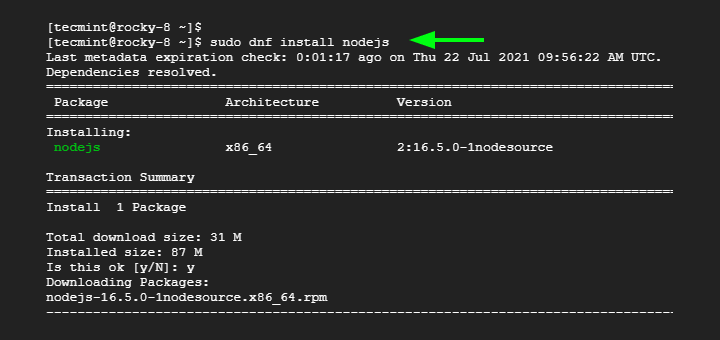
Installing NodeJS in RHEL, CentOS, Fedora, Rocky & Alma
To add the repository for the latest version of Node.js, use the following command as root or non-root.
------------- For Node.js v19.x -------------
$ curl -fsSL https://rpm.nodesource.com/setup_19.x | sudo bash -
$ sudo yum install -y nodejs

------------- For Node.js v18.x -------------
$ curl -fsSL https://rpm.nodesource.com/setup_18.x | sudo bash -
$ sudo yum install -y nodejs

------------- For Node.js v16.x -------------
$ curl -fsSL https://rpm.nodesource.com/setup_16.x | sudo bash -
$ sudo yum install -y nodejs

------------- For Node.js v14.x -------------
$ curl -fsSL https://rpm.nodesource.com/setup_14.x | sudo bash -
$ sudo yum install -y nodejs
Optional: There are development tools such as gcc-c++ and make that you need to have on your system, in order to build native addons from npm.
# yum install gcc-c++ make
OR
# yum groupinstall 'Development Tools'
How to Install Node.js in Debian, Ubuntu, and Linux Mint
The latest version of Node.js and NPM is also available from the official NodeSource Enterprise Linux repository, which is maintained by the Nodejs website and you will need to add it to your system to be able to install the latest Nodejs and NPM packages.
Install Node.js on Ubuntu and Mint
------------- For Node.js v19.x -------------
$ curl -fsSL https://deb.nodesource.com/setup_19.x | sudo -E bash - &&\
$ sudo apt-get install -y nodejs

------------- For Node.js v18.x -------------
$ curl -fsSL https://deb.nodesource.com/setup_18.x | sudo -E bash - &&\
$ sudo apt-get install -y nodejs

------------- For Node.js v16.x -------------
$ curl -fsSL https://deb.nodesource.com/setup_16.x | sudo -E bash - &&\
$ sudo apt-get install -y nodejs

------------- For Node.js v14.x -------------
$ curl -fsSL https://deb.nodesource.com/setup_14.x | sudo -E bash - &&\
$ sudo apt-get install -y nodejs
Install Node.js on Debian
------------- For Node.js v19.x -------------
$ curl -fsSL https://deb.nodesource.com/setup_19.x | bash - &&\
$ sudo apt-get install -y nodejs

------------- For Node.js v18.x -------------
$ curl -fsSL https://deb.nodesource.com/setup_18.x | bash - &&\
$ sudo apt-get install -y nodejs

------------- For Node.js v16.x -------------
$ curl -fsSL https://deb.nodesource.com/setup_16.x | bash - &&\
$ sudo apt-get install -y nodejs

------------- For Node.js v14.x -------------
$ curl -fsSL https://deb.nodesource.com/setup_14.x | bash - &&\
$ sudo apt-get install -y nodejs
Optional: There are development tools such as gcc-c++ and make that you need to have on your system, in order to build native addons from npm.
$ sudo apt-get install -y build-essential
Testing Latest Nodejs and NPM in Linux
To have a simple test of nodejs and NPM, you can just check the versions installed on your system by using the following commands:
On RHEL-based Systems
# node --version
# npm --version
On Debian, Ubuntu, and Linux Mint
$ nodejs --version
$ npm --version
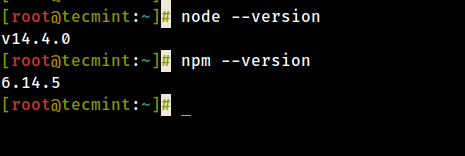
That is it, Nodejs and NPM are now installed and ready for use on your system.
I believe these were easy and simple steps to follow but in case of problems you faced, you can let us know and we find ways of helping you. I hope this guide was helpful to you and always remember to stay connected to Tecmint.
If this article helped you solve a problem, consider buying a coffee. It helps keep TecMint free, supports the authors, and keeps the project going.
Got Something to Say? Join the Discussion... Cancel reply