VOOZH about

URL: https://www.tecmint.com/install-sublime-text-linux/

⇱ How to Install Sublime Text 4 on Linux Systems


Skip to content

If you’re not a terminal lover, you might not like using the popular command-line text editors Vi or Vim. Speaking of graphical-based, Sublime Text is one of the most preferred cross-platform proprietary-based text and source code editors, that natively supports various programming and markup languages.

Sublime Text 4 is the most recent version that supports important features like GPU rendering for fluid UI, tab multi-select, ARM64 Linux support, and rewritten auto-complete engine for smart completions.

In this article, I’ll show you how to install Sublime Text 4 in a Linux-based operating system using the following various methods:
[ez-toc]

Install Sublime Text 4 in Linux via DEB/RPM File

Let’s start with the most preferred and official way of installing Sublime Text on Linux distributions. Sublime Text provides DEB installer files for Debian-based Linux distros like Ubuntu/Linux Mint and RPM files for Red Hat-based distributions like Fedora, CentOS Stream, Rocky & AlmaLinux.

You can visit the official Sublime Text download page and directly get the installer DEB or RPM file.

Now, go to the directory where you downloaded the file, right-click on the file, and choose the “Open with other application” option, which will prompt a dialog to open DEB/RPM file with the respective default Software Installer.
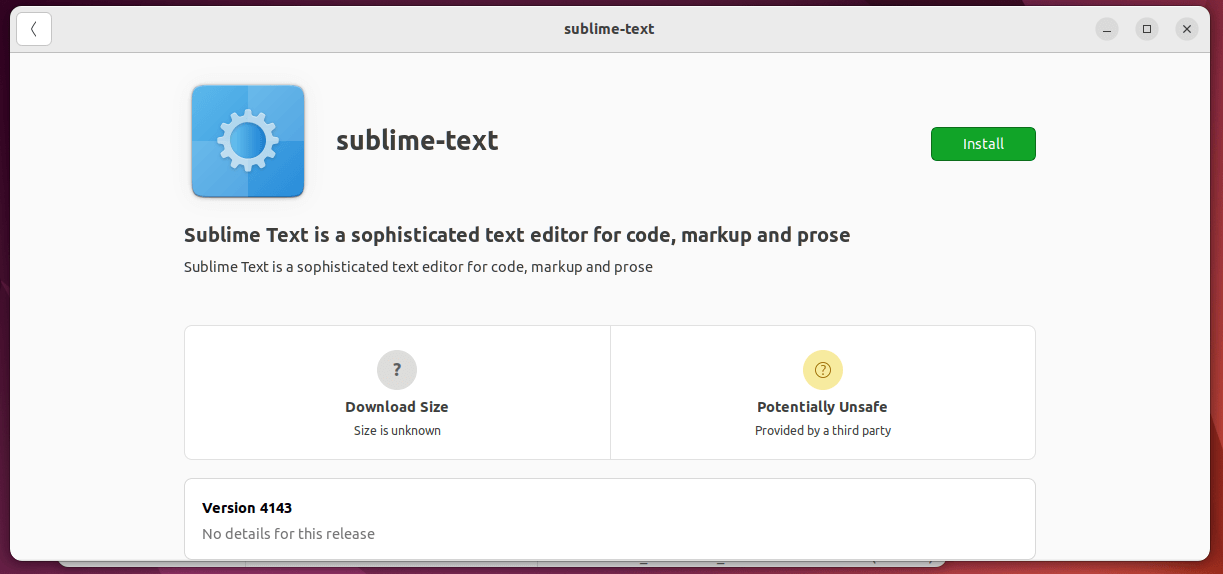
👁 Install Sublime Text DEB File
Install Sublime Text DEB File

Alternatively, you can also use command line tools like DPKG for DEB and RPM for RPM installer files by executing the below commands:

$ sudo dpkg -i .deb	[Debian-based Ubuntu, Mint]
$ sudo rpm -i .deb	[Red Hat-based Fedora, Rocky Linux]

Install Sublime Text 4 in Linux via Tarball

On the same download page, apart from DEB/RPM, you might have also noticed the tar file also available. So, we can also use the bundled tar file to run Sublime text on Linux.

Download the tar file, decompress it manually and run it by running the commands in the terminal:

$ tar xf sublime_text_build_4143_x64.tar.xz
$ cd sublime_text
$ ./sublime_text
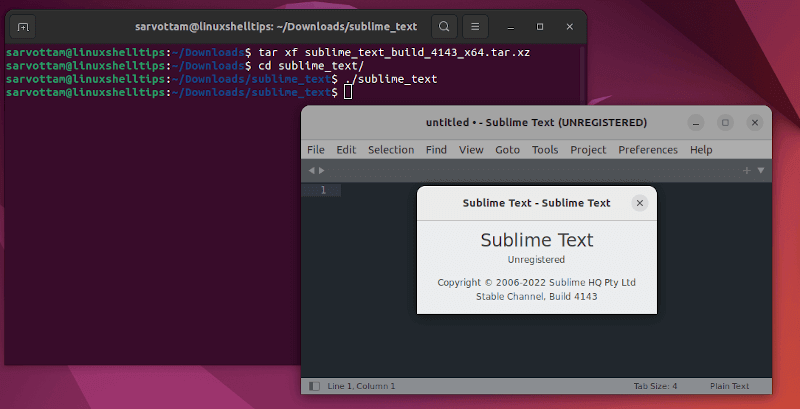
👁 Run Sublime Text in Linux
Run Sublime Text on Linux

As you can see, the command will launch the Sublime Text 4 application in Linux.

Install Sublime Text 4 In Linux Using Repository

Instead of downloading the official DEB/RPM package or tar file, you can also use the respective package manager like APT for Debian-based and DNF for RHEL-based distros to install the Sublime Text 4 editor.

Install Sublime Text 4 in Debian Distros

$ wget -qO - https://download.sublimetext.com/sublimehq-pub.gpg | gpg --dearmor | sudo tee /etc/apt/trusted.gpg.d/sublimehq-archive.gpg > /dev/null
$ echo "deb https://download.sublimetext.com/ apt/stable/" | sudo tee /etc/apt/sources.list.d/sublime-text.list
$ sudo apt-get update
$ sudo apt-get install apt-transport-https
$ sudo apt-get install sublime-text

Install Sublime Text 4 in RHEL Ditros

$ sudo rpm -v --import https://download.sublimetext.com/sublimehq-rpm-pub.gpg
$ sudo dnf config-manager --add-repo https://download.sublimetext.com/rpm/stable/x86_64/sublime-text.repo
$ sudo dnf install sublime-text

Install Sublime Text 4 in Linux Using Snap

Snap is a universal package manager that can be used on all major Linux distributions, including Ubuntu, Linux Mint, Debian, and Fedora. Surprisingly, Snap is pre-installed on some Linux distributions like Ubuntu, Manjaro, KDE Neon, and Zorin OS.

So, if you already have Snap on your system, run a single command to install Sublime Text 4:

$ sudo snap install sublime-text --classic

In case, you don’t have Snap, you still can install Snap by following the official snap documentation.

Install Sublime Text 4 in Linux Using Flatpak

Similar to Snap, Flatpak is also yet another popular universal package manager available for almost all Linux distributions. But unfortunately, as I’m writing this article, Sublime Text 4 is not available as a Flatpak package on the Flathub repository.

Sublime Text 3 is available as Flatpak, which you can install by running the command:

$ flatpak install flathub com.sublimetext.three

How To Use Sublime Text 4 on Linux

Let’s start with a very important feature of Sublime Text, which helps it to bring additional functionality to your needs using plugins.

Instead of manually installing plugins, package control is a package manager for Sublime Text that lets you find, install, and update packages within the application.

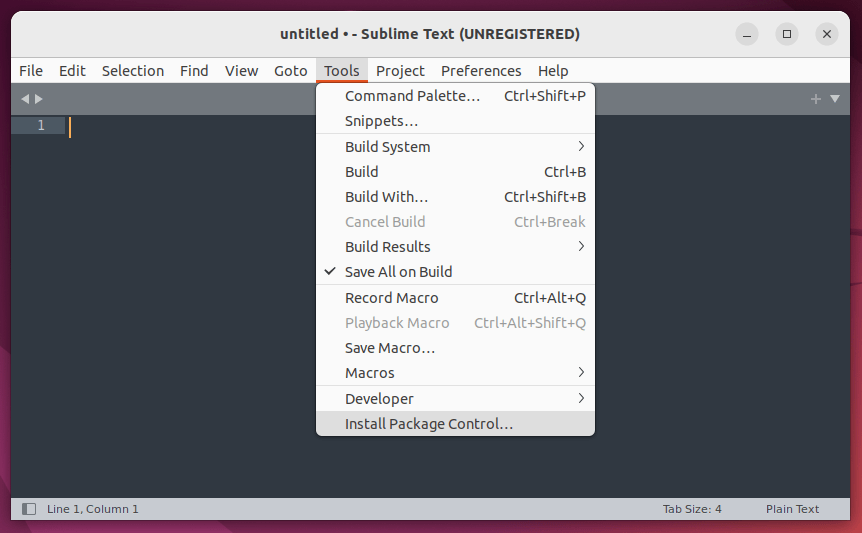
So, let’s first install Package Control by opening the Tools menu and selecting Install Package Control.
👁 Install Package Control in Sublime Text
Install Package Control in Sublime Text

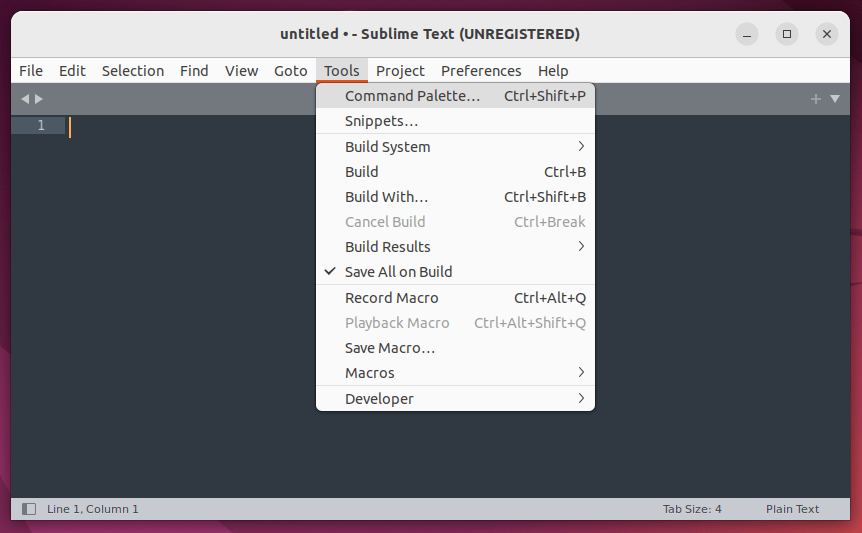
Now, you can install a plugin by first opening Command Palette using the shortcut CTRL + SHIFT + P or going to Tools -> Command Palette menu.
👁 Command Palette in Sublime Text
Command Palette in Sublime Text

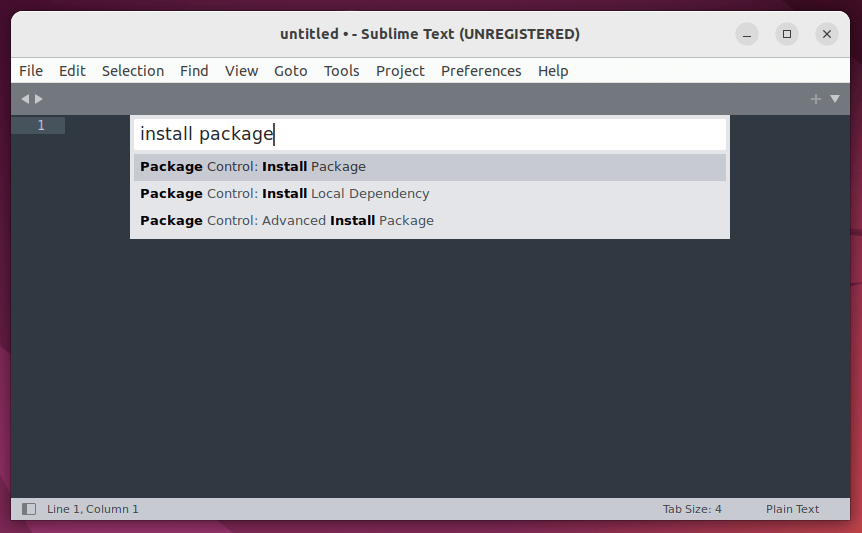
Then, search for “package control” in Command Palette, which will list all available Package Control options to carry operation.
👁 Search Package Control in Sublime Text
Search Package Control in Sublime Text

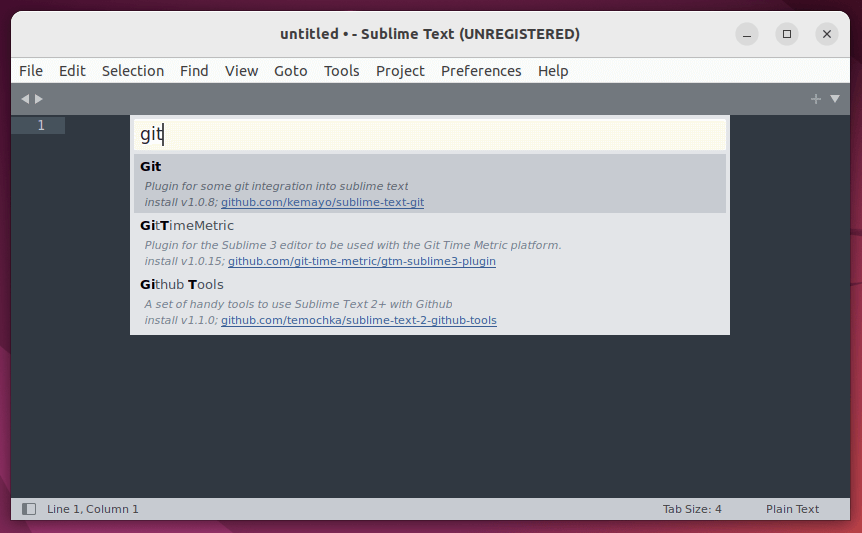
One such option is Install Package, which you can select that will pop up another window containing a list of all available packages. Here you can search for your required package as I did for the “Git” file management tool. Select the result and it will install the plugin in a few seconds in the background.
👁 Install Git in Sublime Text
Install Git in Sublime Text

Once installed, go to Preferences -> Package Settings – which will display all installed packages in Sublime Text.
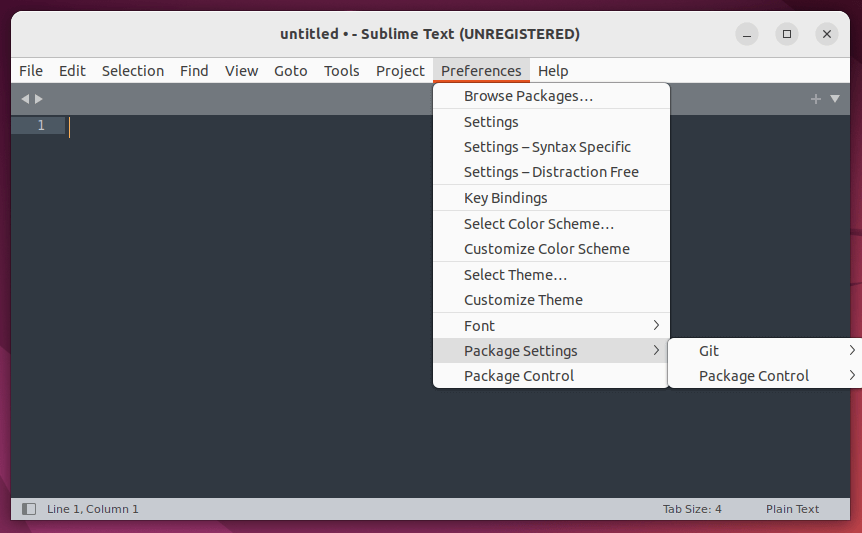
👁 List Installed Packages in Sublime Text
List Installed Packages in Sublime Text

Now, you can open the settings file of the Git package to edit and make it work as per your need.
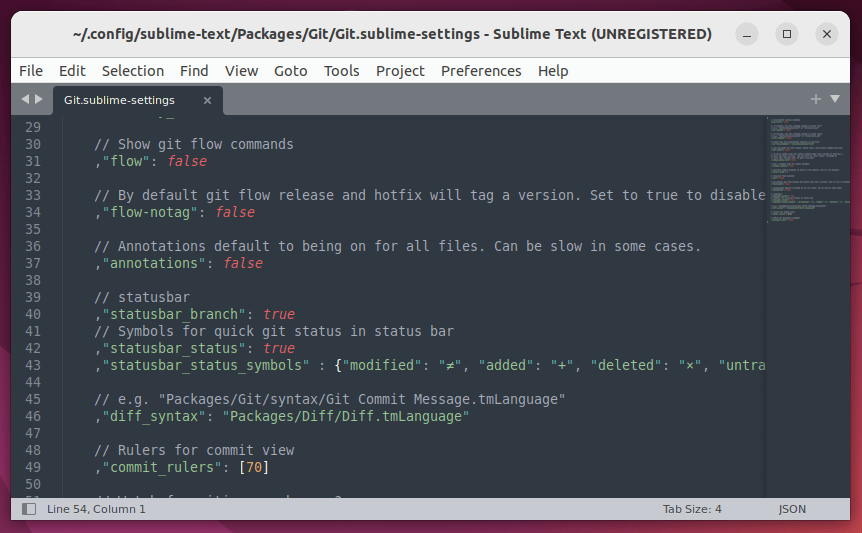
👁 Edit Git in Sublime Text
Edit Git in Sublime Text

Alternatively, you can also use the Package Control option “List Package” in Command Palette to display all installed packages.
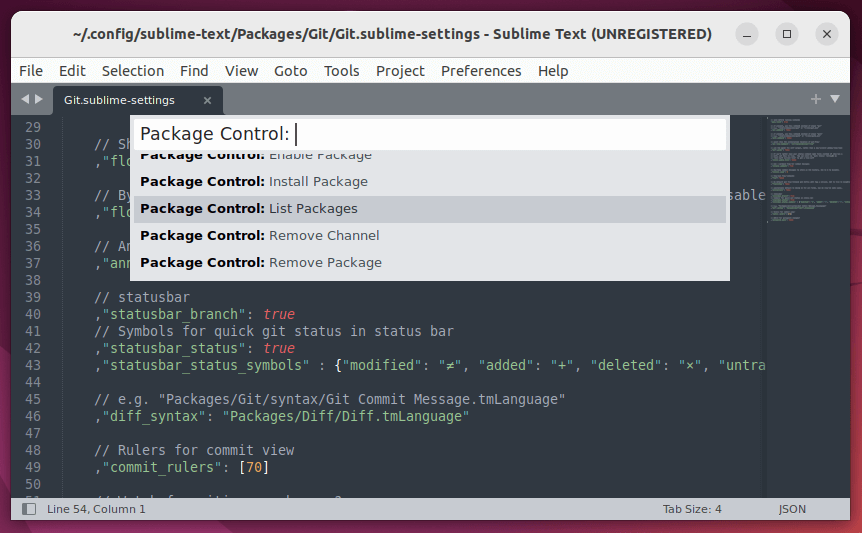
👁 Package Control List Packages
Package Control List Packages

At last, you’ve learned how to install Sublime Text 4 using not just the installer package file but also using a package manager like Snap. After installing, you also get to know how to use Sublime Text and make the most out of its feature like Package Control.

If this article helped, share it with someone on your team.
TecMint Weekly Newsletter
Get the Learn Linux 7 Days Crash Course free when you join 34,000+ Linux professionals reading every Thursday.
Check your email for a magic link to get started.
Something went wrong. Please try again.
TecMint has been free for 14 years. Help keep it that way.
Google AI Overviews and tools like ChatGPT have cut into search traffic for independent tech sites like TecMint. Running this site costs over $2,000 every month for hosting, infrastructure, and paying authors to keep the content accurate and tested.

If this article helped you solve a problem, consider buying a coffee. It helps keep TecMint free, supports the authors, and keeps the project going.
☕ Buy Me a Coffee
Sarvottam Kumar
I'm a Software Engineer who loves to narrate human stories in the form of anecdotes and short stories. Sometimes, I also unshackle musings from my head.

Each tutorial at TecMint is created by a team of experienced Linux system administrators so that it meets our high-quality standards.

31 Comments

Leave a Reply
    • @Pooja,

      I just tired the same command on my CentOS 7, it worked perfectly, could you try again?

      Reply
  1. Hello, I just run the command for Debian. All answers were okay, but when i try to make:

    $ sublime
    

    I get :

    bash: sublime : commande introuvable
    

    sorry I am French, it mean “command not found”

    Could someone help me?

    Thank you!

    Reply
  2. Just added Sublime Text 3 to my Oracle Enterprise Linux 7 modifying these instructions. Here’s what I did:

    [USER@localhost Downloads]$ tar vxjf sublime_text_3_build_3126_x64.tar.bz2 sublime_text_3/
    [USER@localhost Downloads]$ sudo mv sublime_text_3 /opt/
    [USER@localhost Downloads]$ sudo ln -s /opt/sublime_text_3/sublime_text /usr/bin/sublime
    [USER@localhost Downloads]$ sublime
    
    Reply
  3. How to add in RHEL 6. I can not start. Please tell the Process. Thanks in Advance.

    Reply
  4. Great it works for CentOS 6.5

    Reply
  5. how i can instale sublime text 3 in fedora 21 ? please help, this not ( sudo ln -s /opt/Sublime\ Text\ 2/sublime_text /usr/bin/sublime) wtf is this =((((((((

    Reply
    • @David,
      Sorry, but this is the only way to install sublime..

      Reply
  6. Ya.. thats exactly what I am doing!
    So I cant start sublime text (or gedit) which has a gui window over ssh?..hmm..okay. any other workaround to make this happen??

    Reply
  7. When tried to
    $ sublime

    got this::::
    (process:29569): Gtk-WARNING **: Locale not supported by C library.
    Using the fallback ‘C’ locale.

    (sublime:29569): Gtk-WARNING **: cannot open display:

    Reply
    • @Laksmi,
      The error message indicates that you’re starting Sublime over SSH via terminal, better login into GUI mode and try to start it..hope it will work out..

      Reply
  8. Thank you so much ! It works !

    Reply
  9. I am on CentOs. I can follow only first 3 steps

    Reply
    • Which version of CentOs?

      Reply
      • I’m running a CentOS version 2.16.0.

        I get similar error as someone already posted:

        /usr/bin/sublime: /usr/lib/libstdc++.so.6: version `GLIBCXX_3.4.11′ not found (required by /usr/bin/sublime)
        /usr/bin/sublime: /usr/lib/libstdc++.so.6: version `GLIBCXX_3.4.9′ not found (required by /usr/bin/sublime)
        /usr/bin/sublime: /lib/libc.so.6: version `GLIBC_2.11′ not found (required by /usr/bin/sublime)

        Thanks for your help in advance!

        Reply
  10. Great article – the only one that I could successfully complete – many thanks :)

    Reply
  11. how to create shortcut icon of sublime to my panel? can you please help me thanks.

    Reply
  12. Thank you ! It works !

    Reply
  13. I’m new to Linux. I’m getting this and I’m not sure what this means.

    Gtk-WARNING **: cannot open display:

    Reply
  14. bash-3.2# sublime
    sublime: /usr/lib64/libstdc++.so.6: version `GLIBCXX_3.4.11′ not found (required by sublime)
    sublime: /usr/lib64/libstdc++.so.6: version `GLIBCXX_3.4.9′ not found (required by sublime)
    sublime: /lib64/libc.so.6: version `GLIBC_2.11′ not found (required by sublime)
    bash-3.2#

    Reply
    • It seems you are using older version of distro, may i know your distro version.

      Reply
      • (Not the OP, but same problem…)

        I get the same error. My distro is:

        Red Hat Enterprise Linux Client release 5.4 (Tikanga)

        Reply
    • I’m also facing the same issue… were you able to resolve it?

      Reply
      • Dear Akanksha,

        Sorry, what same issue you facing, can you tell us breifly, so we could help you out.

        Reply
  15. Thank you so much . It’s work very well

    Reply
  16. $ sublime
    bash: /usr/bin/sublime: Permission denied
    $ sudo sublime
    [sudo] password for user:
    sudo: sublime: command not found

    I use Debian 7.2 and that’s what I got after I tried this. It showed I didn’t have permissions to it when I tried it at first. Then I tried with sudo and it failed showing ‘command not found’

    Reply
    • @Joseph – you probably have sublime directory (instead of the sublime_text file) linked as /usr/bin/sublime

      Reply
  17. Too bad it’s not free …

    Reply

Got Something to Say? Join the Discussion... Cancel reply

Free Course
Get a free Linux course before you go.
Subscribe to TecMint Weekly and get the Learn Linux 7 Days Crash Course free. Read by 34,000+ Linux professionals every Thursday.
Check your email for a magic link to get started.