
Brief: In this article, we will explain how to install the latest version of Oracle VirtualBox 7.0 in the OpenSUSE Linux distribution.
VirtualBox is a free and open source, powerful, feature-rich, cross-platform, and popular x86 and AMD64/Intel64 virtualization software for enterprise and home use. It is targeted at server, desktop, and embedded use.
It runs on Linux, Windows, Macintosh, and Solaris hosts and supports a large number of guest operating systems including but not limited to Linux, Windows, DOS/Windows, Solaris and OpenSolaris, OS/2, and OpenBSD.
Installing VirtualBox 7.0 in OpenSuse
We will use the official VirtualBox repository to install the latest version of VirtualBox on the OpenSUSE Linux distribution using the following commands.
$ wget -q https://www.virtualbox.org/download/oracle_vbox.asc
$ sudo rpm --import oracle_vbox.asc
$ cd /etc/zypp/repos.d
$ sudo wget https://download.virtualbox.org/virtualbox/rpm/opensuse/virtualbox.repo
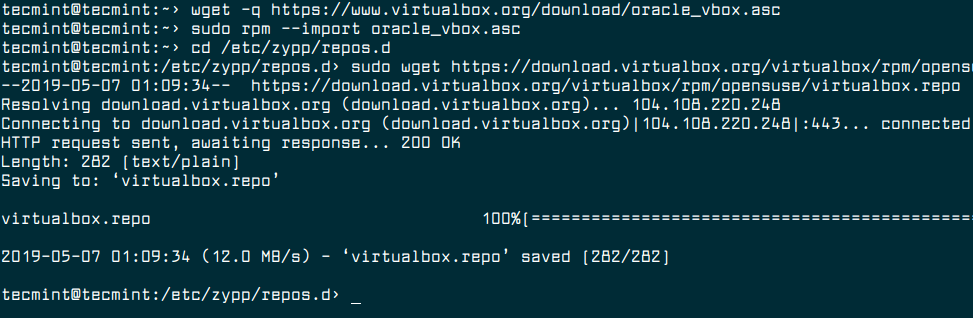
Next, update and refresh the repository list using the following zypper command.
$ sudo zypper update
$ sudo zypper refresh
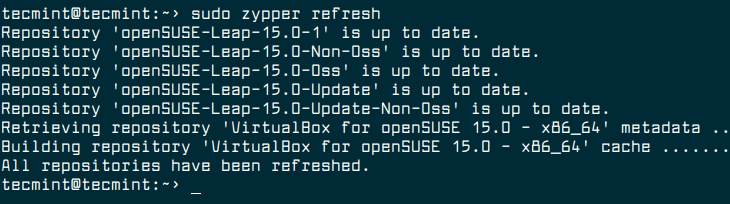
Once the repositories have been refreshed, you will need to install a few required packages for building VirtualBox kernel modules and header files using the following command.
$ sudo zypper install gcc make Perl kernel-devel dkms
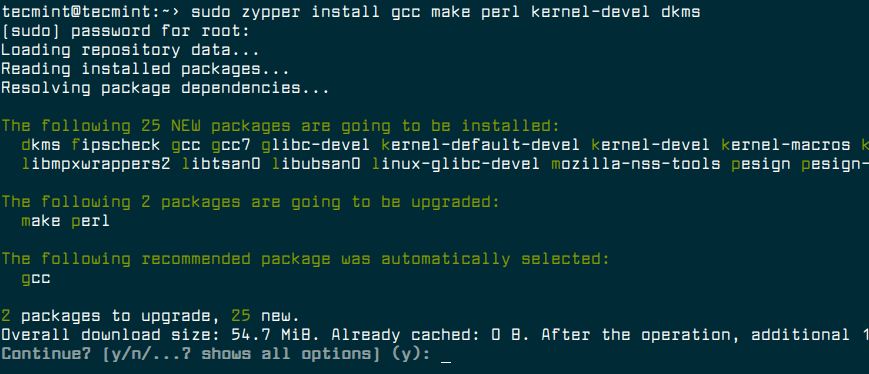
Now install Virtualbox 7.0 with the following command.
$ sudo zypper install VirtualBox-7.0
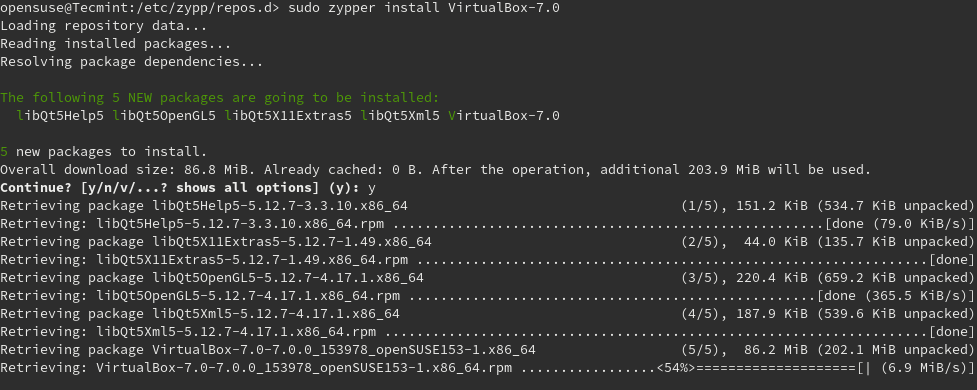
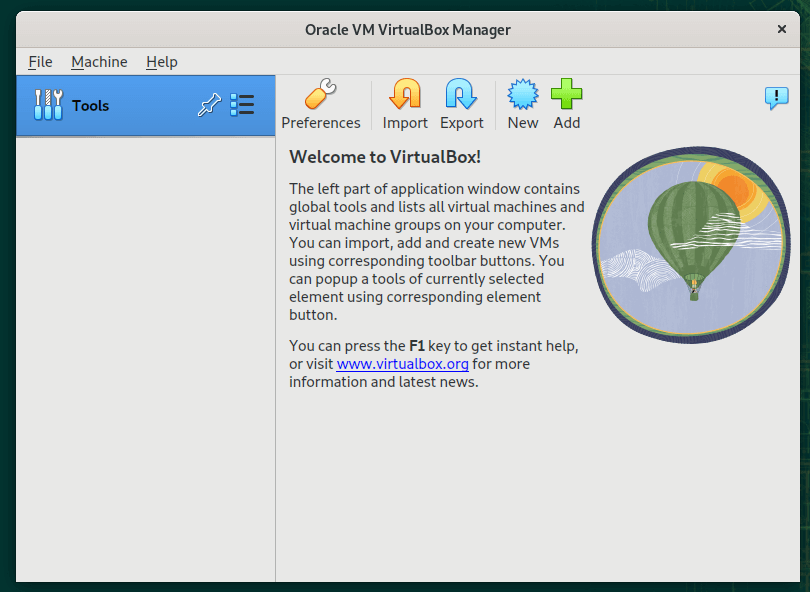
Once the installation is done, search for Virtualbox in the launch/system menu’s search component and open it.
Installing VirtualBox Extension Pack in OpenSuse
VirtualBox extensions pack extends the functionality of the Oracle VM VirtualBox base package. It offers additional functionality such as VirtualBox RDP, PXE, ROM with E1000 support, USB 2.0 Host Controller support, and disk image encryption with the AES algorithm.
You can download the VirtualBox Extension Pack using the following wget command.
$ wget https://download.virtualbox.org/virtualbox/7.0.0/Oracle_VM_VirtualBox_Extension_Pack-7.0.0.vbox-extpack
To install the extension pack, go to File –> Preferences –> Tools –> Extension Manager and click on the + sign to browse for the vbox-extpack file to install it.
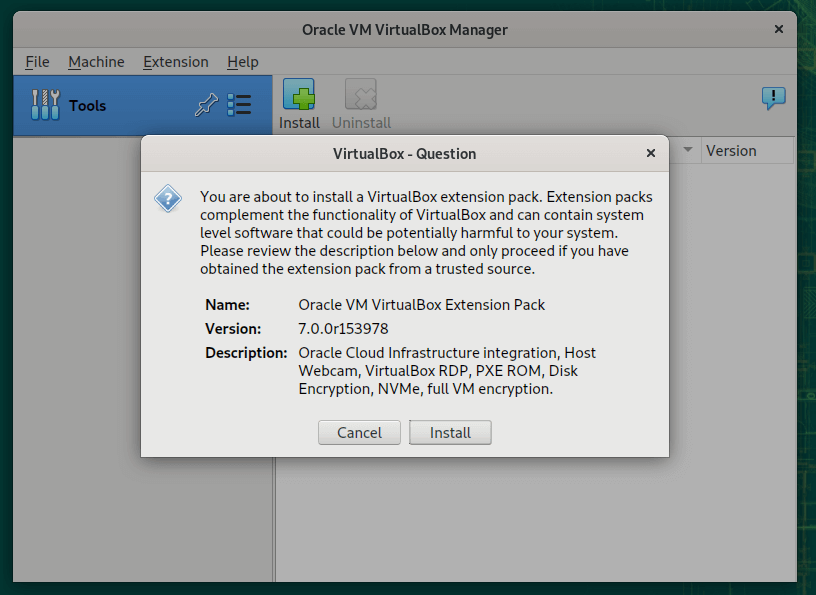
After selecting the extension package file, read the message from the dialog box and click on Install as shown in the following screenshot.
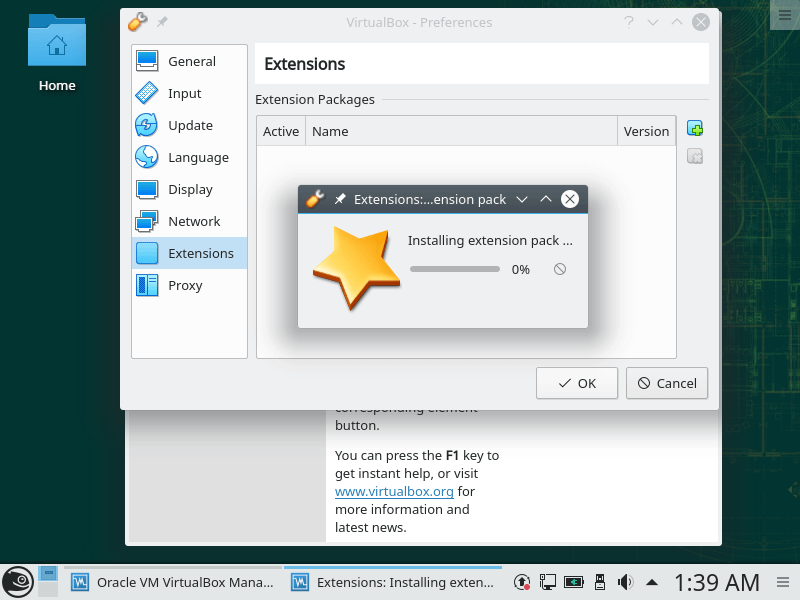
Then read the use and evaluation License and click I Agree to start the actual installation. You will be prompted to enter your root user password and provide it to proceed.
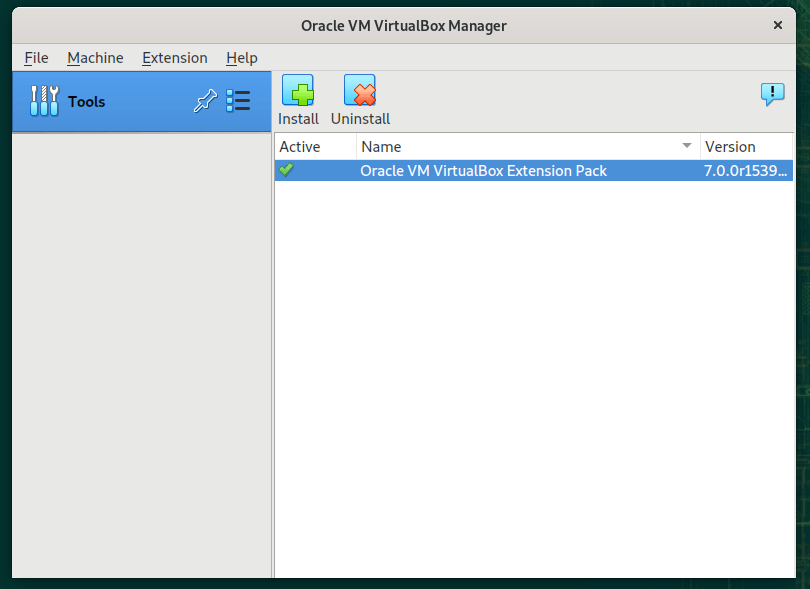
Once the installation is complete, the extension package installed should be listed under Extensions.
[ You might also like: How to Enable USB in VirtualBox ]
That’s all! In this article, we’ve described how to install Oracle VirtualBox in openSUSE Linux. You can ask questions or share your thoughts about this article via the feedback form below.
If this article helped you solve a problem, consider buying a coffee. It helps keep TecMint free, supports the authors, and keeps the project going.



Got Something to Say? Join the Discussion... Cancel reply