VOOZH about

URL: https://www.tecmint.com/install-visual-studio-code-on-linux/

⇱ How to Install Visual Studio Code on Linux


Skip to content

Developed by Microsoft, Visual Studio Code is a free and open-source, cross-platform IDE or code editor that enables developers to develop applications and write code using a myriad of programming languages such as C, C++, Python, Go and Java to mention a few.

In this guide, we will walk you through the installation of the Visual Studio Code on Linux. To be more specific, you will learn how to install the Visual Studio Code on both Debian-based and RedHat-based Linux distributions.

How to Install Visual Studio Code on Debian, Ubuntu and Linux Mint

The most preferred method of installing Visual Code Studio on Debian based systems is by enabling the VS code repository and installing the Visual Studio Code package using the apt package manager.

$ sudo apt update

Once updated, proceed and install dependencies required by executing.

$ sudo apt install software-properties-common apt-transport-https

Next, using the wget command, download the repository and import Microsoft’s GPG key as shown:

$ wget -qO- https://packages.microsoft.com/keys/microsoft.asc | gpg --dearmor > packages.microsoft.gpg
$ sudo install -o root -g root -m 644 packages.microsoft.gpg /etc/apt/trusted.gpg.d/
$ sudo sh -c 'echo "deb [arch=amd64 signed-by=/etc/apt/trusted.gpg.d/packages.microsoft.gpg] https://packages.microsoft.com/repos/vscode stable main" > /etc/apt/sources.list.d/vscode.list'

Once you’ve enabled the repository, update the system and install Visual Studio Code by running the command:

$ sudo apt update
$ sudo apt install code

Due to its size, the installation takes approximately 5 minutes. Once installed, use the application manager to search Visual Code Studio and launch it as shown.
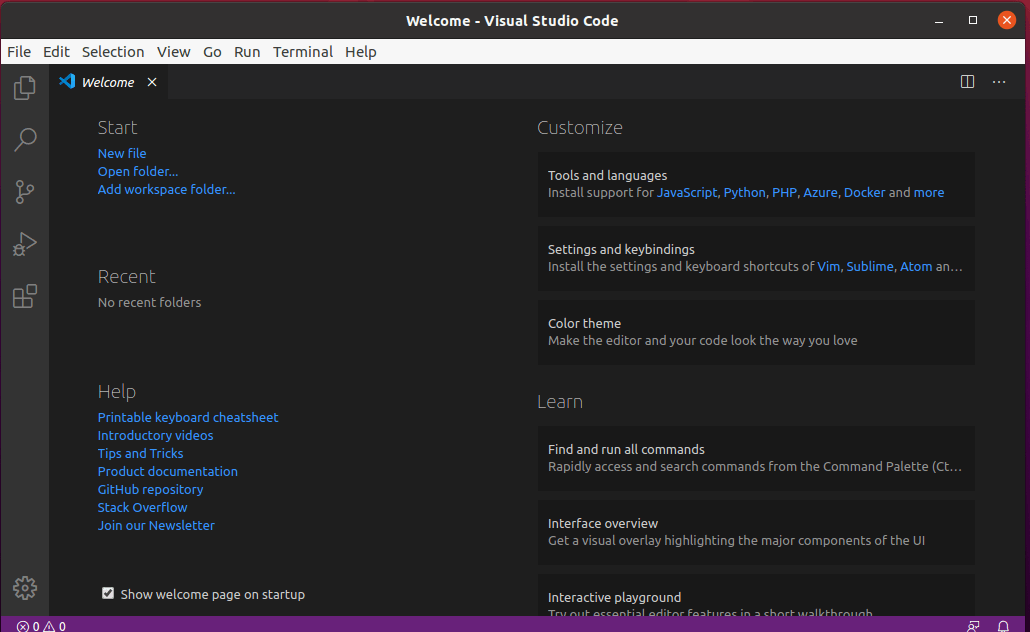
👁 Install Visual Studio Code in Ubuntu
Install Visual Studio Code in Ubuntu

How to Install Visual Studio Code on CentOS, RHEL, and Fedora

The procedure of installing Visual Studio Code on RedHat based distributions is pretty much like Ubuntu. Right off the bat, launch your terminal and update your system:

$ sudo dnf update

Next, import Microsoft’s GPG key using the rpm command below:

$ sudo rpm --import https://packages.microsoft.com/keys/microsoft.asc

With Microsoft’s GPG key in place, proceed and create the repository file for Visual Studio Code:

$ sudo vim /etc/yum.repos.d/vstudio_code.repo

Next, append the code below and save the file:

[code]
name=Visual Studio Code
baseurl=https://packages.microsoft.com/yumrepos/vscode
enabled=1
gpgcheck=1
gpgkey=https://packages.microsoft.com/keys/microsoft.asc

To install Visual Studio code, run the command:

$ sudo dnf install code

To use it, use the Application manager to search the Visual Studio Code and launch it, you will get a window as shown below.
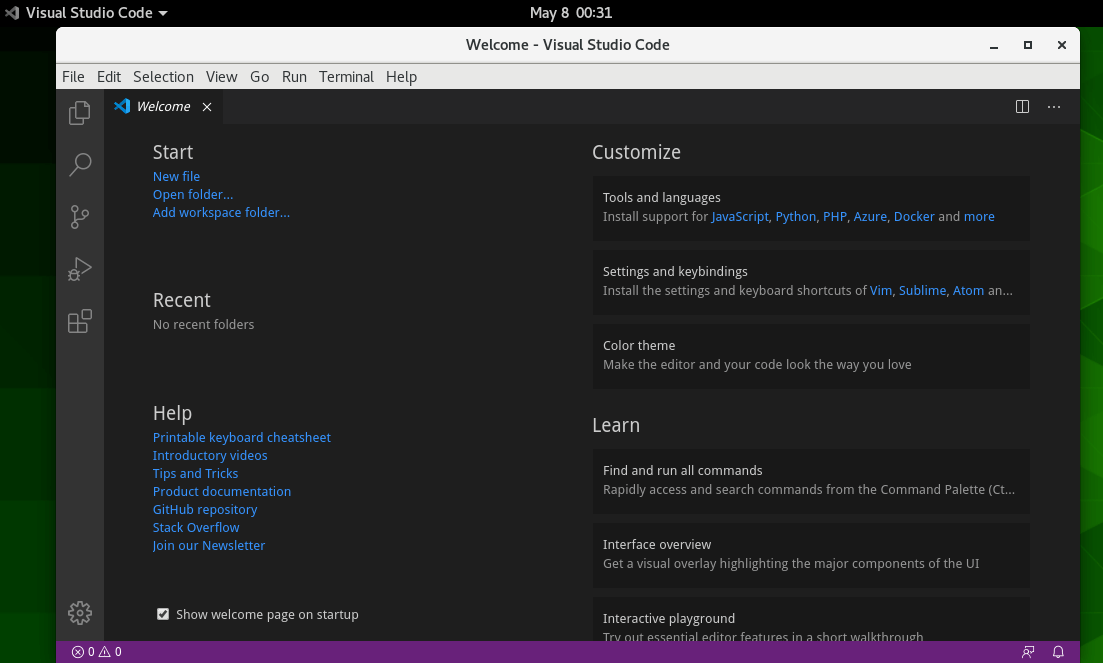
👁 Install Visual Studio Code in CentOS
Install Visual Studio Code in CentOS

You can now proceed and start writing your code and installing your preferred extensions.

Conclusion

Visual Studio Code is a powerful and feature-rich code editor that allows you to develop applications in a diverse array of programming languages. It’s especially popular with Python and C programmers. In this topic, we walked you through the installation of the Visual Studio Code on Linux.

If this article helped, share it with someone on your team.
TecMint Weekly Newsletter
Get the Learn Linux 7 Days Crash Course free when you join 34,000+ Linux professionals reading every Thursday.
Check your email for a magic link to get started.
Something went wrong. Please try again.
TecMint has been free for 14 years. Help keep it that way.
Google AI Overviews and tools like ChatGPT have cut into search traffic for independent tech sites like TecMint. Running this site costs over $2,000 every month for hosting, infrastructure, and paying authors to keep the content accurate and tested.

If this article helped you solve a problem, consider buying a coffee. It helps keep TecMint free, supports the authors, and keeps the project going.
☕ Buy Me a Coffee
James Kiarie
This is James, a certified Linux administrator and a tech enthusiast who loves keeping in touch with emerging trends in the tech world. When I'm not running commands on the terminal, I'm taking listening to some cool music. taking a casual stroll or watching a nice movie.

Each tutorial at TecMint is created by a team of experienced Linux system administrators so that it meets our high-quality standards.

15 Comments

Leave a Reply
  1. Spot on! I just flipped an aging Microsoft Surface 4 Pro to Ubuntu with Visual Studio Code as my first objective. Your install notes worked perfectly. Thanks for the help! ;-)

    Reply
  2. The perfect tutorial really helped me install Visual Studio to Linux Mint.

    Reply
  3. Please NEVER EVER use `xhost +`. This allows anybody who has IP access to the machine that runs the X-server to grab and send content to your X-Server, hence anything you type anywhere can be grabbed and stored without anybody noticing it.

    Instead, use a combination of the `xauth list` and `xauth add` command, to allow only dedicated access to the X-Server. So in your example, the webtop owner should do a `xauth list` in a terminal that sits on the Xserver and the user which runs the vscode needs to do a `xauth add` to access the display. Much more secure …

    Reply
  4. Attempted this solution in a “webtop” (vscode via xterm to a browser view of docker instance)
    Env: Rocky8 host, ubuntu-mate container

    Problem:
    Start code… error
    No protocol specified
    [8732:0207/061514.043644:ERROR:browser_main_loop.cc(1402)] Unable to open X display.
    Segmentation fault

    Solution:
    in the webtop shell
    xhost +

    Refs & honors
    This guy figured it out

    Reply
  5. Hi,

    I’ve just installed VS Code on Mint 20.1 using your commands.

    Everything went perfectly – thanks!

    Reply
    • Way to go Colin Sare! I’m glad you found the guide beneficial.

      Reply
  6. I just started playing with Linux. I used Snap to install Visual Studio Code on my copy of Linux Mint. What are the drawbacks (if any) of using Snap to install packages on Linux?

    Reply
    • One of the glaring drawbacks of using snap is that they take up a lot of your disk space. Other than that, you are good to go.

      Reply
      • Really? This is surprising. Can I control where the snap packages are installed to by any chance?

        Reply
  7. This is a great guide, thank you.

    I wanted to script the install (on Fedora) so using your instructions, I now have the following working as part of a shell script:

    # Install VSCode
    rpm --import https://packages.microsoft.com/keys/microsoft.asc
    echo [code] > /etc/yum.repos.d/vstudio_code.repo
    sed -i '$ a\name=Visual Studio Code' /etc/yum.repos.d/vstudio_code.repo
    sed -i '$ a\baseurl=https://packages.microsoft.com/yumrepos/vscode' /etc/yum.repos.d/vstudio_code.repo
    sed -i '$ a\enabled=1' /etc/yum.repos.d/vstudio_code.repo
    sed -i '$ a\gpgcheck=1' /etc/yum.repos.d/vstudio_code.repo
    sed -i '$ a\gpgkey=https://packages.microsoft.com/keys/microsoft.asc' /etc/yum.repos.d/vstudio_code.repo
    dnf install code -y
    
    Reply
  8. I prefer to use Codelobster on Linux OS.

    Reply
  9. Hi,

    Thank you for this article, but I could not install VSCode.

    I have got this message in last line : E: Unable to locate package vscode.

    I have Linux mint 32 bits.

    What is the issue, please.

    Thanks a lot.

    Reply
    • @Nadirou,

      I have updated the instructions in the article for installing Visual Studio Code on Debian, Ubuntu, and Mint.

      Please try the instructions again, it will work…

      Reply
  10. Hey Jalal, thanks for the feedback. I’m glad the tutorial was of much help to you.

    Reply
  11. Hi,
    Thanks a lot.
    very useful for me

    Reply

Got Something to Say? Join the Discussion... Cancel reply

Free Course
Get a free Linux course before you go.
Subscribe to TecMint Weekly and get the Learn Linux 7 Days Crash Course free. Read by 34,000+ Linux professionals every Thursday.
Check your email for a magic link to get started.