
Linuxbrew is a clone of homebrew, the MacOS package manager, for Linux, which allows users to install software to their home directory.
It’s feature set includes:
- Allowing installation of packages to a home directory without root access.
- Supports installing of third-party software (not packaged on the native distributions).
- Supports installing of up-to-date versions of packages when the one provided in the distro repositories is old.
- In addition, brew allows you to manage packages on both your Mac and Linux machines.
In this article, we will show how to install and use Linuxbrew package manager on a Linux system.
How to Install and Use Linuxbrew in Linux
To install Linuxbrew on your Linux distribution, fist you need to install following dependencies as shown.
--------- On Debian/Ubuntu ---------
$ sudo apt-get install build-essential curl file git

--------- On Fedora 22+ ---------
$ sudo dnf groupinstall 'Development Tools' && sudo dnf install curl file git

--------- On CentOS/RHEL ---------
$ sudo yum groupinstall 'Development Tools' && sudo yum install curl file git
Once the dependencies installed, you can use the following script to install Linuxbrew package in /home/linuxbrew/.linuxbrew (or in your home directory at ~/.linuxbrew) as shown.
$ sh -c "$(curl -fsSL https://raw.githubusercontent.com/Linuxbrew/install/master/install.sh)"
Next, you need to add the directories /home/linuxbrew/.linuxbrew/bin (or ~/.linuxbrew/bin) and /home/linuxbrew/.linuxbrew/sbin (or ~/.linuxbrew/sbin) to your PATH and to your bash shell initialization script ~/.bashrc as shown.
$ echo 'export PATH="/home/linuxbrew/.linuxbrew/bin:/home/linuxbrew/.linuxbrew/sbin/:$PATH"' >>~/.bashrc
$ echo 'export MANPATH="/home/linuxbrew/.linuxbrew/share/man:$MANPATH"' >>~/.bashrc
$ echo 'export INFOPATH="/home/linuxbrew/.linuxbrew/share/info:$INFOPATH"' >>~/.bashrc
Then source the ~/.bashrc file for the recent changes to take effect.
$ source ~/.bashrc
Once you have successfully set up Linuxbrew on your machine, you can start using it.
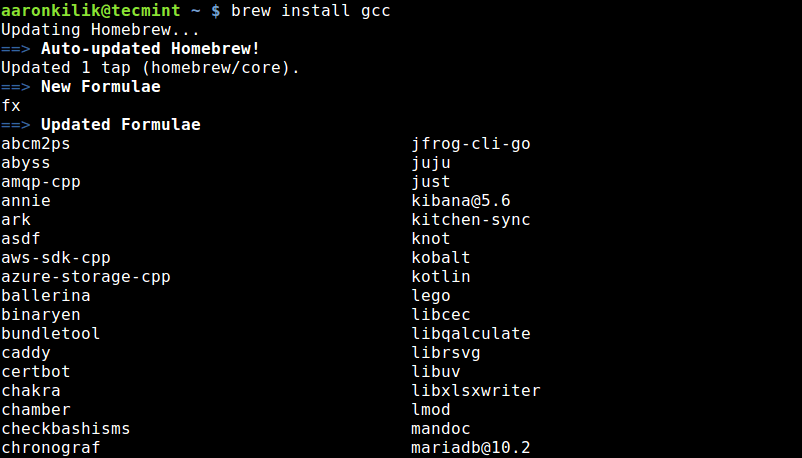
For example you can install the gcc package (or formula) with the following command. Take note of some of the messages in the output, there are some useful environmental variables that you need to set for some formulae to work correctly.
$ brew install gcc
To list all installed formulae, run.
$ brew list

You can uninstall a formula using following command.
$ brew uninstall gcc
You can search for packages using the following syntax.
brew search 				#show all formulae
OR
$ brew search --desc <keyword>		#show a particular formulae
To update Linuxbrew, issue the following command which will download the newest version of homebrew from GitHub using git command line tool.
$ brew update
To know more about Linuxbrew usage options, type:
$ brew help
OR
$ man brew
How to Uninstall Linuxbrew in Linux
If you don’t want to us Linuxbrew anymore, you can uninstall it by running.
$ /usr/bin/ruby -e "$(curl -fsSL https://raw.githubusercontent.com/Linuxbrew/install/master/uninstall)"
Linuxbrew Homepage: http://linuxbrew.sh/.
That’s it for now! In this article, we have shown how to install and use Linuxbrew package manager on a Linux system. You can ask questions or send us your comments via the feedback form below.
If this article helped you solve a problem, consider buying a coffee. It helps keep TecMint free, supports the authors, and keeps the project going.



Got Something to Say? Join the Discussion... Cancel reply