VOOZH about

URL: https://www.tecmint.com/monitor-apache-web-server-load-and-page-statistics/

⇱ How to Monitor Apache Load and Requests in Real-Time


Skip to content

In this article, you’ll learn how to monitor your Apache web server’s load and track requests using the mod_status module, compatible with all modern Linux distributions such as RHEL, Fedora, and Ubuntu.

TecMint Weekly Newsletter
Get the Learn Linux 7 Days Crash Course free when you join 34,000+ Linux professionals reading every Thursday.
Check your email for a magic link to get started.
Something went wrong. Please try again.

What is mod_status?

mod_status is an Apache module that provides real-time information on web server load and current connections, accessible through an HTML interface that can be viewed in a browser.

This interface displays server statistics, including:

  • Total number of requests received
  • Total bytes served
  • CPU usage
  • Server load and uptime
  • Traffic stats
  • Active vs. idle workers
  • Process IDs of connected clients and much more.

For a live example, check out the official Apache status page at Apache Project Status Page.

Testing Environment

The steps here use the following configuration:

  • Operating System: Ubuntu 22.04 / RHEL 9
  • Application: Apache HTTP Server
  • Document Root: /var/www/html
  • Apache Config File: /etc/apache2/apache2.conf (Debian/Ubuntu) or /etc/httpd/conf/httpd.conf (CentOS/RHEL)
  • Default HTTP Port: 80 TCP

Ensure Apache is installed and running on your system. If needed, refer to our guide on setting up an Apache server.

Enabling mod_status in Apache

For most modern distributions, mod_status is enabled by default and you can confirm this by running the following command.

ls /etc/httpd/modules | grep mod_status # RHEL-based
apachectl -M | grep status # Debian-based

Next, open the Apache configuration file.

sudo vi /etc/httpd/conf/httpd.conf # RHEL-based
sudo nano /etc/apache2/apache2.conf # Debian-based

To access the server status, add or modify the following section in your Apache config file:

<Location /server-status>
 SetHandler server-status
 Require local
 Require ip YOUR_IP_ADDRESS
</Location>

To allow remote access, replace YOUR_IP_ADDRESS with your actual IP address.

If you’re using virtual hosts, repeat this configuration within each relevant <VirtualHost> section.

<VirtualHost *:80>
 DocumentRoot /var/www/html
 ServerName example.com
 <Location /server-status>
 SetHandler server-status
 Require ip YOUR_IP_ADDRESS
 </Location>
</VirtualHost>

To get more detailed metrics such as CPU load and requests per second, you can enable ExtendedStatus by adding this line in your config file.

ExtendedStatus On

After making changes, restart the Apache service to apply them:

sudo apachectl configtest
sudo systemctl restart httpd # RHEL-based
sudo systemctl restart apache2 # Debian-based

You can now access your server’s status page by navigating to:

http://YOUR_SERVER_IP/server-status

To have it refresh automatically every few seconds, append ?refresh=5 (or any number of seconds) to the URL:

http://YOUR_SERVER_IP/server-status?refresh=5
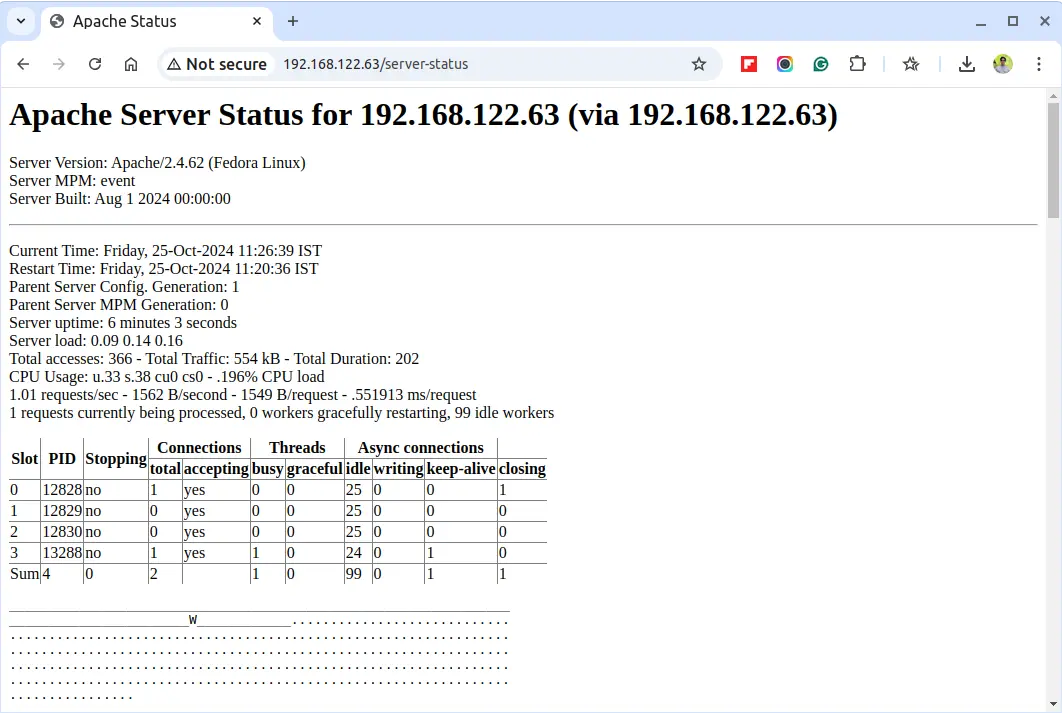
👁 Apache Server Status
Apache Server Status

Check Apache Server Status from Command-line

To check the Apache server status from the command line, you can use the lynx – a text-based web browser.

sudo yum install lynx # RHEL-based
sudo apt install lynx # Debian-based

After installing, try running the apachectl command to check the Apache server status:

sudo apachectl status

This will provide a brief overview of the server’s status, including the number of requests processed, server uptime, and other important metrics.
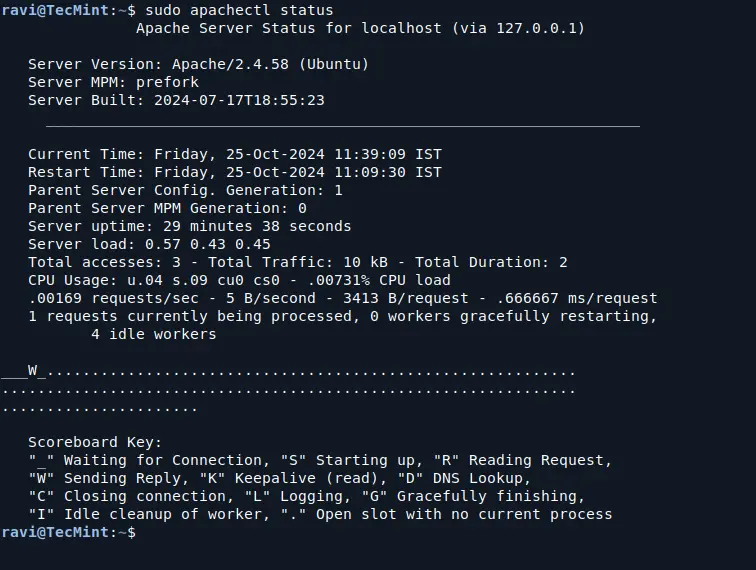
👁 Apache Server Status from Commandline
Apache Server Status from Commandline

For a more detailed view, you can use the fullstatus option:

sudo apachectl fullstatus
Conclusion

The mod_status module in Apache is a powerful, easy-to-use monitoring tool for understanding your server’s load and performance in real-time. This helps you proactively troubleshoot issues and keep your server optimized.

If this article helped, share it with someone on your team.
TecMint Weekly Newsletter
Get the Learn Linux 7 Days Crash Course free when you join 34,000+ Linux professionals reading every Thursday.
Check your email for a magic link to get started.
Something went wrong. Please try again.
TecMint has been free for 14 years. Help keep it that way.
Google AI Overviews and tools like ChatGPT have cut into search traffic for independent tech sites like TecMint. Running this site costs over $2,000 every month for hosting, infrastructure, and paying authors to keep the content accurate and tested.

If this article helped you solve a problem, consider buying a coffee. It helps keep TecMint free, supports the authors, and keeps the project going.

☕ Buy Me a Coffee
Tarunika
I am a linux server admin and love to play with Linux and all other distributions of it. I am working as System Engineer with a Web Hosting Company.

Each tutorial at TecMint is created by a team of experienced Linux system administrators so that it meets our high-quality standards.

39 Comments

Leave a Reply
  1. Thanks for sharing your thoughts on monitor.

    apache load. Regards

    Reply
  2. So many errors on this page plus I use apache2 web server not httpd can you update this post?

    Reply
  3. Is there a way to just show certain parameters like memory avail on server embedded in an HTML page with other things.

    Reply
  4. I am trying to above module implement but unfortunately this modules has not installed in apache configuration.

    please help me how can I install or enabled this modules. thank you

    Reply
  5. For some reason, this mod_status is not working on my machine. I referred some other sites and then comment # the line Deny from all. Then it started working. How that order works?

    Reply
    • With Apache 2.4+ you need to replace this:

      SetHandler server-status
      Order allow,deny
      Deny from all
      Allow from all

      With this:

      SetHandler server-status
      Require host examplde.com

      Reply
  6. How can I enable this monitoring for a server that is running with a virtual host?

    You mentioned this above configuration will not work – can you reference an article on how to enable it on a machine with a virtual host?

    Reply
  7. I can get the standard page no problem, but it’s not nearly as interesting to look at as the Apache org page that is found here: http://www.apache.org/server-status

    Where can one go to find out about getting the server-status page to look like this please?

    Reply
  8. Add the tutorial for Debian 8 apache 2.4

    Reply
    • @Raju,

      Instructions are almost same for Debian too with slight changes to Apache locations..

      Reply
  9. Very interesting thanks..

    Reply
  10. Zabbix and a script can be used get mod_status info into Zabbix

    Reply
  11. mod_status is only for monitoring servers. I have to go onto the server to check out its status. This is very time consuming. If I want to automate this process, as in, if the server hit a certain number of request then it would send a trap or notification telling me I should look into it. Is there a way I can do this?

    Tks

    Reply
    • @Loc,
      There isn’t any tool that provides such functionality, the only way is to achieve this is to via custom scripts..

      Reply
  12. Very informative tutorial!

    mod_status is works well on HTTP. But When I enable redirection to port 443 by .htaccess then I get Page not found. Please let me know how I can fix this.

    Reply
    • @Dipankar,
      Have you installed SSL modules such as mod_ssl and also port 443 opened in Firewall?

      Reply
  13. Thank You.

    It’s a useful module for apaches. ;)

    Reply
  14. tags get cut off, google IfModule mod_authz_core.c

    Reply
  15. hmm, site cut of the tags …

    # Apache 2.4
    Require all granted

    # Apache 2.2
    Order deny,allow
    Allow from all

    Reply
  16. Thnx for the guide!

    Note that the syntax for access permissions changed from Apache 2.2 to 2.4.

    Order allow,deny
    Deny from all
    Allow from example.com

    becomes simply

    Require host example.org

    ref: http://httpd.apache.org/docs/2.4/upgrading.html

    to make it upgrade safe, it can be written as:

    # Apache 2.4
    Require all granted

    # Apache 2.2
    Order deny,allow
    Allow from all

    Reply
  17. Dear Admin I cant find this line in Apache configuration file ( LoadModule status_module modules/mod_status.so ) but i insert manually than i acces through ip and hostname I have no access error? could you tell me whay i #LoadModule line cant find

    Reply
  18. I tried to add my IP as well into allowed list, but still getting error:

    You don’t have permission to access /server-status on this server

    Kindly guide for the solution

    Reply
    • @Amrita,
      Are you able to access page from localhost? which OS and Apache version you’re using?

      Reply
  19. Awesome page..thanks for your help

    Reply
  20. Very useful , please post more on web server administration & tuning for better performance.

    Thank you

    Reply
  21. Hi
    I am trying to enable mod_status, I follow all steps very carefully, but not getting expected result; when I try to access http://IP-address/server-status

    face following error:
    404 Ooops…It looks like the page your are looking for does not exist

    more over there is no file or folder name server-status in DocumentRoot location;

    any idea, I think there should some script in DocumentRoot location that will be called and display a result…

    please help me if you know the reason of this problem;

    thanks
    sani

    Reply
    • when I stop all my virtual hosts, http://IP-address/server-status worsk fine, and when I put

      SetHandler server-status
      Order deny,allow
      Deny from all
      Allow from 127.0.0.1

      inside virtual host ,it gave me 404 Ooops…It looks like the page your are looking for does not exist

      its very urgent please help

      thanks in advance;

      sani

      Reply
    • Is this works for windows machine , Because i did the changes its not working properly,

      Reply
  22. If the web server is listening only on port 8443 (https), how can I configure the server-status page?

    Reply
    • Doesn’t matter which port you are using for Apache, just enable the server-status module as suggested in the article..that’s it..

      Reply
  23. is there any way to get this info in json format with bash ?

    Reply
  24. I have configured server-status likewise. But its showing the following error.

    Forbidden:
    you don’t have permission to access /server-status on this server.

    Please help me.

    Reply
    • Please add your system IP in allow list, for example see the following entry.

      Allow from Your-IP-Address-Here
      
      Reply
  25. I’ve seen many statistics data with the url “http://192.168.114.161/server-status” ,like Server Version,Server Built,,Current Time,Restart Time,Parent Server Generation,Server uptime,Total accesses , but i couldn’t find the “CPU Usage”, i can’t find out what’s wrong,can you help me?

    Reply

Got Something to Say? Join the Discussion... Cancel reply

Free Course
Get a free Linux course before you go.
Subscribe to TecMint Weekly and get the Learn Linux 7 Days Crash Course free. Read by 34,000+ Linux professionals every Thursday.
Check your email for a magic link to get started.