
Today, Python has become a popular high-level programming language for general-purpose programming. It is easy to learn and it has clean syntax and indentation structure essentially making it easier for programmers with backgrounds in other languages to grasp Python pretty quickly, and beginners find it really simple.
An IDE (Integrated Development Environment) can make the difference between a good and bad programming experience and one of the useful IDEs for Python is Pycharm.
Pycharm is a powerful and cross-platform Python IDE which integrates all developments tools in one place. It is feature rich and comes in community (free and open source) as well as professional editions.
Pycharm Features
- It’s highly customizable and pluggable.
- It provides smart code completion.
- Offers code inspections functionalities.
- Has remarkable error highlighting and quick-fixes.
- Ships in with automated code refactorings and rich navigation capabilities.
- Has built-in developer tools such as integrated debugger and test runner; Python profiler; a built-in terminal; integration with major VCS and built-in database tools and much more.
- Provides several web development tools and frameworks, specific template languages such as JavaScript, TypeScript, CoffeeScript, Node.js, HTML/CSS and more.
- It also offers scientific tools including Matplotlib and NumPy plus lots more.
In this article, we will show you how to install PyCharm IDE Community (free and open source) edition in Linux systems.
How to Install PyCharm IDE in Linux
First go to the PyCharm download section and grab the latest stable version of PyCharm Community Edition or you can use following wget command to download it directly into terminal.
$ wget https://download.jetbrains.com/python/pycharm-community-2017.3.2.tar.gz
$ tar -xvf pycharm-community-2017.3.2.tar.gz
$ cd pycharm-community-2017.3.2/
To run pycharm like any other command, create a soft link from a directory (/usr/bin/ in this example) in your PATH environmental variable to the pycharm executable and run pycharm as follows.
$ sudo ln -s ./pycharm-community-2017.3.2/bin/pycharm.sh /usr/bin/pycharm
$ pycharm
Note: Pycharm is now available as a snap package. Users of Ubuntu 16.04 or later can install it from the command line:
$ sudo snap install [pycharm-professional|pycharm-community] --classic
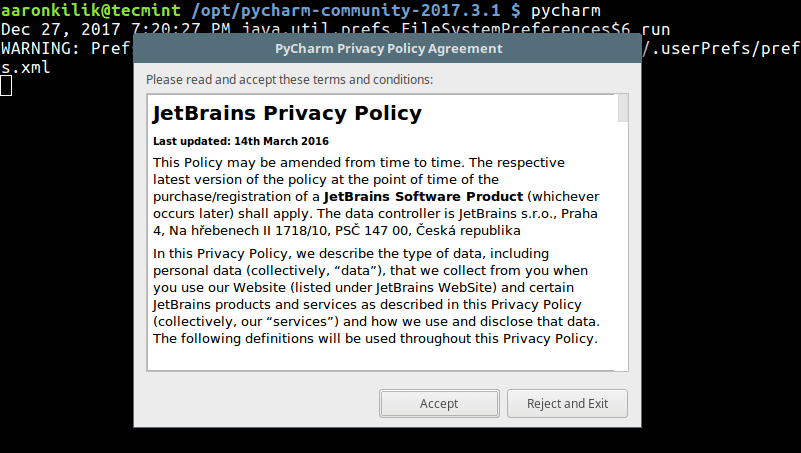
Next, you will be asked to accept the Pycharm privacy policy agreement by clicking on “Accept” as shown in the screen shot below.
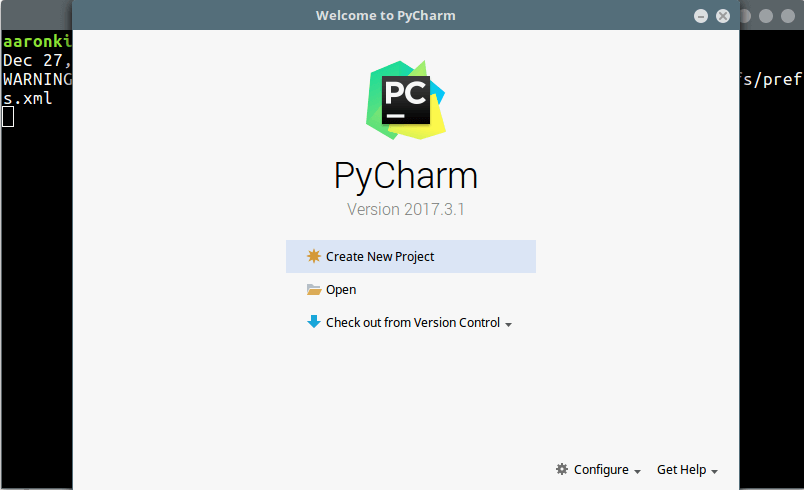
After that, you will view the pycharm welcome page.
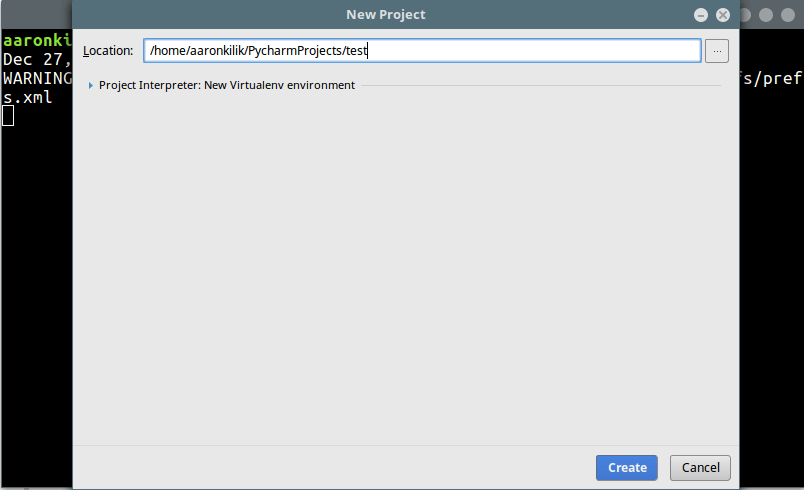
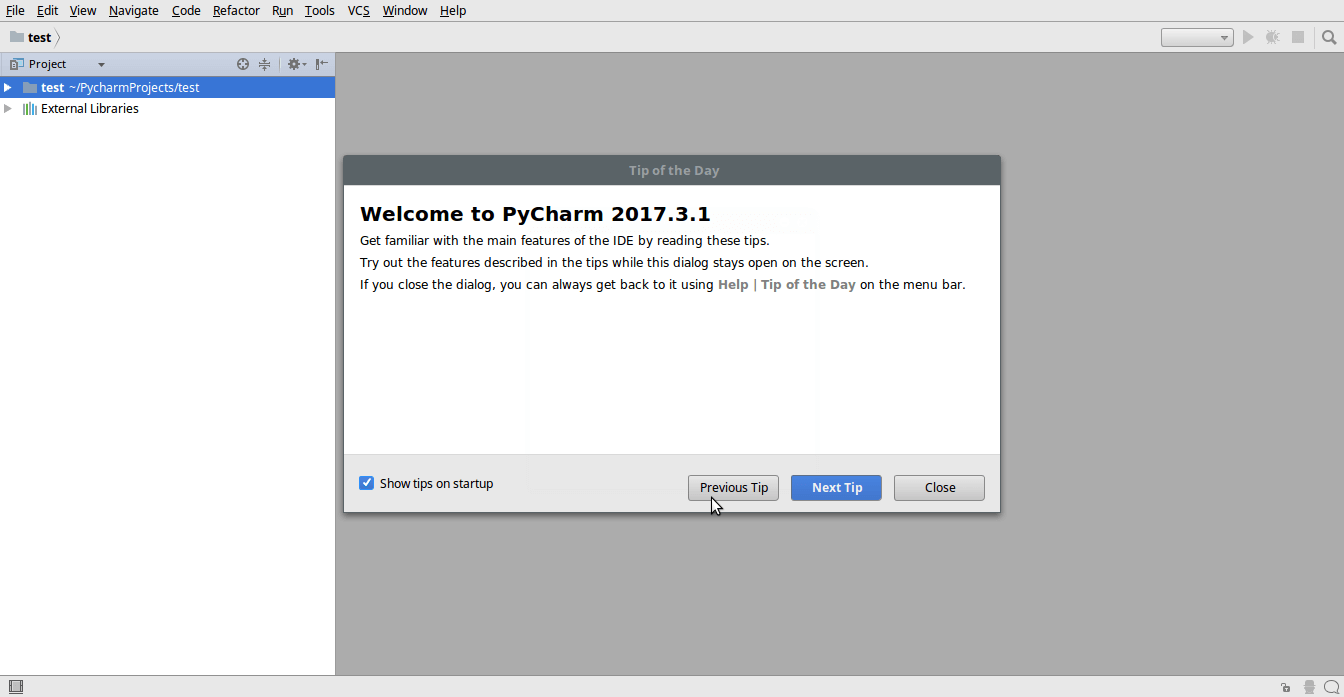
Now create your first project; enter a name for it and click “Create”.
Pycharm Documentation: https://www.jetbrains.com/pycharm/documentation/
Pycharm is a well-developed IDE with all necessary Python programming tools and more, built for professional developers. Share your thoughts with us via the feedback form below.
If this article helped you solve a problem, consider buying a coffee. It helps keep TecMint free, supports the authors, and keeps the project going.



Got Something to Say? Join the Discussion... Cancel reply