
The “pydf” (Python Disk File System) is an advanced command line tool and a good alternative to the “df command”, which is used to display the amount of used and available disk space on a mounted filesystem, the same as df command, but in different colors. The output of the pydf command can be customizable according to your needs.
This “pydf” command is written in python language that displays the amount of disk usage and available space on Linux mounted file system, using custom colors for different file system types.
Installing pydf in Linux Systems
By default, the pydf tool is not installed on RHEL-based distributions such as CentOS, Fedora Rocky, and Alma Linux, you need to install it using the following commands.
# python3 -m venv pydf
# source pydf/bin/activate
# python3 -m pip install pydf

On older versions of RHEL-based distributions, you need to enable the EPEL repository and install it using the yum command as shown.
# yum install pydf
On Debian/Ubuntu/Linux Mint
On Debian-based distributions, the pydf tool is availabe from the package manager, you can install it using apt-get or apt commands as shown.
$ sudo apt-get install pydf
OR
$ sudo apt install pydf
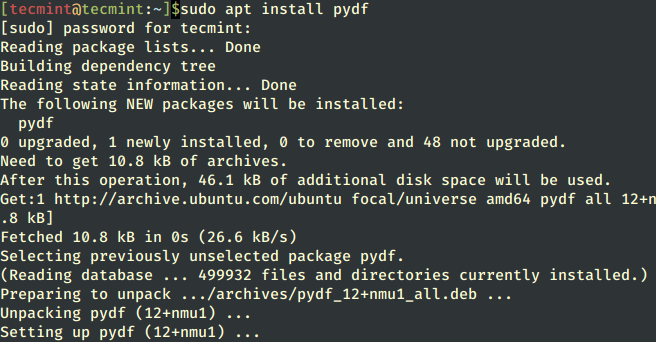
On other Linux distributions, you can install pydf using the default package manager as shown.
$ sudo emerge -a app-admin/pydf [On Gentoo Linux]
$ sudo apk add pydf [On Alpine Linux]
$ sudo pacman -S pydf [On Arch Linux]
$ sudo zypper install pydf [On OpenSUSE]
How to Use pydf Command in Linux
If you run only the “pydf” command without specifying an argument, it will display just information on disk space usage along with all mounted file systems.
# pydf
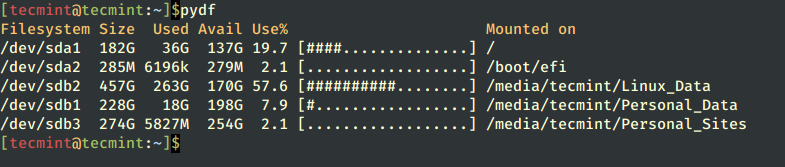
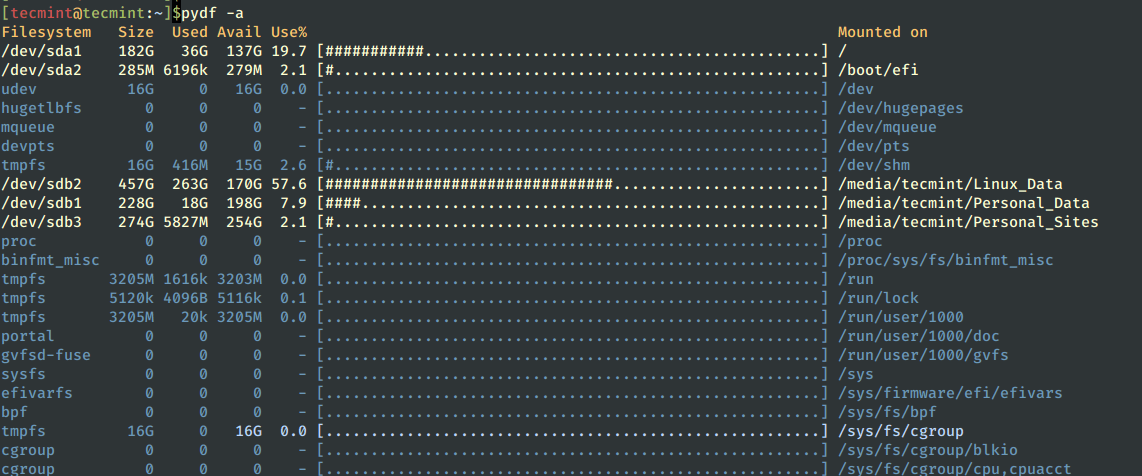
To check which file system has 0 blocks, simply run the following command along with the “-a” or “--all” argument.
# pydf -a
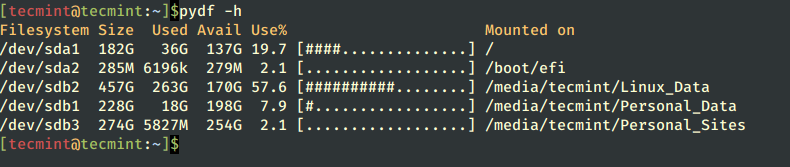
To see the output in human-readable format, use the option “-h", which will print sizes (e.g., 10K, 10M, 10G).
# pydf -h
To print sizes in kilobytes (e.g., 1024 block size) use the option “-k” as shown below.
# pydf -k

To print summary output in megabytes (e.g., 1048576 block size) use option “-m” as shown below.
# pydf -m

To print sizes in gigabytes (e.g., 1073741824), specify the option “-g” as shown below.
# pydf -g
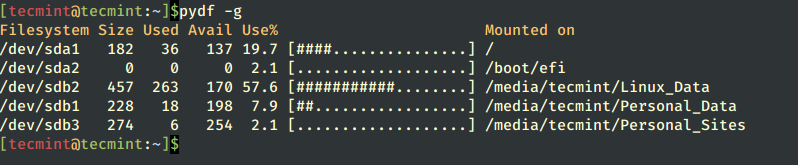
To see the information about inodes instead of blocks, use the argument “-i” as given below.
# pydf -i
If you want to disable the colorized output, simply use the option “--bw“.
# pydf --bw
How to Customize pydf Colours
The pydf has its own configuration file, where you can define your own custom colors to give some extra feel and look to your output.
# vi /etc/pydfrc
For more information and usage, read the help page of the pydf by running “pydf –help” in a terminal.
# pydf --help
If this article helped you solve a problem, consider buying a coffee. It helps keep TecMint free, supports the authors, and keeps the project going.






Got Something to Say? Join the Discussion... Cancel reply