
When you build a server according to your plan and requirements, you want it to run quickly and efficiently, right? But did you know that modern Linux systems, especially those using systemd, often install and run many services by default, even if you don’t need them? These unwanted services consume precious system resources and can even become security risks.
In this article, we’ll walk through how to identify and disable unnecessary services on systemd-based Linux distributions like Fedora, CentOS, Ubuntu, Debian, and others.
Why Should You Care About Unwanted Services?
When you install Linux, the OS typically enables several services automatically. For example, you might end up with web servers, FTP servers, print servers, or network services running without you asking for them. But if your server doesn’t need those, they’re just wasting CPU, memory, and opening attack surfaces.
Before disabling services, ask yourself:
- What do I actually need this server to do?
- Do I want it to run a web server?
- Do I need FTP or Samba shares?
- Am I running DNS or database servers?
Only enable the services that support your server’s purpose.
Check Which Services Are Running
With systemd, managing and checking services is easier than ever, here’s how to list the active services on your system.
List all Running Services
To list all active and running services, you can use the following systemctl command.
sudo systemctl list-units --type=service --state=running
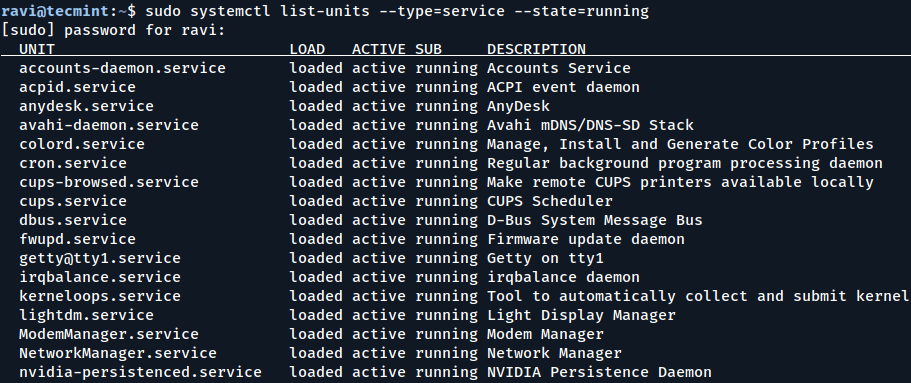
Take a close look at the running services. If a service isn’t essential for your server’s purpose, it’s best to disable it.
Check Open Ports and Identify Listening Services
To see which services are actively listening for network connections on your server, use one of the following commands: ss or netstat.
sudo ss -tuln
OR
sudo netstat -tuln
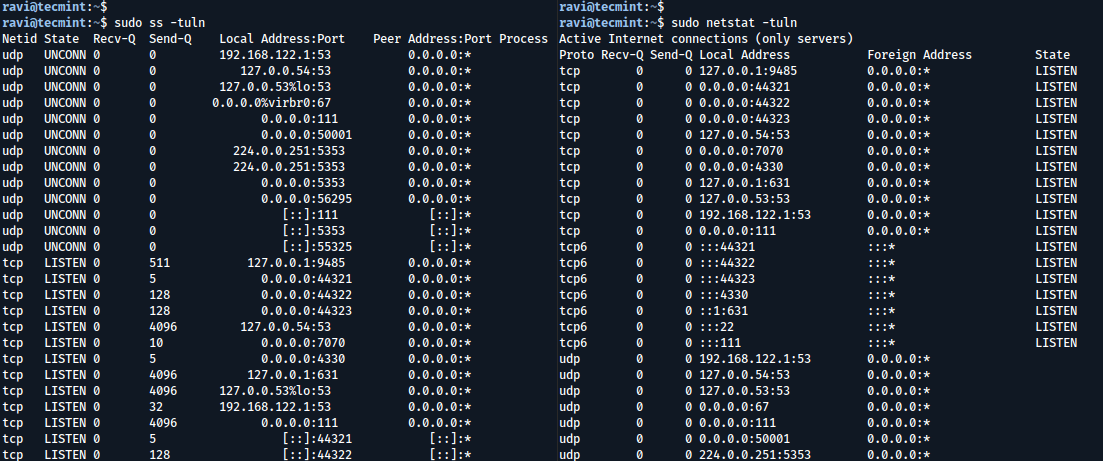
These commands display all TCP and UDP ports currently open and waiting for connections. For example, if you spot port 21 (used by FTP) open but you don’t actually need FTP, it’s a clear sign you should disable that service to keep your server secure and resource-friendly.
Common Unnecessary Services on systemd Systems
Not every service that runs on your Linux machine is something you actually need. Depending on whether you’re using your system as a desktop, server, or virtual machine, many services might be running in the background – quietly hogging memory, CPU, or even opening security holes.
Common Services You Might Not Need
Here’s a list of frequently running services you can review. If you don’t use what they support, disable them.
| Service | Description |
|---|---|
avahi-daemon |
Zero-configuration networking (local service discovery). |
bluetooth.service |
Manages Bluetooth — useless on headless servers. |
iscsi.service, iscsid.socket, iscsiuio.socket |
For iSCSI network storage. |
lvm2-monitor.service, lvm2-lvmpolld.socket |
For managing LVM volumes. |
mdmonitor.service, raid-check.timer |
Related to software RAID. |
qemu-guest-agent.service |
Only useful if you’re running inside a QEMU/KVM VM. |
nfs-convert.service, nfs-client.target |
For NFS (networked file systems). |
cups.service |
Printing services — likely useless on a server. |
postfix.service |
Mail server — unnecessary unless you’re sending mail. |
sssd.service |
Connects to domains like LDAP or AD. |
hyperv-daemons |
Only needed inside Hyper-V virtual machines. |
apport.service |
Ubuntu’s error reporting tool. |
zeitgeist, telepathy |
Desktop logging and messaging services — not for servers. |
Use the commands below to disable the services listed above:
sudo systemctl disable avahi-daemon
sudo systemctl disable bluetooth
sudo systemctl disable iscsi
sudo systemctl disable iscsid.socket
sudo systemctl disable iscsiuio.socket
sudo systemctl disable lvm2-monitor
sudo systemctl disable lvm2-lvmpolld.socket
sudo systemctl disable mdmonitor
sudo systemctl disable raid-check.timer
sudo systemctl disable qemu-guest-agent
sudo systemctl disable nfs-convert
sudo systemctl disable nfs-client.target
sudo systemctl disable cups
sudo systemctl disable postfix
sudo systemctl disable sssd
sudo systemctl disable hyperv-daemons
sudo systemctl disable apport
sudo systemctl disable zeitgeist
sudo systemctl disable telepathy
Want to stop them immediately too? Just replace disable with stop in each command.
How to Identify and Review Services
Not sure what’s running on your system or what starts up automatically? Here are some easy commands to help you figure that out:
To list all enabled services and set them to start when your system boots.
systemctl list-unit-files --type=service --state=enabled
To see running services that are active right now.
systemctl list-units --type=service
To analyze boot time and see which services slow down boot:
systemd-analyze blame
This will show how much time each service takes during boot. Look for anything that takes several seconds and decide if you really need it.
How to Stop and Disable a Service
If you find something you don’t need, you can stop it and prevent it from starting again:
sudo systemctl stop # Stops the service now
sudo systemctl disable # Prevents it from starting at boot
To prevent a service from being started manually or as a dependency (mask it)
sudo systemctl mask
If you ever want to bring it back:
sudo systemctl unmask
Final Thoughts
By disabling unwanted services on your Linux server, you free up resources, improve security, and reduce potential attack vectors. Modern systemd makes managing these services straightforward.
Remember, a lean server is a fast server. Take control of what runs on your system. Keep your server focused on the job it was built for.
If this article helped you solve a problem, consider buying a coffee. It helps keep TecMint free, supports the authors, and keeps the project going.






Got Something to Say? Join the Discussion... Cancel reply