VOOZH about

URL: https://www.tecmint.com/run-sms-portal-with-playsms-in-linux/

⇱ How to Run an SMS Portal with playSMS in Linux


Skip to content

playSMS is an open-source SMS management software that allows you to send and receive SMS messages using various gateways and protocols, which is an excellent tool for businesses, organizations, or anyone who wants to manage SMS communication efficiently.

In this article, we will guide you through the installation of playSMS on a Linux server, which will cover the requirements, installation steps, and configuration processes to help you get started.

System Requirements

Before installing playSMS, ensure that your system meets the following requirements:

  • A Linux distribution (Ubuntu, Debian, RHEL, etc).
  • A web server (Apache or Nginx).
  • PHP (version 7.0 or higher).
  • MySQL or MariaDB.
  • An internet connection.
TecMint Weekly Newsletter
Get the Learn Linux 7 Days Crash Course free when you join 34,000+ Linux professionals reading every Thursday.
Check your email for a magic link to get started.
Something went wrong. Please try again.

Step 1: Installing Apache, PHP and MySQL

First, update your package manager to ensure you have the latest software available.

sudo apt update [Ubuntu/Debian]
sudo dnf update [RHEL]

Once system packages are updated, you can install Apache, PHP, and MySQL with the following command on Ubuntu-based distributions.

sudo apt install apache2 php libapache2-mod-php php-mysql
sudo apt install php-curl php-gd php-mbstring php-xml php-zip
sudo apt install mysql-server

On RHEL-based distributions, you can use:

sudo yum install httpd php php-mysqlnd
sudo yum install epel-release
sudo yum install php-curl php-gd php-mbstring php-xml php-zip
sudo yum install mariadb-server

Once Apache, PHP, and MySQL are installed, you can start and enable them to start on boot:

---------------- On Ubuntu/Debian ---------------- 
sudo systemctl start apache2
sudo systemctl enable apache2
sudo systemctl start mysql
sudo systemctl enable mysql
---------------- On RHEL/Fedora ---------------- 
sudo systemctl start httpd
sudo systemctl enable httpd
sudo systemctl start mariadb
sudo systemctl enable mariadb

Next, you need to secure the database installation by running the security script to set a root password and secure your installation:

sudo mysql_secure_installation

Step 2: Installing and Configuring playSMS Portal

Before installing and configuring the playSMS portal, you need to create a database and a user for playSMS.

mysql -u root -p
CREATE DATABASE playsms;
CREATE USER 'playsmsuser'@'localhost' IDENTIFIED BY 'your_password';
GRANT ALL PRIVILEGES ON playsms.* TO 'playsmsuser'@'localhost';
FLUSH PRIVILEGES;
EXIT;

Replace your_password with a secure password.

Next, create a source directory where you will download and install playSMS.

mkdir -p /home/tecmint/src
cd /home/tecmint/src

Now visit the playSMS GitHub page and download the latest version of the software using wget command, make sure to replace x.x.x with the latest version number:

wget https://github.com/playsms/playsms/archive/refs/tags/1.4.7.tar.gz

Once downloaded, extract the playSMS package.

tar -xvf 1.4.7.tar.gz

Navigate to the playSMS directory  and copy the example configuration file to a new file and edit it.

cd /home/tecmint/src/playsms-1.4.7/
cp install.conf.dist install.conf
vi install.conf

In install.conf, you’ll need to customize settings such as database connection details and other configurations to suit your system.
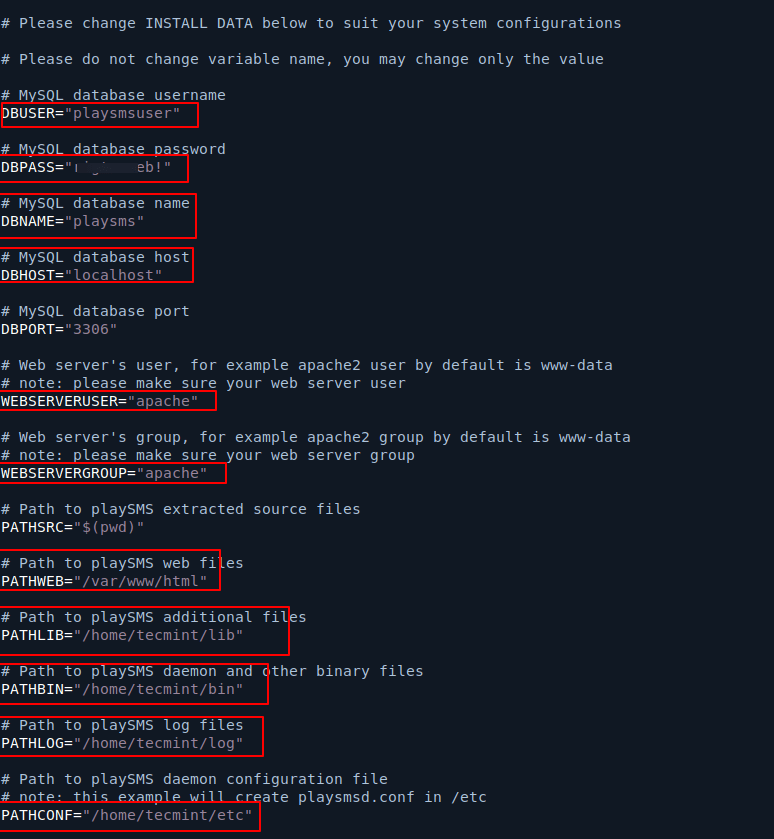
👁 Configure playSMS Settings
Configure playSMS Settings

With your configurations set, run the installation script:

sudo ./install-playsms.sh

To ensure that playSMS runs automatically at startup and if it goes down, you need to set up a cron job.

crontab -e

Insert the following line to run the playSMS daemon every minute.

* * * * * /home/tecmint/bin/playsmsd /home/tecmint/etc/playsmsd.conf start

After installation, check if the playSMS daemon is running:

ps ax | grep playsms

👁 Check playSMS Daemon
Check playSMS Daemon

You can run additional checks to confirm the installation:

/home/tecmint/bin/playsmsd /home/tecmint/etc/playsmsd.conf status
/home/tecmint/bin/playsmsd /home/tecmint/etc/playsmsd.conf check
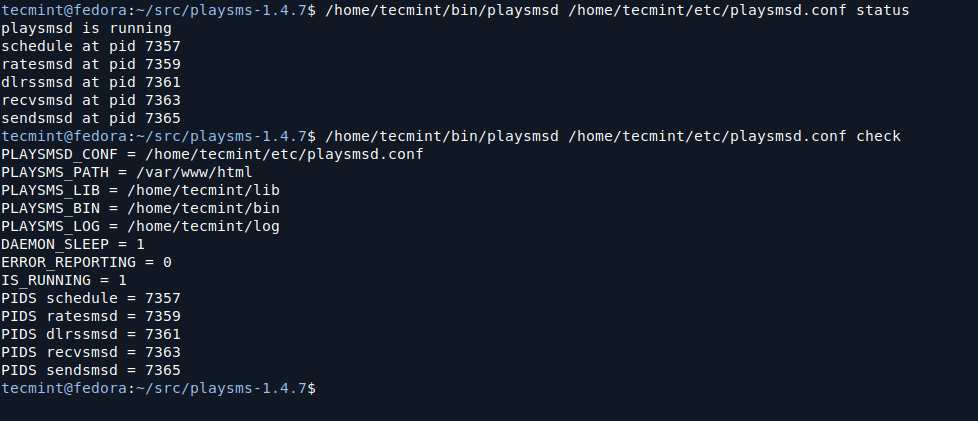
👁 Check playSMS Status
Check playSMS Status

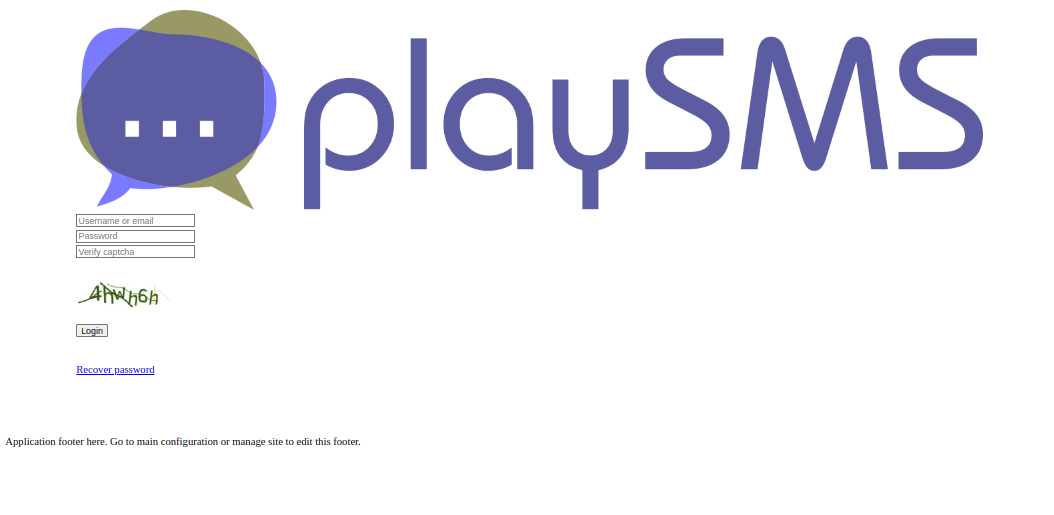
If everything seems correct, you can access playSMS through your web browser:

URL: http://[your web server IP] Default Admin Username: admin Default Admin Password: admin
👁 playSMS Web Portal
playSMS Web Portal

Follow the on-screen instructions to complete the setup process. You will need to configure the SMS gateway you plan to use for sending and receiving messages.

Conclusion

By following these steps, you should have successfully installed playSMS on your Linux system. If you have any issues or further questions, feel free to ask for help or consult the playSMS community for assistance.

If this article helped, share it with someone on your team.
TecMint Weekly Newsletter
Get the Learn Linux 7 Days Crash Course free when you join 34,000+ Linux professionals reading every Thursday.
Check your email for a magic link to get started.
Something went wrong. Please try again.
TecMint has been free for 14 years. Help keep it that way.
Google AI Overviews and tools like ChatGPT have cut into search traffic for independent tech sites like TecMint. Running this site costs over $2,000 every month for hosting, infrastructure, and paying authors to keep the content accurate and tested.

If this article helped you solve a problem, consider buying a coffee. It helps keep TecMint free, supports the authors, and keeps the project going.

☕ Buy Me a Coffee
Ravi Saive
I'm Ravi Saive, an award-winning entrepreneur and founder of several successful 5-figure online businesses, including TecMint.com, GeeksMint.com, UbuntuMint.com, and the premium learning hub Pro.Tecmint.com.

Each tutorial at TecMint is created by a team of experienced Linux system administrators so that it meets our high-quality standards.

31 Comments

Leave a Reply
    • Wilson,

      PointSMS is dead no more active, you can use PlaySMS or JasminSMS open source applications.

      Reply
  1. Hello my friend!
    Nice tutorial.
    Please how do i send bulk SMS, not just one recipient but to as many as possible.

    Reply
  2. The whole site it’s down, no source or development teamn working on it looks risky.

    Reply
  3. please share the source with us as i need it so much

    Reply
    • I cann’t download the source, please up to mediafire…, thanks

      Reply
  4. Mr.Ravi,
    Thanks for your support in the blog,..I was looking for the download files of it,Im in damn need of it..can you please try to send me the files if you have for it…

    thank you very much in advance.

    Reply
  5. Please can any one share this code.Its no more available online.Pls pls

    Reply
    • Sorry, they’ve closed development.

      Reply
  6. Can anyone write link where i can download it?

    Reply
    • Sorry, they have closed development. No download links..

      Reply
      • hi RAvi, this is charlie i would like to ask if there is a way that i can create a sms portal type using yii and this tool sir. can you help me up with my project…

        Reply
  7. Can I setup it on Ububtu or any other Ububtu based OS?

    Reply
    • Yes! you can setup.

      Reply
  8. Can anyone upload pointsms tar archive to some fileshare server? ( rapidshare, mediafire … ) thanks

    Reply
  9. how to set ip,so i can still access my zpanel web ui and pointsms web ui too

    Reply
  10. how to set ip in pointsms,
    so I can still access my point zpanel and my sms web interface
    i need your help

    thanks for reply

    Reply
  11. i’m installed Zpanel in my localhost
    before zpanel install,i can access my pointsms web interface,
    but after install zpanel, i can’t access it

    how to fix it

    Reply
    • Your Zpanel installation overwritten all your system files, because zpanel comes with own web server and that might overwritten your existing web server files and in result you lost the pointsms setup. To fix pointsms portal you need setup again.

      Reply
  12. after login,i see this

    blank page

    Not Found

    The requested URL /compose was not found on this server.
    Apache/2.2.15 (CentOS) Server at localhost.localdomain Port 80

    Reply
    • Do you have mod_rewrite enabled on Apache?

      Reply
  13. Notice: Undefined index: template in /var/www/html/compose.php on line 2

    Reply
  14. when i send compose message show ing Error Msg:Error! Not enough credits.

    Reply
    • You need to buy credits to send sms.

      Reply
  15. I am getting error

    Undefined variable: _SESSION in /var/www/html/index.php

    What may be the issue.

    Reply
    • Turn Off error notices in php.ini file.

      Reply
      • Followed the procedure, didn’t find any error or warning during performing steps, but couldn’t find the login screen after typin ip address in the browser.

        Any other change/modify in the config files?

        Reply
        • Did you placed the files under your web root directory and added proper MySQL settings? What you seeing in the browser?

          Reply

Got Something to Say? Join the Discussion... Cancel reply

Free Course
Get a free Linux course before you go.
Subscribe to TecMint Weekly and get the Learn Linux 7 Days Crash Course free. Read by 34,000+ Linux professionals every Thursday.
Check your email for a magic link to get started.