VOOZH about

URL: https://www.tecmint.com/save-file-in-vi-vim-editor-in-linux/

⇱ How to Save and Exit a File in Vi / Vim Editor in Linux


Skip to content

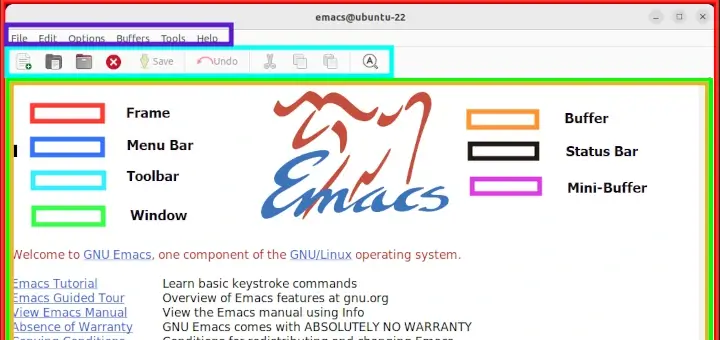
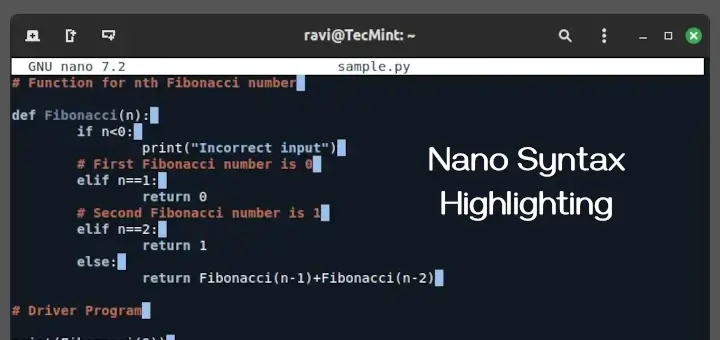
It is true that learning Vi/Vim editor – a well-known text editor in the Linux ecosystem, is not as easy as learning Nano or Emacs, as it requires a little effort which is worthwhile.

[ You might also like: My Favorite Command Line Editors for Linux – What’s Your Editor? ]

Many people are afraid of learning it, but seriously, for no important reasons. In this short article, intended for Vi/Vim text editor newbies, we’ll learn a few basic commands; how to save a file after writing or modifying its content.

[ You might also like: 10 Reasons Why You Should Use Vi/Vim Text Editor in Linux ]

Install Vim on Linux Systems

In most of today’s Linux distributions, Vi/Vim editor comes pre-installed, if not install the full version of Vim (Debian systems provide vim-tiny with fewer features), using the system package manager as shown:

$ sudo apt install vim [On Debian, Ubuntu and Mint]
$ sudo yum install vim [On RHEL/CentOS/Fedora and Rocky Linux/AlmaLinux]
$ sudo emerge -a app-editors/vim [On Gentoo Linux]
$ sudo apk add vim [On Alpine Linux]
$ sudo pacman -S vim [On Arch Linux]
$ sudo zypper install vim [On OpenSUSE] 

Note: To use Vim’s latest features, you do need to install Vim from the source.

How to Create Files in Vi/Vim

To create or open a file using vi/vim, run the following command, which will create a new file or open an existing file for editing.

$ vim file.txt
OR
$ vi file.txt

Vi/Vim Edit Modes

The Vi/Vim editor comes with two modes: Command and Insert. In Command mode you can use keyboard keys to copy, paste, delete, navigate, and do a number of various tasks except entering text.

In Insert mode, you can write text to file, use the Enter key to go to a new line, and use the arrow keys to navigate between text. To get into Insert mode, press i and start entering text as shown.
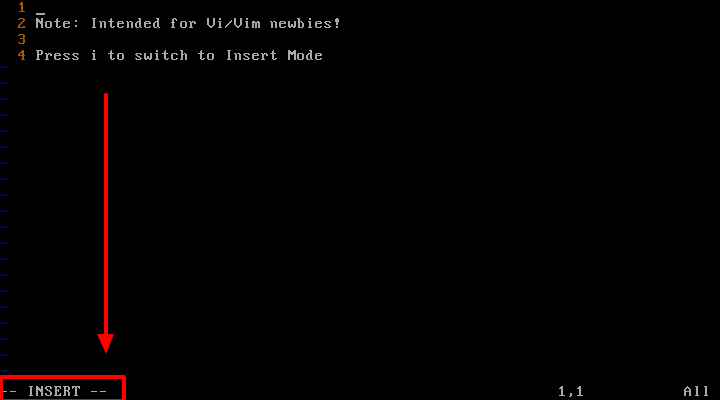
👁 Press 'i' to Insert Mode in Vim Editor
Press ‘i’ to Insert Mode in Vim Editor

How to Save Files in Vi/Vim Editor

Once you have modified a file, press [Esc] shift to the Command mode and press :w (save and continue editing) and hit [Enter] as shown below.
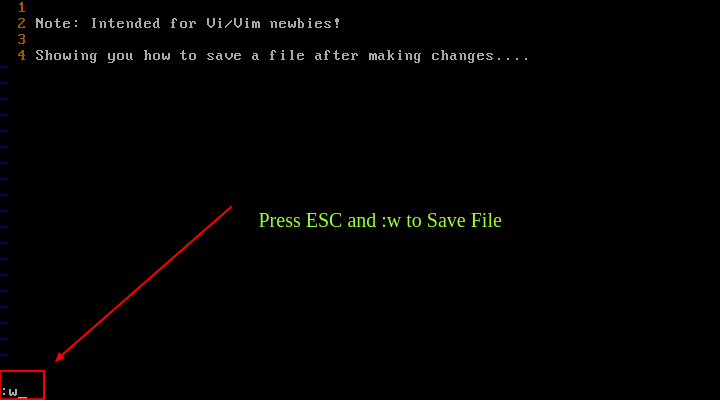
👁 Save File in Vim
Save File in Vim

To save the file and exit at the same time, you can use the ESC and :x keys and hit [Enter]. Optionally, press [Esc] and type Shift + Z Z to save and exit the file.
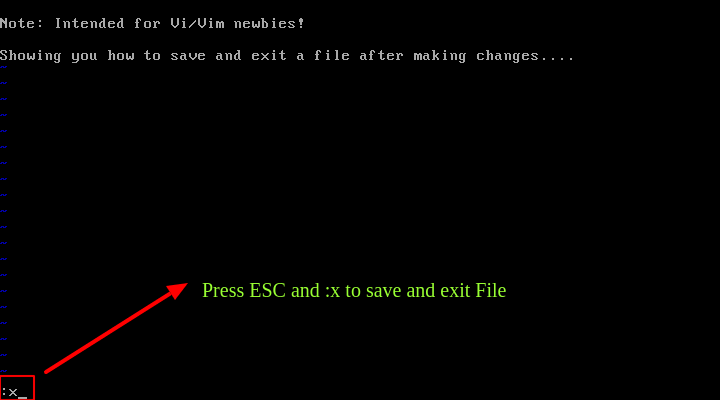
👁 Save and Exit File in Vim
Save and Exit File in Vim

Save Vim File Content to New File

To save the file content to a new file named newname, use ESC and :w newname or :x newname and hit [Enter].
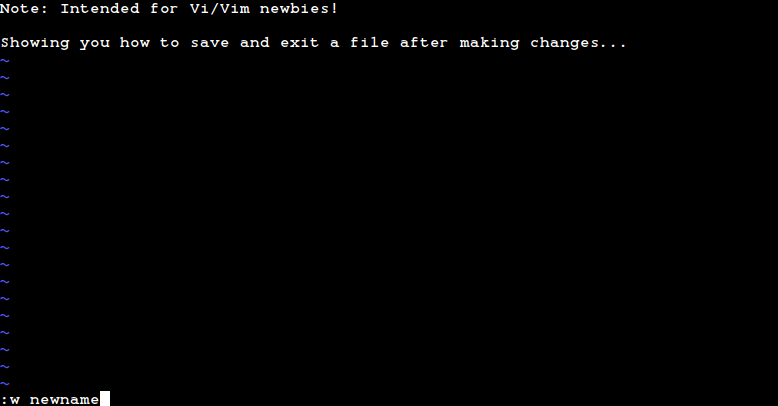
👁 Save Vim Content to New File
Save Vim Content to New File

From here, you can now move over to learn common Vi/Vim tips and tricks, understand the different modes and so much more:

Vi/Vim Keyboard Shortcuts

To understand more about the vi/vim editor, you need to create a new file and try learning yourself using the following common vi/vim keyboard shortcuts.
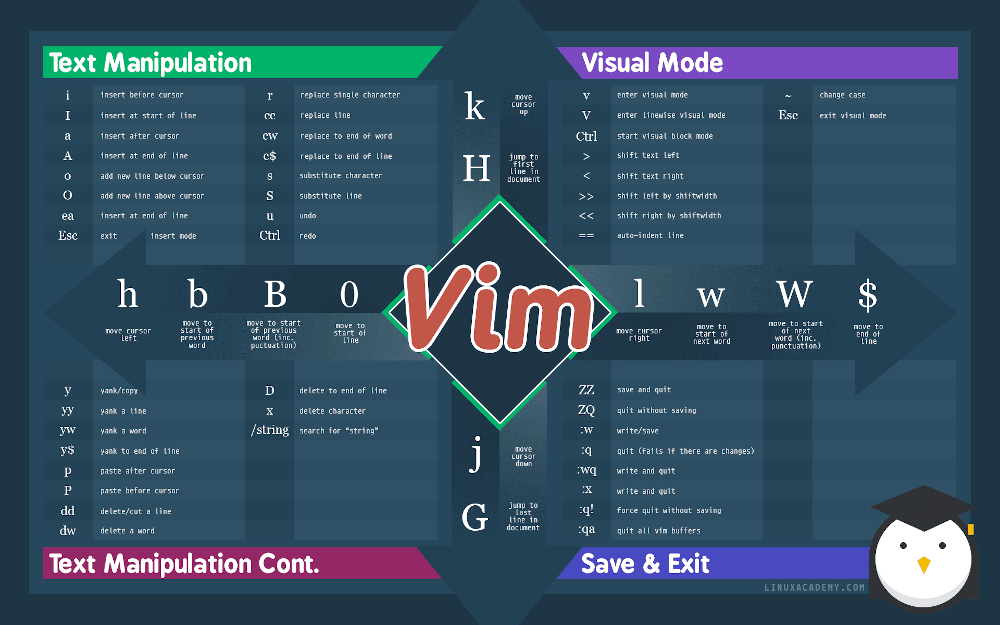
👁 Vim Cheat Sheet
Vim Cheat Sheet

That’s it! In an upcoming article, we’ll show you how to exit the Vim text editor with simple commands. Remember to drop your comments via the feedback form below.

If this article helped, share it with someone on your team.
TecMint Weekly Newsletter
Get the Learn Linux 7 Days Crash Course free when you join 34,000+ Linux professionals reading every Thursday.
Check your email for a magic link to get started.
Something went wrong. Please try again.
TecMint has been free for 14 years. Help keep it that way.
Google AI Overviews and tools like ChatGPT have cut into search traffic for independent tech sites like TecMint. Running this site costs over $2,000 every month for hosting, infrastructure, and paying authors to keep the content accurate and tested.

If this article helped you solve a problem, consider buying a coffee. It helps keep TecMint free, supports the authors, and keeps the project going.
☕ Buy Me a Coffee
Aaron Kili
Aaron Kili is a Linux and F.O.S.S enthusiast, an upcoming Linux SysAdmin, web developer, and currently a content creator for TecMint who loves working with computers and strongly believes in sharing knowledge.

Each tutorial at TecMint is created by a team of experienced Linux system administrators so that it meets our high-quality standards.

20 Comments

Leave a Reply
  1. Thanks! This helped me out!

    Reply
  2. Hi, it was very helpful. I don’t know what I would do without this site.

    Reply
  3. Thanks a lot.

    This article really helped me.

    Reply
  4. Thanks It worked for me, now i am able to pull and push the code with out giving any password. Since i have configured my updated password in the HTTPS url of my Repository.

    Ex: Https://UserNmae:Pwd/repositoryName

    Step1 – > Open Git Bash – > git config -e – > Type this command — > go to edit mode by clicking on Insert Key — > Update your password — > and at the end of the file give :x and click on enter and Control +Z to exit by saving.

    Thank you for the support

    Reply
  5. Thank you so much Mr Aaron really helpful, hoping one day can also do something to help others.

    Reply
    • @Enock

      Welcome, thanks for the great words of appreciation. Comments such as this make the effort worthwhile.

      Reply
  6. Thank you so much i can change my IP in the command line in mt Issabel Voip and i can save changes successfully!

    Reply
    • @mahdi

      That’s great! Thanks for writing back.

      Reply
  7. Thank you my friend! It worked just fine :)

    Reply
    • @Denilson

      Welcome, many thanks for the feedback.

      Reply
  8. I searching way to find this tutorial and works like charms

    Thanks mate…:)

    Reply
    • @pakar

      Welcome, thanks for the feedback and for following us.

      Reply
  9. When pressing the :w you can after the enter the path (absolute or relative) where you want the file to be stored

    Absolute path has a leading slash /etc/passwd
    Relative path don’t have the leading slash .././etc/passwd

    Reply
    • @Jonix

      Useful tip for Vi/Vim newbies, many thanks for sharing all this. We are really thankful.

      Reply
  10. Also, when pressing the ESC-key to get out of insertion mode to command mode, just press ESC-key _once_ otherwise you will get an audible reminder (beep) that you were not aware of where you are/were (insertion-mode/command-mode)

    Reply
    • @Jonix

      Sure, thanks for the sharing this. I know it will be helpful to new Vim users.

      Reply
  11. When saving the file with :x, beware that you DONT press when pressing the x, so you will avoid using uppercase X when saving; the uppercase X save, will save the file encrypted, the key string entered after the X will be the encryption key..

    Reply
    • @Jonix

      This is correct, using :wq would be much more reliable.

      Reply
  12. I’m using :wq for exit and save, but there are :x more shorter. Well, I guess must read the manual again.

    Reply
    • @bowo

      This is true, you can get comprehensive info and more usage commands from the Vim manual.

      Reply

Got Something to Say? Join the Discussion... Cancel reply

Free Course
Get a free Linux course before you go.
Subscribe to TecMint Weekly and get the Learn Linux 7 Days Crash Course free. Read by 34,000+ Linux professionals every Thursday.
Check your email for a magic link to get started.