VOOZH about

URL: https://www.tecmint.com/take-screenshots-in-linux-using-scrot/

⇱ Scrot: A Command Line Tool to Take Desktop/Server Screenshots Automatically in Linux


Skip to content

Scrot (SCReenshOT) is an open source, powerful and flexible, command line utility for taking screen shots of your Desktop, Terminal or a Specific Window manually or automatically by Cron job. Scrot is similar to Linux ‘import‘ command, but uses ‘imlib2‘ library to capture and save images. It supports multiple image formats (JPG, PNG, GIF, etc), which you can specify while taking screen shots by using the tool.
👁 Install Scrot Screenshot Tool in Linux
Scrot Screenshot Tool

Features of Scrot

  1. With scrot we can take screen shots easily without any additional work.
  2. We can also optimize the quality of the screen shots image (with the -q switch, followed by a quality level between 1 and 100. The default quality level is 75.
  3. It is very easy to installation and use.
  4. We can capture a specific window or a rectangular area on the screen with the help of switch.
  5. Can get all screen shots in a particular directory and also can store all screen shots in a remote PC or network server.
  6. Can monitor all Desktop PC in admin absent and prevent to unwanted activities.

Installing Scrot in Linux

We can install ‘Scrot‘ on any Linux distribution. If you’re using RedHat or Debian based distribution, you can use a package manager tool like yum or apt-get to install it as shown below.

# yum install scrot			[On RedHat based Systems]
$ sudo apt-get install scrot		[On Debian based Systems]

If you wish to install it from source code, then use the following commands.

$ wget http://linuxbrit.co.uk/downloads/scrot-0.8.tar.gz
$ tar -xvf scrot-0.8.tar.gz
$ cd /scrot-0.8
$ ./configure
$ make
$ su -c "make install"

Note: RedHat users, need to specify prefix location with configure command.

$ ./configure --prefix=/usr

How to Use Scrot to take Screen shots

As I said above, scrot can capture an entire desktop, a terminal or a specific window. With the help of scrot you can also take screen shots of a shell/terminal of a system that doesn’t have a GUI support.

Take Full Desktop Screen Shot

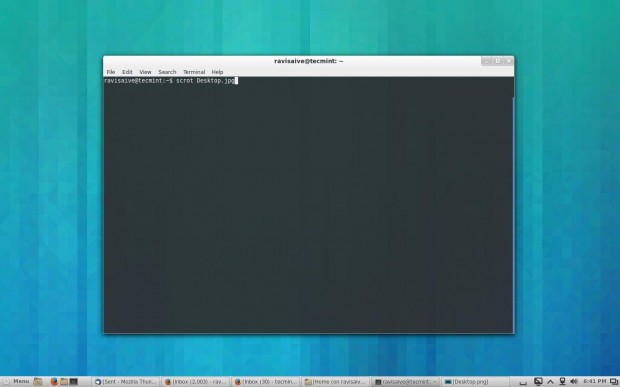
Let’s take a entire screen shot of the Desktop, using the following command in your terminal.

$ scrot /home/tecmint/Desktop.jpg
👁 Desktop Screen Shot
Desktop Screen Shot
Take Specific Window Screen Shot

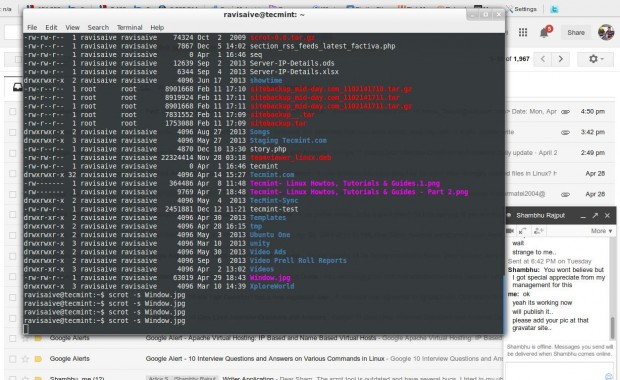
If you would like to capture a specific area on the screen, you can use the following command with ‘-s’ switch that allows you to interactively select the area with your mouse that you wish to take screen shot.

scrot -s /home/tecmint/Window.jpg
👁 Take Selected Window Screen shot
Take Selected Window Screen shot
Adjusting the Image Quality

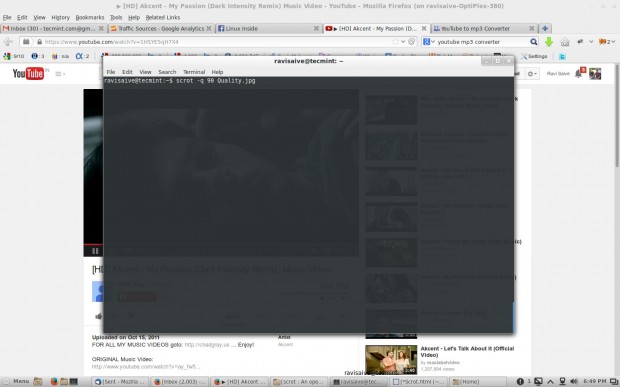
With the help of ‘-q‘ switch, you can specify the quality level of the image between 1 and 100. The default image level is set to 75, and the image output will be different depending upon the file format you specify.

The following command will capture an image at 90% the quality of the original high quality screen.

$ scrot -q 90 /home/tecmint/Quality.jpg
👁 Take Quality Screen shot
Take Quality Screen shot
Take Screen Shots Automatically

Now if you would like to get automatically screen shots, than you need to create a simple shell script. Create a file ‘screen.sh‘ with ‘touch‘ command and add the following content to it.

#!/bin/sh
DISPLAY=:0 scrot 'tecmint-%Y-%m-%d-%H_%M.jpg' -q 20 && mv /home/tecmint/*.jpg /media/tecmint

Now grant ‘777‘ permission and set an Cron job.

$ chmod 777 screen.sh

Open a ‘crontab‘ file and add the following entry. You can define custom interval time.

$ crontab -e
*/1 * * * * sh /home/tecmint/screen.sh

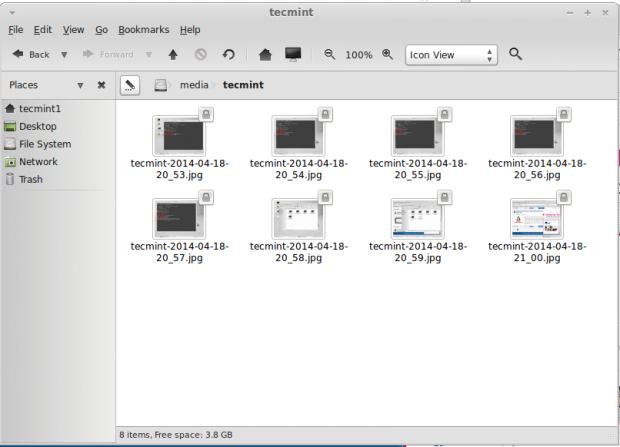
The above Cron entry will run every ‘1‘ minute and take screen shots and store them under ‘/media/tecmint‘ directory with filename as date and time. After running script for 1 minute, this is what I found in my ‘tecmint’ directory.
👁 Automatic Screen shots
Automatic Screen shots

Reference Links

http://linuxbrit.co.uk/software/

If this article helped, share it with someone on your team.
TecMint Weekly Newsletter
Get the Learn Linux 7 Days Crash Course free when you join 34,000+ Linux professionals reading every Thursday.
Check your email for a magic link to get started.
Something went wrong. Please try again.
TecMint has been free for 14 years. Help keep it that way.
Google AI Overviews and tools like ChatGPT have cut into search traffic for independent tech sites like TecMint. Running this site costs over $2,000 every month for hosting, infrastructure, and paying authors to keep the content accurate and tested.

If this article helped you solve a problem, consider buying a coffee. It helps keep TecMint free, supports the authors, and keeps the project going.

☕ Buy Me a Coffee
Shambhu Singh
I am an Linux sever and Desktop Administrator with over than 4 years of Linux experience. I love Linux and I am actually really interested in the many Linux distributors like Ubuntu, Mint, Fedora, BOSS etc.

Each tutorial at TecMint is created by a team of experienced Linux system administrators so that it meets our high-quality standards.

14 Comments

Leave a Reply
  1. Hi Team,

    It s nice Blog and useful, can I suggest to give continuity of this blog in saved the images to a server or one admin PC for tracking like server and client, and can provide for WIndows too.

    Reply
  2. Thanks for the write-up. It was very informative. I would like to know if there is a way to modify the automated script so that the screen is captured only whenever a certain application is running. I have a user who has installed TOR browser on an office machine and I would like to know why. It seems doable with this method, I just lack the knowledge of bash to make it happen. Thanks for any help you can provide.

    Reply
  3. From @climagic: sleep 5; scrot -u Phishing-email-example-with-mouseover.png # Use a sleep and the -u option with scrot to capture a mouseover screenshot.

    Reply
  4. Bashscript not working for me …

    Reply
    • @Muneeb,

      Which bash script is not working for you? what error you see while executing the script? could you share the output with us?

      Reply
  5. How does linux ubuntu show dual screens?

    Reply
    • @Stanley,

      You can enable the dual screens from the Ubuntu display i.e System -> Preferences -> Display

      Reply
  6. Hi,

    How we can take the screenshoot of any particular website like google or any monitoring tool like backuppc.

    Thanks,
    Anil

    Reply
    • @Anil,

      You can use shutter tool to take screenshot of any window or selected portion of windows…

      Reply
  7. Scrot is great for taking screenshots of a window without the title and borders:

    $ scrot -s

    And for those who want the window with the title and borders:

    $ scrot -b -s

    Great program.

    Reply
  8. It will be a major pain in the neck if you do not do the following before installing scrot on centos using the mentioned script to install from source.
    First enable Repoforge on CentOS: https://www.tecmint.com/enable-rpmforge-repository/
    Then do $ sudo yum install giblib-devel

    Otherwise it will keep giving an error The giblib-config script installed by giblib could not be found

    Reply

Got Something to Say? Join the Discussion... Cancel reply

Free Course
Get a free Linux course before you go.
Subscribe to TecMint Weekly and get the Learn Linux 7 Days Crash Course free. Read by 34,000+ Linux professionals every Thursday.
Check your email for a magic link to get started.