VOOZH about

URL: https://www.tecmint.com/tlp-increase-and-optimize-linux-battery-life/

⇱ TLP - Optimize and Improve Linux Laptop Battery Life


Skip to content

TLP is a free open-source, feature-rich, and command-line tool for advanced power management, which helps to optimize battery life in laptops powered by Linux.

It runs on every laptop brand, and ships in with a default configuration already tuned to effectively and reliably maintain battery life, so you can simply install and use it.

It performs power saving by allowing you to configure how devices such as CPU, disk, USBs, PCIs, and radio devices should utilize power when your laptop is running on battery.

TLP Features:

  • It is highly configurable through various power-saving parameters.
  • It uses automated background tasks.
  • Uses kernel laptop mode and dirty buffer timeouts.
  • Supports processor frequency scaling including “turbo boost” and “turbo core”.
  • Has a power-aware process scheduler for multi-core/hyper-threading.
  • Provides for runtime power management for PCI(e) bus devices.
  • PCI Express active state power management (PCIe ASPM).
  • Supports radeon graphics power management (KMS and DPM).
  • Has an I/O scheduler (per disk).
  • Offers USB autosuspend with blacklist.
  • Supports Wifi power saving mode.
  • Also offers an Audio power-saving mode.
  • Offers hard disk advanced power management level and spin-down timeout (per disk).
  • Also supports SATA aggressive link power management (ALPM) and so much more.

How to Install TLP Battery Management Tool in Linux

TLP package can be easily installed on Ubuntu as well as the corresponding Linux Mint using the TLP-PPA repository as shown.

sudo add-apt-repository ppa:linrunner/tlp
sudo apt update
sudo apt install tlp tlp-rdw

On Debian, the newer TLP packages are available via the official Debian repositories. Add the following line to your /etc/apt/sources.list file.

deb http://ftp.debian.org/debian DIST-backports main

and then update the system package cache and install it.

sudo apt update 
sudo apt install tlp tlp-rdw 

On RHEL, Arch Linux, and OpenSUSE, execute the following command as per your distribution.

dnf install tlp tlp-rdw [On RHEL]
pacman -S tlp tlp-rdw [On Arch Linux]
zypper install tlp tlp-rdw [On OpenSUSE]

How to Use TLP to Optimize Battery Life in Linux

Once you have installed TLP, its configuration file is /etc/default/tlp and you will have the following commands to use:

  • tlp – apply laptop power saving settings
  • tlp-stat – displays all power-saving settings
  • tlp-pcilist – displays PCI(e) device data
  • tlp-sublist – for viewing USB device data

It should start automatically as a service, you can check if it is running under SystemD using the systemctl command.

$ sudo systemctl status tlp

After the service starts running, you have to restart the system to actually start using it. But you can prevent this by manually applying the current laptop power saving settings with root privileges using the sudo command, like so.

$ sudo tlp start 

Afterward, confirm that it is running using the following command, which actually shows system information and TLP status.

$ sudo tlp-stat -s 
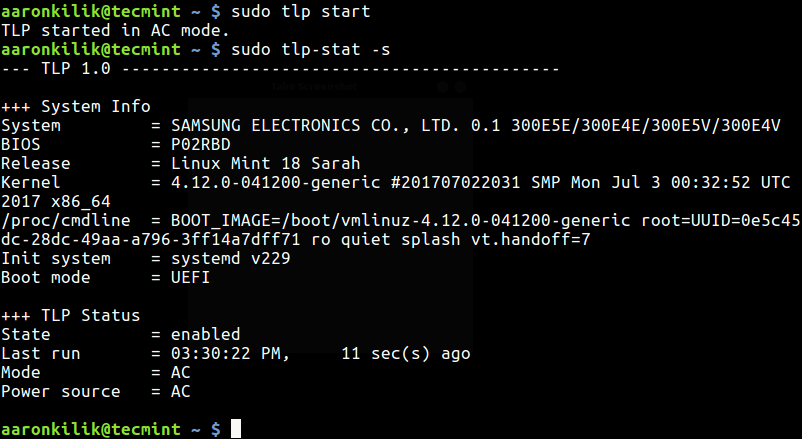
👁 Show System and TLP Information
Show System and TLP Information

Important: As we mentioned before, it uses automated background tasks but you will not see any TLP background process or daemon in ps command output.

To view the current TLP configuration, run the following command with -c option.

$ sudo tlp-stat -c
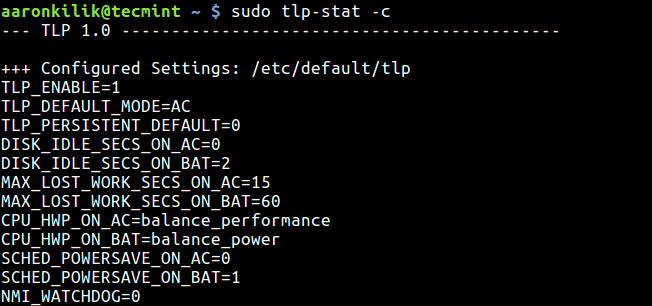
👁 Show TLP Configuration
Show TLP Configuration

To display all power settings run the following command.

$ sudo tlp-stat
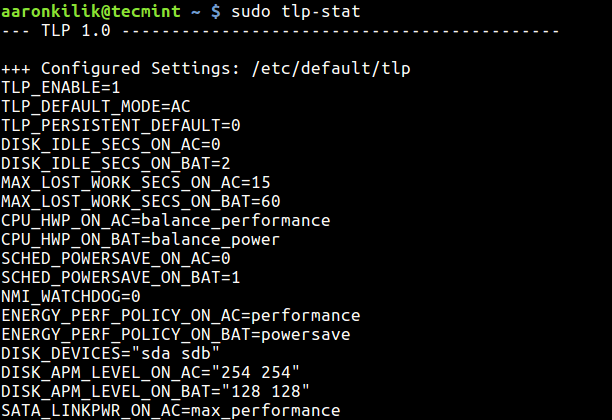
👁 Show Power Saving Settings
Show Power Saving Settings

To display Linux battery information, run the following command with -b switch.

$ sudo tlp-stat -b
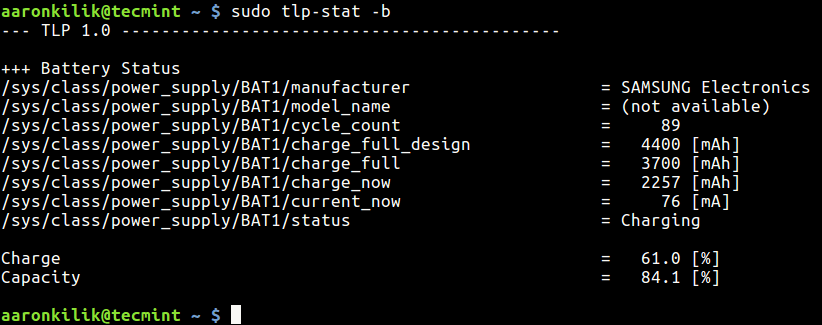
👁 Show Linux Battery Information
Show Linux Battery Information

To display the Temperatures and Fan Speed of the system, run the following command with -t switch.

$ sudo tlp-stat -t
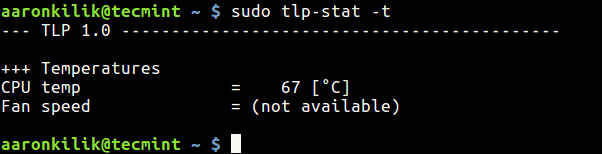
👁 Show CPU Temperature and Fan Speed
Show CPU Temperature and Fan Speed

To display Processor Data, run the following command with -p switch.

$ sudo tlp-stat -p
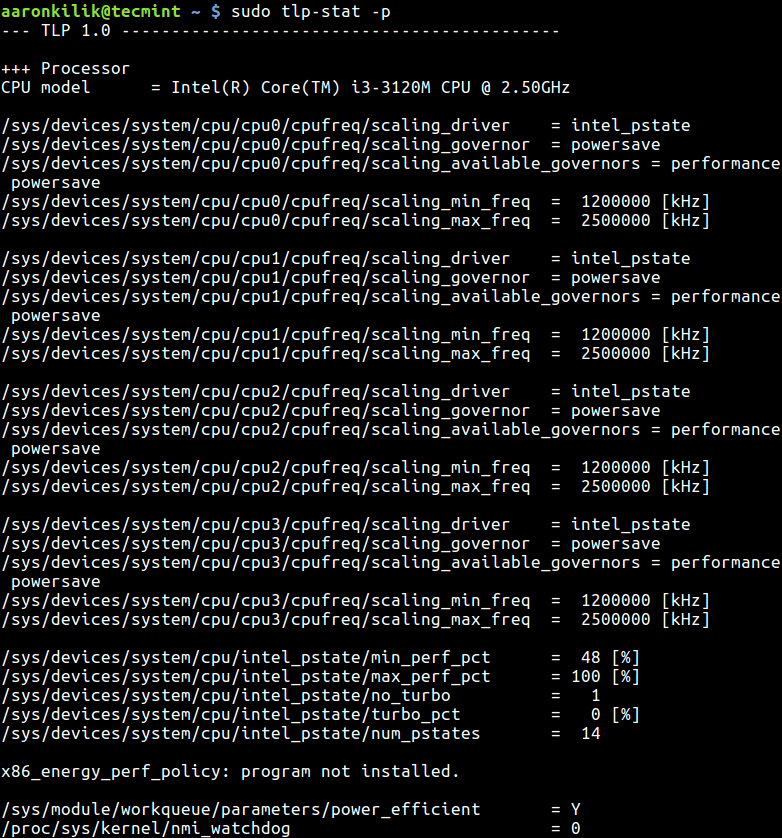
👁 Show Processor Data
Show Processor Data

To display any Warnings, run the following command with -w switch.

$ sudo tlp-stat -w

Note: If you are using ThinkPad, there are certain specific packages you need to install for your distribution, that you can check from the TLP homepage. You will also find more information and a number of other usage commands there.

TLP is a useful tool for all laptops powered by Linux operating systems. Give us your thoughts about it via the comment form below, and you can let us know of any other similar tools you have come across as well.

If this article helped, share it with someone on your team.
TecMint Weekly Newsletter
Get the Learn Linux 7 Days Crash Course free when you join 34,000+ Linux professionals reading every Thursday.
Check your email for a magic link to get started.
Something went wrong. Please try again.
TecMint has been free for 14 years. Help keep it that way.
Google AI Overviews and tools like ChatGPT have cut into search traffic for independent tech sites like TecMint. Running this site costs over $2,000 every month for hosting, infrastructure, and paying authors to keep the content accurate and tested.

If this article helped you solve a problem, consider buying a coffee. It helps keep TecMint free, supports the authors, and keeps the project going.

☕ Buy Me a Coffee
Aaron Kili
Aaron Kili is a Linux and F.O.S.S enthusiast, an upcoming Linux SysAdmin, web developer, and currently a content creator for TecMint who loves working with computers and strongly believes in sharing knowledge.

Each tutorial at TecMint is created by a team of experienced Linux system administrators so that it meets our high-quality standards.

22 Comments

Leave a Reply
  1. Very good indeed, but, care to explain where and how to edit the configuration file or files?
    Thanks in advance.

    Reply
    • @Ceaualbi,

      Thank you for your feedback!

      To edit the configuration file for TLP, you’ll need to open the /etc/tlp.conf file and make this changes in the file, and don’t forget to restart TLP to apply the new settings.

      sudo systemctl restart tlp
      
      Reply
  2. Hi,

    tlp-sublist – for viewing USB device data
    

    must be

    tlp-usblist – for viewing USB device data
    

    thanks for good article

    Reply
  3. +++ Battery Status
    /sys/class/power_supply/BAT1/manufacturer = PAC
    /sys/class/power_supply/BAT1/model_name = CP700280-01
    /sys/class/power_supply/BAT1/cycle_count = 61
    /sys/class/power_supply/BAT1/charge_full_design = 4500 [mAh]
    /sys/class/power_supply/BAT1/charge_full = 4333 [mAh]
    /sys/class/power_supply/BAT1/charge_now = 2024 [mAh]
    /sys/class/power_supply/BAT1/current_now = 0 [mA]
    /sys/class/power_supply/BAT1/status = Charging

    Charge = 46.7 [%]
    Capacity = 96.3 [%]

    The battery is not charging, and the laptop turns off when the charger is disconnected. Tried removing, putting it back, etc. What can be the reason? “current now” here shows “0”.

    Reply
  4. So I just have to install it and reboot to get it working right?

    I am having an Acer Aspire 315-51z

    Reply
    • @Anirudh,

      No need to reboot, just start the tlp service using the following command.

      $ sudo systemctl status tlp
      
      Reply
  5. All these tools does is cause a flurry of SELinux messages. I very quickly got tired of SENotify pinging me with messages every 3-4 minutes, so I removed TLP.

    Reply
  6. Hi,

    Does anybody knows how to handle tlp with audio in battery mode.

    When the laptop is connected to the power the audio is ok, but after a while in battery mode the laptop remains without audio. When it gets again the 100% of battery connected to the power the laptop recovers the audio.

    I have selected regarding the audio settings:

    SOUND_POWER_SAVE_ON_AC=0
    SOUND_POWER_SAVE_ON_BAT=0
    SOUND_POWER_SAVE_CONTROLLER=N
    

    With these I try to remove the control to TLP for audio purposes, but even with that configuration on battery mode I have no audio.
    Thanks

    Reply
  7. I am using Ubuntu 18.04. I am facing a LAN connection problem. The problem is when I start my laptop it will connect to the LAN but once I disconnect it it won’t reconnect. Then I will have to put the laptop in sleep mode and then it would reconnect.

    Every time I reinstalled Ubuntu and the problem didn’t showed up for the first 3-4 days and then again the same problem happens. But this time I think I have figured out the reason behind this. there was no issue till today when I installed tlp and started it.

    Only after tlp it showed the same problem again. I googled and got to know that tlp activation changes some settings in order to save battery. Is it possible that tlp is the culprit. If so is there any way I can disable a particular setting so that tlp keeps working and I get rid of the problem. And yes I have my laptop dual booted with windows 10 and there is no such issue in windows 10. So certainly it is specific to Ubuntu. I think I have to change some settings. Can someone please help

    Reply
  8. The TLP module appears to be the cause of problems with Intel network drivers. You could tell me how to stop the service by restoring the options of Default???

    TLP Start | true | bat | false | ac | usb | bayoff | discharge | setcharge | fullcharge | recalibrate | stat | diskid

    Seems to keep settings also removed the tool

    Several users on Fedora and not only report problems to Intel network card drivers and the cause is TLP

    https://serverfault.com/questions/616485/e1000e-reset-adapter-unexpectedly-detected-hardware-unit-hang?newreg=14f08e6d4ecf415e9d288d5fae2c485b

    Reply
    • @IVA

      I have read through the thread but didn’t see any one directly mention TLP module as the cause of problems with Intel network drivers, although some answers have stressed about disabling Active-State Power Management but not connection with TLP.

      You can completely remove it, including config files with this command:
      $sudo apt-get purge tlp tlp-rdw

      Once you have removed it, try to check if the cause of problems with Intel network drivers was actually TLP, and give us some feedback.

      Reply
      • Look I ran in doubt a clean installation of Fedora 28 without TLP… No problem…..

        The problem arise the next reboot after the installation of TLP…… Is that and since it is no longer installed I see no more error reported!!!!

        Reply
        • @Ivan

          Okay, it could have caused the problems with Intel network drivers, which your were facing and other Fedora users. And by the way, the correct command for removing it on Fedora is:
          #dnf remove tlp tlp-rdw

          Thanks for the feedback, we will update this article to include this issue. You can also raise this issue to the developer via: http://linrunner.de/en/tlp/docs/tlp-linux-advanced-power-management.html

          Reply
          • Also removed the settings given to the kernel remain, otherwise I think until there I would have arrived….

            The developer is already a week knows of the problem from me reported on GIT!!!!!

            Anyway we Blog I follow you very much!!!!

    • I don’t know how to stop certain service on Fedora, but on Ubuntu you would run ‘sudo systemctl stop tlp‘.

      Reply
  9. Hi,

    I used tlp on my ubuntu 16.04 partitioned with LVM, it causes me a lot of system crashes, which force me to hard reset laptop on each crash.

    Does any one have idea about this issue ?

    Reply
  10. Under lubuntu 16.04 lts, can xfce power manager and tlp coexist? if not how to disable xfce power manager?

    Reply
    • @Jai

      Try to go to Session and Startup->Application Autostart, then locate Power Manager in the list and uncheck it. If you fail to find it, you can check the documentation for xfce.

      Reply
      • I already tried through “Default applications for LXSession->LXSession configuration->Autostart, uncheked power manager” as Admin user and normal user. It is not making any difference. Xfce Power manager always present.

        Reply

Got Something to Say? Join the Discussion... Cancel reply

Free Course
Get a free Linux course before you go.
Subscribe to TecMint Weekly and get the Learn Linux 7 Days Crash Course free. Read by 34,000+ Linux professionals every Thursday.
Check your email for a magic link to get started.