
I hear you — 20 degrees Fahrenheit sounds like a lot. And it is, but it's a difference in PC temperatures that doesn't seem like that much. 20 degrees Fahrenheit is roughly equal to 10 degrees Celsius, which might not seem like a massive temperature drop when you're looking at it in HWInfo or whatever monitoring program you use. But a few simple tweaks can drop your PC temperature by that much.
I'm not breaking any new ground here, but for gaming PCs, especially, you have a lot of room to lower your temperatures. A few degrees here and there may not seem like much, especially if you're in the US and accustomed to using Fahrenheit. But it can add up quickly.
5 lies about tweaking PC hardware that you tell yourself
These hardware tweaking myths can chase you forever
4 Undervolting and power limiting my CPU
Big savings without much work
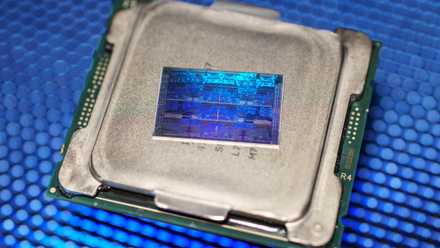
You should be undervolting your CPU. Although it's a technique that's commonly framed as the antithesis to overclocking, that isn't the case at all. The idea behind undervolting is to lower the stock voltage your CPU requires from the factory. Given you have adequate silicon, there's a good chance that you'll be able to reach the same clock speeds with a lower voltage and still have a stable CPU. Less voltage means less power, which results in lower temperatures.
It's easy to undervolt your CPU in the BIOS, regardless of whether you have an AMD or Intel chip, and it's safe — the worst that can happen with an undervolt that's been pushed too far is a crash. Again, the goal is to maintain clock speeds at lower voltage, so you shouldn't sacrifice any performance. However, you can trade some performance, particularly if you play games, and achieve even lower temperatures.
That comes from a power limit. Particularly among flagships, there's a massive power budget that you really don't need while playing games. Ideally, your GPU will be the driver of performance in your games. That gives you the chance to cut down on power and temperatures even more by setting a conservative limit on how much power your CPU can draw.
5 hidden BIOS tweaks to slash your power usage and temperatures
Achieve a cooler system without losing performance
3 Undervolting my GPU
The benefits depend on your generation
You'll find the biggest power and temperature wins by undervolting your CPU, but you can undervolt your GPU, too. While most modern CPUs can benefit from undervolting, GPUs are in a different boat. Stock voltages aren't nearly as aggressive on most modern GPUs, limiting the potential temperature savings undervolting can net you. However, there are some generations, such as Nvidia's Ampere generation, where you have a lot of room for undervolting while still maintaining performance.
Undervolting your GPU is less about making your GPU cooler — though it will help with core temps — and more about making your PC cooler overall. Your GPU has its own cooling apparatus, after all, so the goal is to limit the amount of heat radiating off your GPU and into your case.
There are a handful of programs that will let you dial in a quick undervolt to your GPU, and it's even easier than CPU undervolting. Most people recommend MSI Afterburner, and it's the go-to option in most cases. I'm partial to Asus GPU Tweak III, not for any specific advantages, but just because I'm familiar with it.
MSI Afterburner

4 mistakes people make while undervolting their CPU or GPU
You can't just lower the voltage and expect your desired results
2 Optimizing single-channel airflow
Make your fans work smarter, not harder
I'm not sure what to call proper airflow in a PC, so I'm going to refer to it as "single-channel" airflow. Basically, the idea is to have a single, continuous path for air to flow into and out of your PC. You can expand into more exotic airflow setups, but the vast majority of people only need a handful of case fans oriented in the right direction to get excellent temperatures.
You want to designate an intake and exhaust zone in your case. Air should flow in from one area and exhaust in another; if you split up your intakes and exhausts without a clear reason, you're reducing the efficiency of your fans. The goal is to have air moving through your case as quickly as possible. You want to exhaust hot air quickly, and you need cool, fresh air to keep everything at bay. If you split your intakes and exhausts without properly balancing them, your fans will work against each other.
In general, you want to have your intakes at the front and exhausts at the top or rear of your case, but it really depends on your individual build. In addition, you should have a bias toward positive air pressure, which means using more intake than exhaust fans. I like a three/two split for my fans. A slight bias toward positive air pressure will reduce dust build-up in your case, all while keeping a consistent channel of airflow moving through your PC.
Corsair iCUE LINK QX120 RGB fan

7 tips to improve gaming performance without taking your wallet out
Don't want to spend? No problem. You can boost your FPS for free with these tips
1 Making liberal use of frame generation
It's a tool. Better use it
Frame generation is a tool that can save a ton of power in your PC, but I rarely see it discussed in that context. Instead of getting you to a playable frame rate, I like using tools like Lossless Scaling, DLSS, and FSR 3 to introduce frame generation as an efficiency check. When you can't quite reach a high enough frame rate, the idea is to cap your frame rate lower, turn on frame generation, and get a silky-smooth experience.
The counter to frame generation is latency — frame generation introduces additional latency — but it's much less of a problem than it sounds like if you already have a high base frame rate. As an example, if I'm running a game at 90 to 100 fps normally, I'd cap my frame rate at 60 to 70 fps and turn on frame generation, getting me the smoothness of 120 to 140 fps. Yes, there's a slight increase in latency, but not enough to make a significant difference in the gameplay experience.
This does two things. First, it limits how much power your GPU needs overall. If you're rendering fewer frames, your GPU is consuming less power and generating less heat. It also gets around power spikes in your GPU. Without an fps cap, your GPU will render as many frames as it can, leading to variable power draw as frame rates ebb and flow. A cap keeps things more consistent, and with the help of frame generation, you can still get the smoothness you want.
Lossless Scaling
- OS
- Windows
- CPU
- 64-bit processor required