
Modern PC hardware has reached a point where performance isn't a concern on most machines. As long as you have a new 6-core processor and a $350–$400 GPU, you can easily power through 1440p gaming. Many users focus instead on reducing the power consumption and, consequently, operating temperatures. Tweaking your BIOS/UEFI is a fantastic way to cut down on power usage without affecting performance too much. You just need to ensure you're fully aware of the effects of disabling or enabling a setting.

The default BIOS/UEFI settings aren't great: Here's what to set instead
PCs, laptops, and motherboards often ship with BIOS/UEFI settings that leave power on the table. Let's fix that.
5 Multicore Enhancement and PBO
On or off, that is the question
If you're using an AMD Ryzen CPU, using Precision Boost Overdrive (PBO) is a must. PBO enables your Ryzen CPU to unlock extra performance by automatically adjusting the voltage and frequency of the processor depending on the load. The real kicker is the Curve Optimizer, though. This is the part of PBO that allows you to tweak the default voltage-frequency curve of your CPU, so that you can achieve the same frequency at a lower voltage, reducing power consumption and CPU temperature.
On Intel CPUs, Multicore Enhancement (MCE) is a similar but slightly different setting in the BIOS. What it does is allow each of your CPU cores to run at the maximum boost frequency simultaneously, rather than a few at a time. Most people, however, should disable MCE to conserve power and achieve lower temps. Unless you need to benchmark your CPU or regularly run multicore workloads, disabling MCE is the smarter choice. Your Intel chip's Turbo Boost feature will take care of automated frequency boosting.

6 PBO settings you can change to make your Ryzen CPU run even faster
Get the most out of your AMD CPU.
4 AMD Eco-Mode and Intel power limits
Drop your TDP for some thermal improvement
AMD processors support Eco-Mode, which runs the CPU at a lower TDP to reduce power consumption and hence, temperatures. While reducing the TDP of your CPU from, say, 105W to 65W will usually reduce performance, the drop is usually quite small compared to the temperature drop you get as a result. In many cases, users report an increase in performance after enabling Eco-Mode, especially in gaming. You should experiment with your particular chip and decide if you want to keep the mode enabled or not.
On the Intel side, you can achieve more or less the same result by tweaking the power limits, i.e., PL1 and PL2. The long-term and short-term power limits are indicated by PL1 and PL2, respectively. You can head into the BIOS and lower these limits to cut down on the power your Intel CPU consumes. Usually, you'll find your PL1 set to your chip's TDP, but you can reduce it slightly, test the stability in your favored workloads, and experiment with different values before finalizing one.

5 features to enable in Ryzen Master to get the most out of your AMD CPU
Here are the best features to use in Ryzen Master to get the best out of your AMD Ryzen CPU
3 CPU voltage (undervolting)
Take matters into your own hands
Undervolting your CPU is one of the best ways to drop temperatures without losing performance. If done right, undervolting allows you to achieve a lower voltage level for the same frequency. It's a more manual avatar of PBO's Curve Optimizer, and gives you more control over the voltage settings. The increased thermal headroom allows your CPU to sustain its boost clocks for longer, resulting in better overall performance.
Most CPUs are conservatively configured to consume more voltage than required to ensure stability. When you're undervolting, you're essentially removing that excess voltage without affecting performance, reducing the heat produced, and thereby reducing the CPU temperature. You'll need some trial and error to find the right voltage offset in the BIOS, but the benefits are well worth the effort.

3 reasons why I always undervolt a new CPU
I'd pick undervolting over overclocking any day
2 CPU Lite Load
For a simpler undervolt
CPU Lite Load is a setting available on Intel CPUs that essentially dials in an automatic undervolt to reduce power consumption and temperatures under load. It adjusts the voltage supplied to the CPU under various load conditions based on the settings you configure in the BIOS. Different motherboard manufacturers calibrate things differently, but in general, the lower levels represent a more aggressive undervolt, while the higher levels represent higher voltages.
To start with, you can set a value of 4 to 6 if you see 10 levels in the CPU Lite Load settings. Test the stability of the system, and return to the BIOS to lower the value if all goes well. CPU Lite Load doesn't hand you full manual control, but it's a simpler way to undervolt your CPU, and it works well for most users. You can usually find this setting under "Overclocking" in the "CPU Core" section, or something similar, depending on your motherboard.

4 myths about undervolting that simply aren't true
Undervolting is a powerful tool, so it's important to understand how it works.
1 Custom fan curves
Don't rely on Auto
The settings we have covered till now dealt with CPU frequencies and voltages directly, but this one has a more indirect impact on your CPU power and temperatures. Setting custom fan curves in the BIOS allows you to keep your CPU temps in check while also ensuring your system fans don't work harder than they need to. When your PC is under load, say, during a game or an intensive application, a fine-tuned fan curve can ramp up your fans gradually, reducing noise levels while keeping your CPU cool.
This has the indirect effect of reducing power consumption by not only allowing the system to run the fans at a slower speed, but also by keeping your CPU's heat output low. The power savings achieved with custom fan curves might not be as impactful as the other settings, but every bit counts when you're aiming for thermal efficiency.
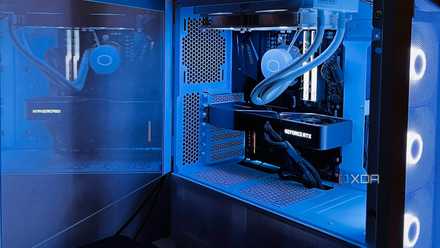
5 changes I made to make my PC run as silent as possible
Building a silent PC doesn't have to be complicated
Ace your BIOS game for a cooler system
Your CPU's power consumption not only determines your CPU temps, but also the power consumed by other components linked to those temps. By tweaking a few settings in the BIOS that reduce power consumption without an equivalent reduction in performance, you can realistically achieve a less power-hungry and cooler system without any hardware upgrades. It's worth investing some time and effort in this process if it means far-reaching benefits in the long term.