
Home Assistant is an incredibly powerful tool for home automation. It connects all the different smart home systems, protocols, and more. From remote monitoring to managing IoT devices from one dashboard, it can make your life so much easier.
The dashboard also has a huge app store with add-ons and integrations, whether you'd expect to find them or ones you might not have thought could be integrated into a smart home setup. We're diving into those latter integrations here, with a list of plugins to add to Home Assistant that you might not have realized you needed.

10 of the best add-ons for Home Assistant
Boost the capabilities of your smart home with these amazing Home Assistant plugins
5 Your home media server
Jellyfin makes the process seamless
You might not have thought you needed to connect your home media server to your smart home, but once you've done it, you won't want to go back. You can use the starting playback of a movie to trigger dimming the lights, quietening the fans, and maybe turning the home theater speakers up to a more engaging level. But it's so much more. You can control what's being played from the HA dashboard, whether Jellyfin is running on a TV, a smartphone, or a PC. You can control your surround sound system during the movie or segue into background music once the movie is over, which makes it all more atmospheric, while the lights slowly go back up. Quality stuff.
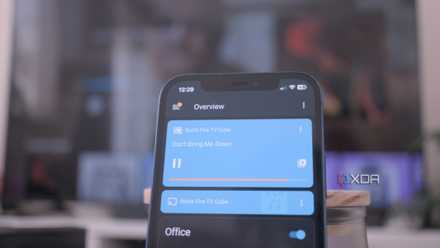
How to connect Jellyfin to Home Assistant and all your smart devices
Get the best of both worlds by adding Jellyfin to Home Assistant.
4 HASS.Agent
Make your desktop computer part of your smart home
While most Home Assistant add-ons control other smart home devices or integrate different IoT sensors, HASS.Agent is different. It integrates your desktop computer, so you can use an applet on your desktop to control your smart home instead of a smartphone app or the HA dashboard on the web. It also allows notifications from your HA install as toast popups on Windows, which is pretty handy and allows you to take action from the notification.
But because it's on your computer, it can work both ways. You can use Home Assistant to control your computer, send sensor readings to HA to show system stats, or control your PC as if it were a media player. It's pretty powerful and can be configured with a huge range of sensors and actions to create almost any custom command you can think of.
3 Lovelace Kindle Screensaver
Use a jailbroken Kindle as your HA monitor
One of the tricky things to figure out for HA is how you're going to monitor the dashboard. Sure, you could keep a browser tab open on your computer all the time, but where's the fun in that? Not to mention the power drain. But if you have a jailbroken Kindle, then you have a perfect monitoring screen with e-ink that will use pretty much zero power to display a Lovelace view of your HA instance.
Once set up, the program regularly takes a screenshot of a specified page of your Home Assistant instance. Then it converts it to grayscale, so the Kindle can display it properly, and puts it in a folder ready for use. The Kindle then runs an online screensaver plugin that pulls the image from your HA installation and uses it as the screensaver, so when you're not reading, your Kindle is showing how your smart home is performing. It's pretty awesome, and an awesome way to use the low-power E Ink screen of the Kindle to full effect.

Amazon Kindle Paperwhite 11th Gen review: The best e-reader for most people
The latest Paperwhite is a marked improvement over its predecessor, offering a big display, a comfortable reading experience, and insane battery life.
2 Your Sonos speakers
We all hate the new official app, right?
I'm pretty deep in the Sonos ecosystem, as for the longest time, it was the easiest way to listen to my collection of streaming apps from one speaker setup. Then, the app went through a disastrous redesign that made it harder to use reliably. The system is still fantastic, though, and most of the time, I'm only using it for my TV's Dolby output. But, Home Assistant can connect to the Sonos API, making it a much easier way to control the settings. I can't tell you how many times recently I've tried to change things like Sub gain or adjust the surround sound through the official app, only for it not to save the settings. Installing the Sonos add-on for HA fixed these issues in seconds, instantly saving the settings that I was trying to change.

Sonos Ace review: Over-ear headphones so comfortable you’ll want to wear them all day
Sonos proved that comfort is just as important as sound quality.
1 Control your 3D printer
If you use OctoPrint or a Prusa
OctoPrint is one of the most useful things to add to any 3D printer. It offers powerful features like wireless printing or monitoring, which most budget printers lack, and even some more premium models. Once your 3D printer is on the network, it's prime for integrating to Home Assistant, and then you can monitor and control it from anywhere. You can get real-time sensor readings and camera feeds in your HA dashboard while you're printing, which is handy information indeed. You can control the print from the dashboard, including things like pausing or terminating prints, preheating the bed or extruder, or a huge range of control options.

Best 3D printers in 2024
3D printers are more affordable than ever in 2024. Here are our favorite 3D printers to consider before buying.
Home Assistant can link to almost anything your smart home requires
With thousands of APIs supported, Home Assistant can connect to almost anything you can think of. And if there isn't an official add-on, there's often a community-created tool to link the software or devices you want. It's fun to create chains of smart home actions set off by opening your media playback programs or checking in on your HA dashboard from your Kindle.