
SSDs are supposed to be fast. They're supposed to provide rapid access to your files in a snap of your fingers, transfer files in a flash, and provide great workstation and gaming performance. However, sometimes real-world performance doesn’t match the numbers on the box. If your SSD feels sluggish, it’s not always a sign of failure. Not every explanation is one that can be easily remedied, but these five are common sticking points for SSD performance.

5 mistakes to avoid before you decide to buy a new SSD
Choosing the right SSD isn’t just about speed. Avoid these 5 costly mistakes to ensure performance, longevity, and value for money.
Outdated firmware and lack of drivers
Vendor-specific drivers are important
Unlike drivers and firmware for other hardware in your system, SSD firmware updates often go overlooked, despite the fact that they can have a tangible effect on performance and reliability. SSD manufacturers will routinely put out firmware updates to fix bugs or improve performance and reliability. If you've never updated firmware for your SSD, you're almost certainly missing out on free optimizations.
Windows will install a generic driver for all storage that will allow them to function properly, but they aren't tuned for your specific model of drive. This is especially true in the case of NVMe drives, where vendors like Samsung provide their own drivers to offer better queue handling and lower latency. Intel Rapid Storage Technology is a drive that does this on Intel platforms for SSDs of all brands.

5 SSD specs I look for that actually matter
If you're not checking the spec table for these 5 things before purchasing an SSD, you're doing it wrong.
It's almost full
Free some space to speed up things
SSDs require an adequate amount of free space to write data efficiently. If you're down to your last 10% of space, it's definitely possible to fill that space completely, but your performance in doing so will almost certainly suffer, as the drive has to shuffle data around on the NAND in order to find usable space. To avoid this, keeping the available space above the 10% mark will mitigate most space-related slowdowns. That buffer will allow the storage controller to more efficiently move data around and keep performance consistent as your drive ages.

4 reasons you might need an SSD with DRAM in your gaming PC
DRAM SSDs vs DRAM-less SSDs, which is better for your gaming PC?
Your model lacks a DRAM cache
One of the most important components for SSD performance
SSDs vary quite widely in the level of performance they offer, and one component that cannot be ignored is the presence of a DRAM cache, or the lack of it. A DRAM cache stores mapping tables, which is basically a quicker reference for your SSD to know where certain data is stored. DRAM is typically made up of much faster memory than what your SSD uses for storage. In cases where your SSD doesn't have a DRAM cache, it typically relies on Host Memory Buffer, which essentially pulls from system memory.
In real-world performance, the lack of a DRAM cache results in adequate performance in light sequential loads, but the trouble begins in random or sustained workloads. Gaming or heavy multitasking will still be faster than an HDD, but the lack of DRAM is noticeable when compared to an SSD that has one. Unfortunately, you can't add a DRAM cache to your SSD if it lacks one, but it's figuring out whether yours has one. That way, if you purchase a new SSD that does have one, you can deploy both in ways that will play to their strengths.
Thermals are suffering
Like any component, high temps can mean throttling
High temps are the bane of all electronics, and storage is no exception. SSDs can generate a significant amount of heat when under a load, such as a large, sustained file transfer. When a specific thermal threshold is reached (somewhere around 70 degrees Celcius) the controller on-board the drive will throttle speeds in order to prevent damage.
This thermal throttling is necessary for keeping your drive alive, and will happen more frequently in smaller, compact systems where airflow is at a premium, but that doesn't mean it can't happen in a full-size ATX system. If you have a large case and adequate airflow to other components, but your SSD is suffering, it may be worth getting a heatsink for your drive. If it already has one, check to make sure the protective peel on the thermal pad has been removed before installation. Leaving this peel on can absolutely cause a drive to thermal throttle, and don't ask me how I know.
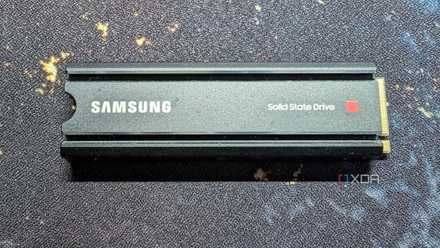
5 signs your NVMe SSD might actually need a heatsink
You better notice the signs before your SSD starts cooking (in the worst way)
Using the wrong M.2 slot
The slot matters
Most motherboards released in the last few years will feature multiple M.2 slots for storage, but not all of them are created equal. Some will share bandwidth with other components in your system, like SATA drives, while others are limited in PCIe lanes.
The best way to tell what slot is your "primary" M.2 slot is to consult the motherboard manual. There, the manufacturer has outlined which slots run at what speed depending on how many devices you have connected. Some slots will go through the chipset instead of directly to the CPU, which adds latency and reduces overall bandwidth. Double-check the manual to ensure you're using the fastest slot available.
SSD performance can be tricky
An SSD that isn't living up to the speeds on the tin can be frustrating, but thankfully, in most scenarios the cause is pretty straightforward. Thermal throttling and lack of space are some of the most common causes, but it's important to rule out other factors like PCIe lane limitations. SSD technology keeps advancing, but even the fastest hardware can be held back.