
If you have a PC with an SSD installed, it might run out of storage space, especially if you want to save a few bucks and buy a low-capacity drive. This is true on older PCs when SSD costs were higher and when it was a new technology. If you want to purchase a new SSD with more storage, you certainly can, but you don't have to. Increasing the PC's storage can still get more from your laptop.
However, if you're going to get the most from your SSD, you can take steps to increase the storage without buying a new drive. Some of these tips require buying an external drive, but it’s more affordable than purchasing a brand-new SSD. Another reason you may want to do this is because you aren’t fond of the idea of installing a new drive–namely, in your laptop.
6 Use OneDrive Files-on-Demand
Access your files without storing them on your SSD
It’s essential to have storage space on your PC for other items. If you want to improve your PC's storage space with an SSD, you can use OneDrive Files-on-Demand. It allows you to move your file collection up to OneDrive and access it from your computer without downloading. It shows your file collection in OneDrive as placeholders. Once you click the files, you can access them and make revisions, then move them back to the cloud.
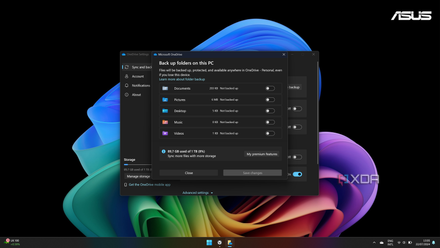
How to turn off OneDrive folder backup in Windows 11
Windows 11 comes with an annoying feature that automatically backs up and syncs certain folders with OneDrive. Here's how to turn it off.
5 Run Disk Cleanup including system files
Reclaim GBs worth of storage with Disk Cleanup
You can reclaim gigabytes of storage by running Disk Cleanup correctly and deleting old system files. Each time Microsoft releases a major feature update, it saves the system files so you can roll back your system if needed. If run correctly, it can save you a lot of storage space on the SSD on your PC. Disk cleanup is a legacy Windows utility, but it performs better than modern storage features like Storage Sense or Cleanup Recommendations in the Settings app. However, you can also use Microsoft’s PC Manager utility to remove nearly the amount of space Disk Cleanup does. To clean system files, press Win+R, type cleanmgr, select Cleanup system files, select the files to remove, and click Delete files.

4 reasons you should still use the Legacy Disk Cleanup utility in Windows 11
Storage Sense in Windows 11 is useless. Here's why you should still use the built-in legacy Disk Cleanup utility.
4 Install an SD or MicroSD card
It’s a cheap way to increase storage
This is one of the tips that requires you to purchase something. Luckily, SD cards are an affordable way to increase the storage on your Windows PC. Or, maybe you have some SD cards that you’re not using. SD card transfer speeds aren’t the fastest, but it can be a good solution if you only need to store files and folders on the cards. It is also important to note that if you don’t have an SD or Micro SD card slot on your PC, you can get an SD card-to-USB adapter, which you can grab online for around $10.

Unlock massive storage for less with this 1.5TB microSD card that's now 27% off
This is the largest microSD card you can buy
3 Share your files over Wi-Fi to a NAS
Network-attached storage provides tons of space
If you have a home lab or just a stand-alone NAS, you can move the files from your computer with the SSD to the NAS via Wi-Fi. A NAS is basically a server with multiple hard drives that connect to your network and can be accessed by other devices on the same Wi-Fi network. A NAS with 2TB of storage gives you access to that storage from your PC like an external drive, but over the network. The main issue to consider with this, however, is that the transfer speeds can be bottlenecked by your connection and traffic congestion.
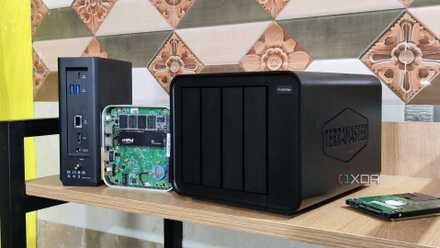
10 overlooked NAS features you should be using
Don’t let these features stay unused.
2 Use a USB Flash Drive
A low-profile drive to add lots of storage
USB flash drives are likely one of the first things you think of when it comes to expanding your current PC with an SSD’s storage. They are responsive and easy to use. They are also faster than using an SD card when it comes to managing files between your PC and a flash drive. Prices for USB flash drives are also affordable. Most support USB 3.2 Gen 1 or 2 drives, and they are inexpensive. For instance, you can get a 512 GB flash drive for under $30. But chances are you have a few extra flash drives lying in your desk drawer that you can use. You can also disconnect the drive if you don’t need it all the time and use it to transfer files from other computers.

How to recover deleted files from a USB flash drive quickly and easily
This post is sponsored by Tenorshare.
1 Install an External Drive
More storage with outstanding performance
An external drive is a powerful way to add a ton of storage to your laptop or desktop PC. Like a USB flash drive, it is a great way to add storage even if you don’t always need it. If you don’t need the drive connected 24/7, this is a good option, and you can use it with other PCs to transfer different files. Compared to an SD card, an external drive will offer better performance with faster speeds for accessing and storing your data. You may not need the largest one they sell either. If you are considering a flash drive or microSD card, you can spend less by getting a lower-capacity drive that will get you through the next few years. Also, you might already have one you forgot about and can use if it's in working order.

5 differences between exFAT and NTFS for your internal and external drives
While either file format can be used to format any hard drive, they are designed for different uses, so it's important to know which one to choose.
Make your SSD last longer by getting more storage
If you aren’t ready to install a new SSD or M.2 SSD on your PC, you can use the above tricks to get more storage out of it. Typically, you will have the best results when purchasing a new drive, but you might not be able to afford it. Or, your PC might be in that “limbo” space where it’s not worth getting a new SSD and purchasing a new machine instead. If so, it doesn’t hurt to see how much more you can get out of that PC and increase your storage space simultaneously.