
Having space available on your PC's drive for files, data, and apps is essential. Instead of constantly storing your files on your drive, you can use OneDrive’s File On-Demand feature to help free up room for other things. It allows you to see your collection of files from your computer without having to download them. This transfers the space that files are taking up over to the cloud, so you have space for other important items on your PC.
Once in OneDrive, you will still see your files in File Explorer with the thumbnail and metadata included as a “placeholder.” The files you open will then be downloaded to your computer using this internet-only feature. Only the files and folders you designate to always be on your device takes up space on your drive. There are a few ways to run and use Files On-Demand, so let’s take a look.
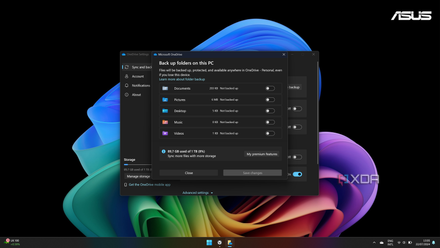
How to turn off OneDrive folder backup in Windows 11
Windows 11 comes with an annoying feature that automatically backs up and syncs certain folders with OneDrive. Here's how to turn it off.
Enable Files On-Demand in OneDrive
- Click the OneDrive icon in the system tray, click Help & Settings (gear icon), and click Settings from the menu.
- Click Sync and backup from the left panel.
- Scroll down, expand the Advanced settings section, and click Free up disk space under the Files On-Demand section.
When initially turning this feature on, even files set as Always keep on this device will be sent to OneDrive. So, you will need to reset them to be available on your drive. Keep in mind the only way to access files from this feature is with internet connectivity.
Turn on Files On-Demand from File Explorer
You can also enable and use the feature directly from File Explorer to free up space for a set of files. This is helpful if you are already managing your files and folders.
- Launch File Explorer and open the OneDrive folder in the left panel.
- Select the files and folders that you want to be moved from your local drive to the cloud.
- Right-click your selection and click Free up space from the context menu to make them on-demand.
- A notification will appear once your files are sent to OneDrive.
- While you are here, right-click your files and folder and select Always keep on this device to download the files so they're available on your computer sans the internet.
You can select multiple files and folders from the OneDrive directory in File Explorer by holding Shift or Ctrl and clicking the items.
Run OneDrive’s Files On-Demand
From the Settings app using Storage Sense
It’s also possible to run and manage Files On-Demand from the Windows 11 Settings app using these steps.
- Open the Settings app.
- Navigate to System -> Storage -> Storage Sense.
- Under the Username – Personal section, select the number of days you want files to be online only if not opened. You can choose from 1 to 60 days.
- Click the Run Storage Sense now button.
Choose the Never option if you don’t want OneDrive to make your files only available online.
Using the Files On-Demand feature on Windows 11
Regardless of how you use OneDrive’s Files On-Demand feature in Windows 11, it helps free up drive space. The amount of space you can reclaim will vary based on the type and size of the files you use this feature with. Large spreadsheets, PDFs, and PowerPoint files will use a lot of drive space. You can use this with photos and media files, but you won't be able to access them as seamlessly as other files.
However, it’s important to note that opening documents stored in OneDrive will be downloaded to your PC, which takes up room on your drive. So, you will need to rerun it to get them back on your computer. An effective workaround to manage the annoyance is to use the Settings app and set Storage Sense to a lower number of days.