
Like many PC components, hard disk drives have a finite lifespan. Flash storage, like you would find in SSDs, also has a finite lifespan, but not in the same way as HDDs. The spinning platters and mechanical arms inside will experience wear and tear, and with time, eventually they will cease to function.
Despite the physical nature of the storage medium, you can make HDDs last for years—sometimes even decades—with proper care. By following certain best practices, you can reduce the stress on your drives, minimize the risk of failure, and extend their operational window. Here are 6 ways to make your HDDs last longer.

7 signs your hard drive might be dying
Hard drives aren't known to last long. Here are some telltale signs that yours might be at the end of the line.
6 Avoid excessive vibrations
The internal components do not like to be rattled around
The fastest way to kill a hard drive is with physical shock. Since there are moving parts inside, any kind of physical movement can disturb the normal functioning of the drive. Drops can be an instant killer, but moving the drive while it's operating and not mounting it correctly can also cause the drive to malfunction or even outright die. When moving drives around, be sure that they aren't powered on and that they're secured correctly.
When I was moving countries a couple of years ago, I put my collection of internal HDDs into my backpack and flew with them as a carry-on. Despite my best efforts to prevent sending any kind of physical shock through the drives, I still ended up with one dead HDD. I suspect this was because I only had enough protective wrap to put around 2 of the three drives, but there's no way to know for sure.
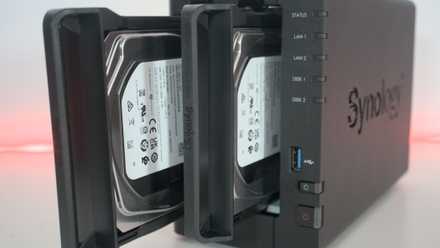
How often do you need to replace your NAS drives?
When should you replace a NAS drive?
5 Monitor drive health
Don't ignore the warning signs
Keeping tabs on where your drive health stands is important to ensure no rapid degradation is happening. Drives can sometimes fail suddenly, but most times you'll be given enough runway to save at least some or all of the data on the drives before complete failure. Along with the integrated Windows options, applications like Hard Disk Sentinel and others can help you get a good picture of your drive health.
Looking at S.M.A.R.T. attributes and factors like power-on time can help you determine whether something is wrong with your drive. Sometimes, the warning signs are much more physical. Audible grinding noises or loud clicking coming from within your drive are warning signs that something has gone awry. If you hear anything like that, it's time to start saying goodbye to your precious hard disk.

3 easy ways to check hard drive health on Windows
If your hard drive is showing symptoms of failure, use these tools to check its health
4 Minimize write cycles where possible
There are certain things you shouldn't use an HDD for
HDDs are great for long-term backups or any kind of data you seldom need access to. They're not so great for applications that require heavy read and write usage. Writes are typically harder on the disk than reads are because of the physical nature of the medium, so it's important to minimize them where possible. One way you can do this is to avoid using disk drives as a scratch disc or paging file. Those applications are much better suited to an SSD because of their high access speed. Another way to keep write cycles to a minimum is by enabling write caching, which combines write operations to keep the number of cycles down, preserving the mechanical hardware.
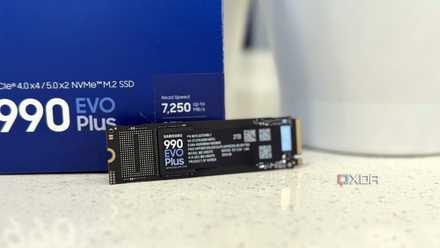
4 reasons you shouldn't use an SSD for long-term backups
Here's why you shouldn't consider using SSDs for long-term storage
3 Reduce spinning time
Physical wear and tear can be the end of your HDD
Inside your HDD, there is a motor that spins the platter where the data is stored. This is another potential point of failure for disk drives, but there are ways to preserve it. In Windows, you can set parameters like spin-down time and HDD sleep that control how long the drive will stay active until the system tells it to go idle again. The aforementioned write caching also accomplishes this.
It's worth nothing that Windows power plans do influence how your HDD behaves. If you use a high performance power plan, you might be forcing your disks to spin way longer than they need to, causing undue wear on the components. You can change these settings individually in Windows' advanced power settings.

3 reasons HDDs are still worth it in 2024
HDDs might be on their way out, but they're still better than SSDs in some areas
2 Keep some free space
Filling it up all the way can be detrimental
It's very easy to fill up your storage. Videos and photos are only getting larger and AAA game titles have ballooned in size over the last few years. But if you use your HDD often, it's important to keep some space free on the disk. Filling it up all the way can cause the drive to misbehave, both when accessing it and writing new data to the disk. It's rare for this to cause problems for drive health down the road, but the fewer reads and writes you can get away with, the better.
This problem gets exacerbated further if you use an HDD for your boot drive. If you do, I not only grant you my sincere condolences, but also a word of advice: keep at least 10% of the drive's total space free, and you'll have fewer headaches down the line.
1 Defragment your drive
The key to any well-performing HDD
Defragmenting a hard disk drive is a great way to keep it performing at the top of its game. The data written onto your HDD gets fragmented due to the way it's written and stored. Fragmentation occurs when data becomes scattered in non-contiguous blocks, requiring the disk to spin and move around more to access those files that are scattered across the physical platter.
Defragmentation is needed to reorganize these scattered file fragments, improving access times and system performance. Windows is pretty good at doing this on its own, but it's great practice to do it manually, especially if you find you're having issues with performance.

How to defragment or trim your drive on Windows 11
Defragmenting and optimizing your drive can improve the performance of your Windows 11 PC. Here's how to do it.
Keep your hard disk drive happy
HDDs will still be very useful beyond the current year. They may not be as fast or as compact as flash storage, but they're certainly not going away anytime soon. Although they don't wear as much physically, maintenance on solid-state storage is just as important, and should also be done regularly!