
Network-attached storage (NAS) drives are almost identical to those inside your desktop or laptop PC. They use the same technologies to store data but often come with additional features for server and NAS usage. While your desktop or laptop storage drives aren't designed to run for years without a break, NAS and server storage are a little different in that they're specifically designed to handle such a scenario. It's better for hard disk drives (HDDs) inside a NAS to continuously operate with its spinning platters than halting when the system isn't in use.
When should you replace a NAS drive?
S.M.A.R.T. is your new best friend
NAS drives will eventually fail, but when should you replace them? How does one learn about the status of installed drives? That's where Self-Monitoring, Analysis, and Reporting Technology (S.M.A.R.T.) comes in with each drive able to monitor itself for potential signs of failure. This technology analyses various metrics reported by the drive and when certain thresholds are met, the drive status will change to reflect its degraded condition. Although lots of data is reported through S.M.A.R.T., you need only be concerned with the overall status. Another sign your drive may be on the way out is sluggish performance.
Should S.M.A.R.T. report issues with a drive, the NAS operating system will send an alert and display all the necessary information through the storage management interface. This is when you know it's time to replace a drive. Even if it's not a serious issue and the drive is functioning as expected, I would still replace it to be safe. You know a failure is imminent and getting ahead of the curve makes things easier by rebuilding the RAID and safeguarding data stored on the pool. Otherwise, if all drives are running smoothly without any detected issues, you're good to keep relying on your NAS.
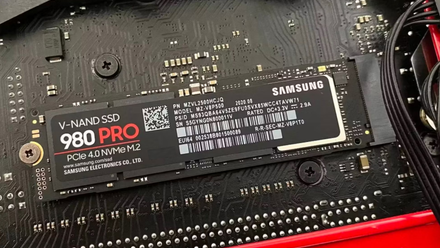
SSDs have a secret way to protect your data when they fail
You may not know it, but your SSD will try to protect your data when it fails so you can copy it off safely.
Keep a spare handy for the inevitable failure
Every drive fails, it's not a matter of if but when. A mechanical HDD has moving parts and more points of failure than a solid-state drive (SSD) but even an SSD can fail due to the controller giving up or too much data being written to the drive over time. Every drive has an endurance rating and a length of time the manufacturer estimates will occur before an issue arises — on average. A NAS drive, be it an HDD or SSD, should last for the length of the warranty and likely longer. Most NAS drives are covered by a three to five-year warranty, so you're safe for thousands of hours.
But any of your NAS drives could fail prematurely. It happens to the best of us and ignores how many safeguards you put in place. That's why I recommend having at least one spare drive ready should you encounter an issue with one already inside the NAS. When a drive starts to give out, there's a chance the RAID can suffer a failure or data be lost. Replacing the drive before it fails can help mitigate data loss and keep the NAS online. Some enclosures will even allow you to hot-swap drives — extracting an old one, replacing it with a new drive, and reinserting the tray without powering down the NAS.
Depending on the NAS OS, a spare drive can be initialized and configured so the system can automatically switch without user input.

Best hard drives for NAS
If you're looking for new hard drives to increase the storage capacity of your NAS, you've come to the right place
How should you replace a NAS drive?
This depends on which NAS you have
The process of replacing a drive will slightly differ from NAS to NAS, but it's important to figure out whether your enclosure supports drive hot-swapping. If it does allow the hot-swapping of drives, you can simply remove the failing drive and replace it with a spare without powering down the system. NAS without hot-swapping must be powered down to avoid data loss and damage to the system or the new drive. Once installed, the OS should begin rebuilding the RAID array once the new drive has been initialized and added to the pool.
Remember never to count on RAID as a means of backing up data.
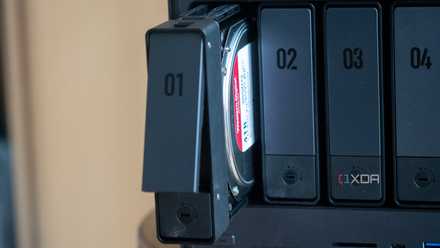
How to replace a failing drive inside a NAS without losing data
Here's what to do when you inevitably encounter a NAS drive failure.