
So, you're a few months or a year into your build, concerned about high CPU temperatures, even when your chip is mostly idle. It's easy to pin all the blame on your CPU cooler, especially if it's an air cooler. However, even budget air coolers are more than capable of taming most modern CPUs. Before you start thinking about a new cooler, consider the fact that your existing one might not be the problem at all. It might need a few tweaks, a bit of cleaning, or some help from the case or motherboard. You should try each of the following fixes before rushing into a cooler replacement.

5 signs your CPU cooler is not enough and needs an upgrade
Sometimes, it's the CPU, case, or fans - or perhaps it's your CPU cooler that needs an upgrade
Check for a bad mount
Your cooler might require reseating
Mounting a cooler on the CPU isn't complicated, but depending on the size and mounting mechanism, it's easy to be left with a subpar installation. Some air coolers can be gigantic, and it can be hard to see or reach the spring-loaded screws. Others might have a more complicated mounting system where each screw needs to be tightened just right. Whether you have an air or liquid cooler, insufficient mounting pressure can lead to poor contact between the heatsink and the CPU's IHS, leading to hotspots and high temperatures. Conversely, if you end up tightening the cooler too much, it can warp the CPU socket, heatsink's baseplate, or even the motherboard. Some CPUs need custom mounting brackets for proper contact with the cooler's heatsink.
If your CPU temps have been unusually high since you first built the PC, reseating it might fix the problem. And while you're at it, it's worth reapplying the thermal paste as well. Uninstalling the cooler almost always requires a thermal paste replacement to ensure there are no gaps between the IHS and the heatsink.

4 signs your thermal paste is past its prime
Don't wait until temps get out of control
Fix background apps that spike CPU temps
Get rid of bloatware and heavy extras
It's perfectly normal for your CPU to experience momentary thermal spikes as it boosts the clock speeds in response to an application request. That said, sustained high temps even during mostly idle loads can mean there's something wrong. Your PC might have one or more background programs stressing the CPU a tad too much. It's worth visiting the Task Manager and investigating which programs could be the culprits. On most systems, RGB programs, first-party bloatware, and some antivirus programs can keep your CPU in a near-constant frenzy, leading to higher-than-necessary temperatures.
You could switch to a lightweight antivirus program and RGB/wallpaper apps, and see if it helps. Programs like Asus Armoury Crate and Razer Synapse are virtually bloatware, and you can easily survive without them. Your CPU should be operating at its potential only during heavy loads. If it's exhibiting unusually high temperatures outside gaming or productivity workloads, then you should examine your PC's background activity before thinking about a new cooler.

5 popular programs that are destroying your PC's performance
Stop ignoring the silent performance killers on your PC
Your case airflow might be lacking
Consider more fans or a better case
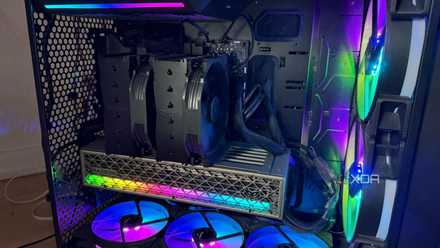
In many cases (pun not intended), the problem might be your case instead of the CPU cooler. Your chassis needs to tick multiple boxes to ensure optimal airflow for your PC: air intake, number of fans, and fan configuration. If you prioritized looks over mesh panels or skipped adding an exhaust fan when building the PC, your system might be gasping for cool air. Even if you install sufficient intake and exhaust fans, configuring them properly is crucial to ensure positive pressure inside the case.
Consider adding a fan or two to improve airflow or switch to a case with fewer glass panels and more mesh panels to let the system breathe. If you have stray cables hanging around, disrupting the airflow, tying them up properly and moving them out of the way can also help your CPU temperatures. You should also re-examine your CPU fan curve to ensure your cooler isn't optimized for silence at the cost of performance.

5 airflow mistakes I see in almost every mid‑tower build
They might seem small, but these airflow mistakes are a strict no-no in any mid-tower PC
Give your tower a deep clean
Don't let dust force you into a cooler replacement
Before you know it, your PC will start showing dust deposits. In a span of a few months, your case and cooler fans, GPU fans, and all heatsinks can get clogged, especially if your neighborhood is prone to dust. This can easily block the flow of fresh air into the case, raise the thermals across components, and force your fans to go into overdrive. Cleaning your PC regularly can seem time-consuming, but if you give it a quick wipe once every month, you'll avoid the need for a deep clean. You'll still need to disassemble the cooler to clean the heatsink once every 3–6 months, but that isn't a big commitment. Your CPU cooler might be more than capable of keeping your CPU cool, but it's on you to provide it with optimal airflow by keeping your PC dust-free.

I know they'll help but I'm too lazy to do these 5 PC maintenance tasks
I can justify being lazy as long as these PC maintenance tasks don't affect my system performance
Your motherboard's power profiles might be the culprit
Don't keep shooting in the dark
It's not uncommon for manufacturers to ship motherboards with pre-enabled overclocking profiles or raised power limits. This kind of blanket configuration may cause your CPU to run hotter than necessary. Settings like Multicore Enhancement (MCE) on Intel CPUs and Precision Boost Overdrive (PBO) on AMD CPUs might not strike the best balance between performance and thermals. Every CPU die is different, and you can't expect the same settings to yield the same results on every sample. If you think your cooler isn't keeping up with your CPU temps, check the BIOS to confirm if your motherboard is responsible for overvolting and overheating your CPU.
Thermal concerns are one thing; sustained overheating can also degrade your chip and shorten its lifespan. You might incorrectly blame your CPU cooler if you aren't even aware that your motherboard is boosting your chip beyond what's necessary. Intel's 13th and 14th Gen Core CPUs were mired in an overvolting scandal where Intel silently allowed motherboard manufacturers to boost these chips as high as they pleased. The CPUs suffered permanent damage, and the issue was only resolved months later with multiple BIOS updates.

Your motherboard might be overvolting your CPU and damaging it, here's how to check
Default BIOS settings may be reducing your CPU's life, but you can fix this
Bonus: Undervolt your CPU
Optional but highly recommended
Undervolting your CPU shouldn't be a necessity to control high CPU temperatures, but it's still a decent perk to have. By tweaking the voltage-frequency curve of your CPU, you can make your CPU run at a lower voltage but the same frequency. This is possible due to CPU manufacturers shipping chips with slightly more voltage than necessary to avoid instability. With some hit and trial, you can find a lower but still stable voltage that doesn't hurt your CPU's performance in any significant way. The benefit is that your CPU can drop more than a few degrees, allowing you to run a more silent and longer-lasting system.
Some users always undervolt a new CPU every time they build a PC. They swear by it due to the thermal benefits and minimal performance penalties. In fact, you might even improve the performance of your chip due to the additional thermal headroom. Undervolting isn't complicated either. You simply need to reduce the core voltage by a few millivolts (mV) and test the system stability after every modification. When you start seeing signs of instability, you can revert to the previous stable setting.
These are the only benchmarks I trust when stress testing my undervolt
OCCT and FurMark are all I need for testing my CPU and GPU
You don't need a new cooler — just fix what you already have
In many cases, it's not the CPU cooler that's to blame for high CPU temperatures. Your motherboard might be overvolting your CPU without your knowledge, or poor airflow and dust deposits might be at fault. Even an improper mount can lead to poor contact and high temperatures. Checking your system for these issues and fixing them can bring your CPU temps in check without spending on a new cooler.